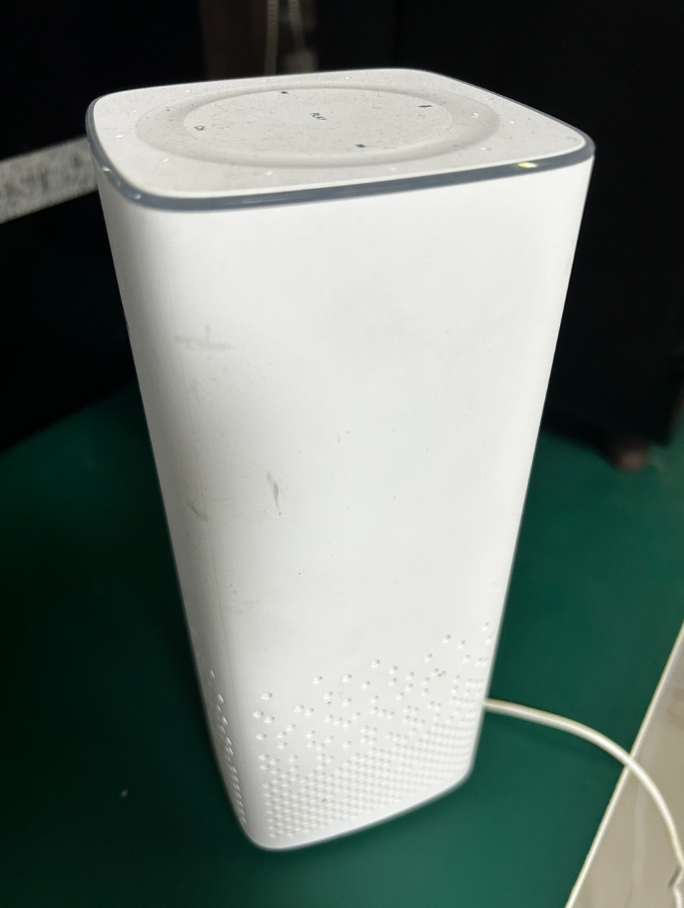
XiaoAI Smart Home Configuration Guide
Related Portals
Xiaomi IoT Open Platform: https://iot.mi.com/ Xiaomi IoT development help docs: https://iot.mi.com/new/doc/accesses/cloud-access/overview XiaoAI App: download from app stores Mi Home App: download from app stores
Integration Flow
- Confirm that the Xiaomi IoT developer account has cloud-to-cloud integration permission.
- Configure the Ubases IoT OAuth 2.0 and device-control endpoints on the Xiaomi IoT Open Platform.
- Complete account linking in the Mi Home app.
- Create and configure a Xiaomi IoT cloud-to-cloud product.
- Map the Xiaomi product functions to the corresponding Ubases IoT product functions.
- Provision a device, synchronize it to Mi Home, and test device control.
- Test voice commands with XiaoAI.
Xiaomi Open Platform Configuration
Xiaomi Developer Account
Xiaomi IoT supports cloud-to-cloud and SDK-based integration. To enable speaker control through this solution, the developer account must have cloud-to-cloud integration permission. Availability and application policies may change; confirm current eligibility with the Xiaomi IoT Open Platform.
Accounts with cloud-to-cloud permissions:

Accounts without cloud-to-cloud permissions:

Xiaomi Open Platform Server Configuration
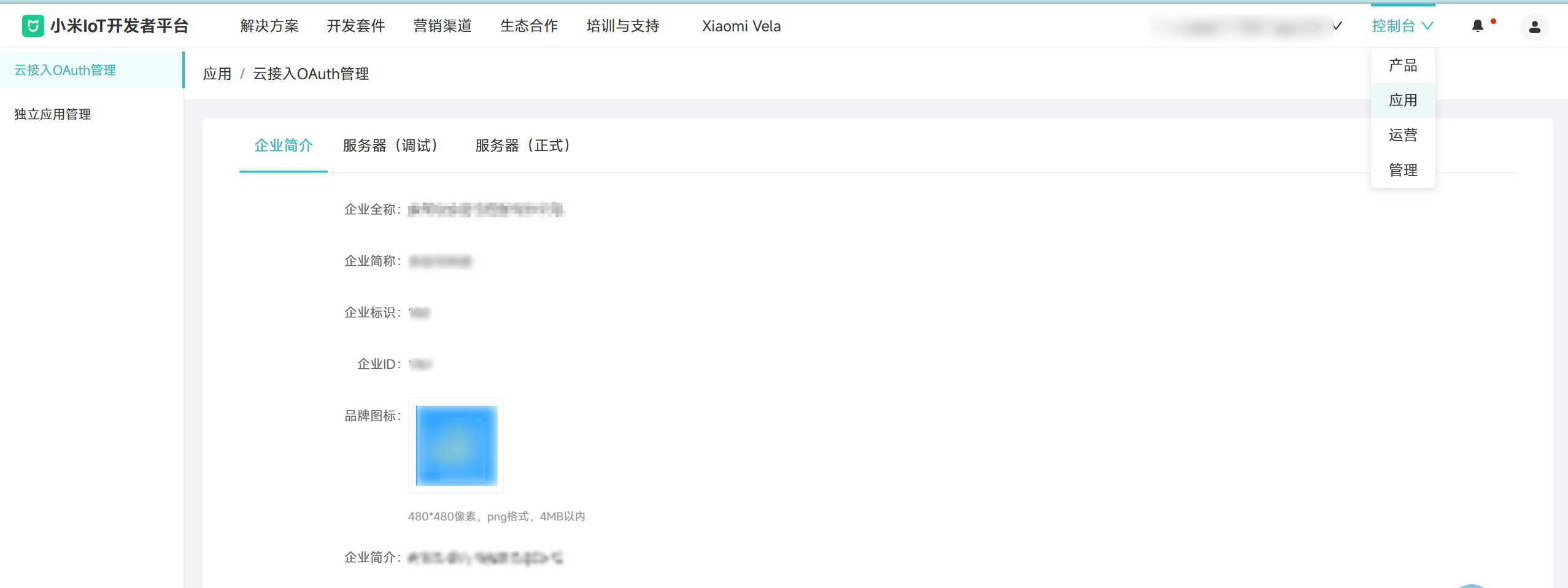
Go to Console → Applications → Cloud Access OAuth Management, and configure the Ubases IoT OAuth 2.0 endpoints so that Xiaomi can call your authorization and control APIs via OAuth 2.0;
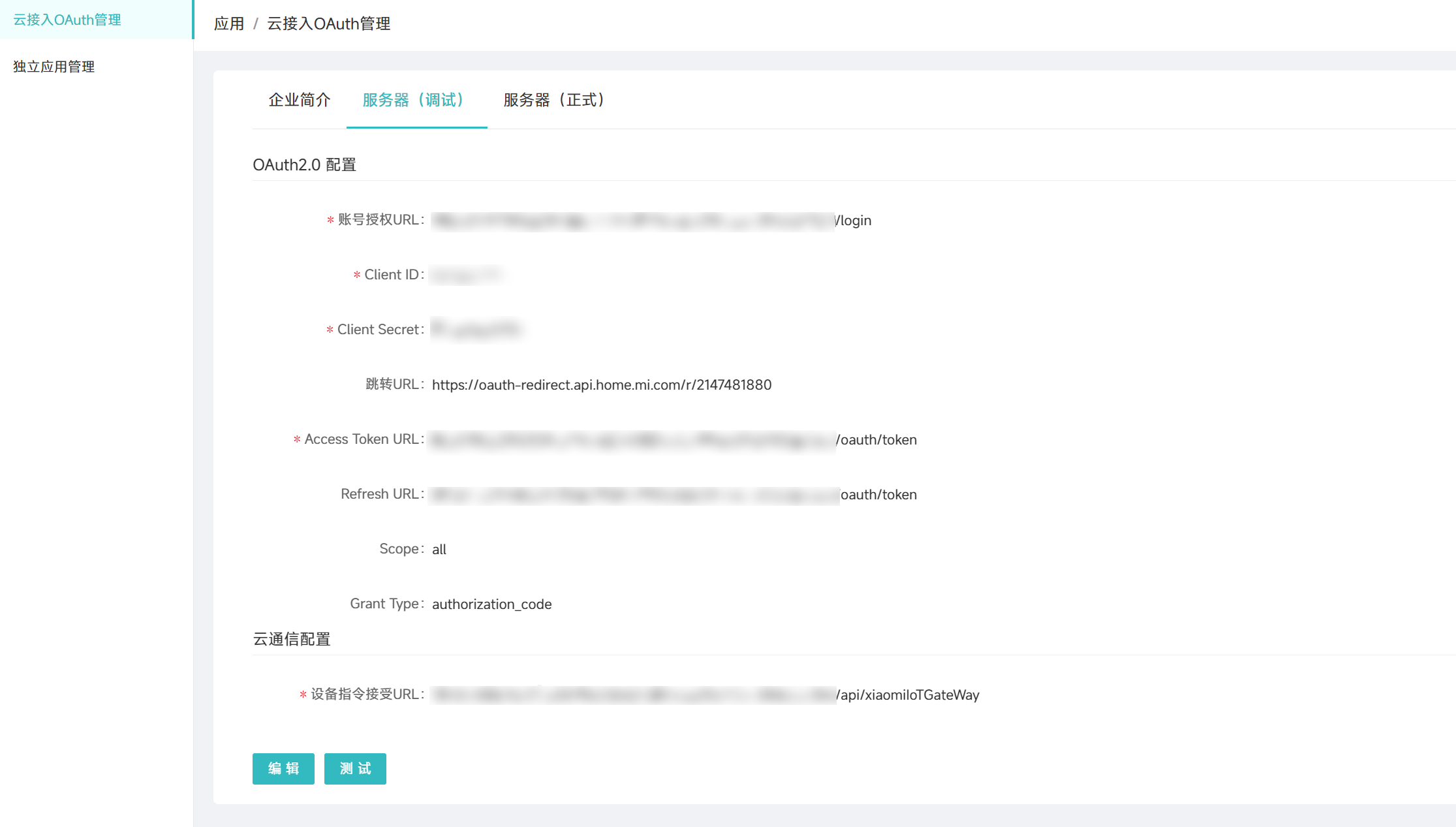
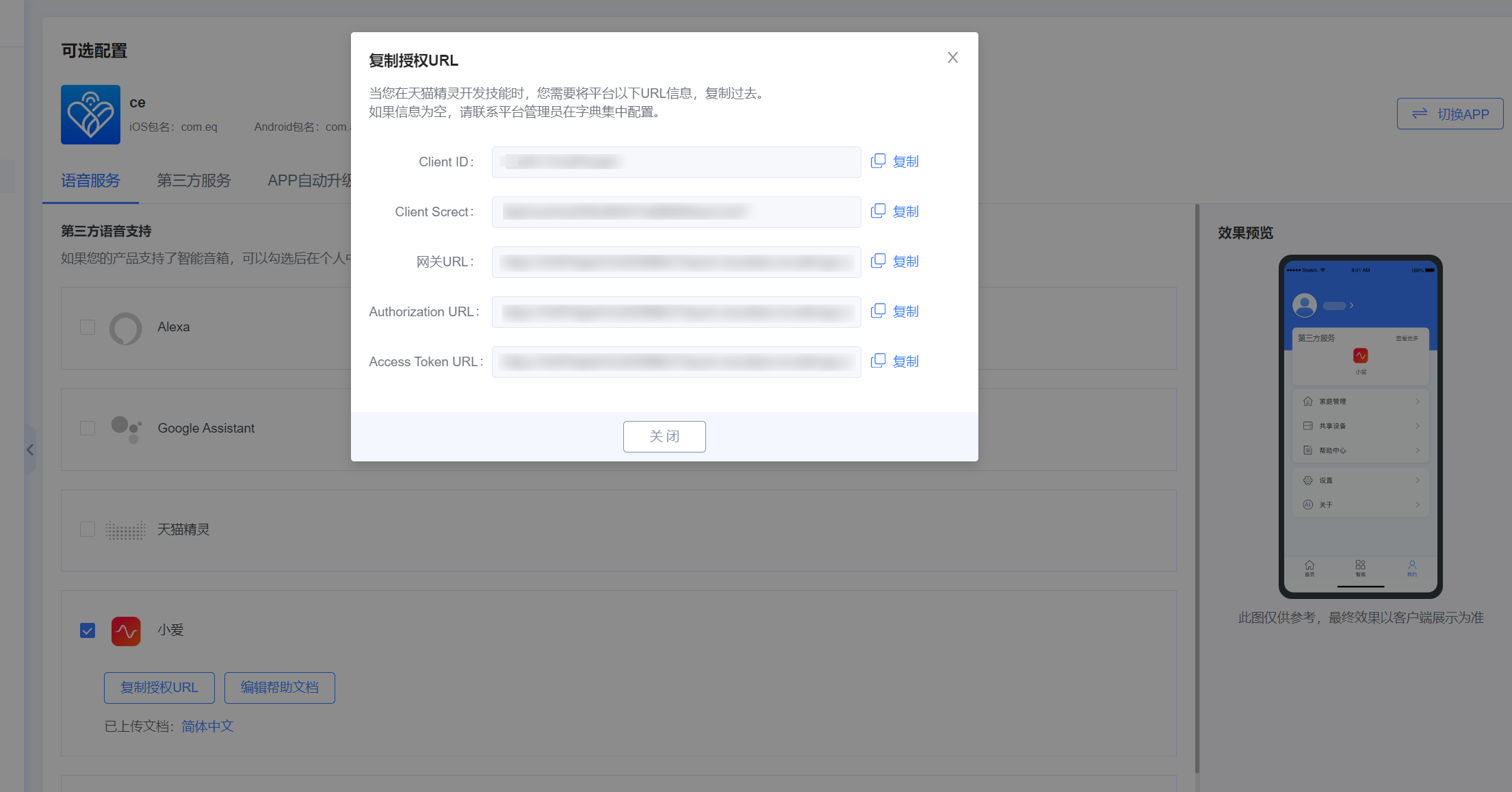
The parameters above can be obtained from the Optional Configuration section of the Ubases IoT platform. Copy the OAuth values exactly; do not manually construct or reuse endpoints from another voice platform.
Click Test to open the OAuth 2.0 authorization page;
If the authorization login page opens successfully, enter the App account and password, click Login, then confirm authorization. If Xiaomi does not return an error JSON, the configuration succeeded;
Common causes of failure include using HTTP instead of HTTPS, an invalid or inaccessible endpoint, a redirect-URI mismatch, or an unsupported exposed port.
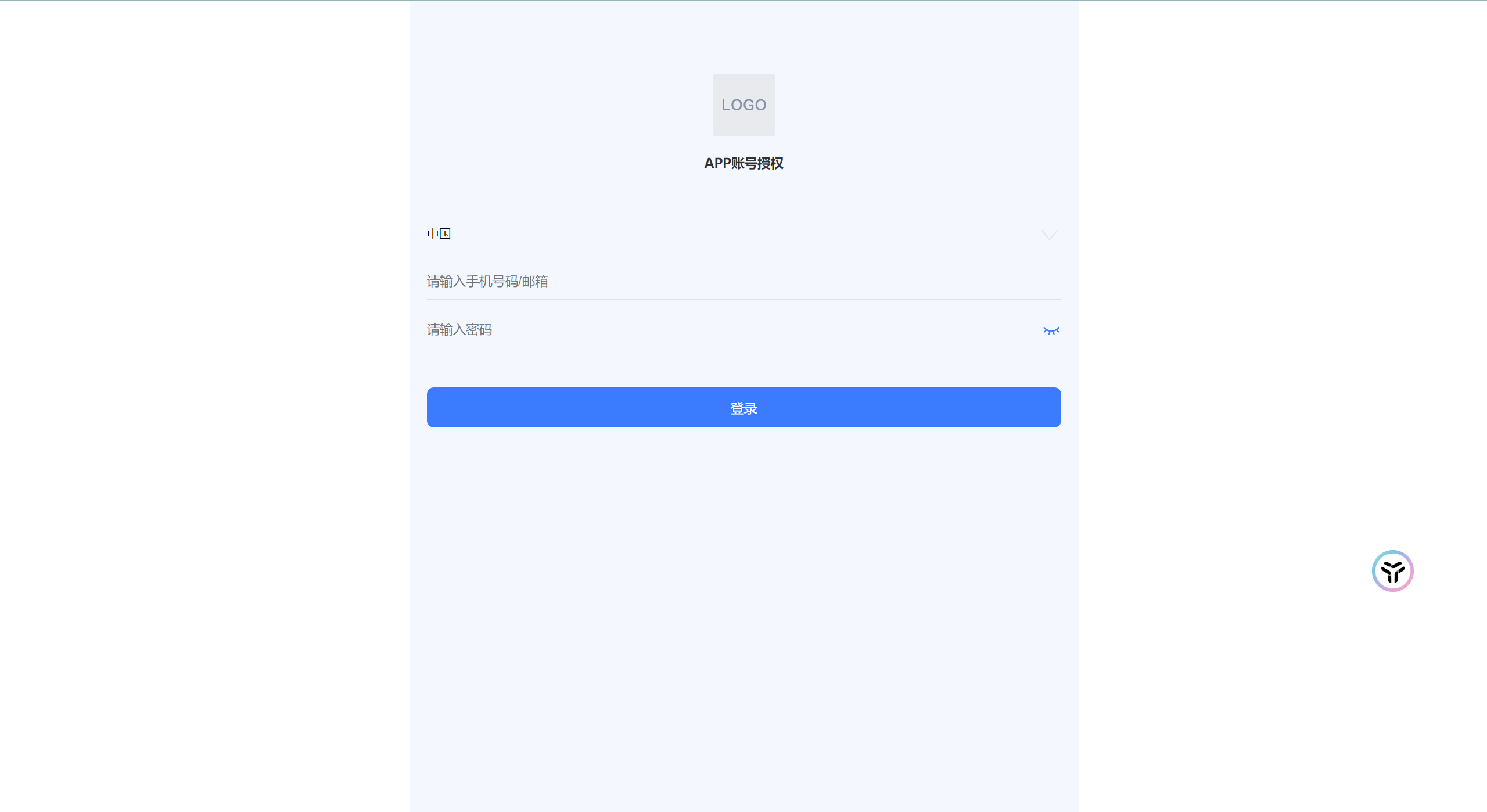
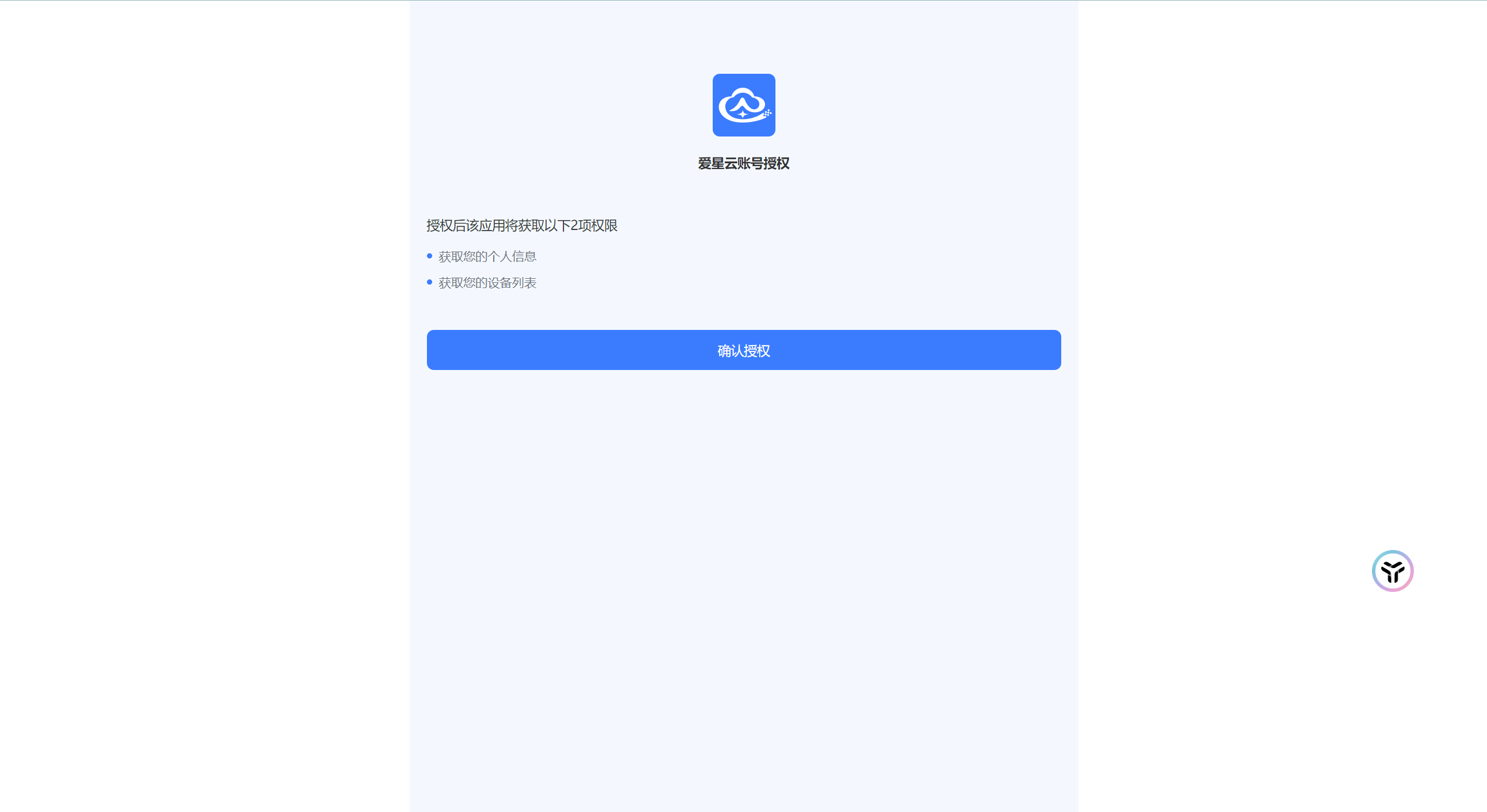
Authorize via the Mi Home App — this is critical for verifying server configuration (sign in to Mi Home with the account bound on the Xiaomi developer platform)
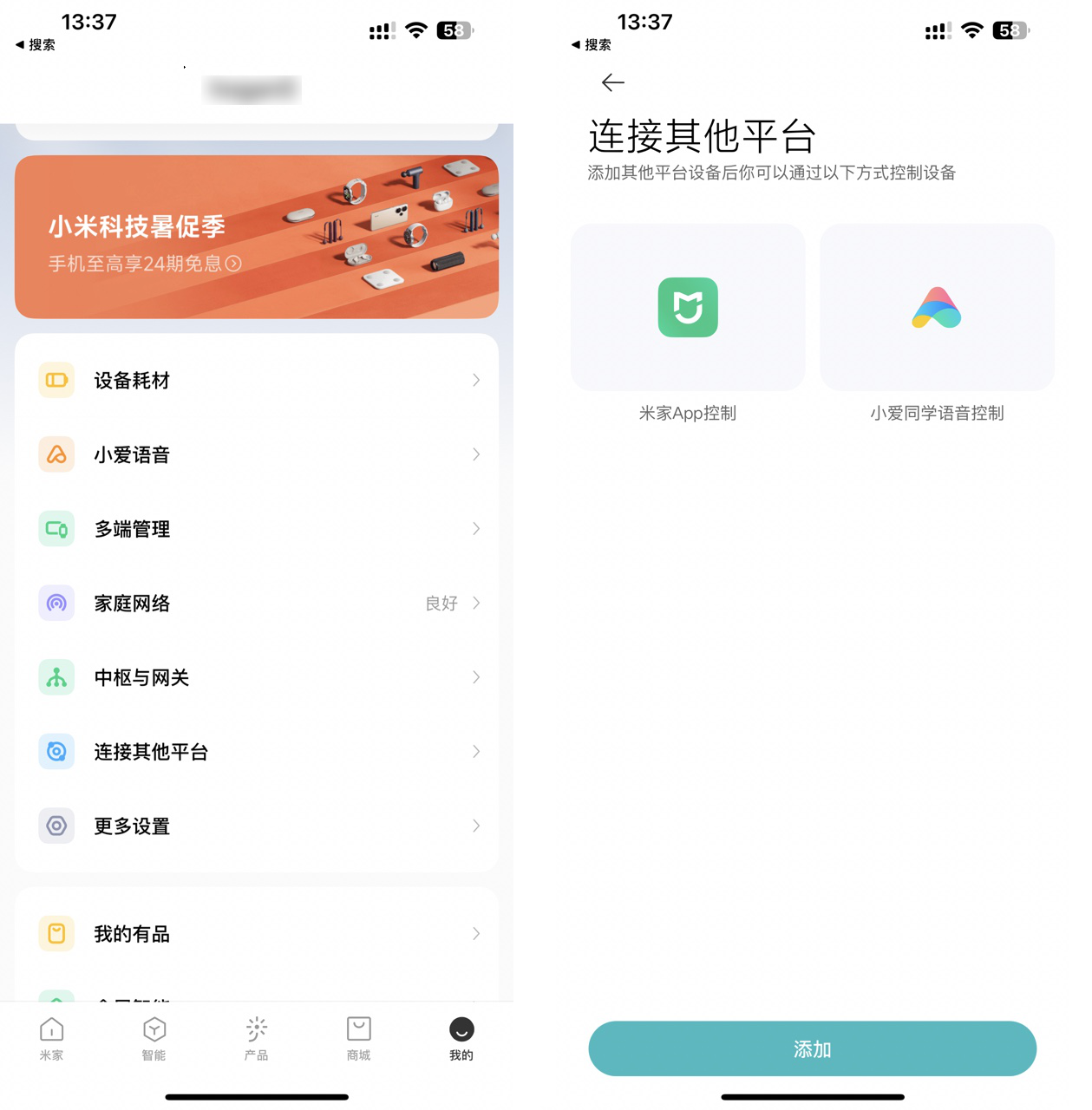
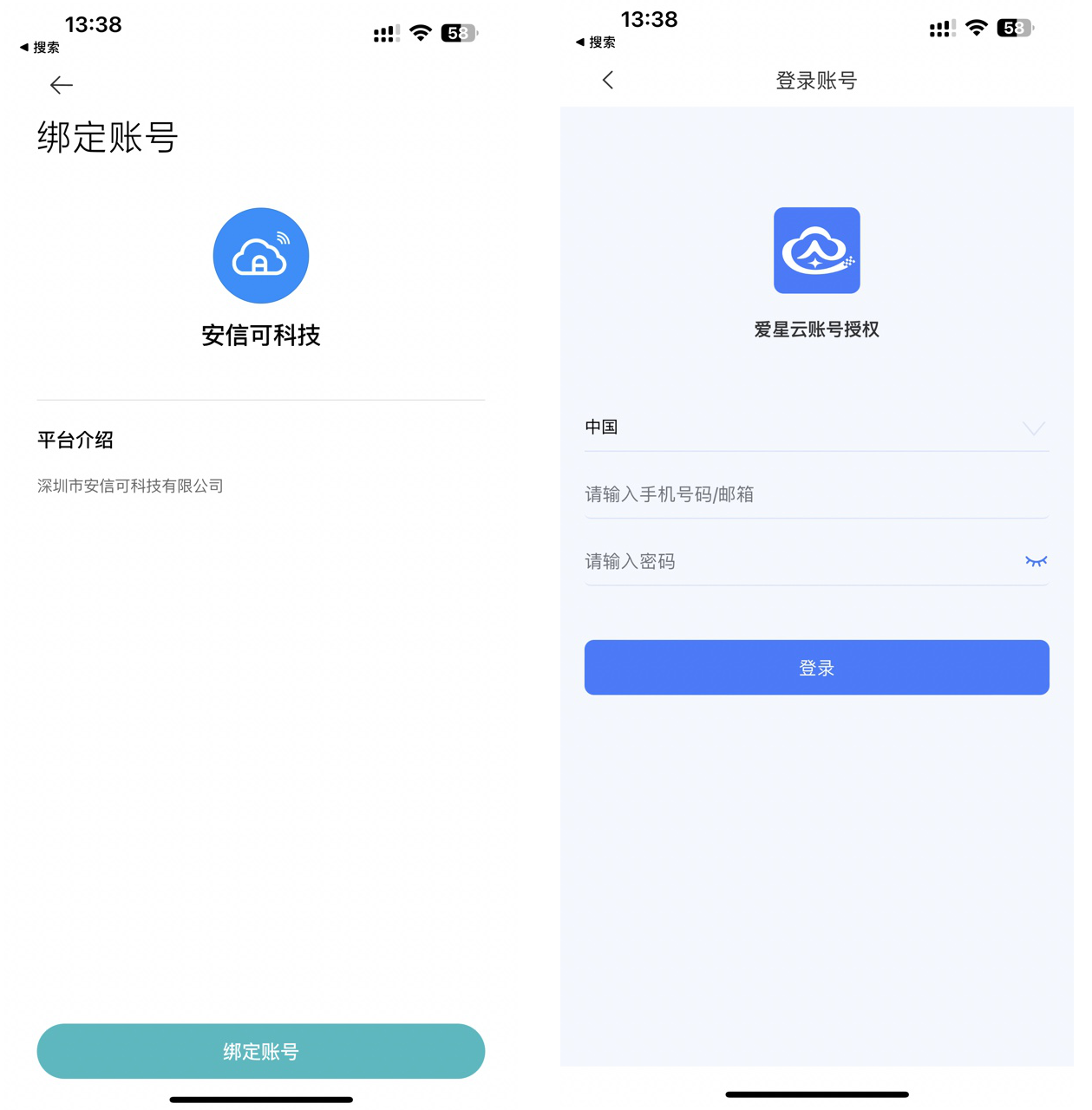
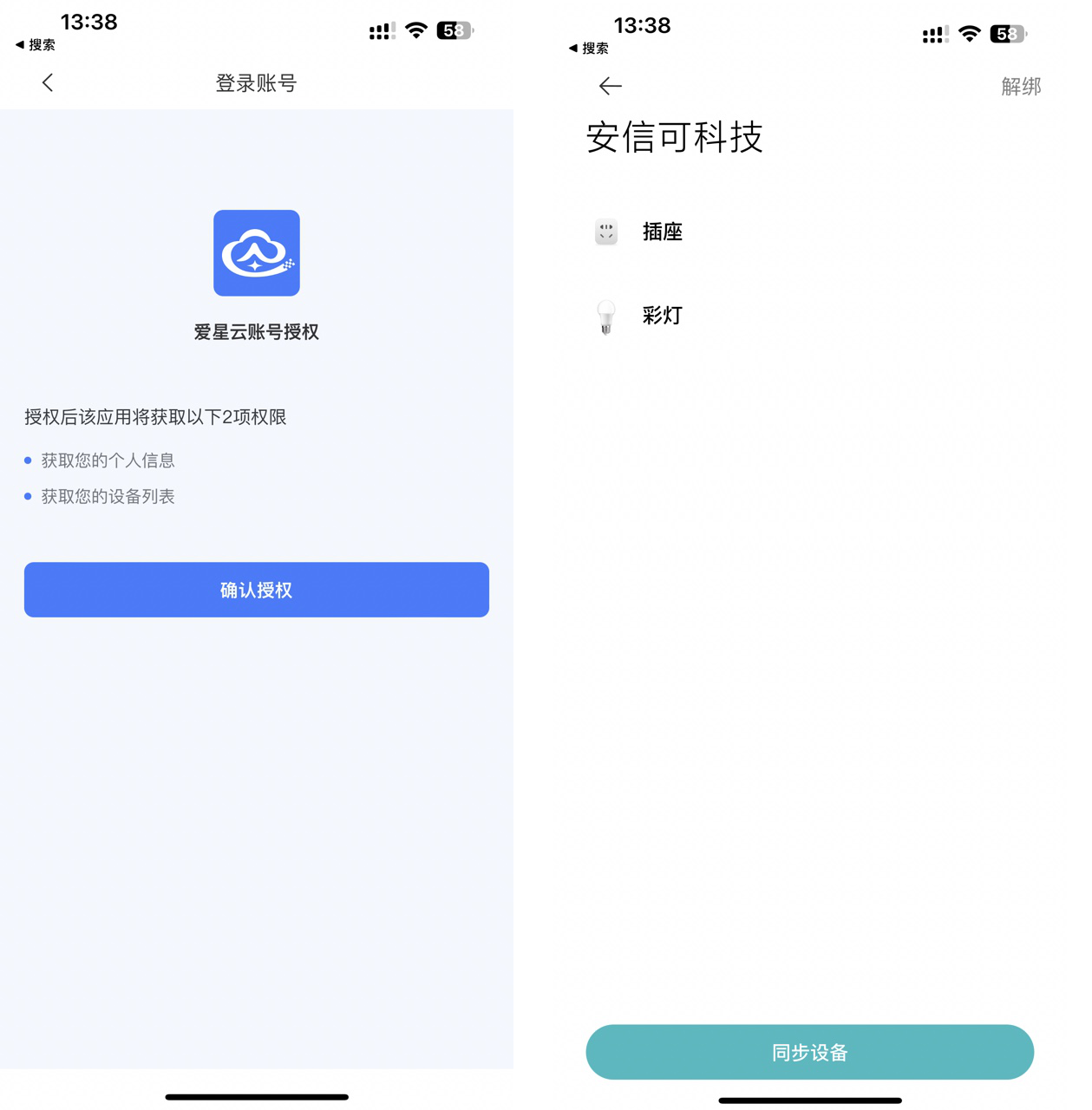
Seeing the page below means authorization succeeded, but no provisioned devices are available yet. After you provision a device in the App provided by Ubases IoT and configure voice control for its product, synchronize the device here.
Create a Xiaomi IoT Cloud-to-Cloud Product
When creating a product, the product type determines the default feature list created by the platform;
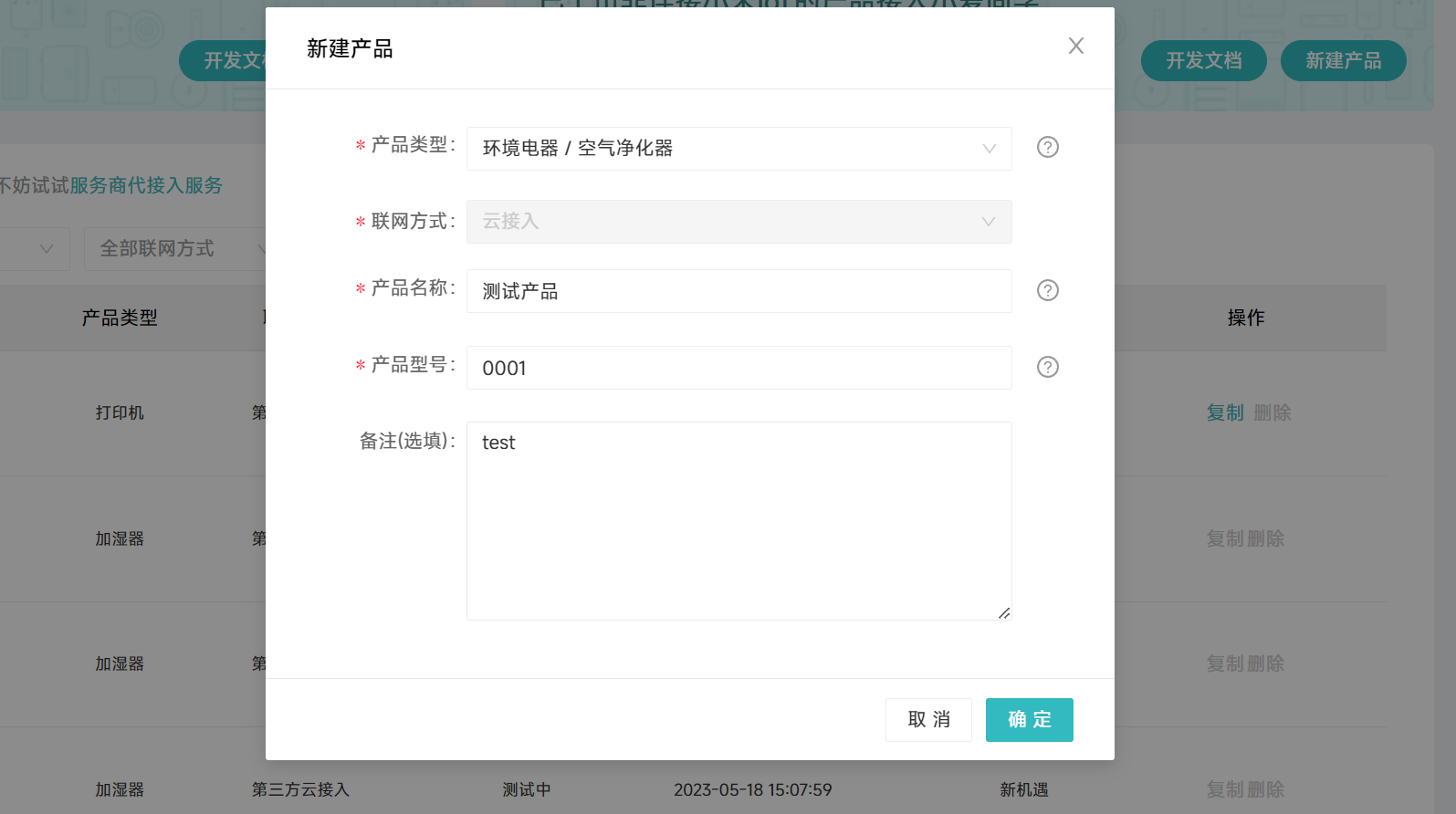
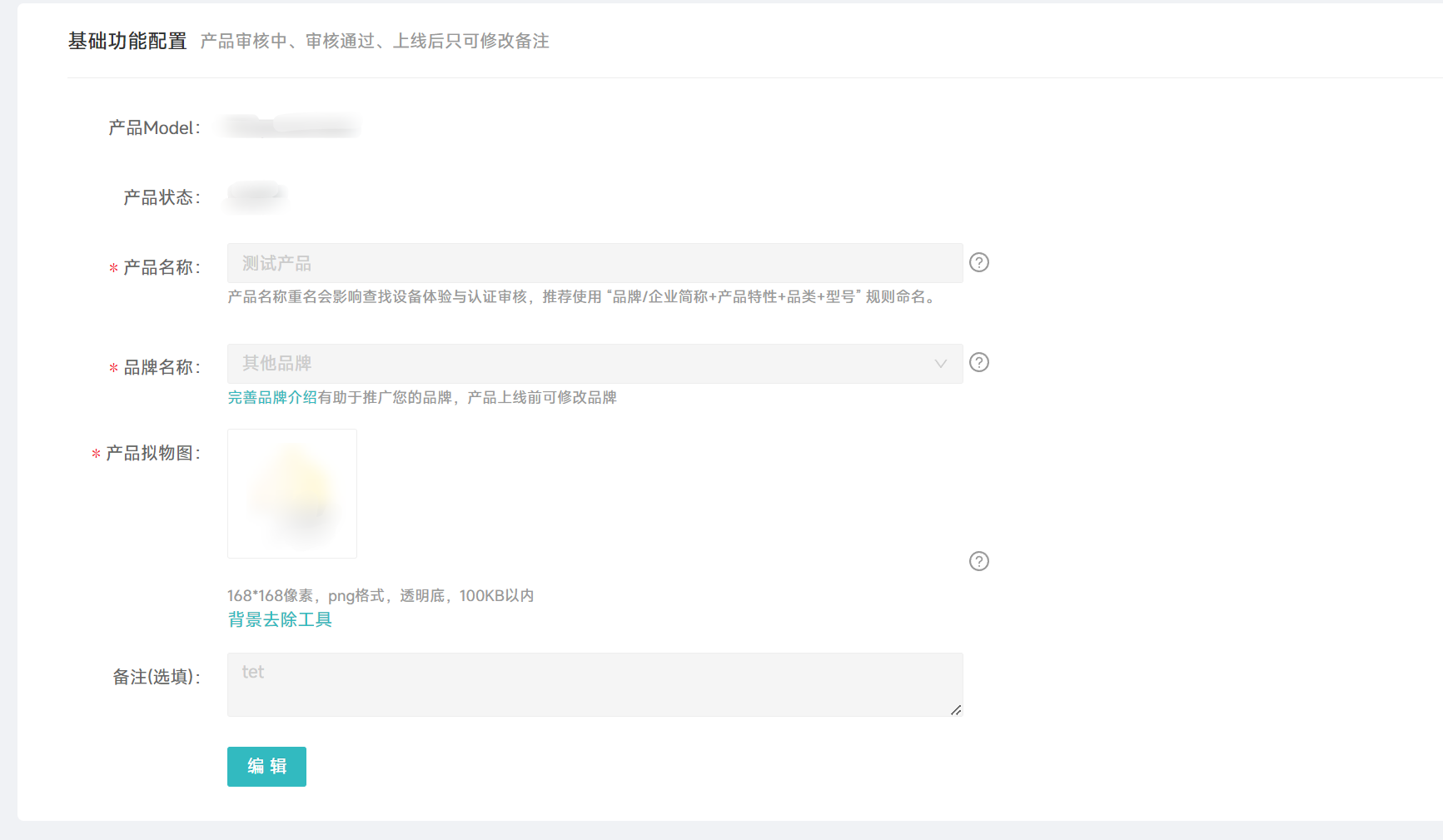
After creation, edit the basic information (important). Without editing it, you will be unable to view the voice command list supported by configured features.
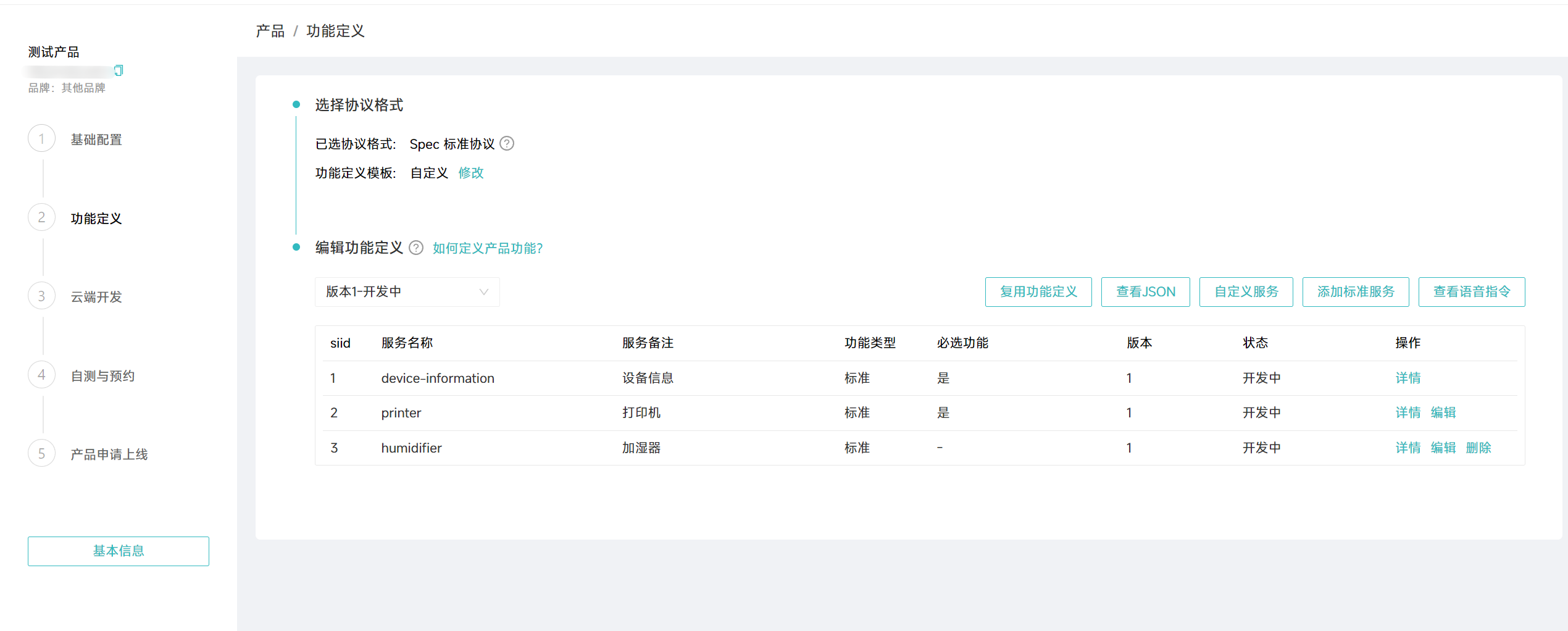
Based on the product category you select, the Xiaomi platform sets default Thing Model features. Developers can add and modify features as needed; not all features support voice control;
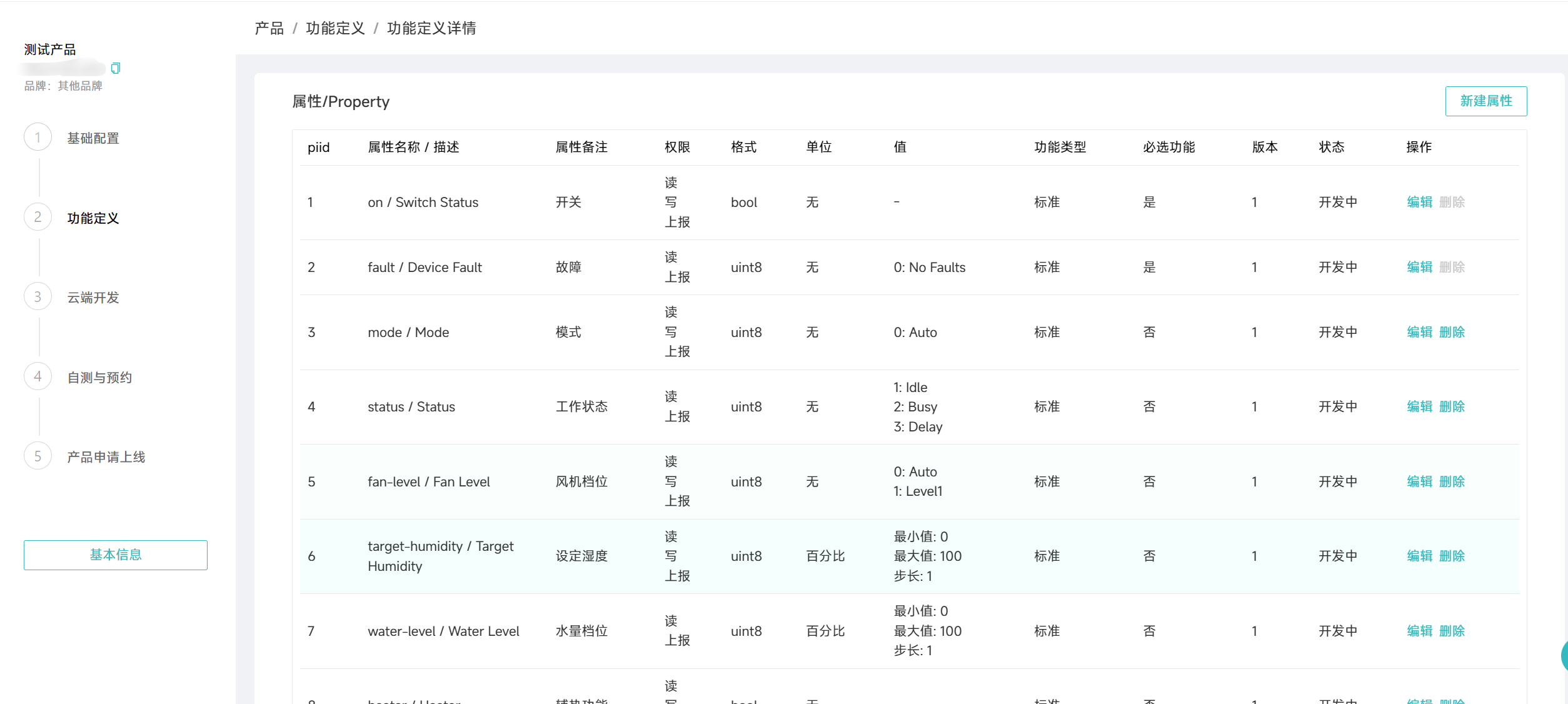
Ubases IoT Configuration
Configure Ubases IoT Smart Product and Voice Control
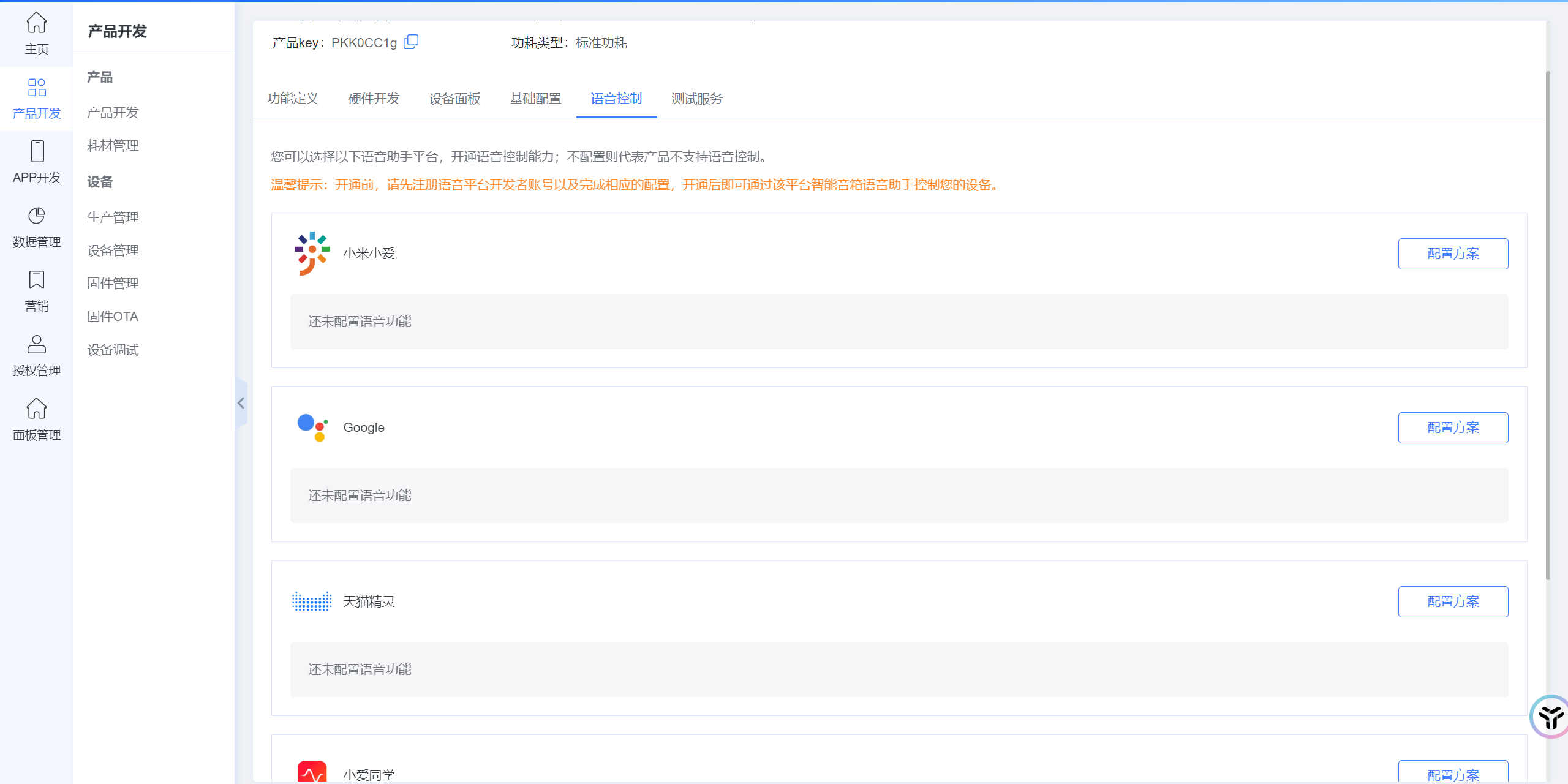
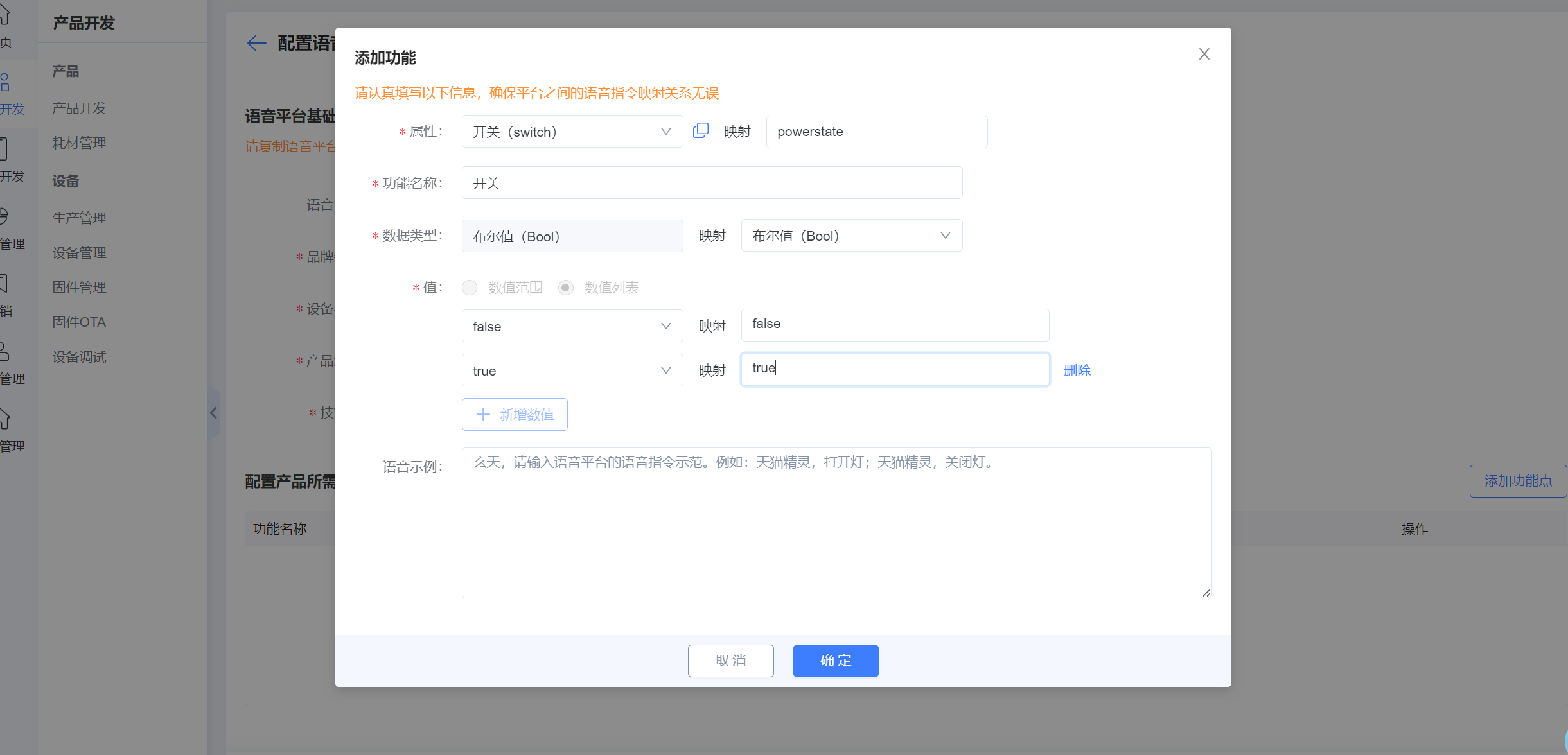
The device type ID must be obtained from the feature definition on the Xiaomi developer platform
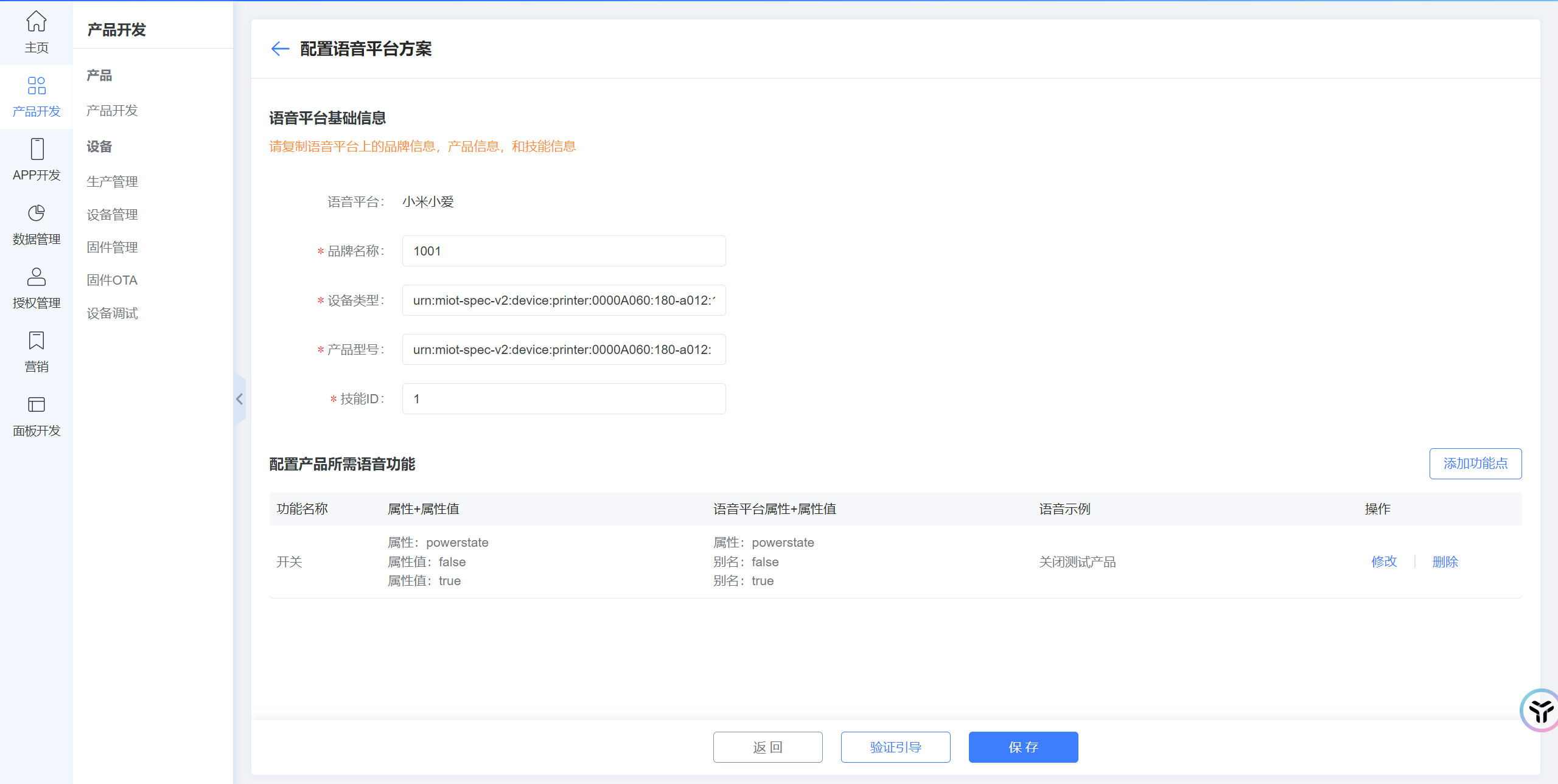
Voice Testing
Test Commands with the Test Tool
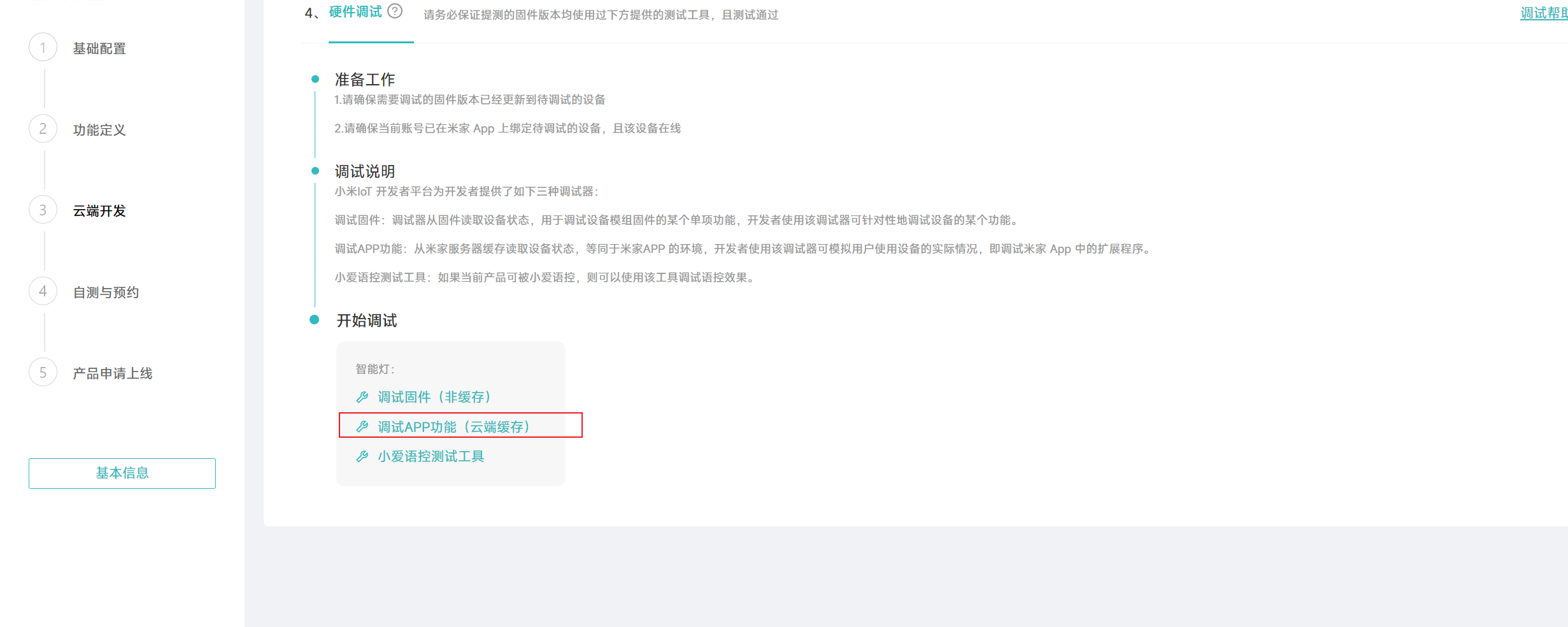
Before this step, provision the device and bind it to the same account used during OAuth authorization. Then go to Mi Home app → Connect to other platforms, synchronize devices, and start debugging. You will see Debug App Features (cloud cache).
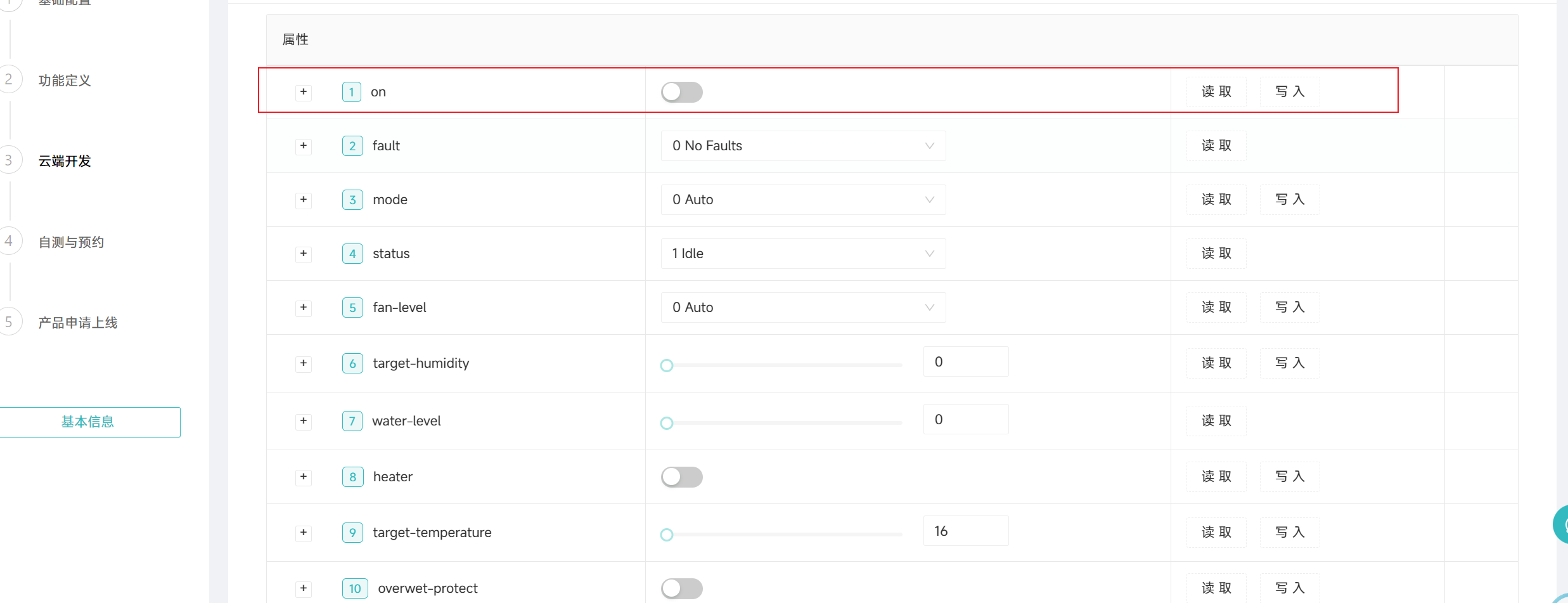
The product may have many selected features, but in platform configuration we only configured power on/off. You can click Read or Write; after clicking, the control command is sent to the platform, then to the device, enabling device control and status retrieval;
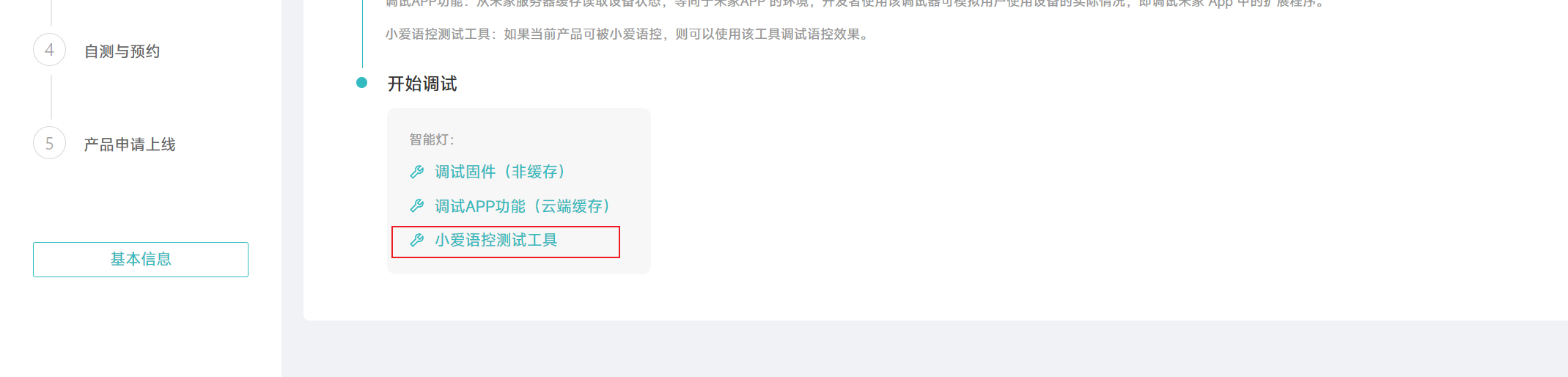
Test Voice Utterances with the Test Tool
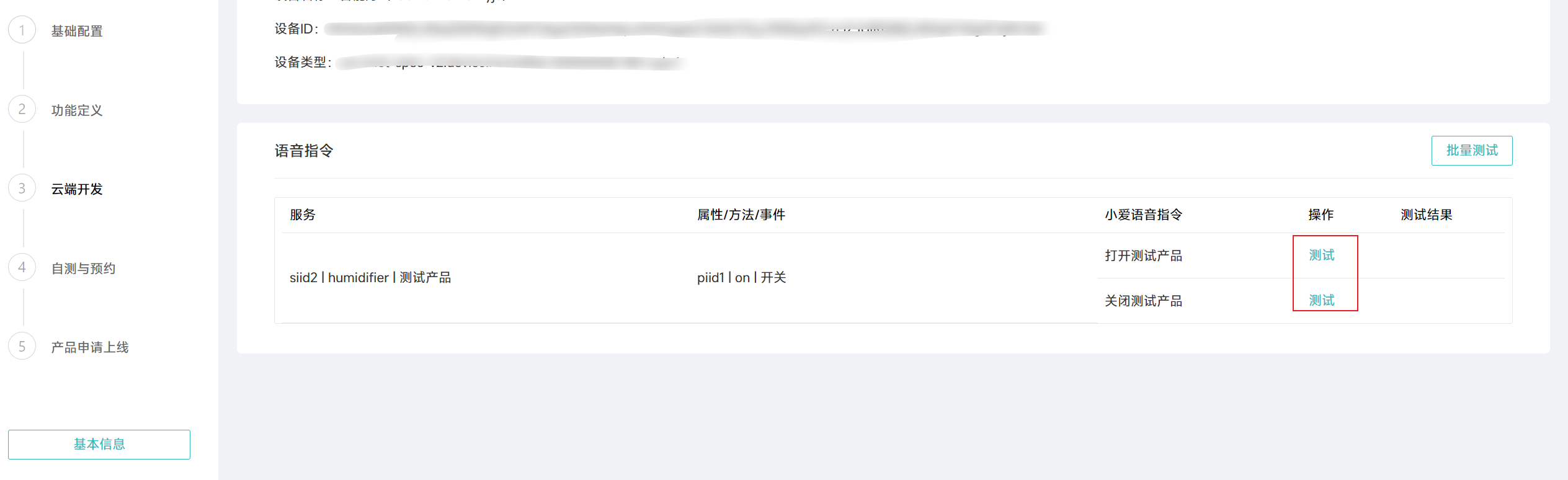
Open the XiaoAI voice-control test tool. The platform generates utterances for you; click an utterance to push a test;
Test Commands with XiaoAI
Finally, bind the speaker in the XiaoAI app and say, “XiaoAI, turn on the test product.”