Huawei Push Service (Vendor Push)
Prerequisites
- You have registered a Huawei developer account and completed real-name verification. Registering under a company entity is recommended.
Steps
Open and sign in to your Huawei developer account
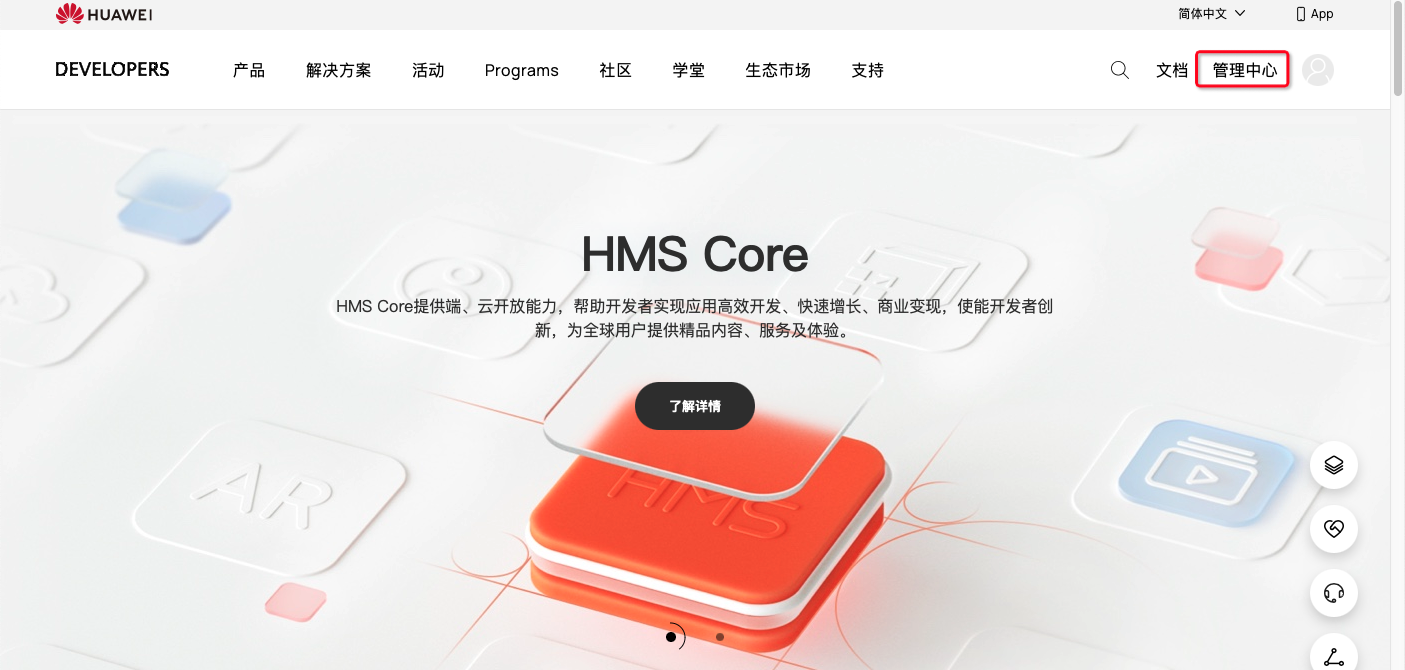
Click Management Center.
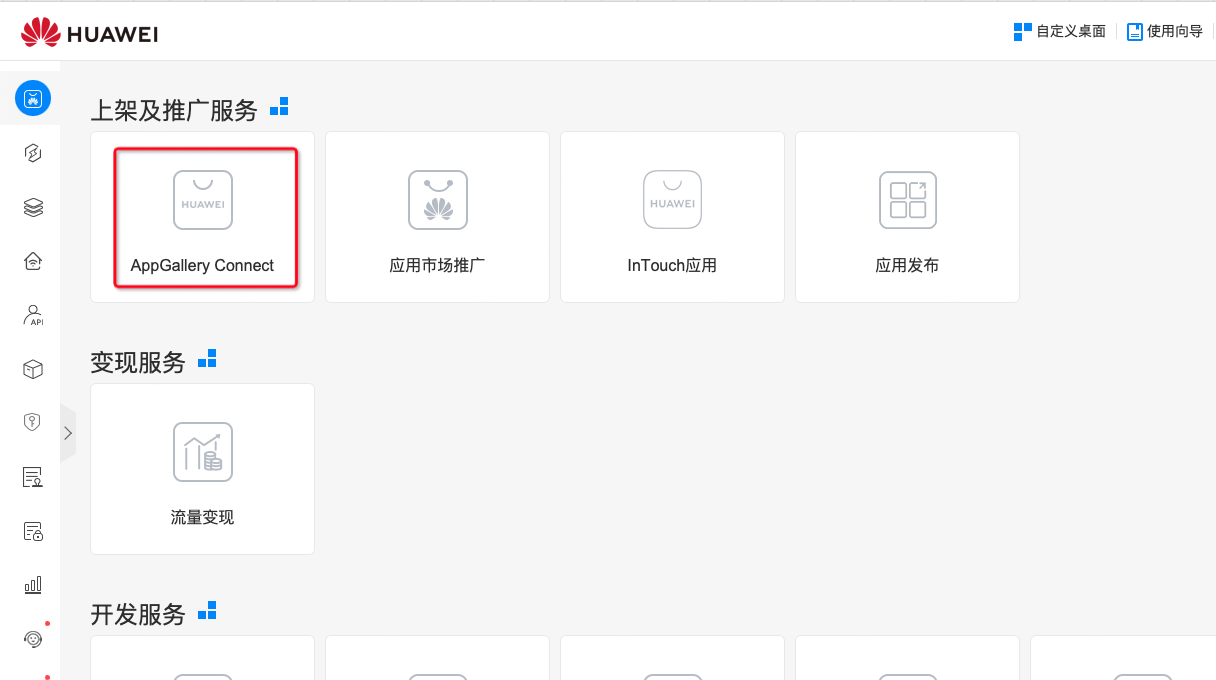
Click AppGallery Connect.
Click My Apps.
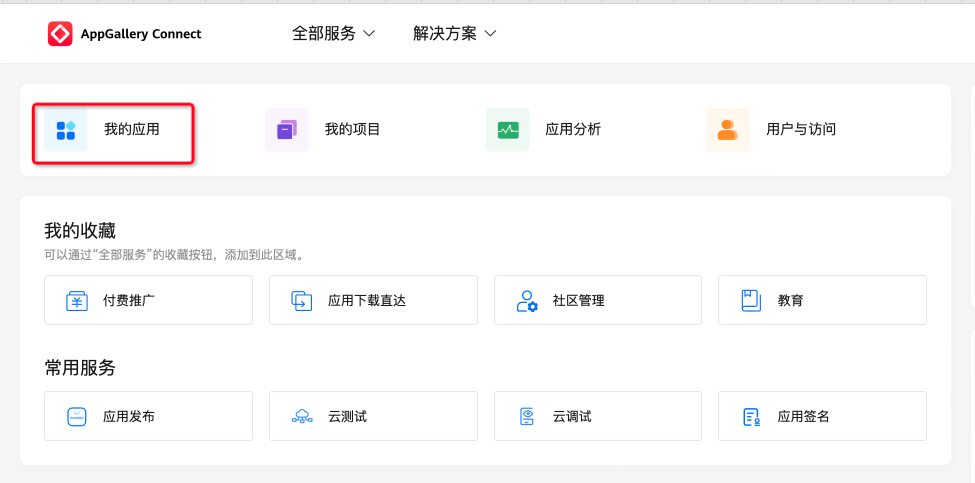
Click Android apps. If you have not created an app, click New; otherwise click your app in the list.
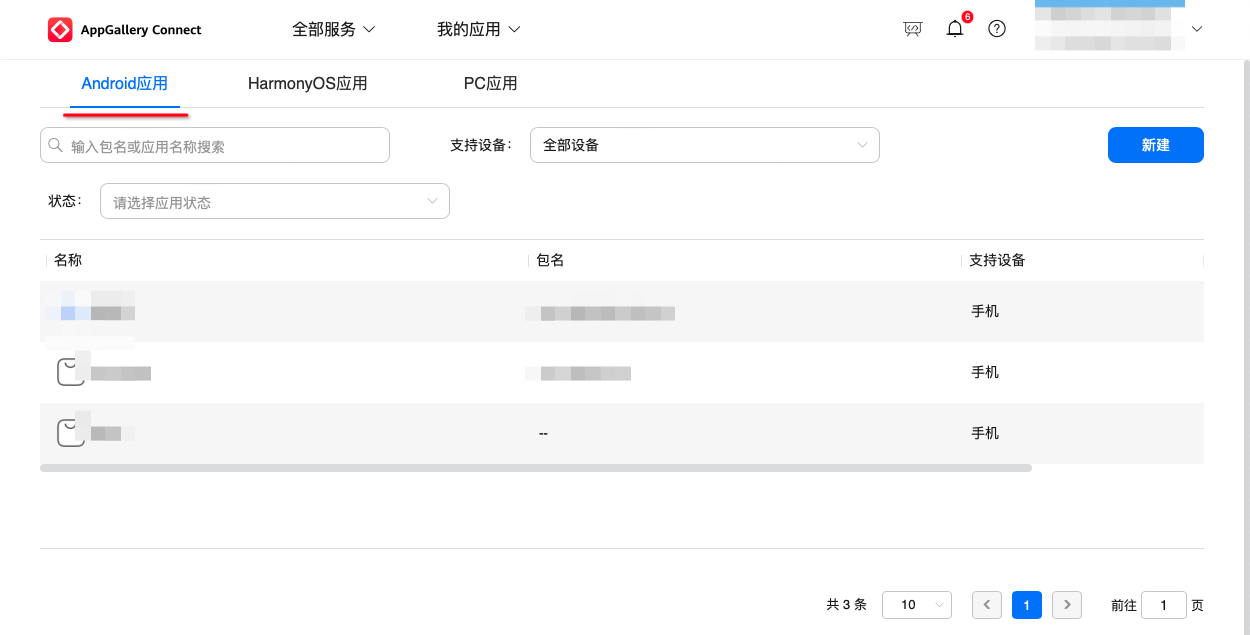
Information for creating an app. Click Confirm when done.
Package type: APK (Android app)
Supported devices: Phone
App name: copy from the Ubases IoT development platform
App category: App
Default language: Simplified Chinese
Check Add to project to enable Huawei Push (generally one APP maps to one project; experienced Huawei developers may decide otherwise)
Project name: keep the same as the app name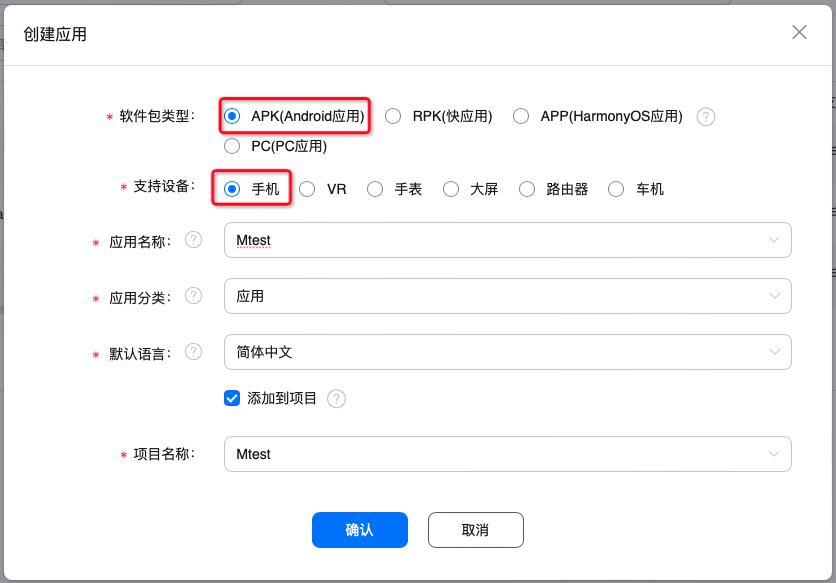
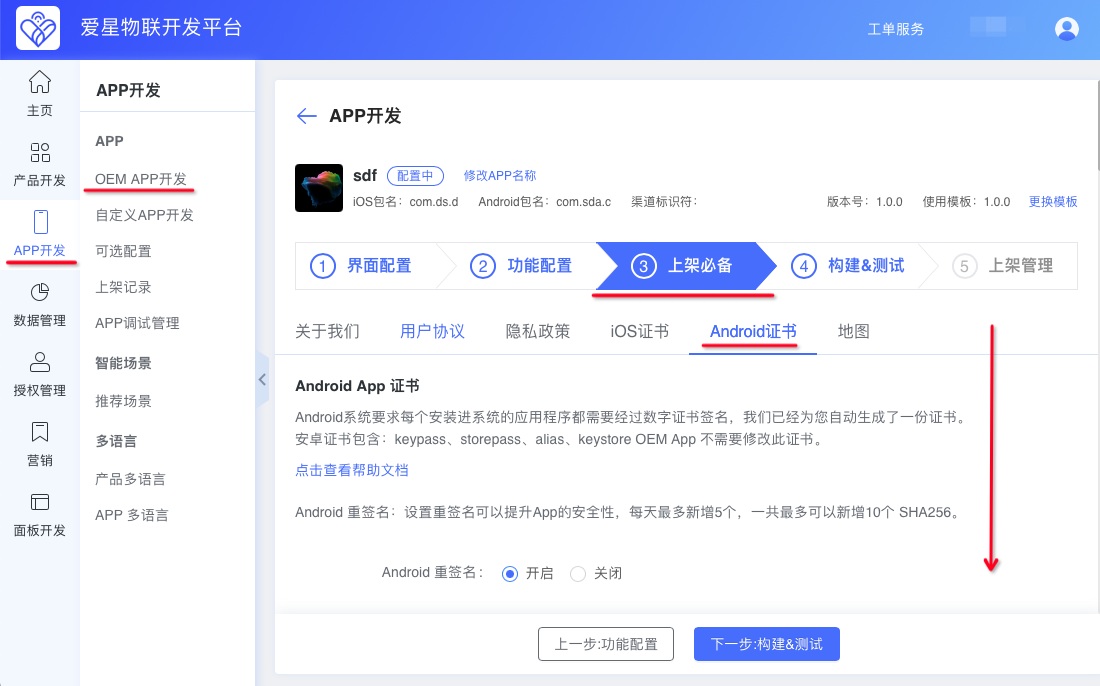
Where to copy the app name and package name on the Ubases IoT development platform.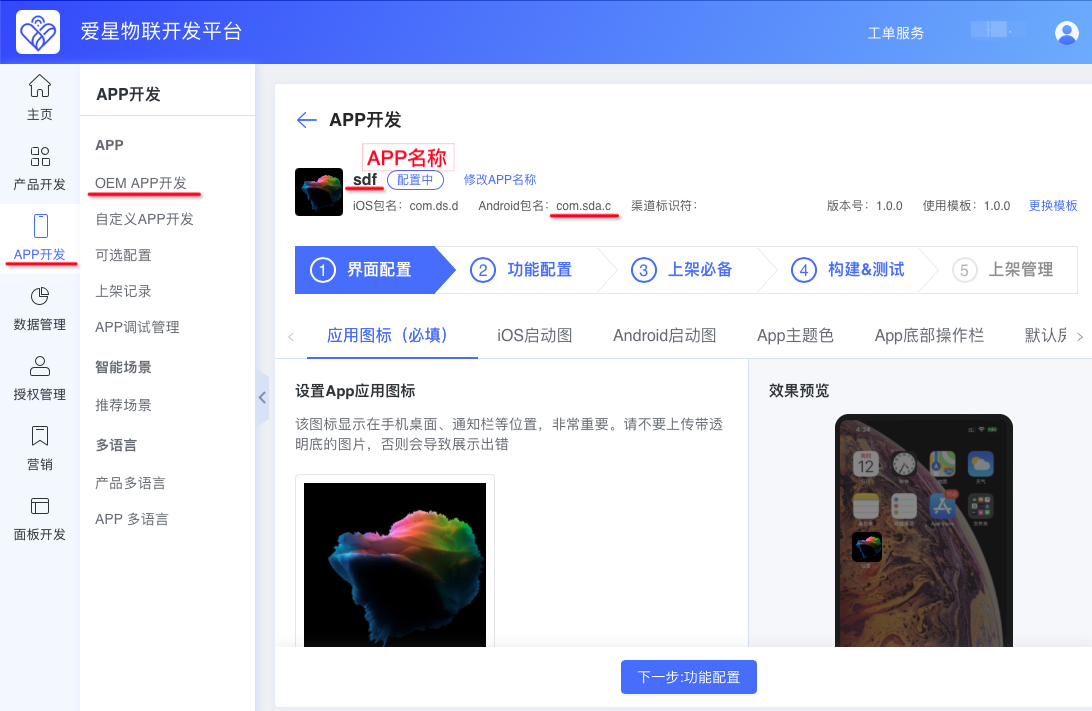
Click My Apps > My Projects.
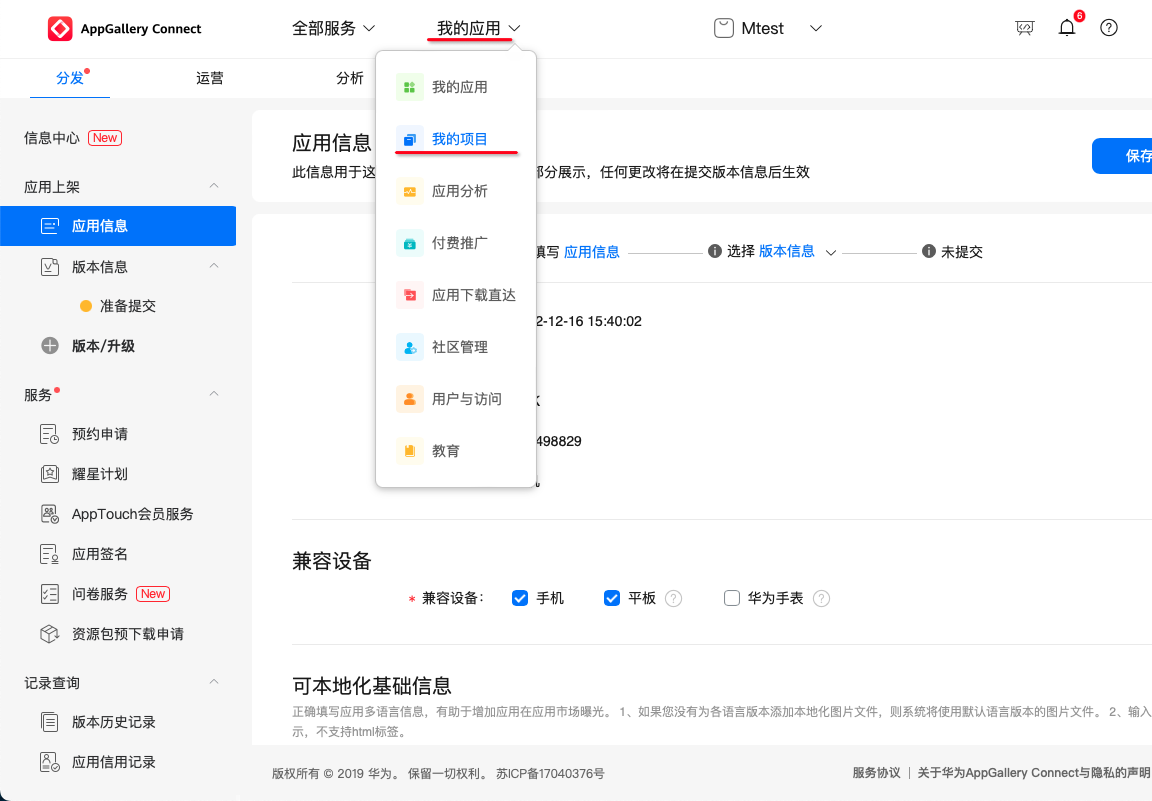
If prompted “Page information has not been saved or submitted. Leave anyway?”, click Confirm.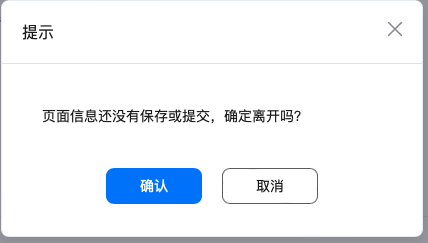
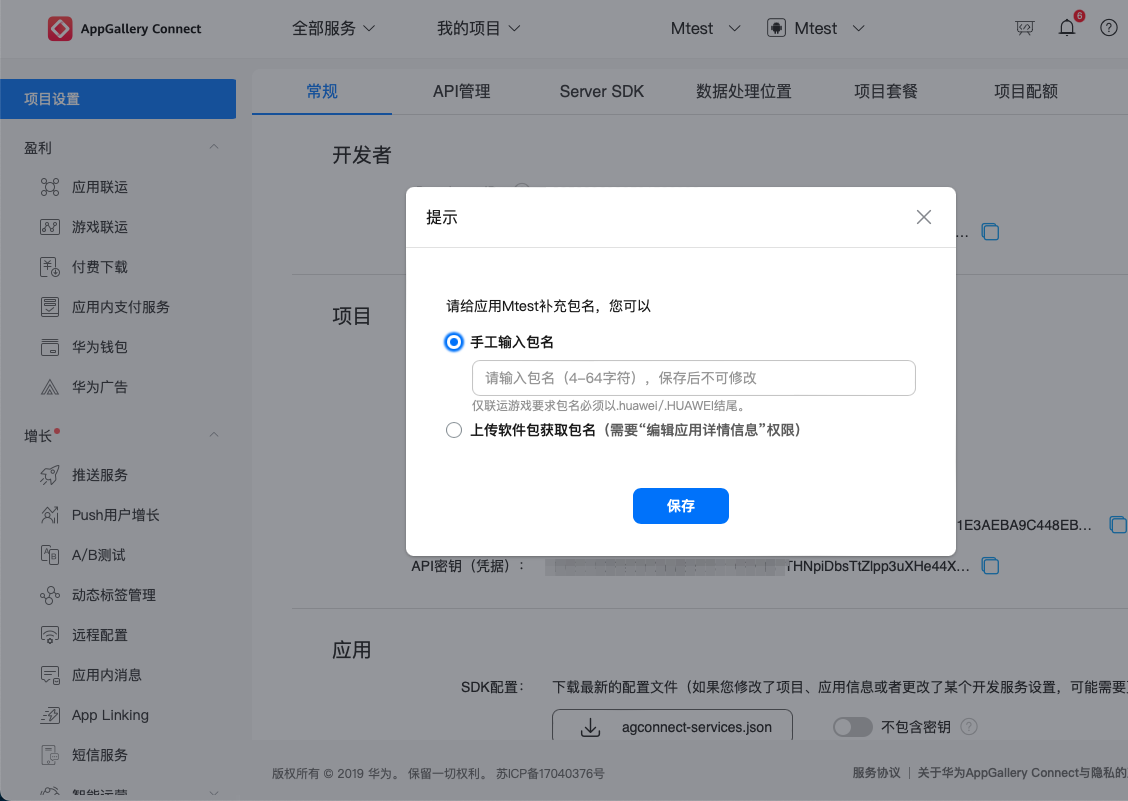
If a dialog asks you to complete the package name, choose to enter it manually, copy the package name from the Ubases IoT development platform, then click Save.
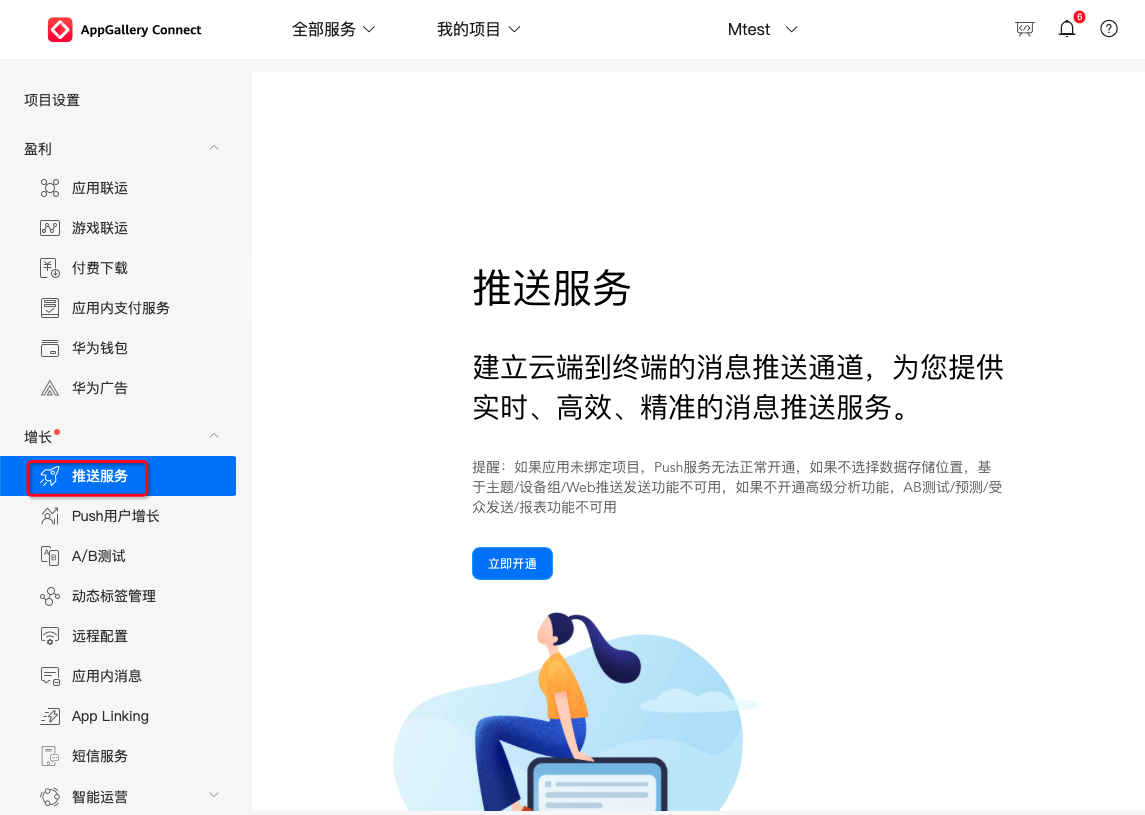
Click Push Kit > Enable Now.
When prompted “Audience groups and subscriber features require a data storage location. Select a storage location in the Configuration menu first. Select now?”, click OK.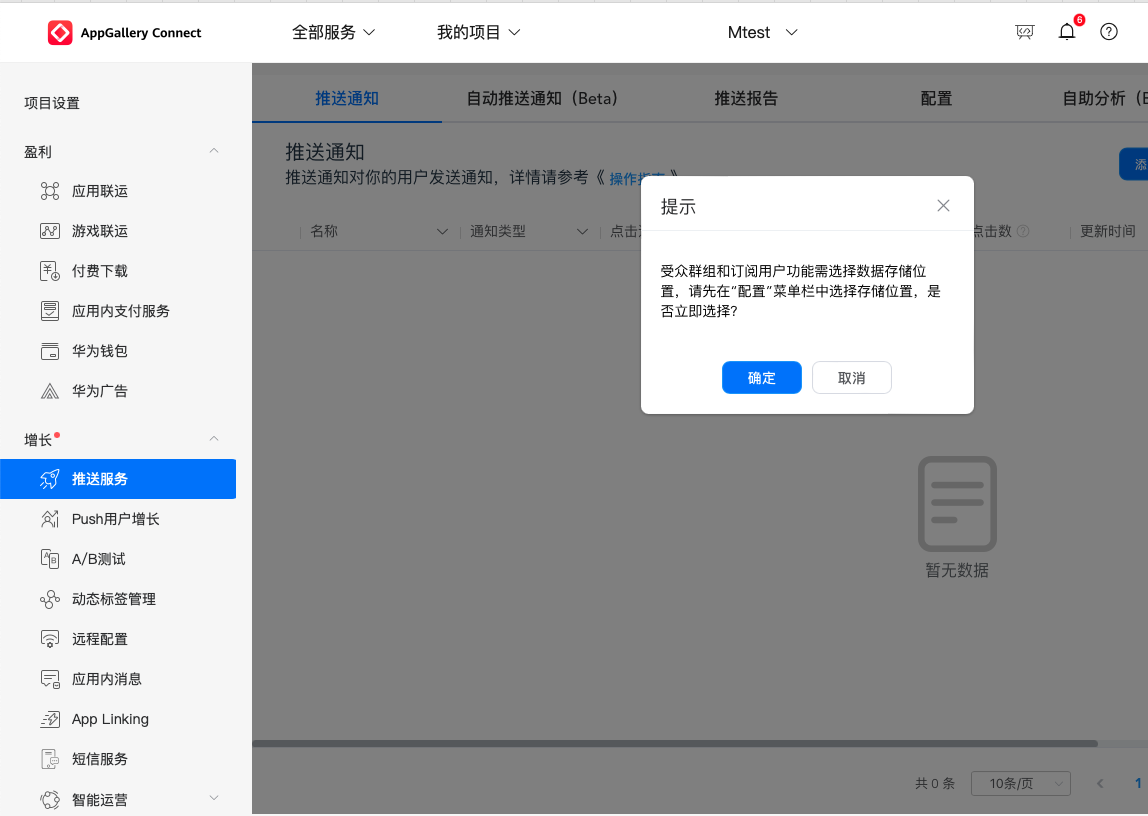
For the data processing location, select only China if the App will be published only in China. If the App will be released to app stores outside China, select locations based on your actual needs. Then click OK.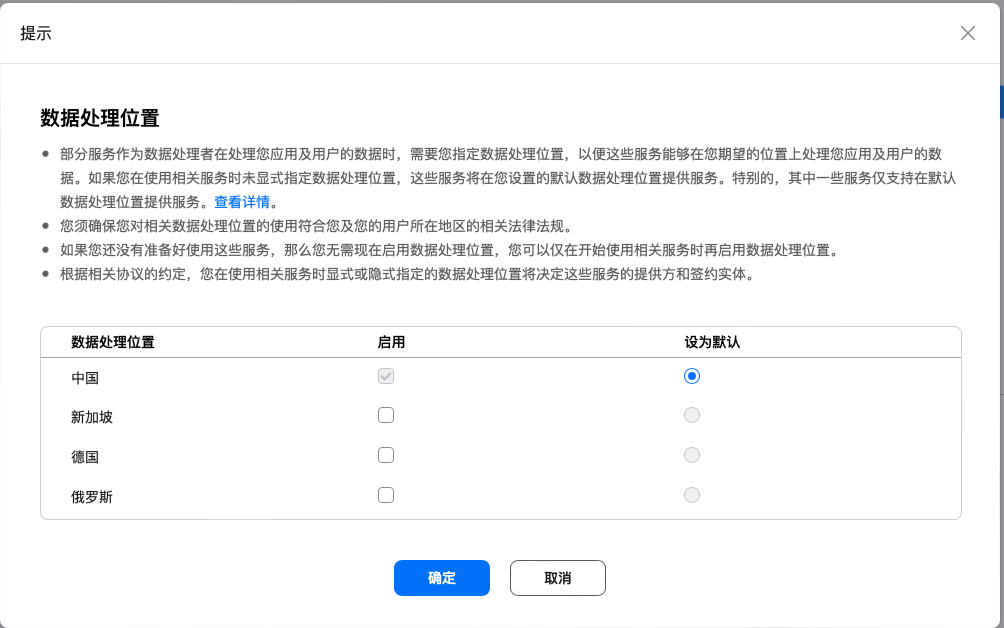
To verify push is enabled, go to Project settings > API management, search for “Push”. If the Push Kit switch is on, push is enabled.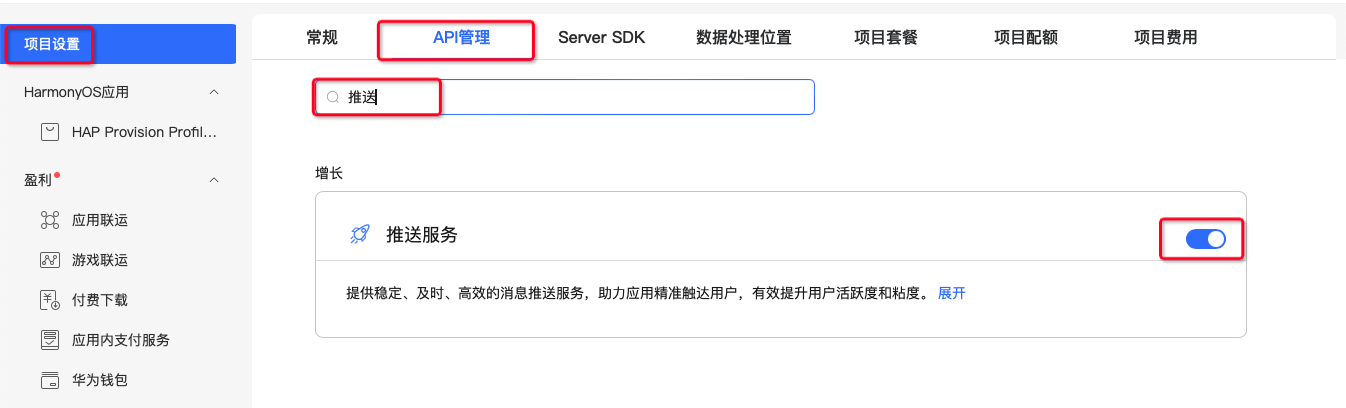
Enable self-classification rights. Click Push Kit > Configuration > self-classification rights Apply.
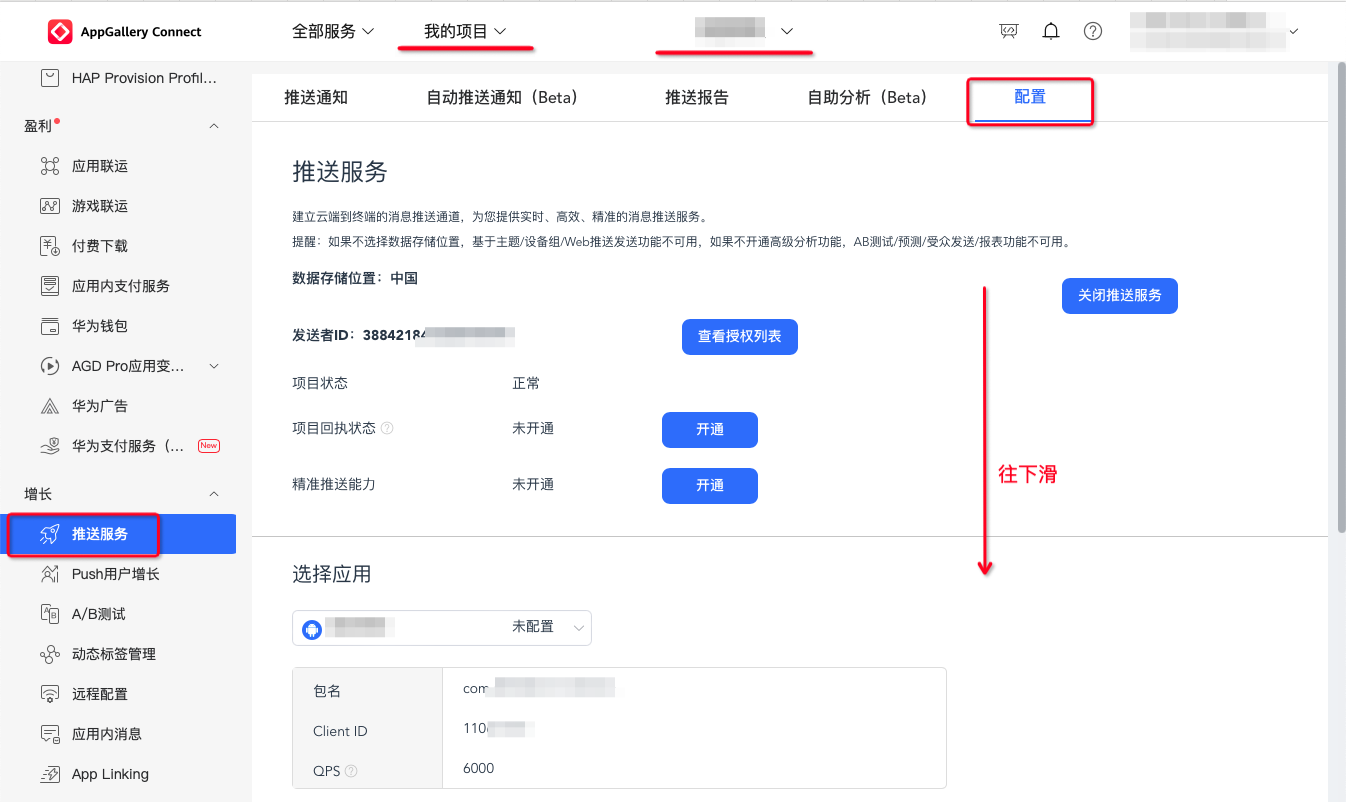
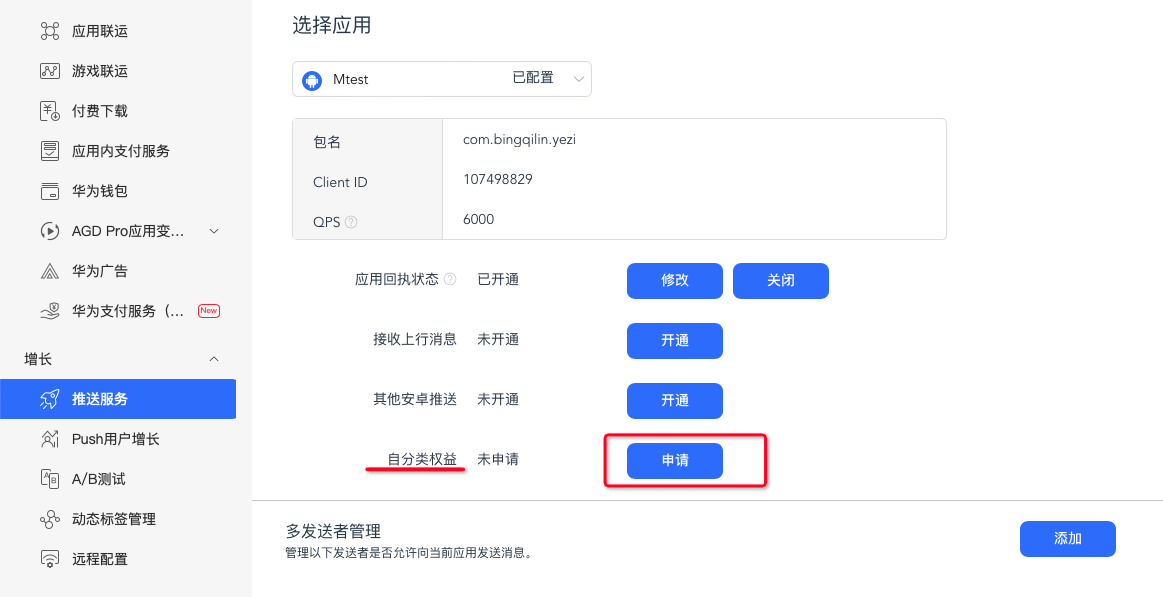
Click Apply under standard scenarios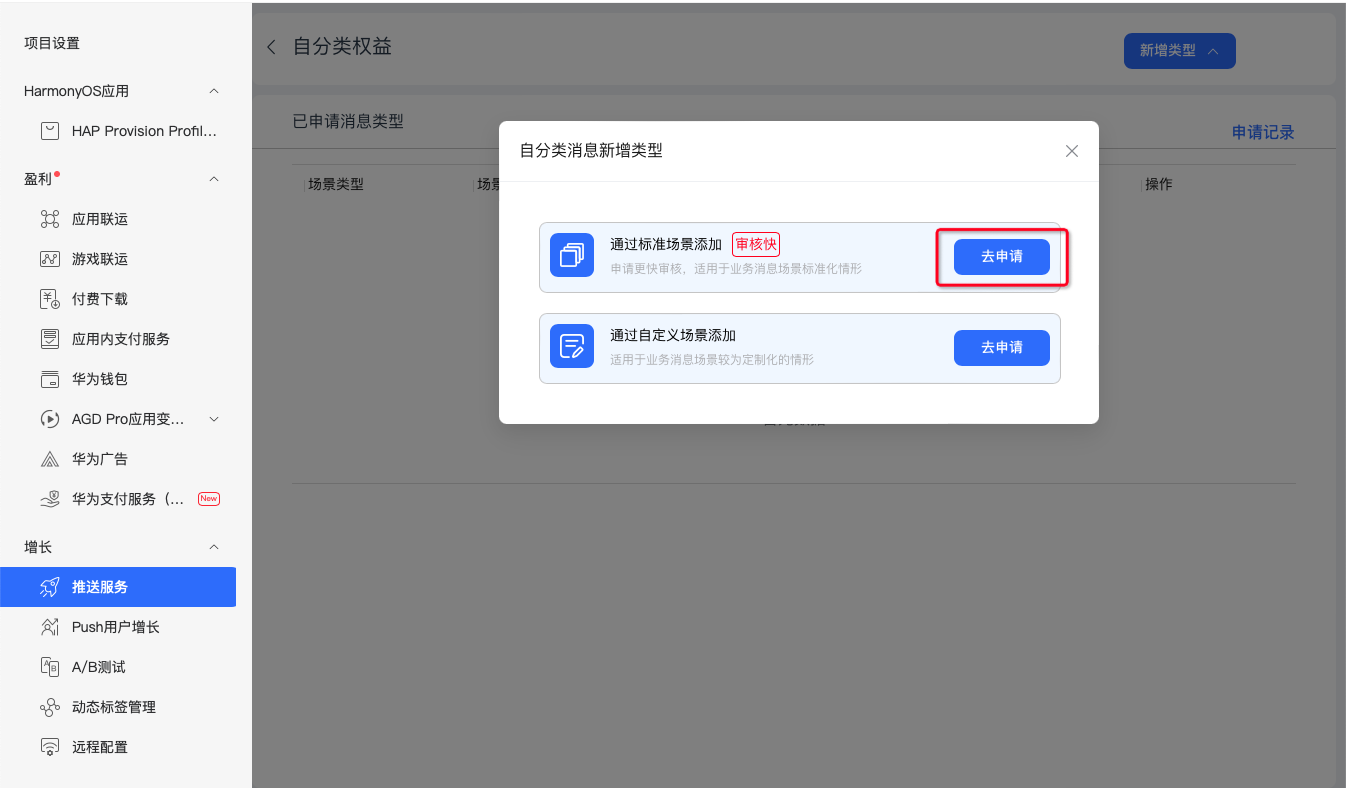
Or click Add classification for standard scenarios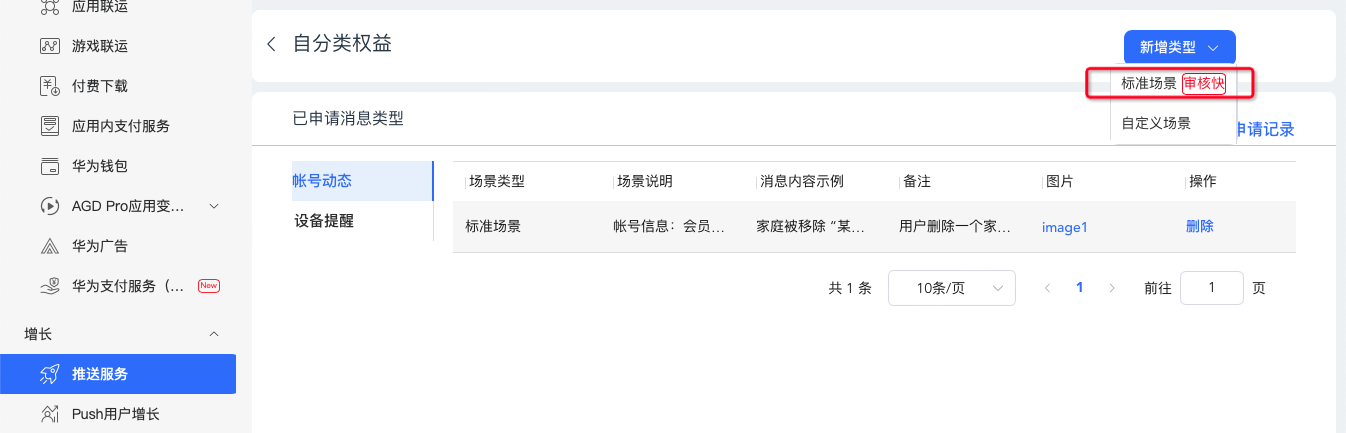
Filter message types: check Account activity and Device reminder. In the standard scenario list, check Device reminder and the account activity whose scenario description includes join/leave home account. Then click Next.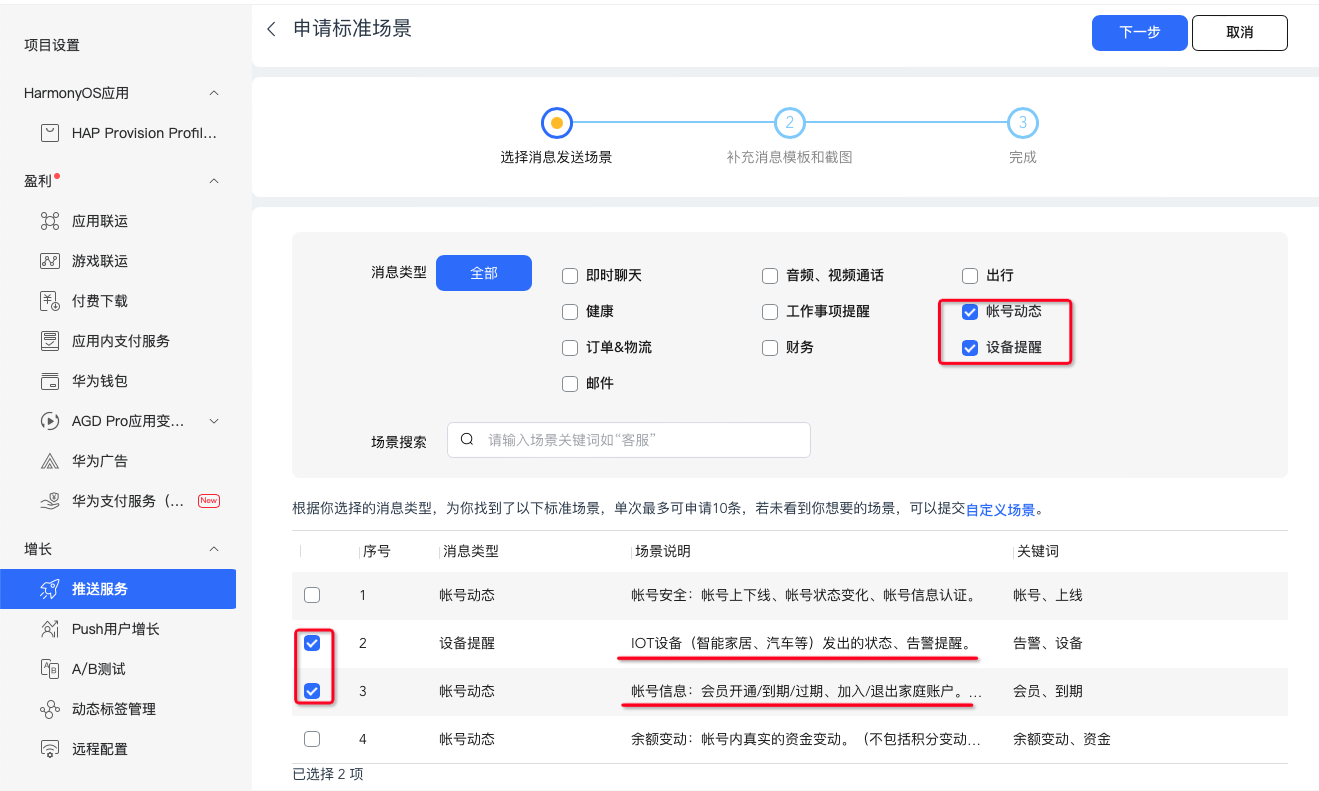
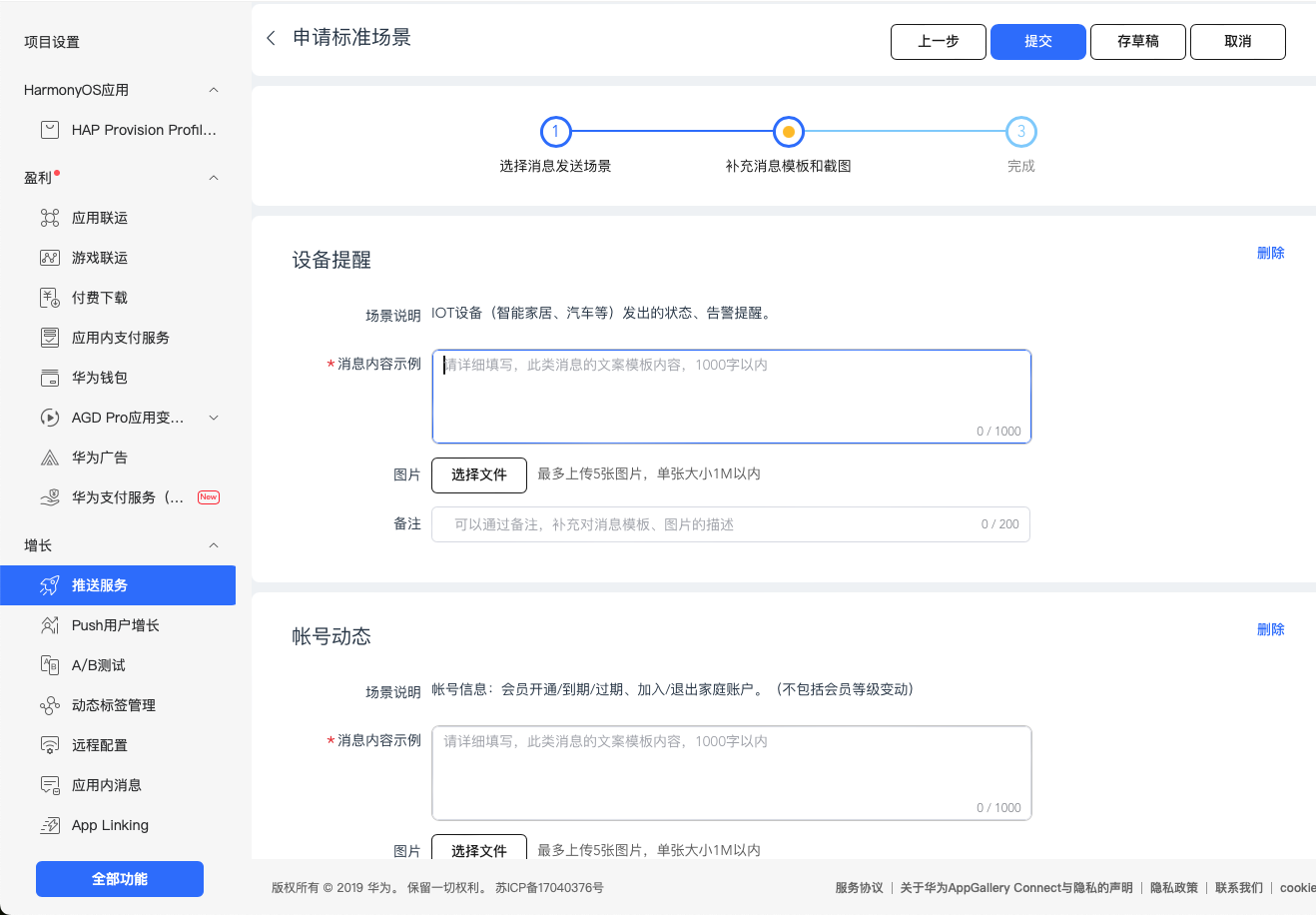
Fill in the content, then click Submit:
Device reminder:
Message content examples: xxx is online. xxx is offline. “xxx” added in home “My Home” — “xxx” is ready to use
Image: take a screenshot of your APP device list with at least one device, for example: (do not use the sample image below; use your own APP screenshot)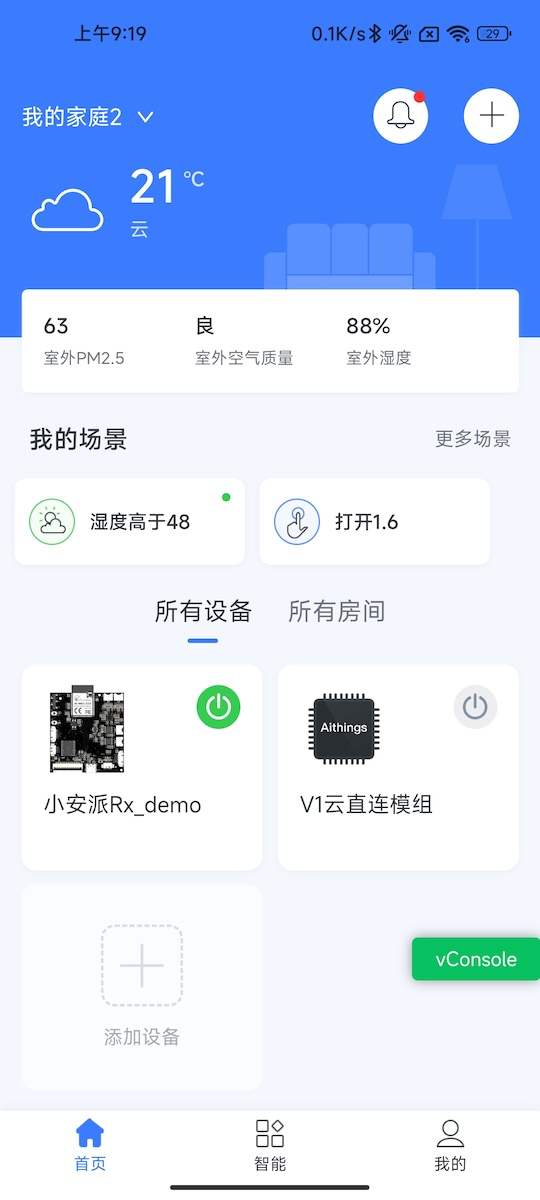
Notes: Gray background with “offline” indicates the device is offline. Adding or removing devices triggers push messages. xxx represents different device names
Account activity:
Message content examples: “User X” removed home “xxx”. “Xiaoming” invited “Xiaohong” to join home “xxx”
Image: take a screenshot of home management in your APP, for example: (do not use the sample image below; use your own APP screenshot)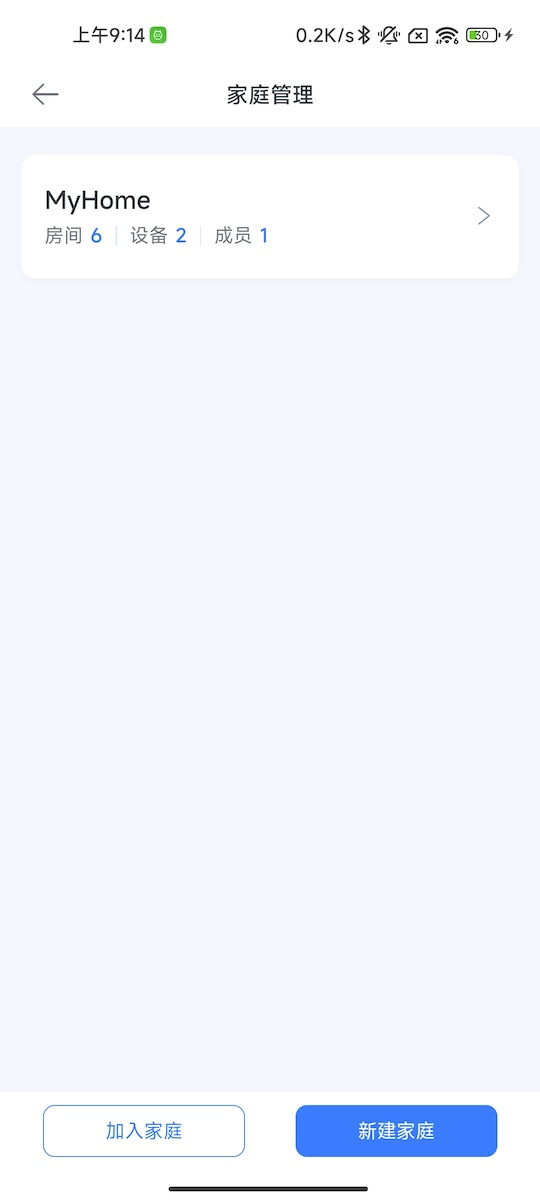
Notes: When a user deletes a home or joins a new home, related users receive a push
After submission, wait for review. After approval, click Activate at the top of the page. If not activated within two months, you must reapply.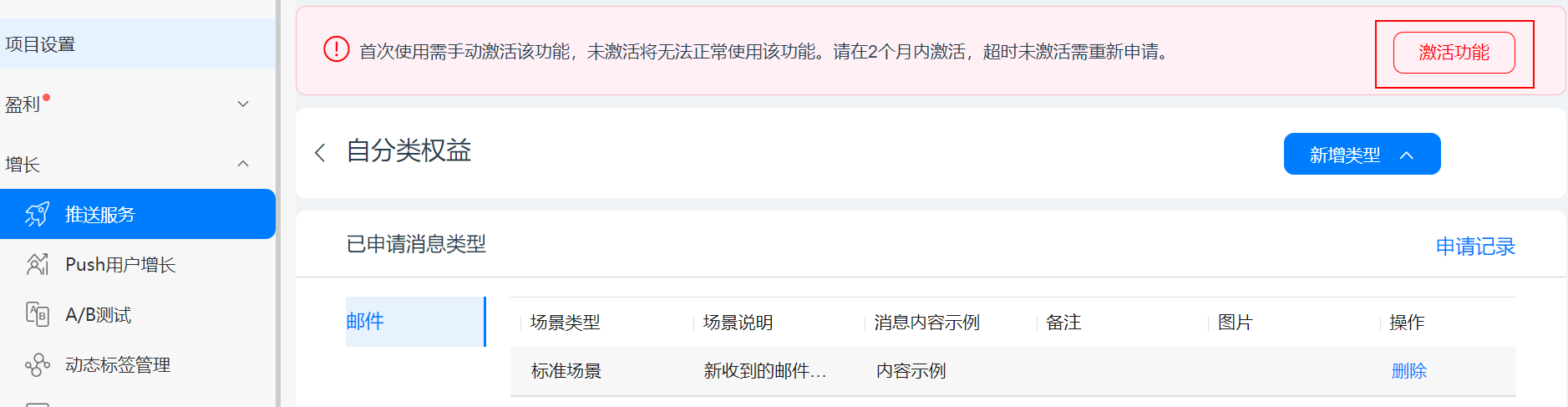
Click Project settings > General, then under the app click Add fingerprint certificate.
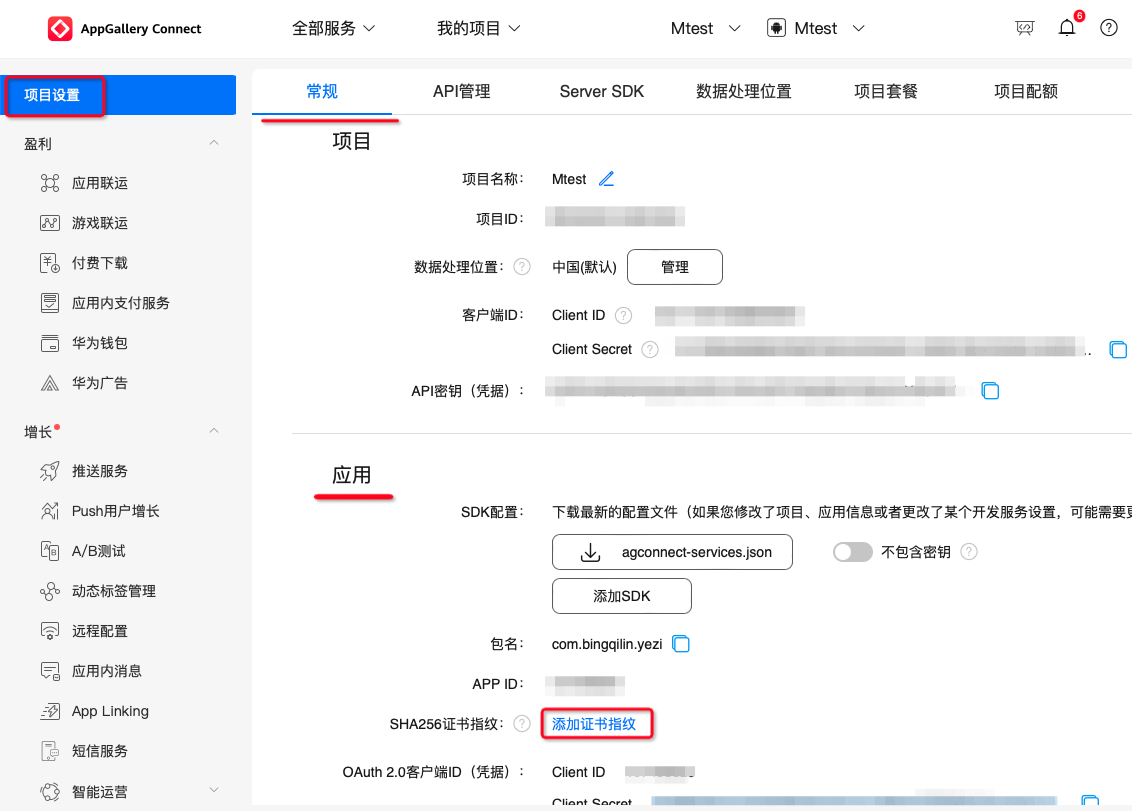
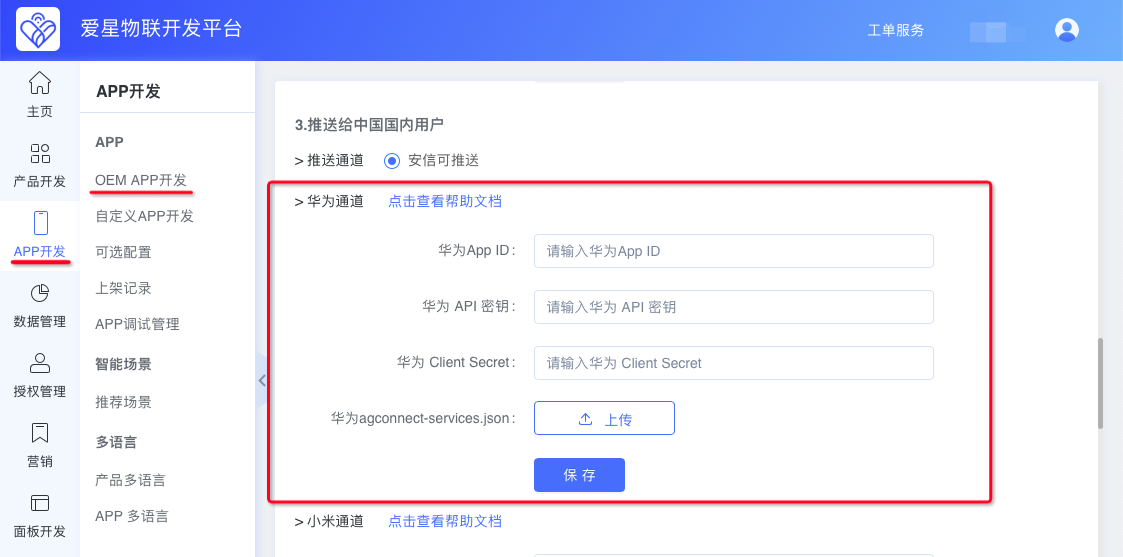
Copy the SHA-256 certificate fingerprint from the Ubases IoT development platform and click Save. Copy the API key, App ID, and Client Secret to the Ubases IoT development platform. Then download agconnect-services.json and upload it to the Ubases IoT development platform.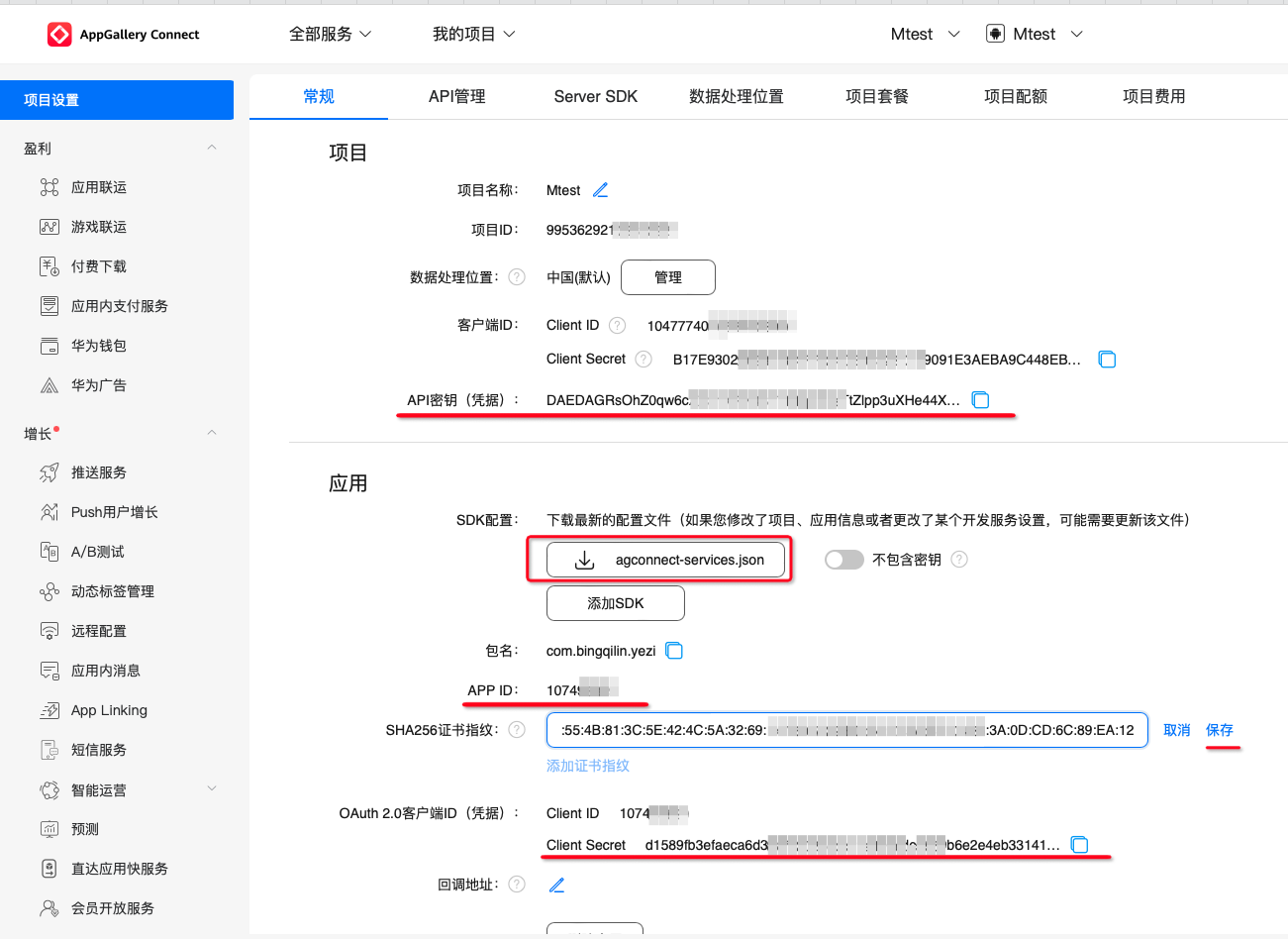
Where to copy the SHA256 fingerprint on the Ubases IoT development platform.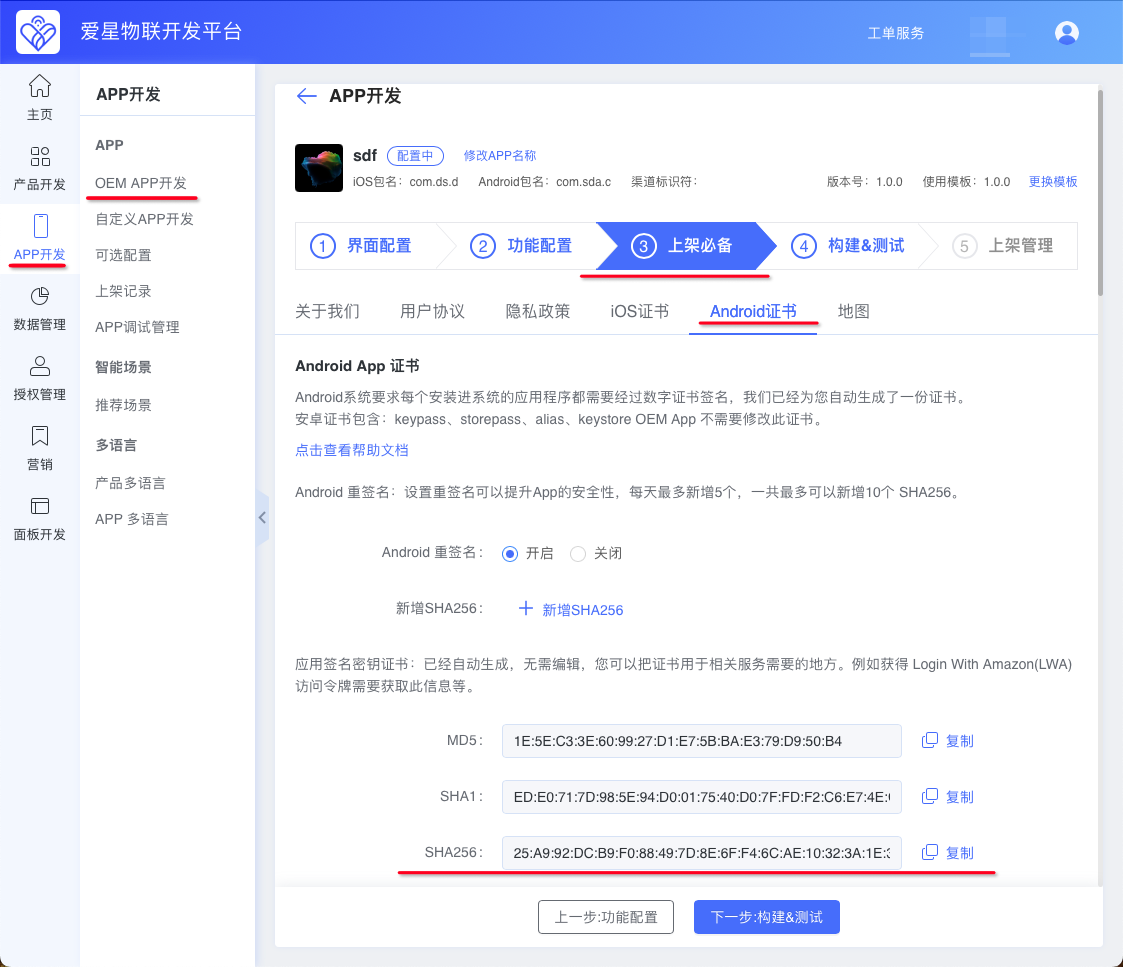
Where to enter Huawei push information; click Save when done.