

Publish an App on Google Play
Preparation
Accessing Google-related sites from mainland China requires a VPN.
You already have a Google Play developer account. If not, see the Google documentation. Developer account registration is generally approved within 1–2 days. Registration requires a Mastercard or Visa credit card; a dual-currency card is recommended.
Download the release package. You must use the Android App Bundle (
.aab) for the Android overseas version. For the first Google Play release, also download the Google signing ZIP file, which is required during the initial submission.
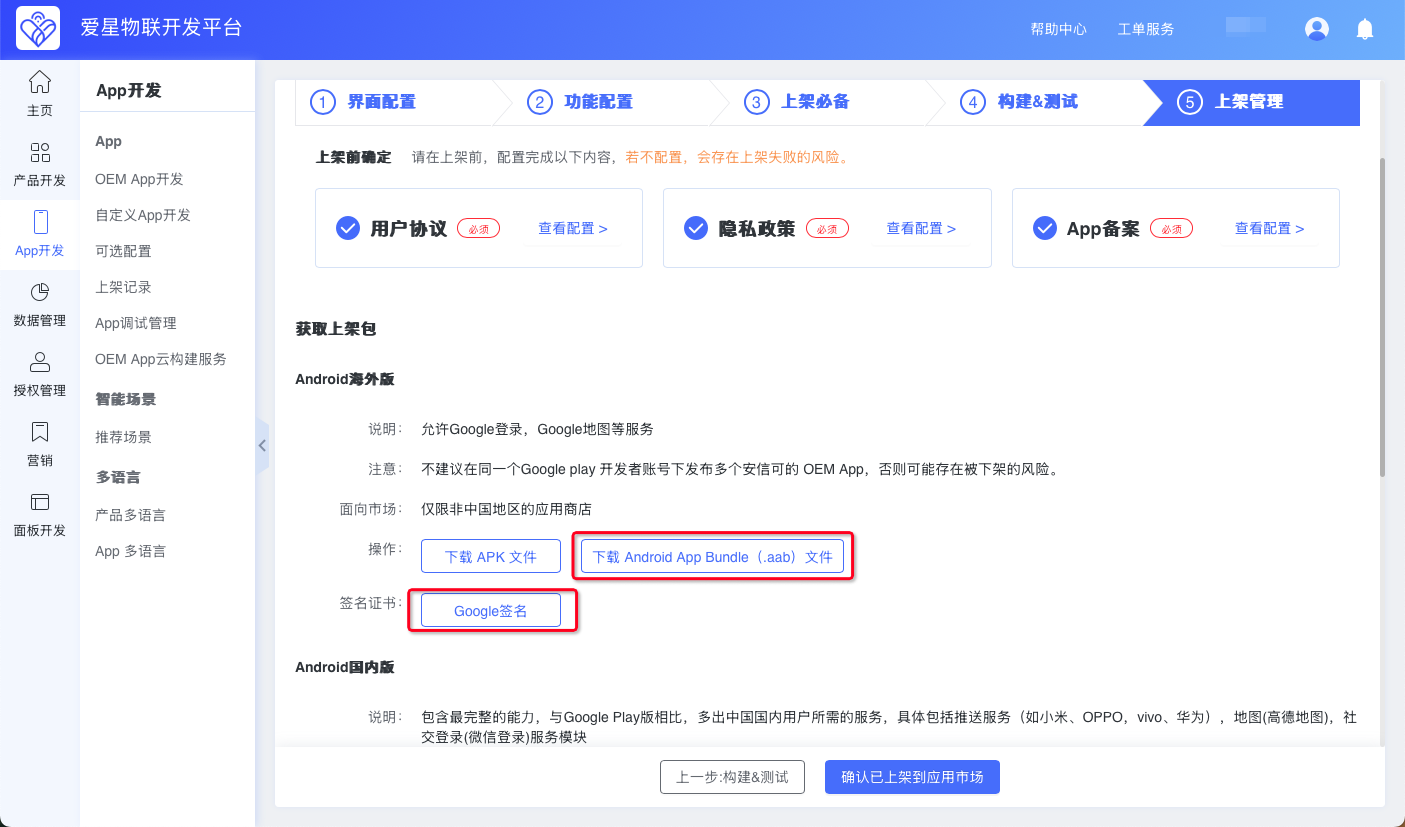
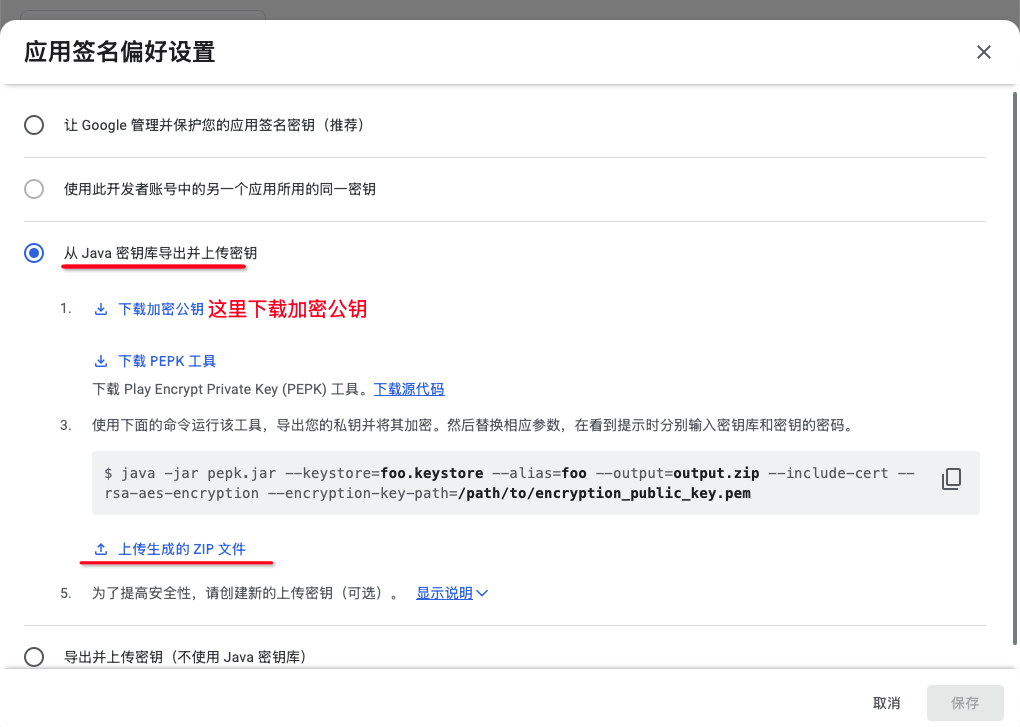
To generate the Google signing ZIP file, first download the encryption public key (a .pem file) from the Google Play Console. Upload the public key to the Ubases IoT development platform, then click Generate Signature and download the generated ZIP file.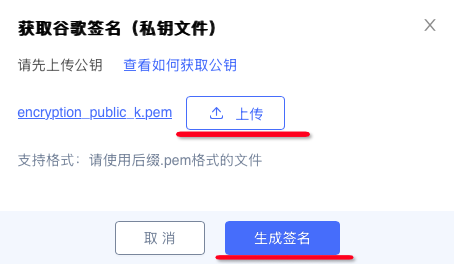
Where to download the encryption public key (for how to open this page, see: Upload App Bundle):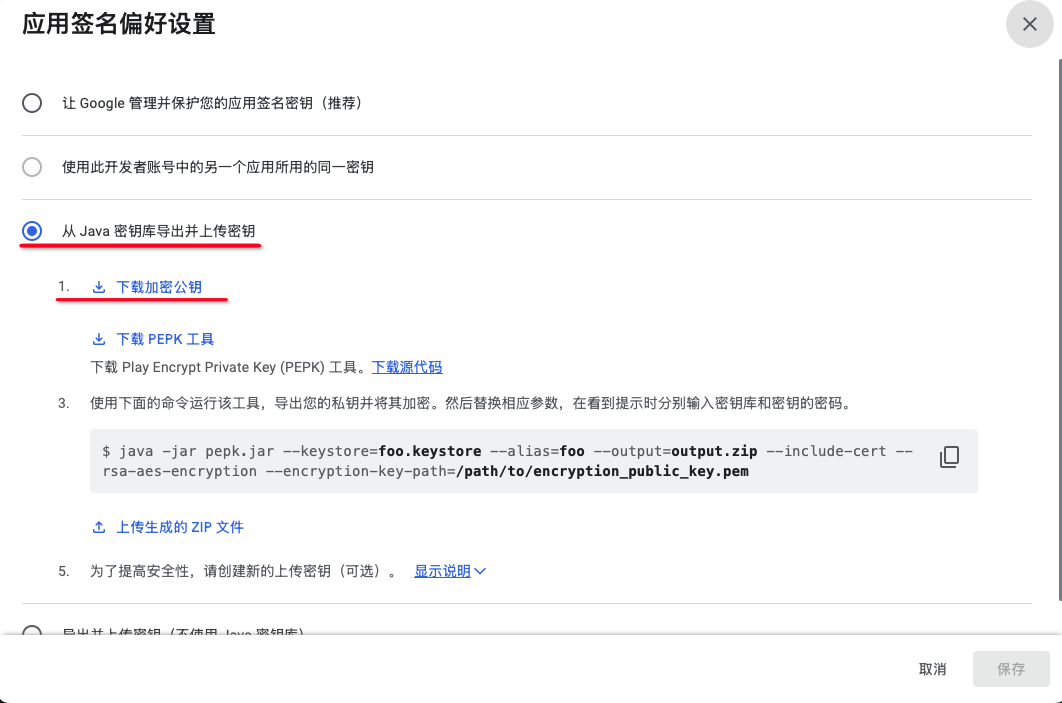
When publishing to Google Play, always select the .aab file for the Android overseas version.
Because Google Play policies may reject highly similar apps, we recommend publishing different OEM Apps under separate Google Play developer accounts. If several OEM Apps are already under one account, migrate them to separate accounts as early as possible.
Prepare 4–5 store preview screenshots (taken on an Android phone). One 512×512 px app logo in PNG. One 1024×500 px store feature graphic in PNG.
Record a video for review. Upload it to YouTube or another video site accessible to Google reviewers and obtain the link.
The video should show: the App name and icon on the phone home screen; both the phone and the device you operate; main App features; and features reviewers cannot perform themselves, such as network provisioning and controlling devices from the control page. If your device cannot be shown publicly yet, a development board is acceptable.
Create an App
Sign in to the Play Console with your Google Play developer account.
After signing in, click Create app.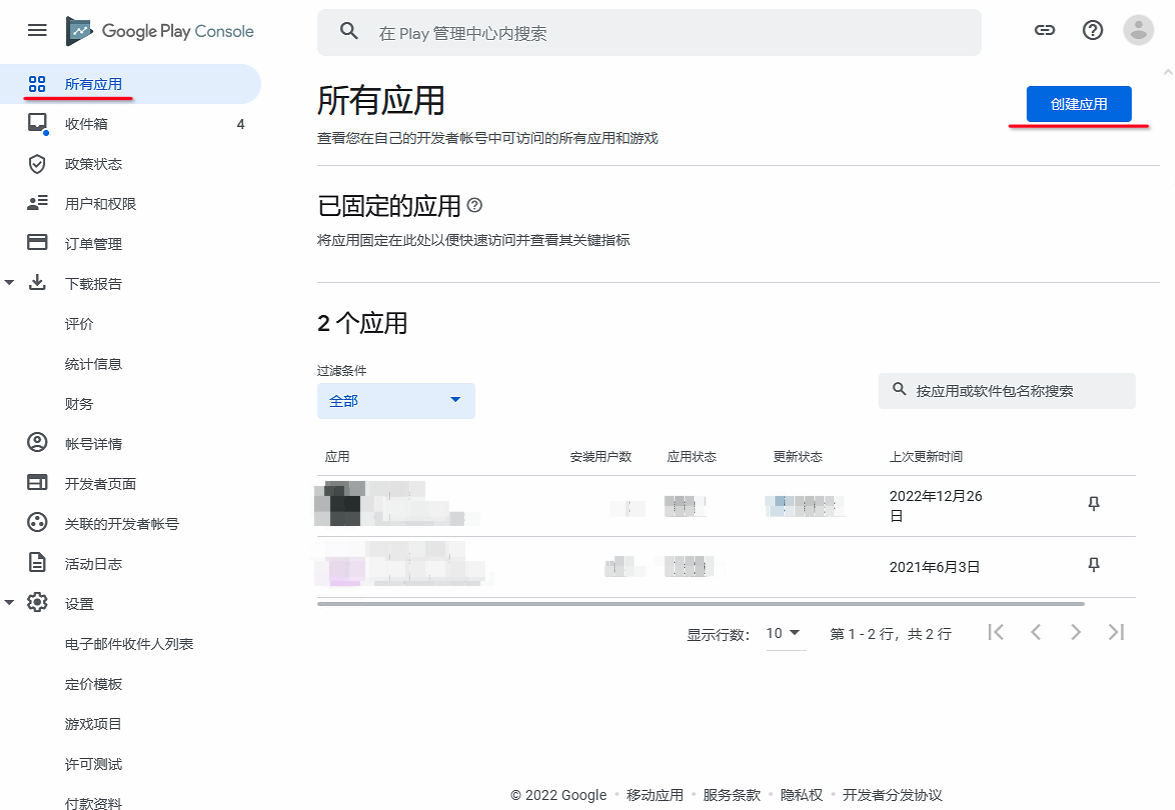
Enter the App name.
Select the Default language.
Under App or game, select App.
Choose Free or Paid as appropriate.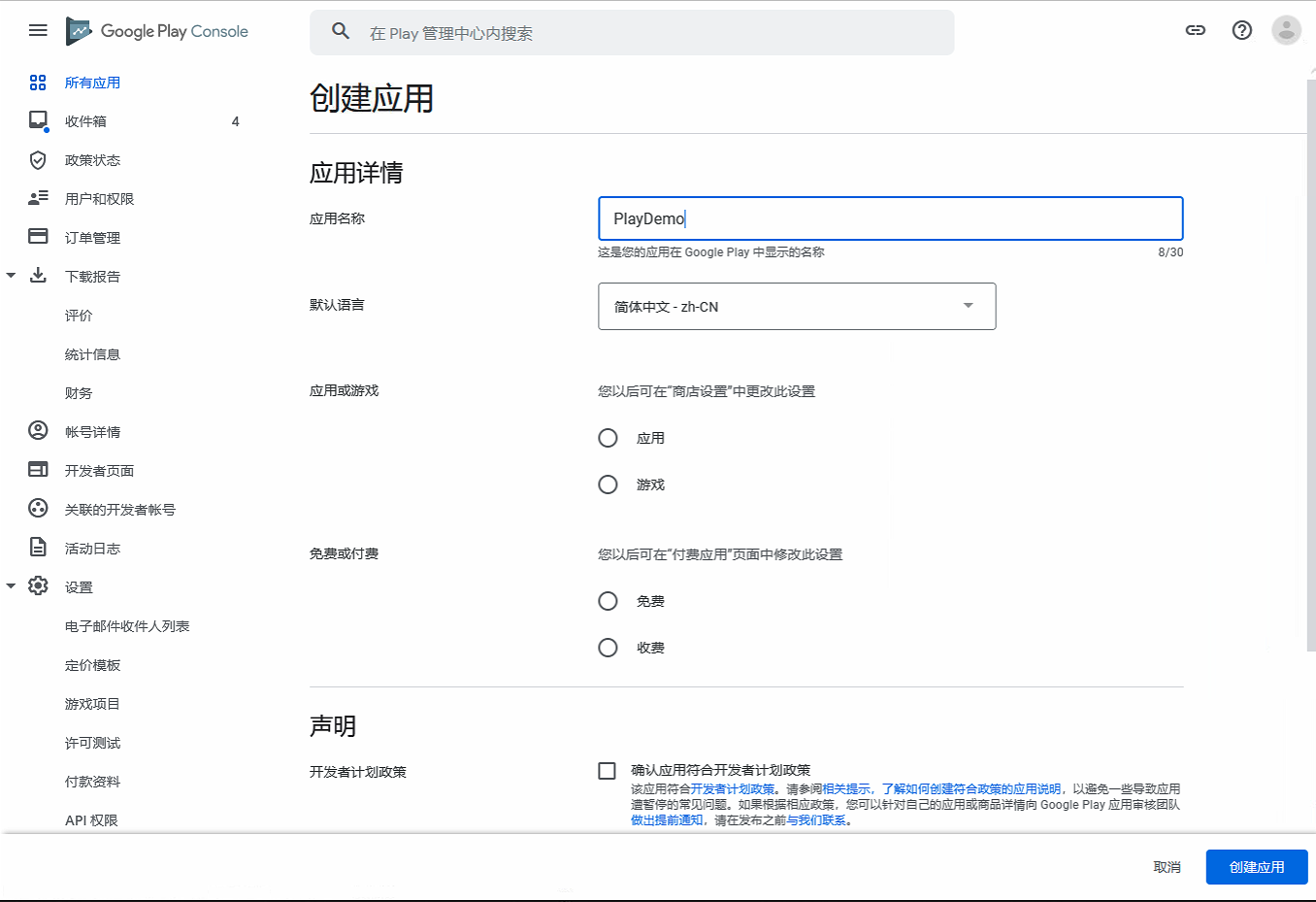
Check Developer Program Policies and US export laws.
Click Create app.
Fill in Information
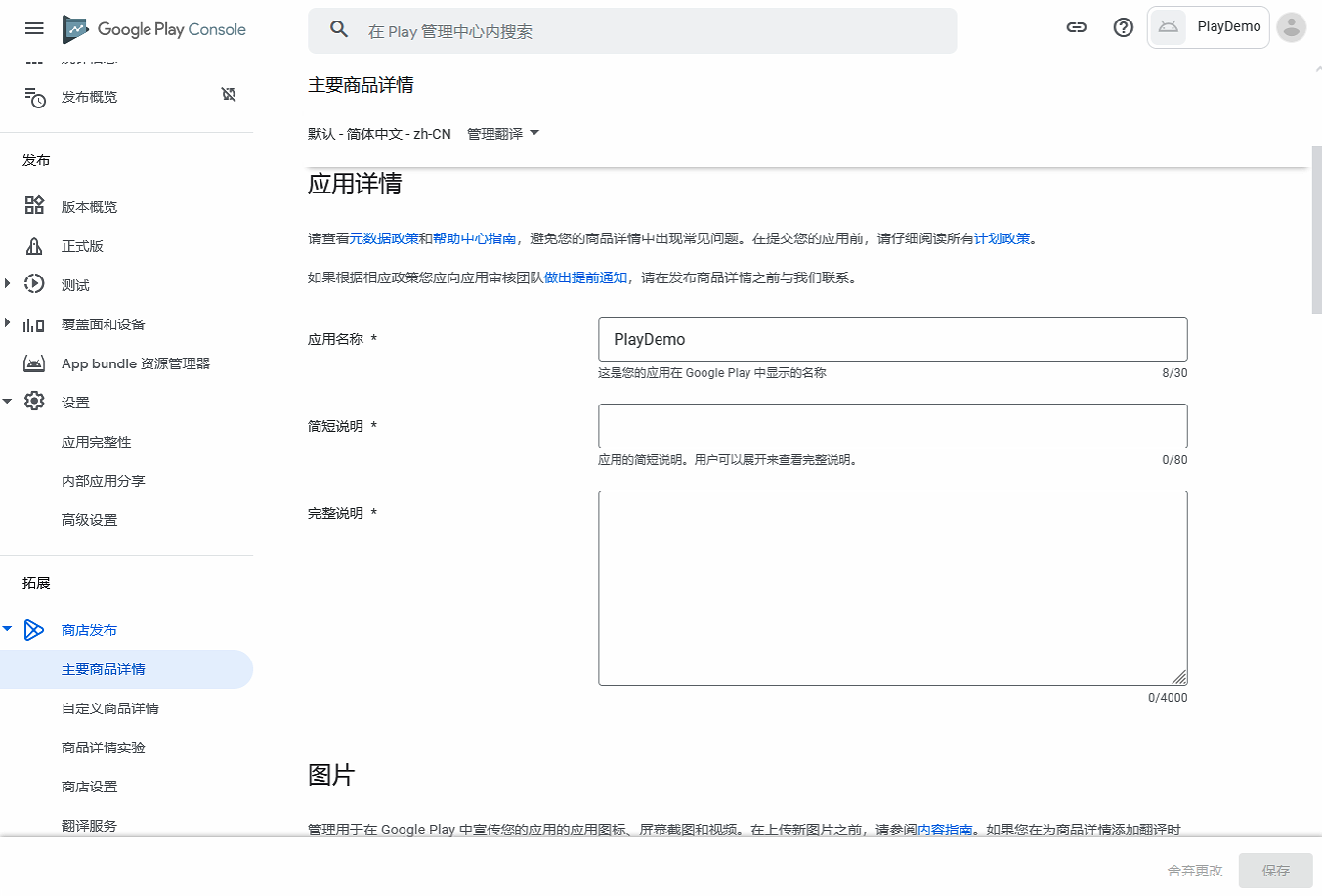
In the left navigation, select Store presence > Main store listing.
Write Descriptions
Enter the short description, full description, and related content.
Upload Graphics
Under App icon, upload the app logo: 512×512 px, PNG or JPEG.
Under Feature graphic, upload a promotional image: 1024×500 px, no alpha channel; JPEG is recommended.
Under Phone screenshots, 7-inch tablet screenshots, and 10-inch tablet screenshots, upload screenshots that best represent the app. If you do not support tablets, tablet screenshots are optional.
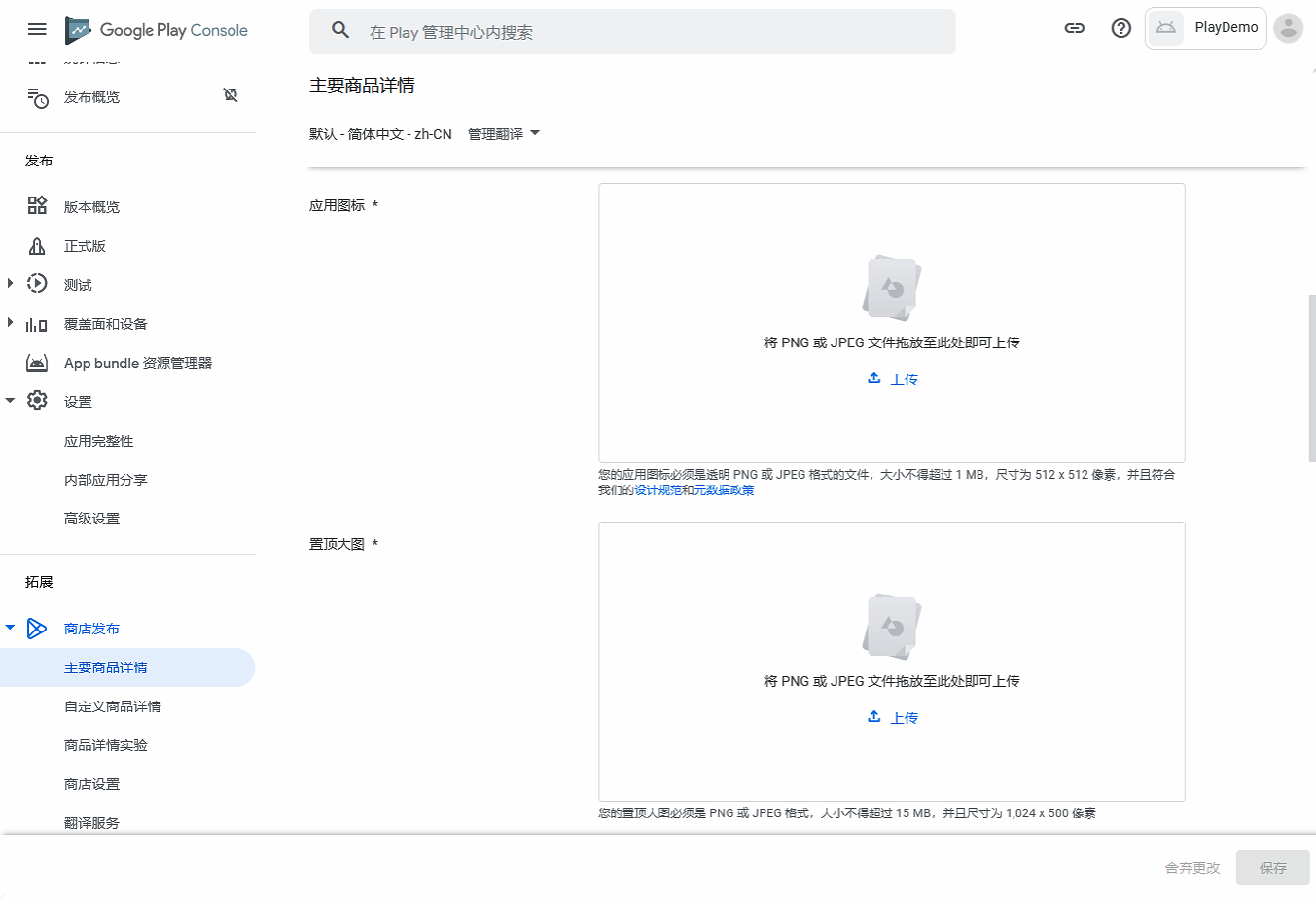
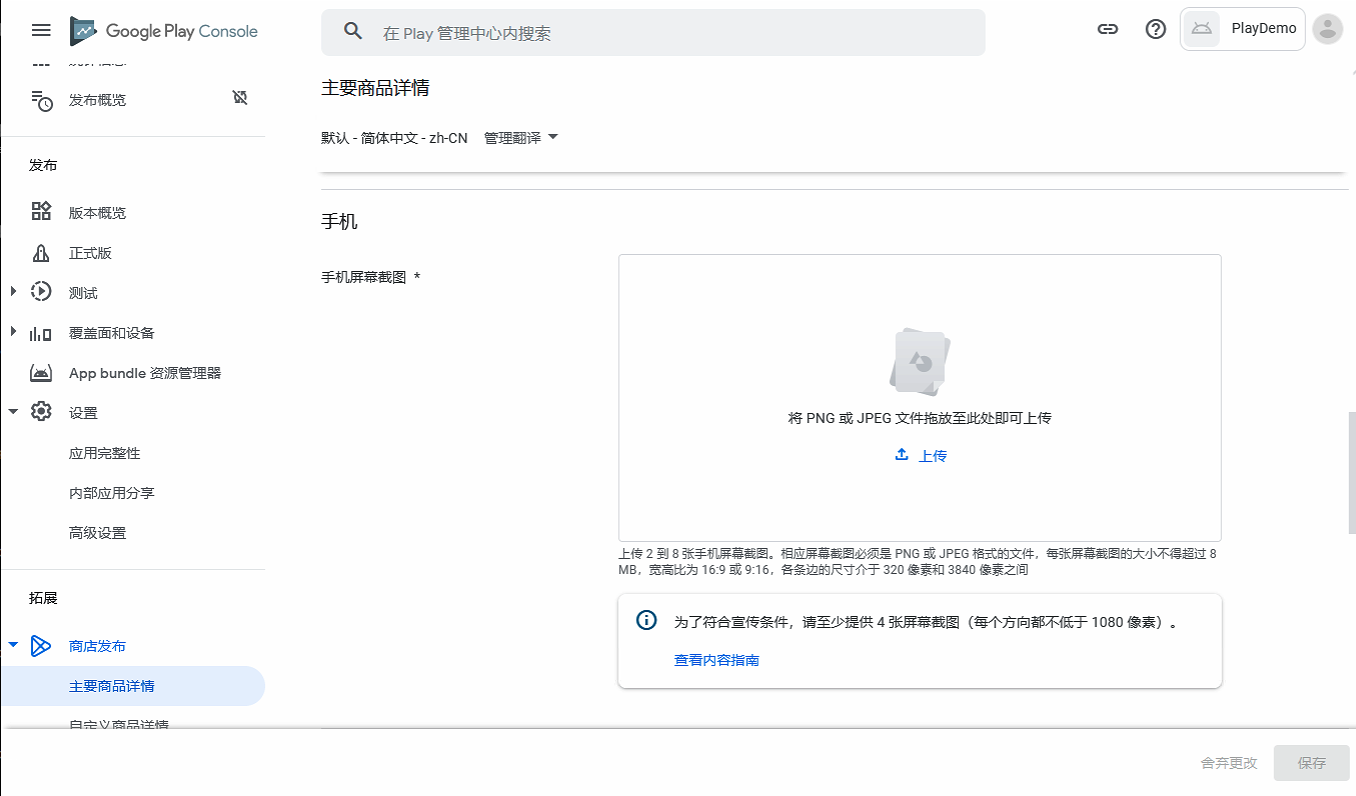
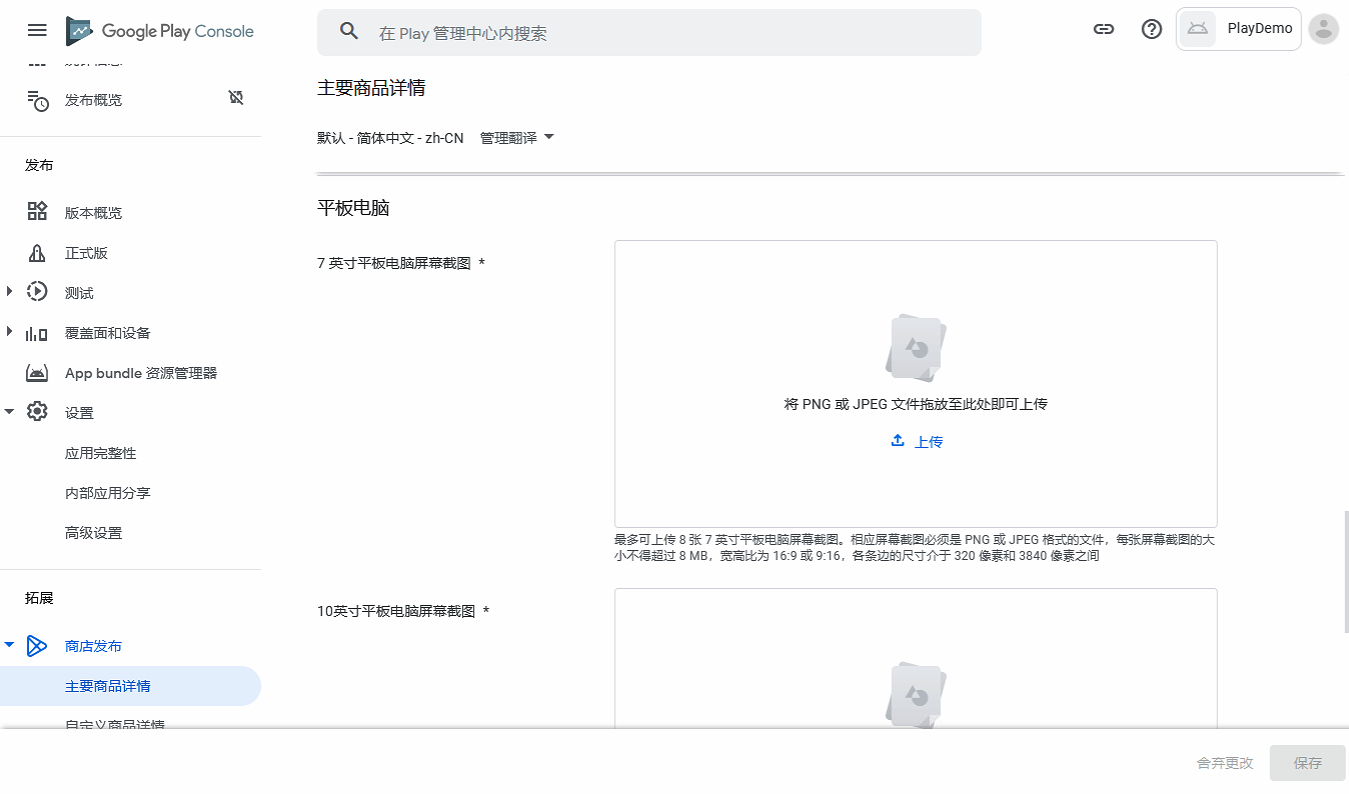
When finished, click Save at the bottom right.
Add Language Translations
If the app will be listed in different countries/regions, add store listing information for each language.
Steps: click Manage translations at the top, select languages to add, and update the app information accordingly.
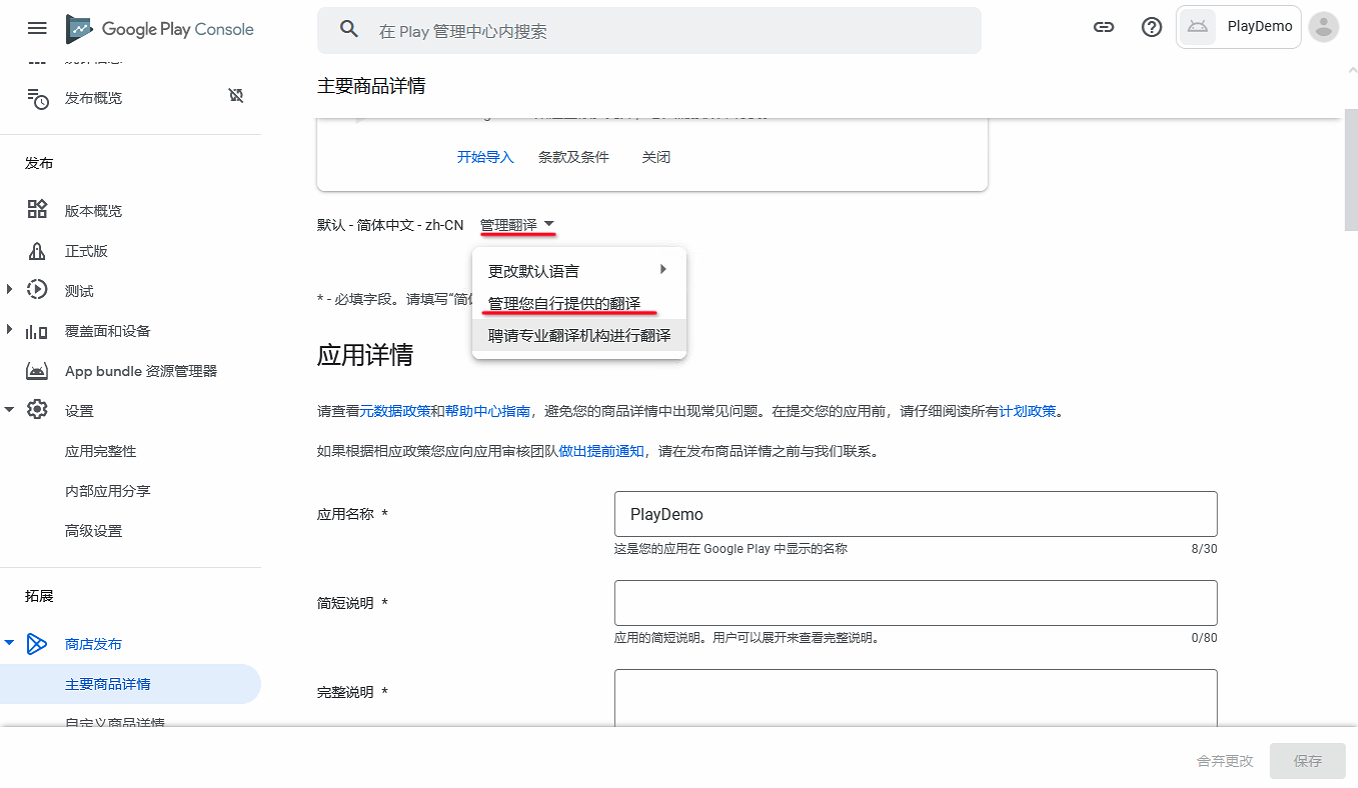
After adding languages, switch languages and fill in the corresponding app information (descriptions, graphics, and so on).
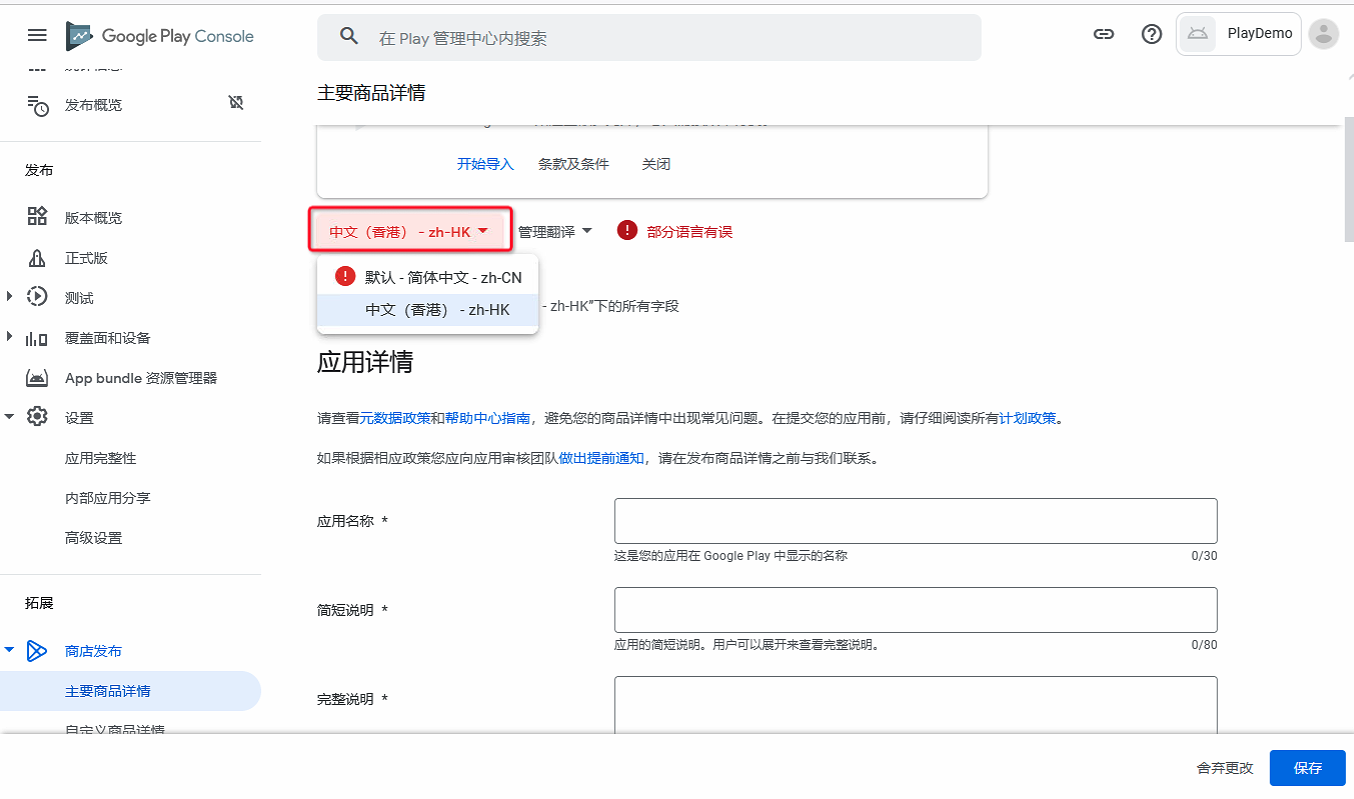
Store Settings
In the left navigation, select Store settings.
App category: select App.
Category: select Tools.
Tags: select as appropriate.
Website: your official site or a technical support URL.
Email address: preferably a publicly shareable address. This is shown to users on Google Play.
External marketing: check as needed.
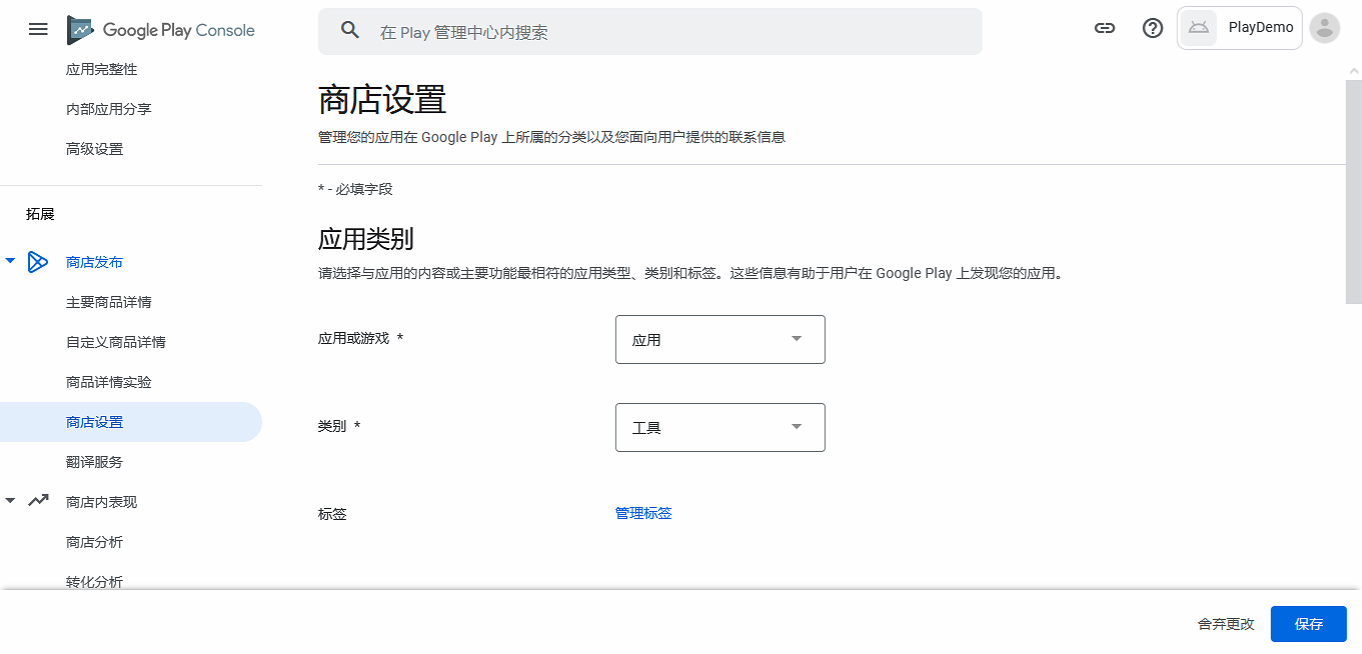
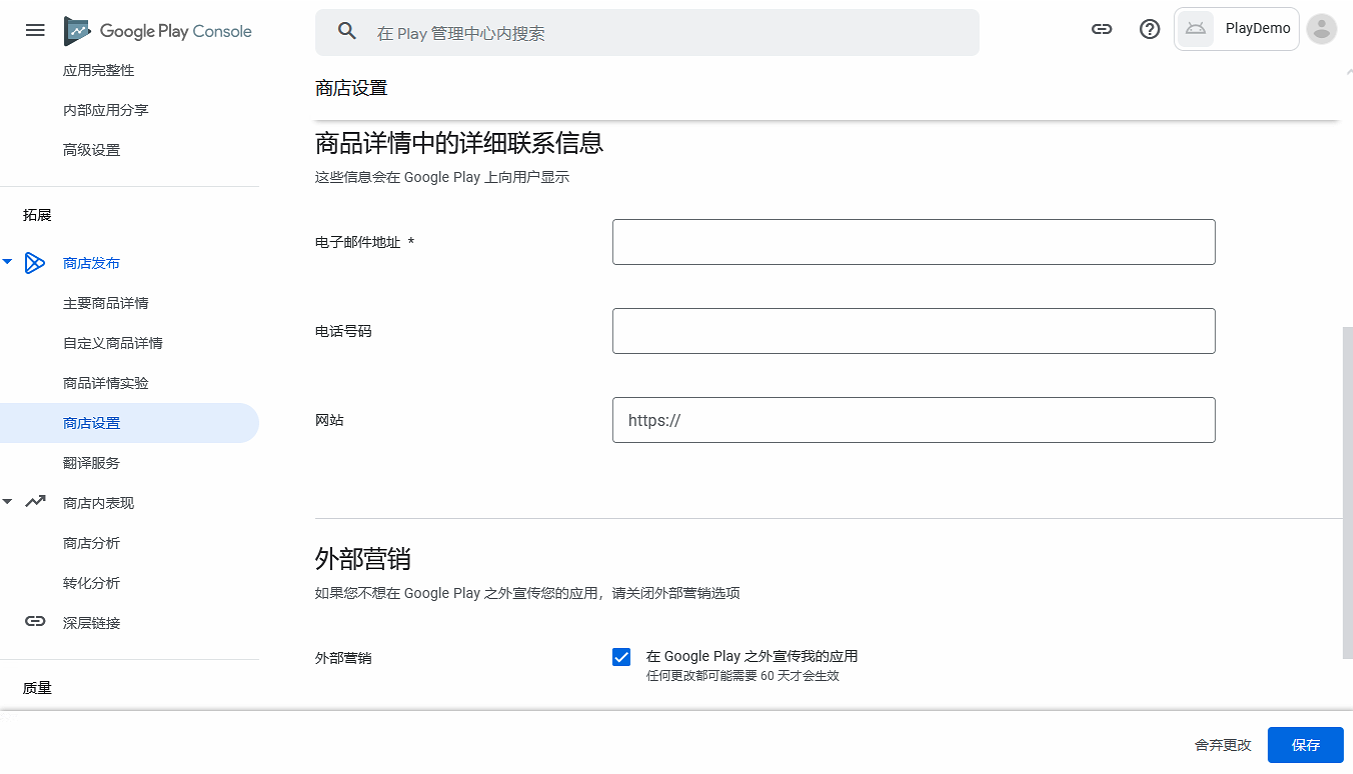
When finished, click Save at the bottom right.
Publish the App on Google Play
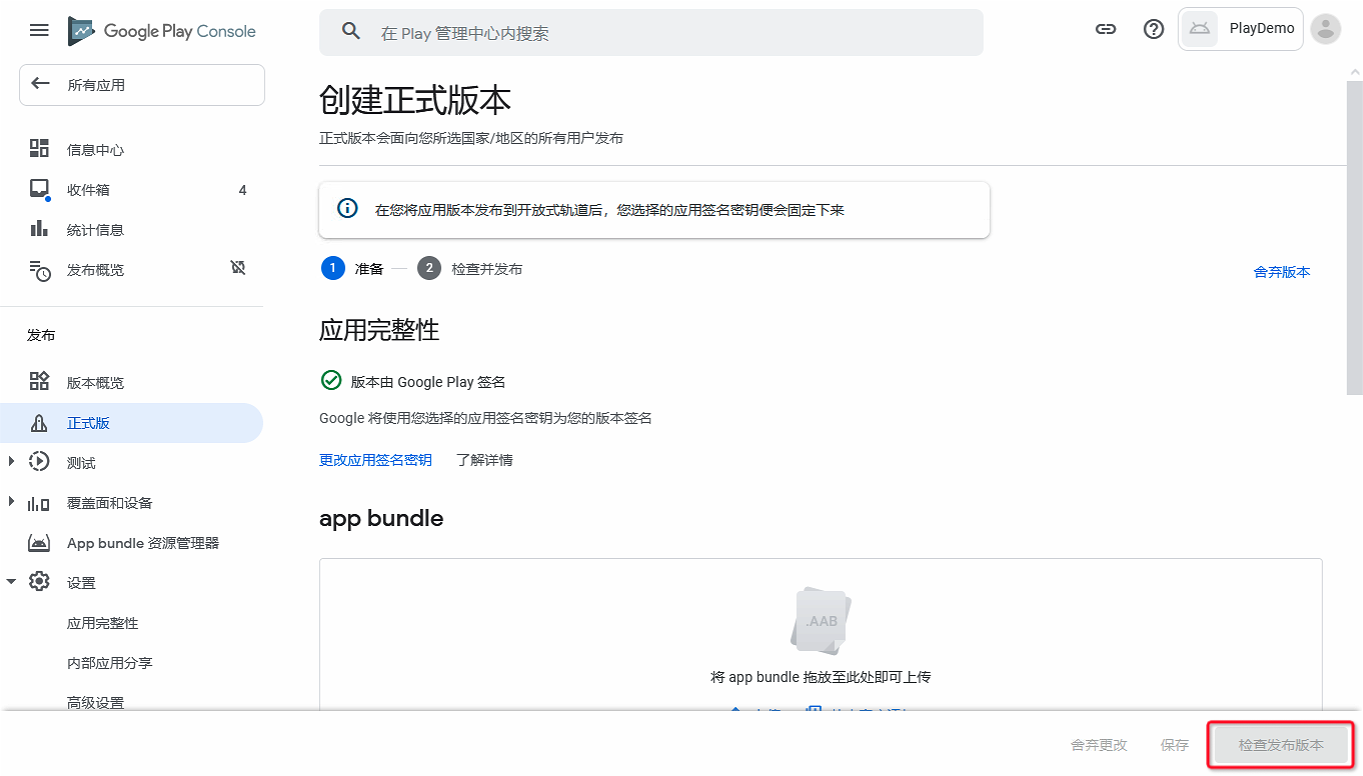
Upload App Bundle
In the left navigation, select Release.
Select Production, then click Create new release.
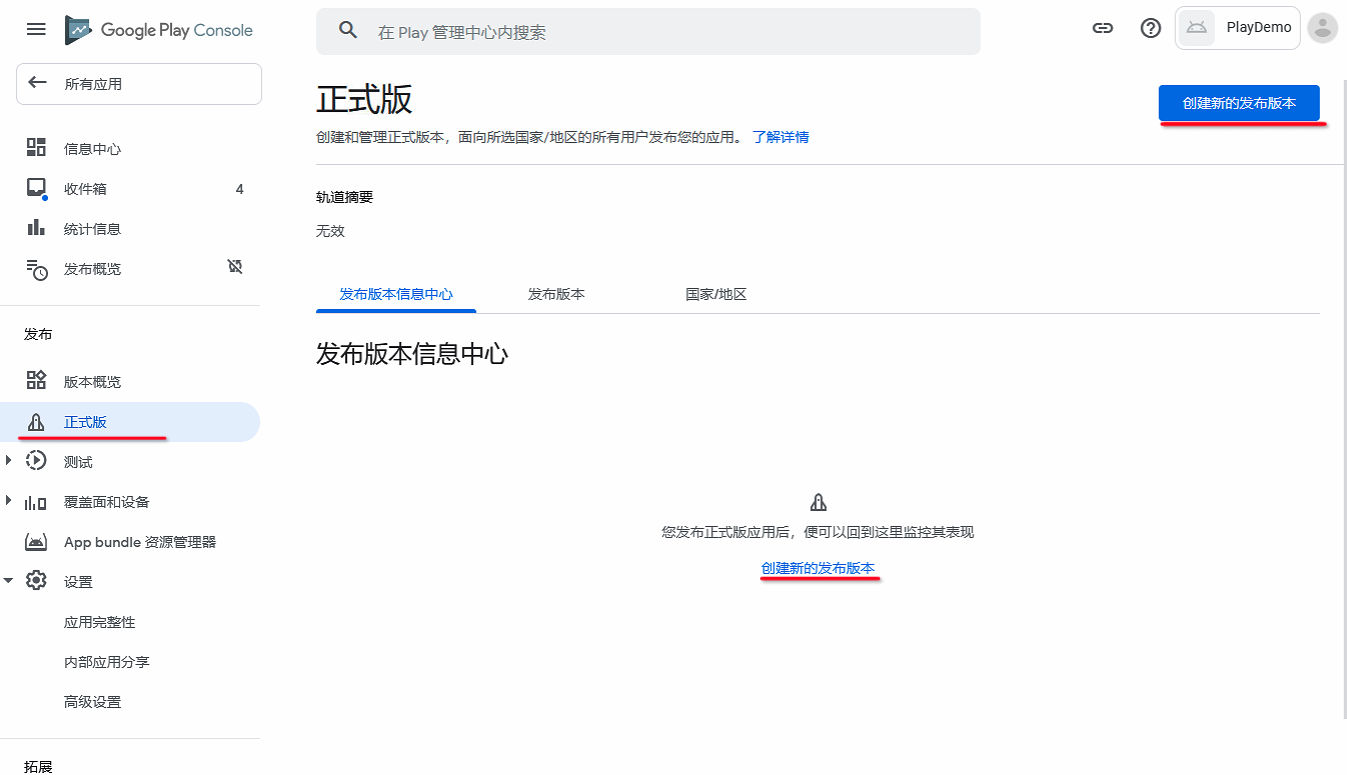
If you previously created and saved a release, click Releases > Edit release.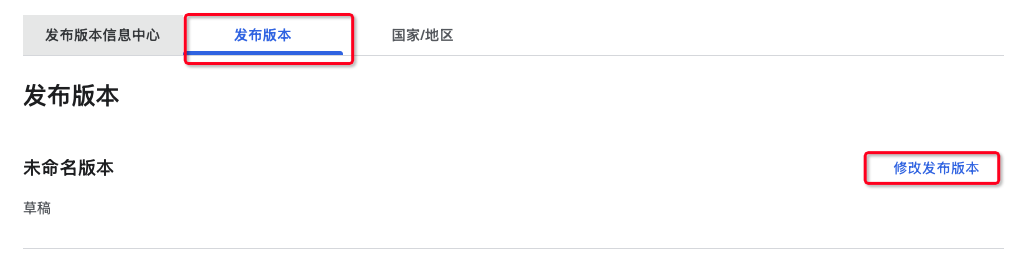
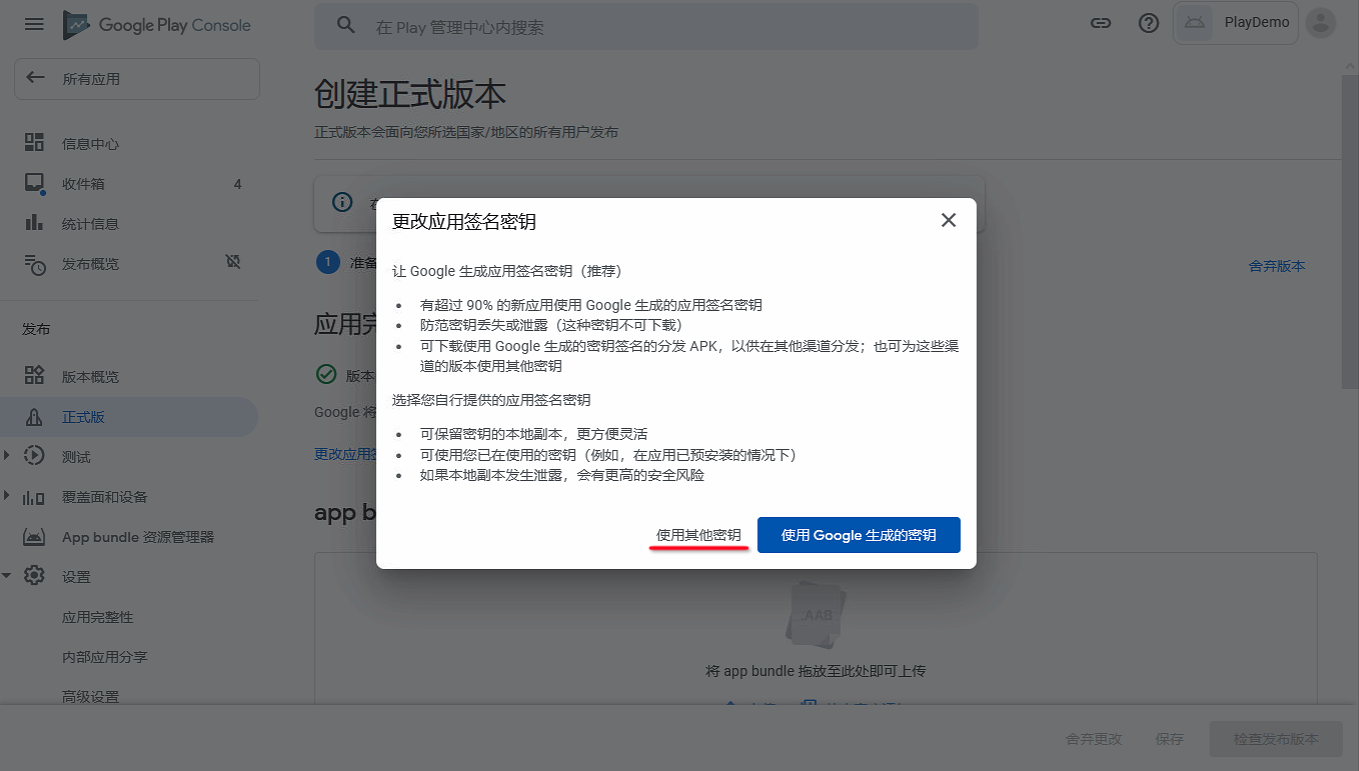
Click Choose signing key.
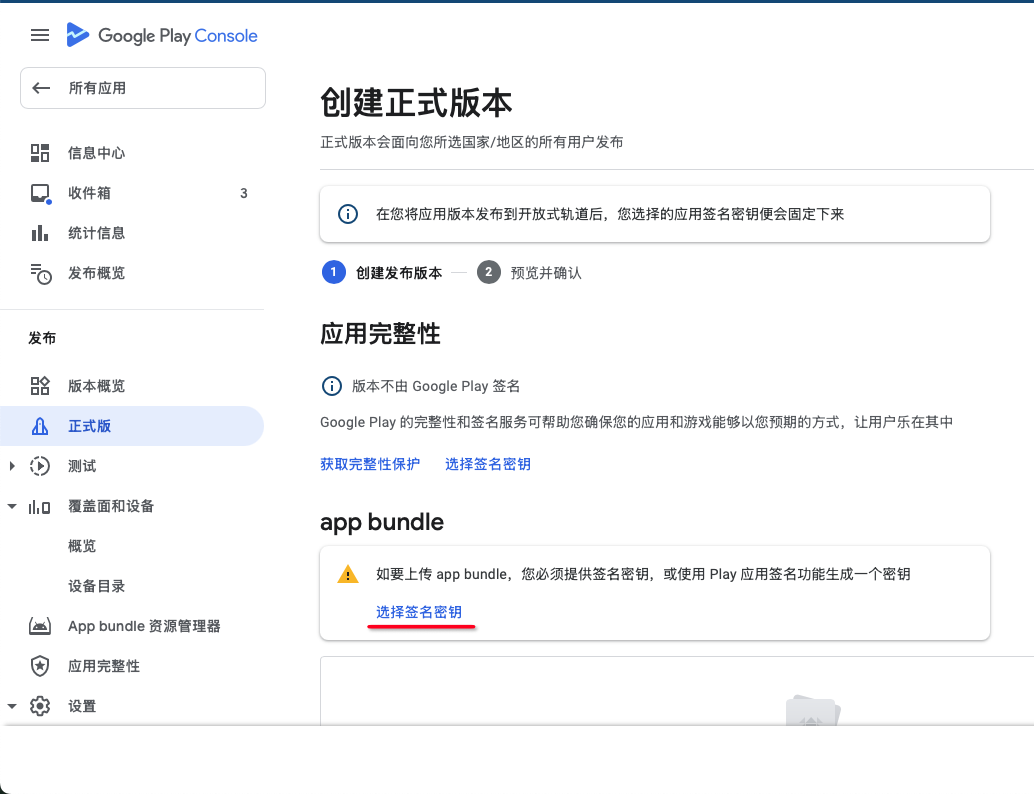
Click Use a different key.
Select Export and upload a key from a Java keystore, click Upload the generated ZIP file, select the Google signing file downloaded earlier, then click Save. (The encryption public key used to generate the Google signing file is also downloaded here.)
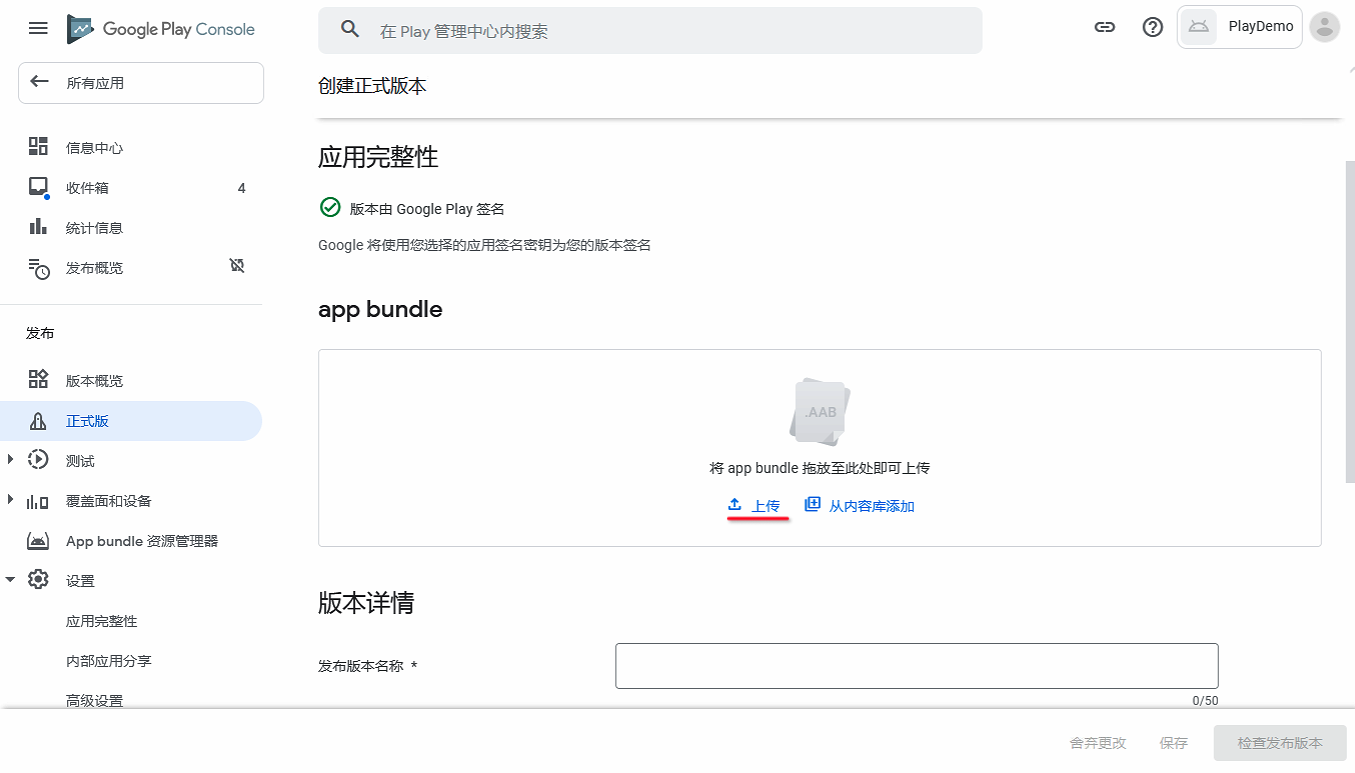
Upload the Android App Bundle downloaded earlier to Google Play.
Enter the release notes. Be sure to edit the placeholder text, then click Save.
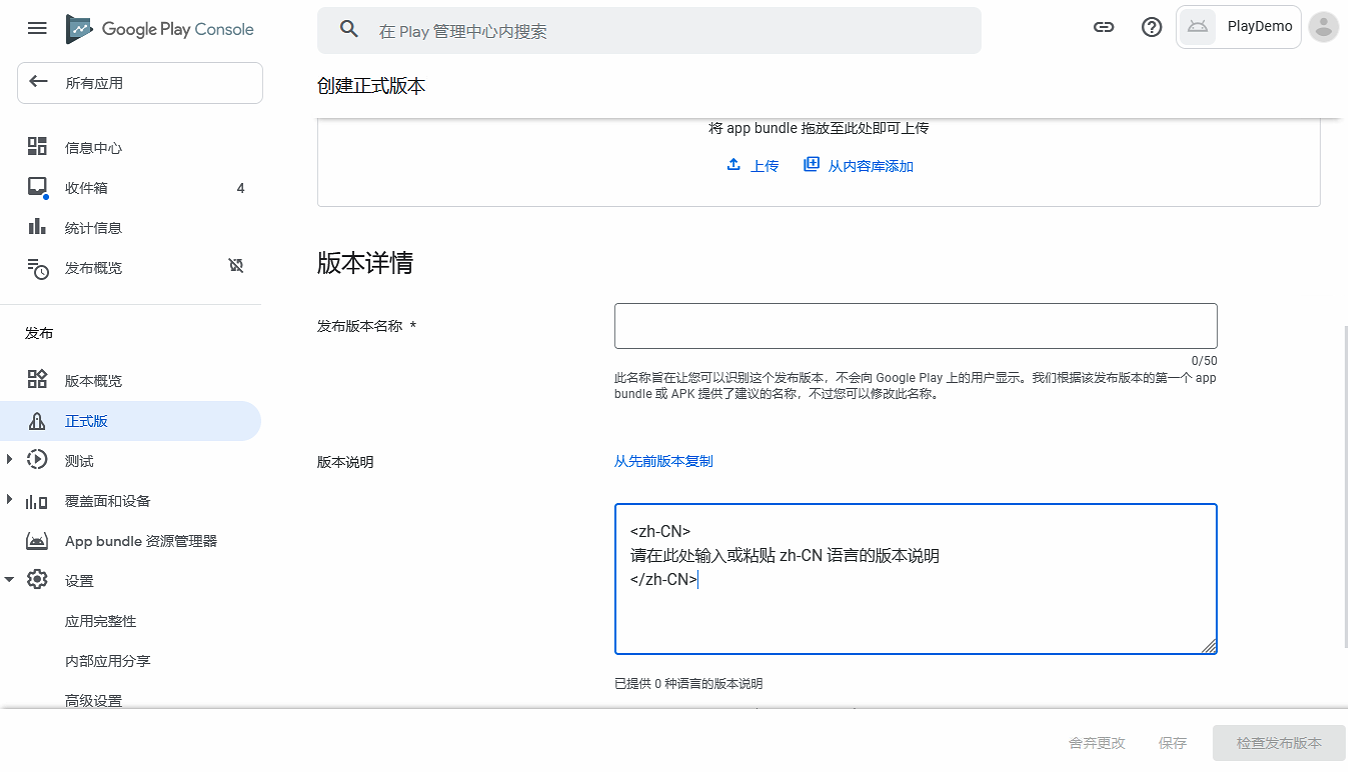
Release notes format:
<zh-CN>

Enter or paste the zh-CN release notes here

</zh-CN>

<en-US>

Enter or paste the en-US release notes here

</en-US>
You can use multiple language tags.
Release Countries
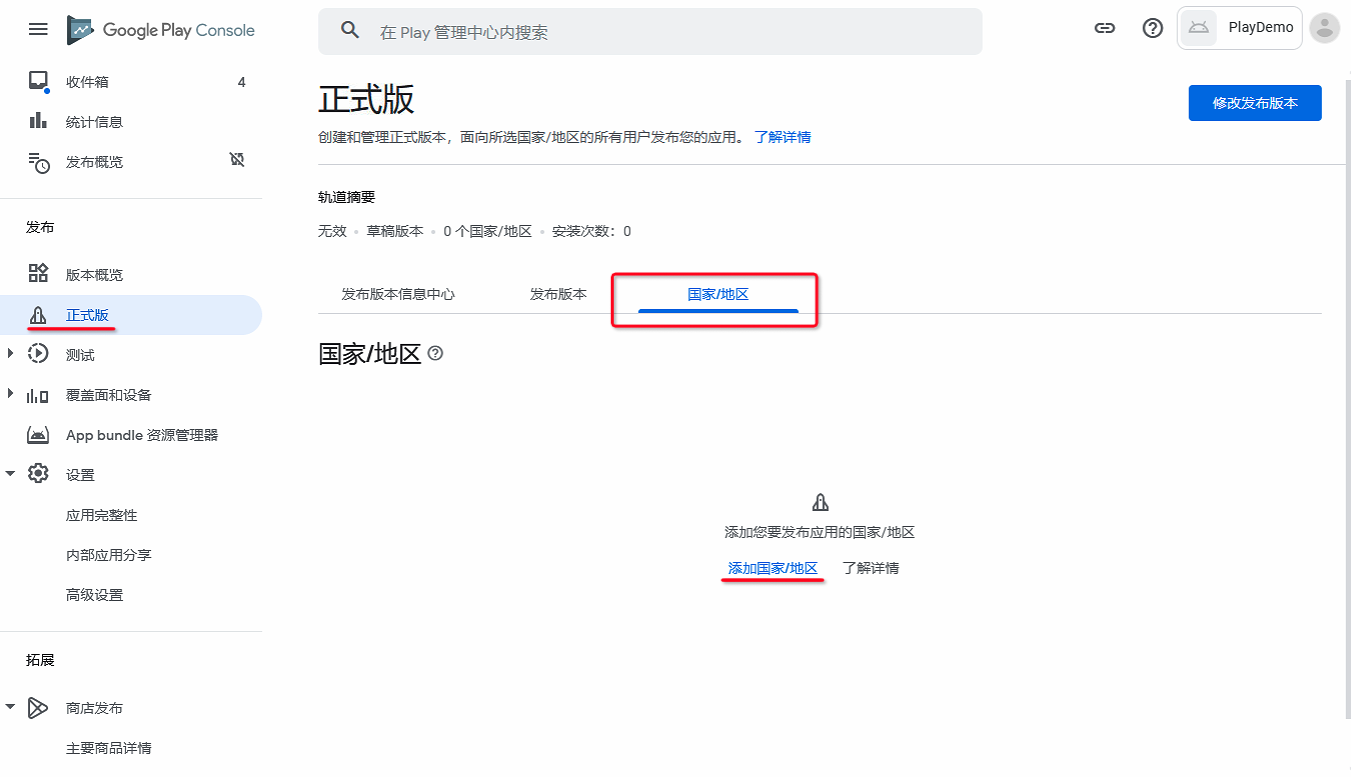
In the left navigation, select Production > Countries/regions > Add countries/regions, and select where the app can be downloaded.
App Content
In the left navigation, select App content, and complete Privacy policy, Ads, App access, Content ratings, Target audience and content, News apps, COVID-19 contact tracing and status apps, Data safety, Advertising ID, and Government apps.
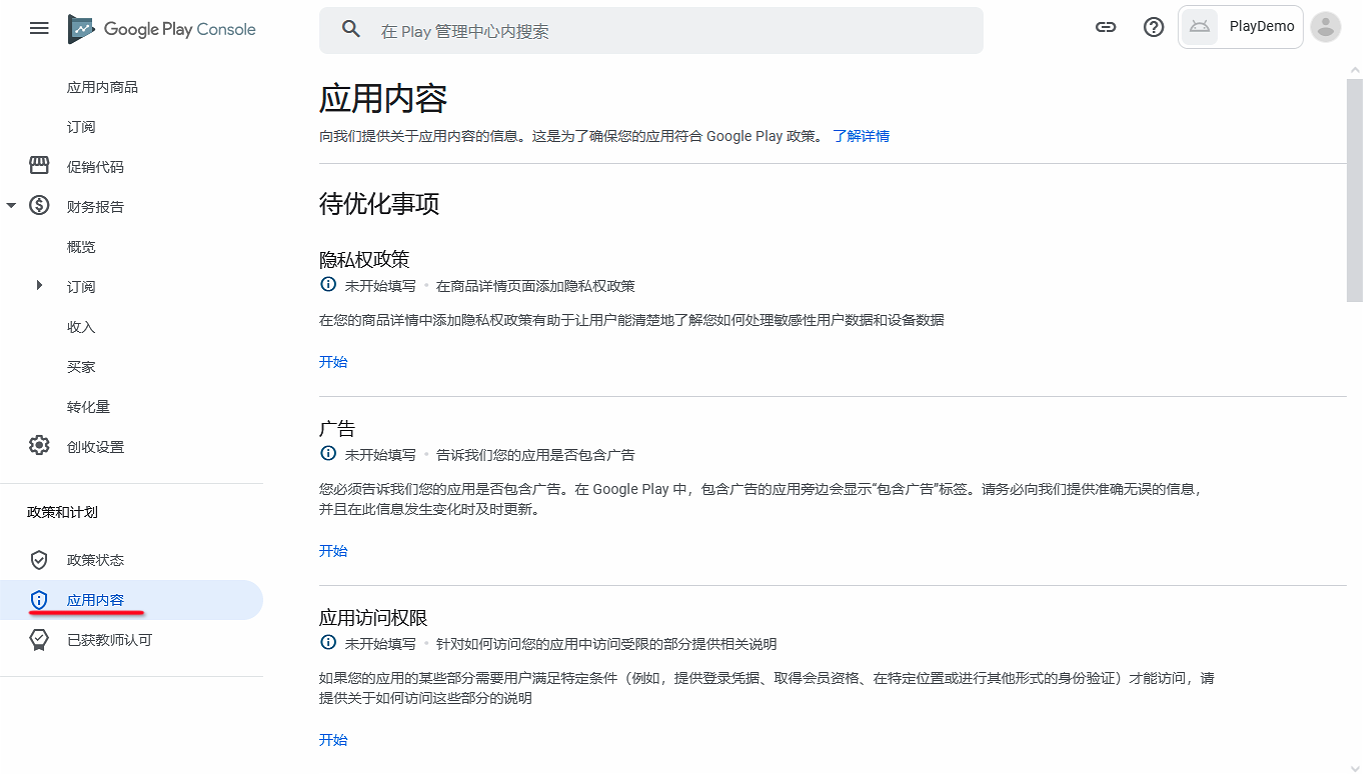
Privacy Policy
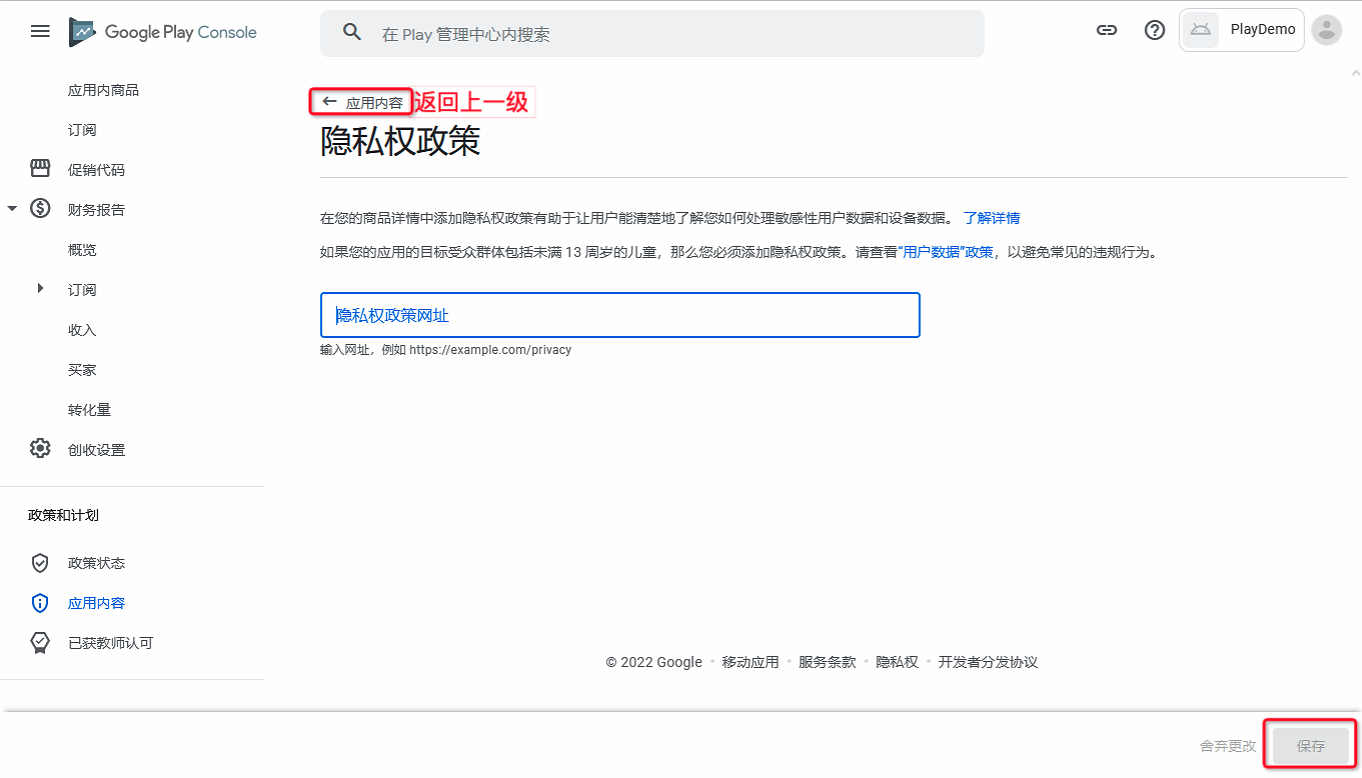
Click Start, enter the privacy policy URL, then click Save. Click ← App content to go back.
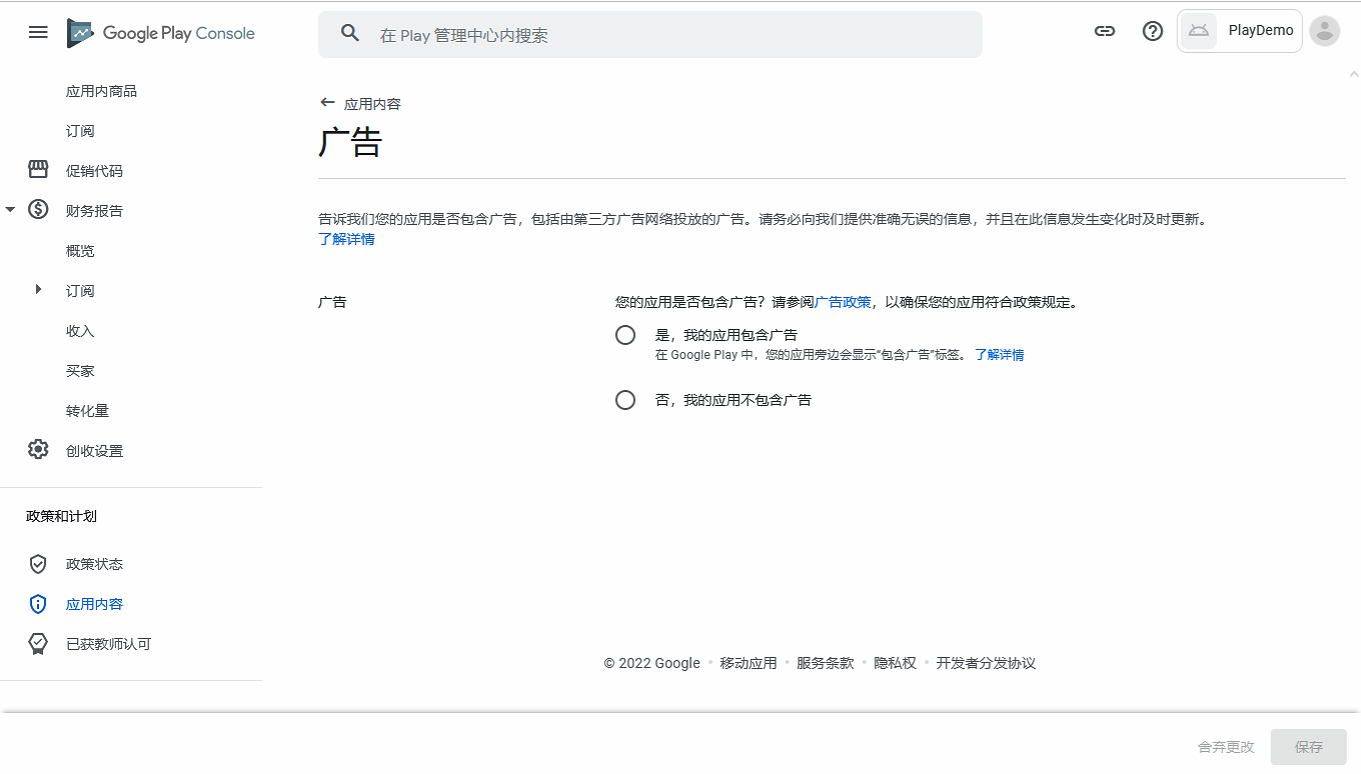
Ads
Click Start, answer truthfully, check Yes, my app contains ads, then click Save.
Note: OEM Apps include custom first-party splash-screen promotions.
App Access
Click Start, select All or some functionality is restricted, then click Add new instructions.
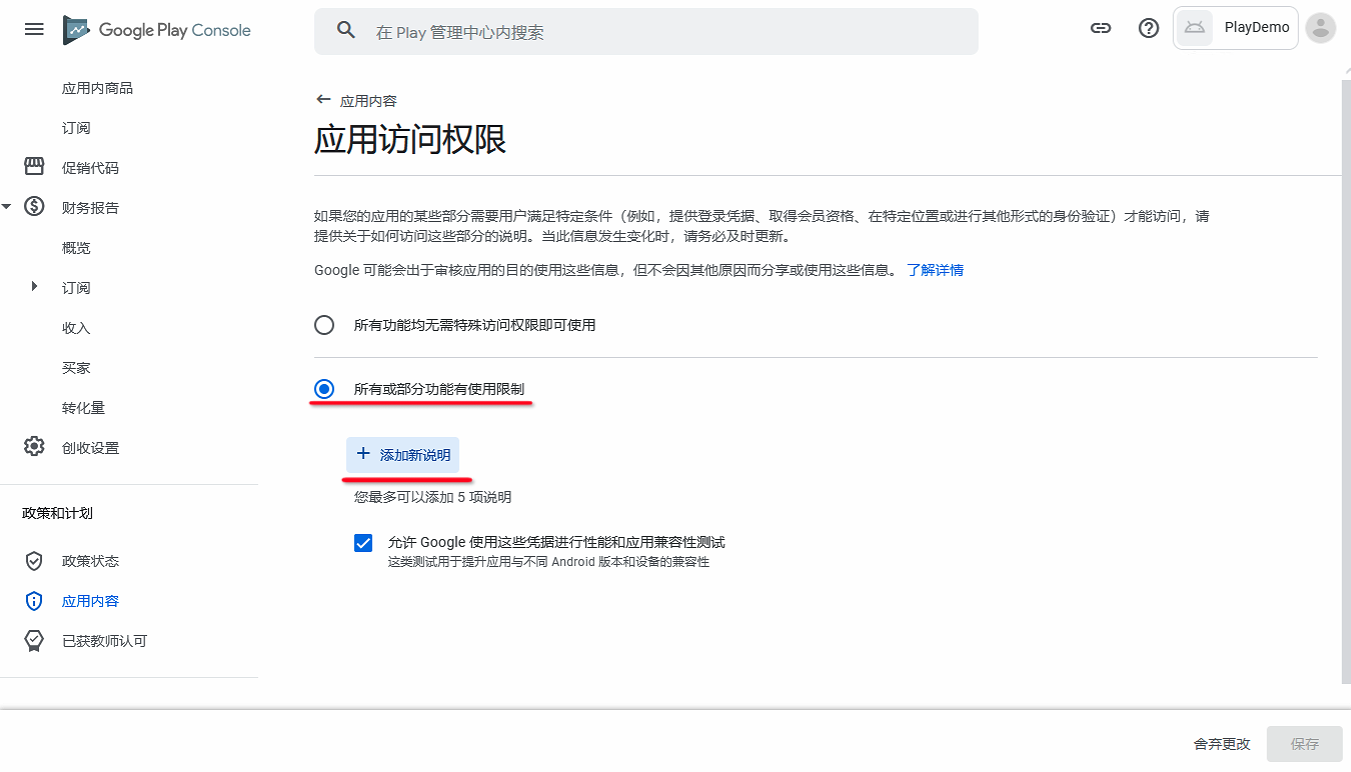
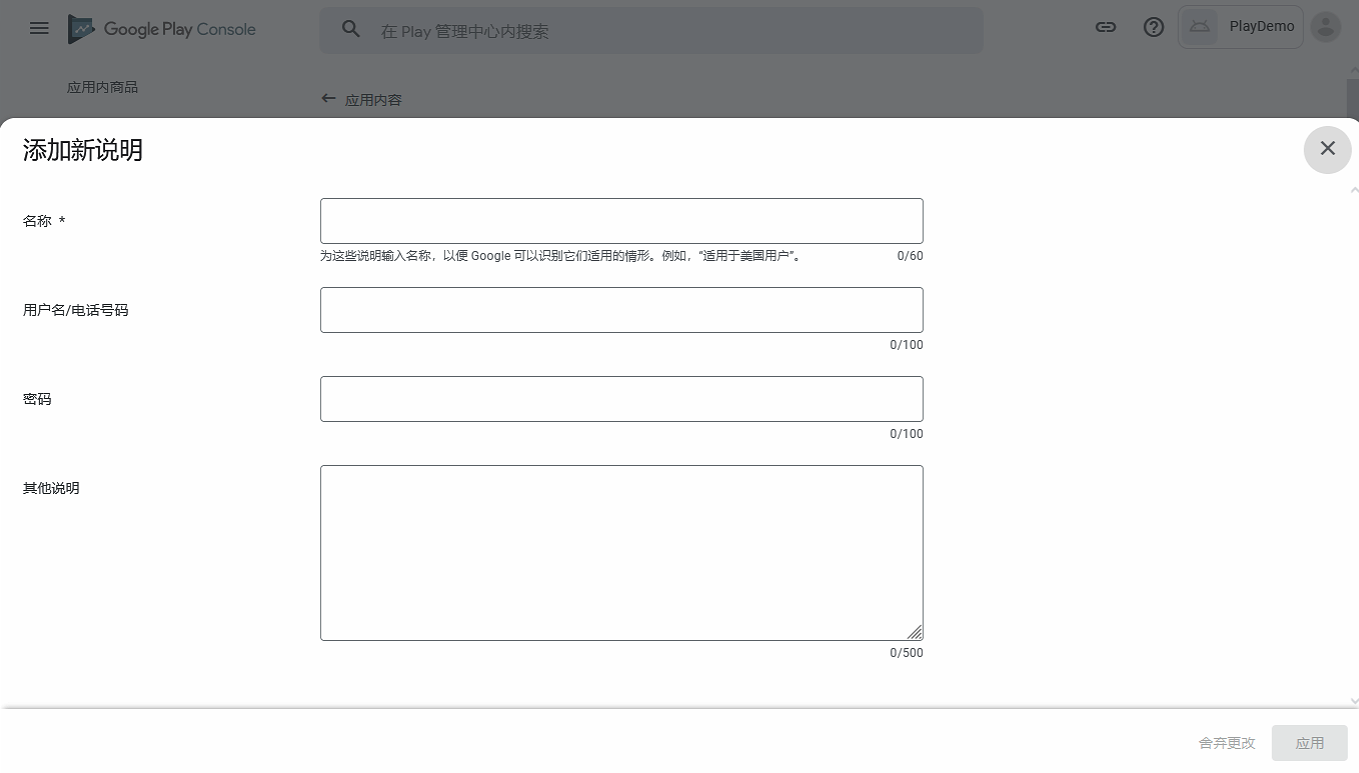
Enter the test account name, username, and password (the account must be registered on the submitted app and able to sign in). Under Other instructions, enter the account’s country/region and the review video link you recorded. Click Apply, then Save.
Content Ratings
Click Start > Start questionnaire.
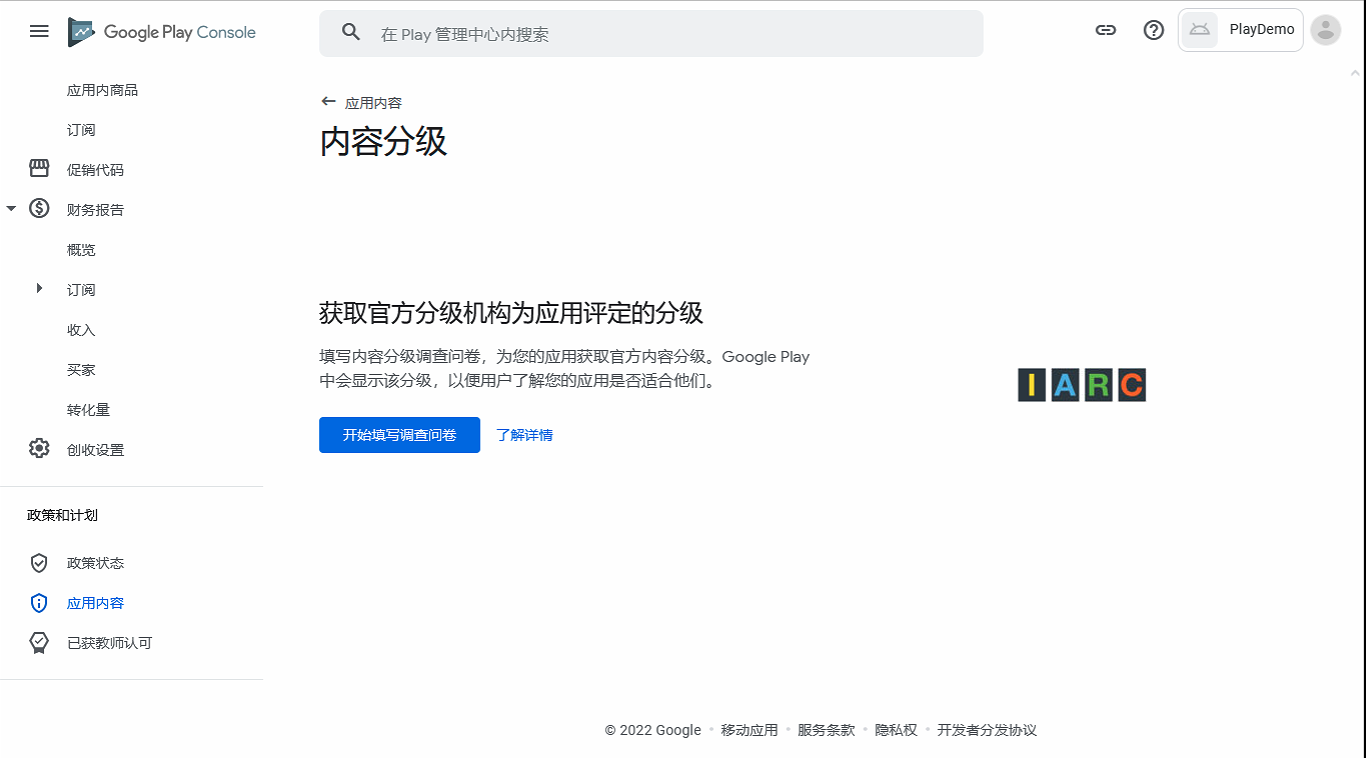
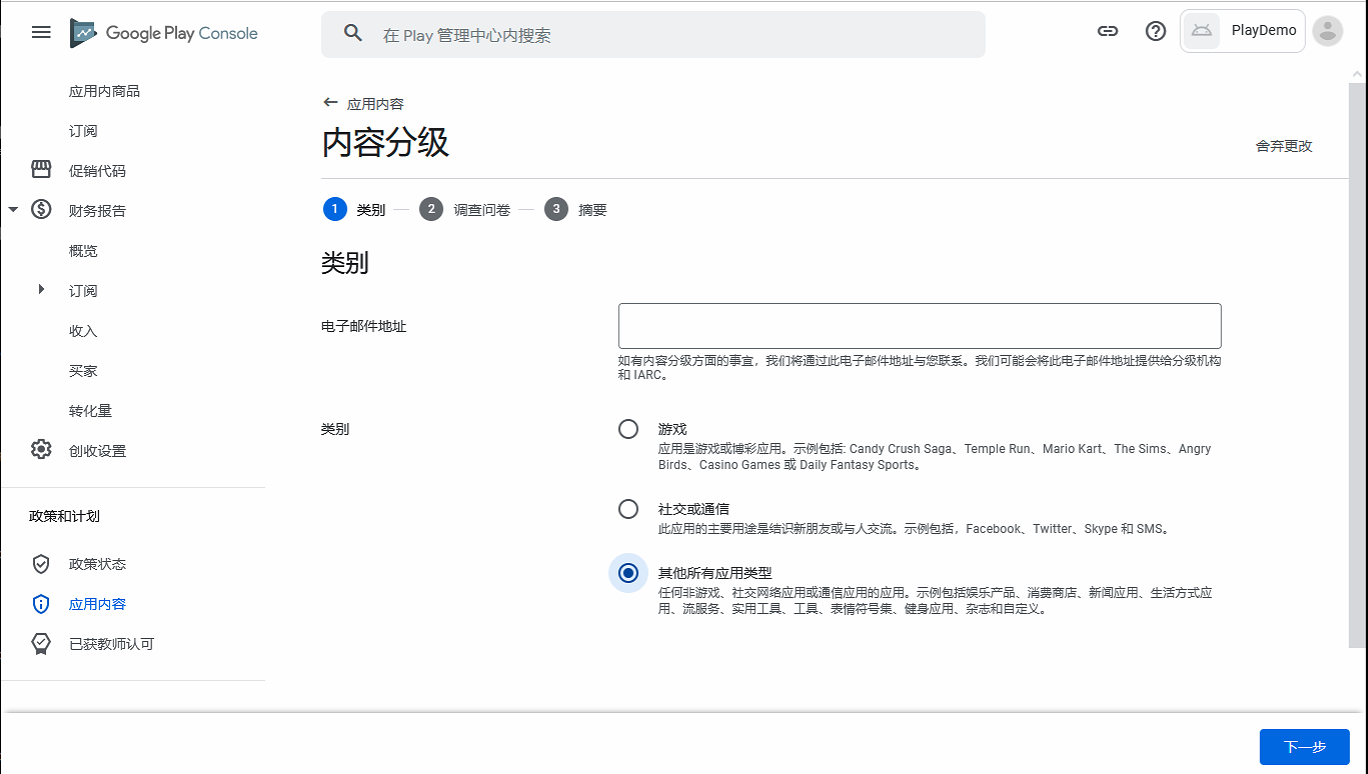
Enter the email address to receive the rating certificate.
Select All other app types, then click Next.
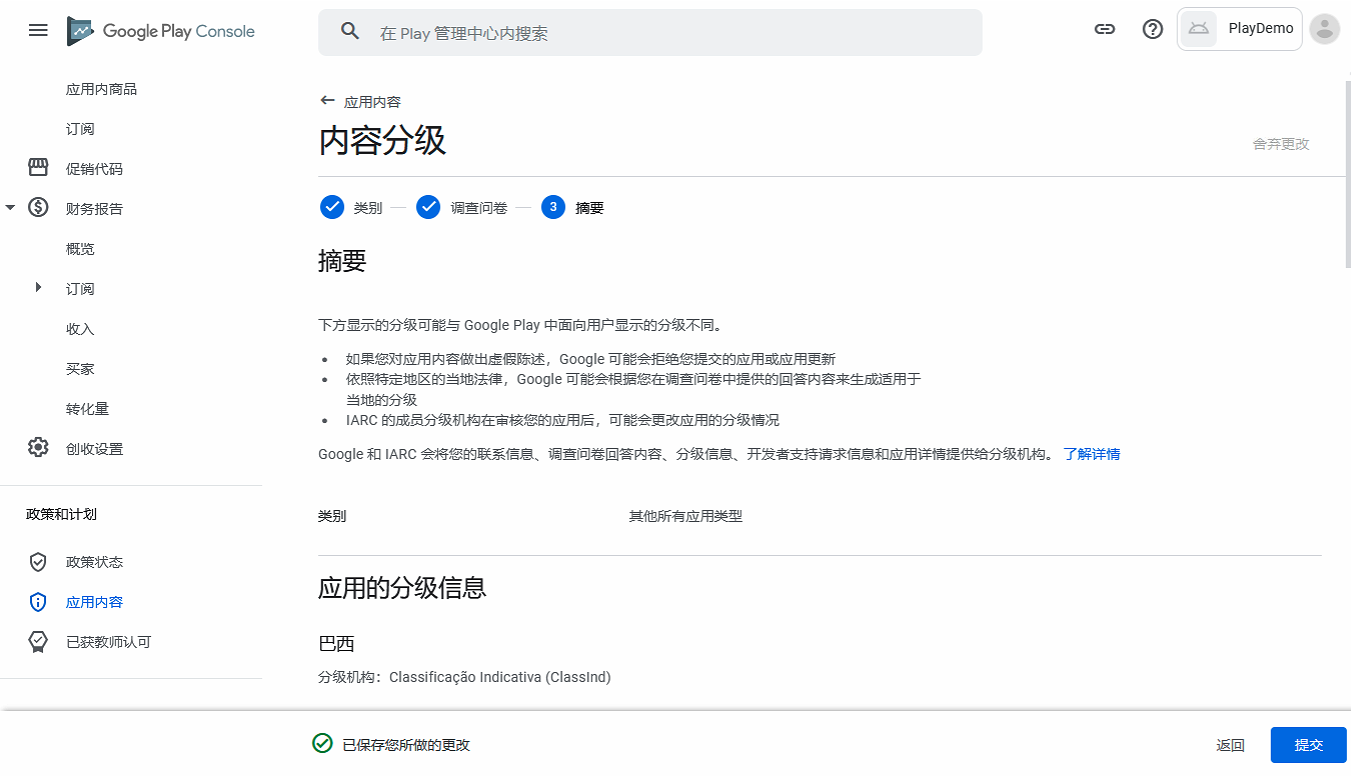
Complete the content ratings questionnaire truthfully. Select No for all options. When finished, click Save > Next.
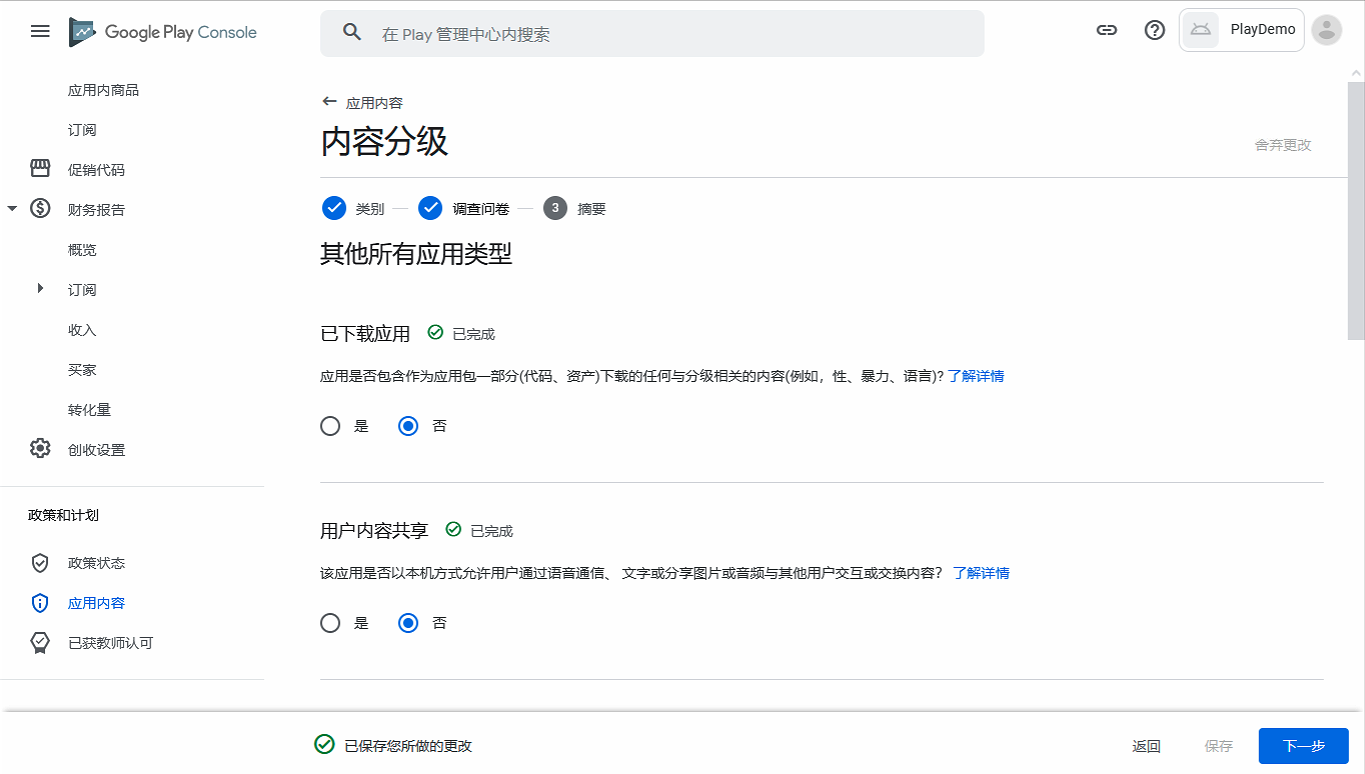
Click Submit.
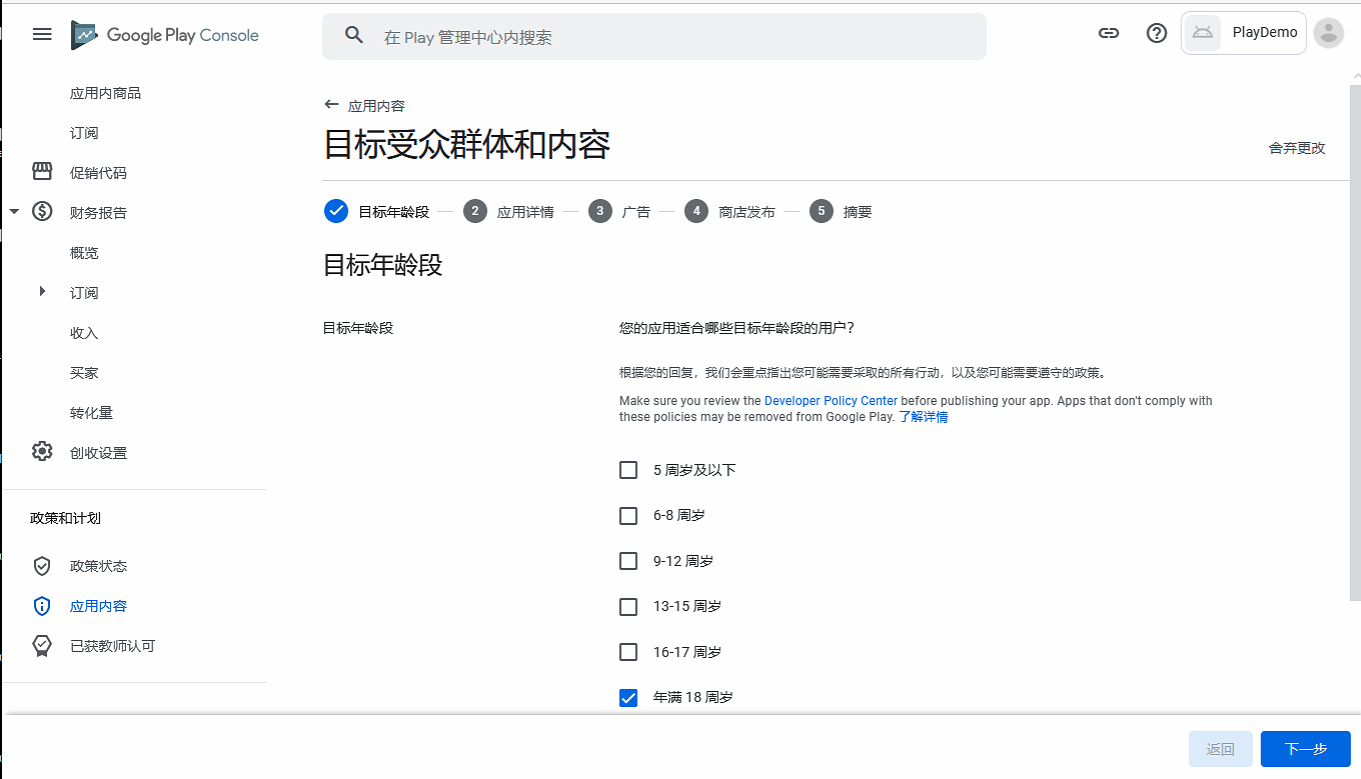
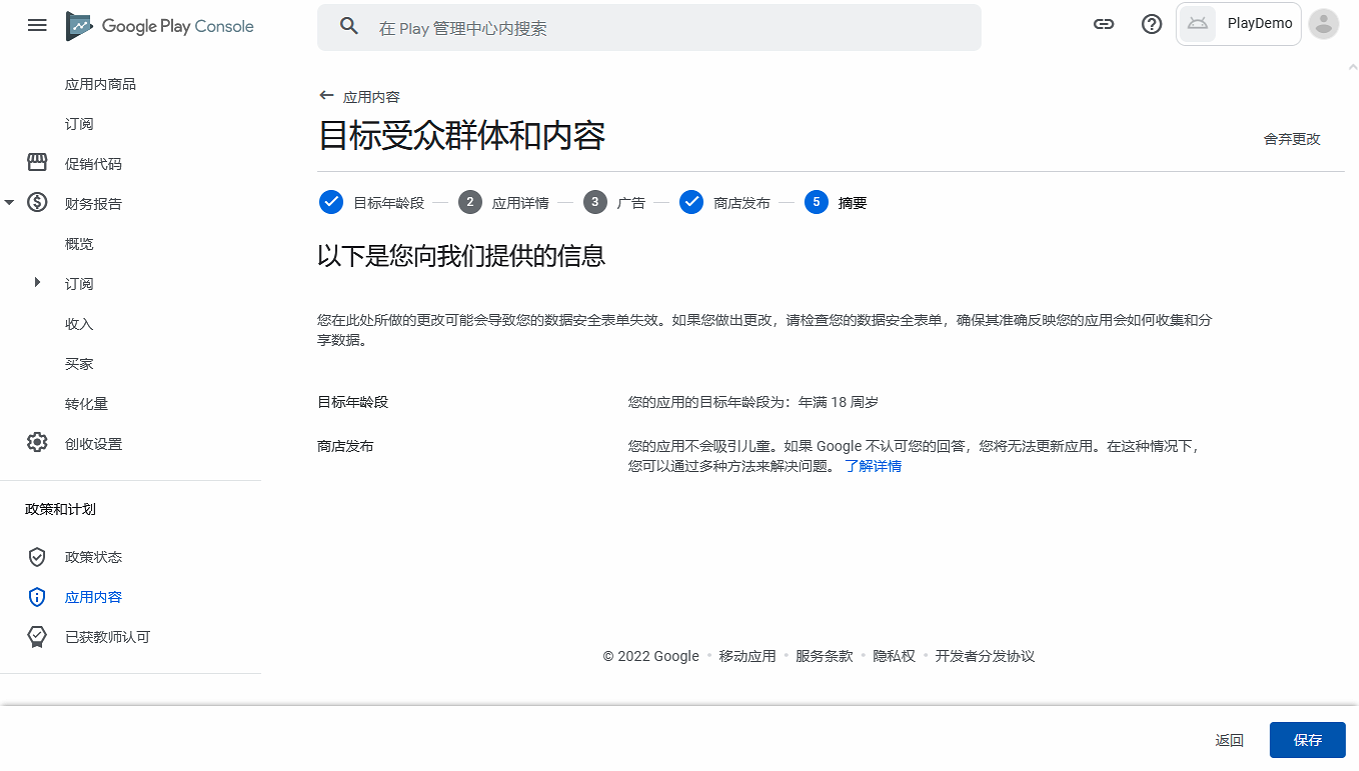
Target Audience and Content
Click Start, select target age 18 and over, then click Next.
Appeals to children: select No, then click Next.
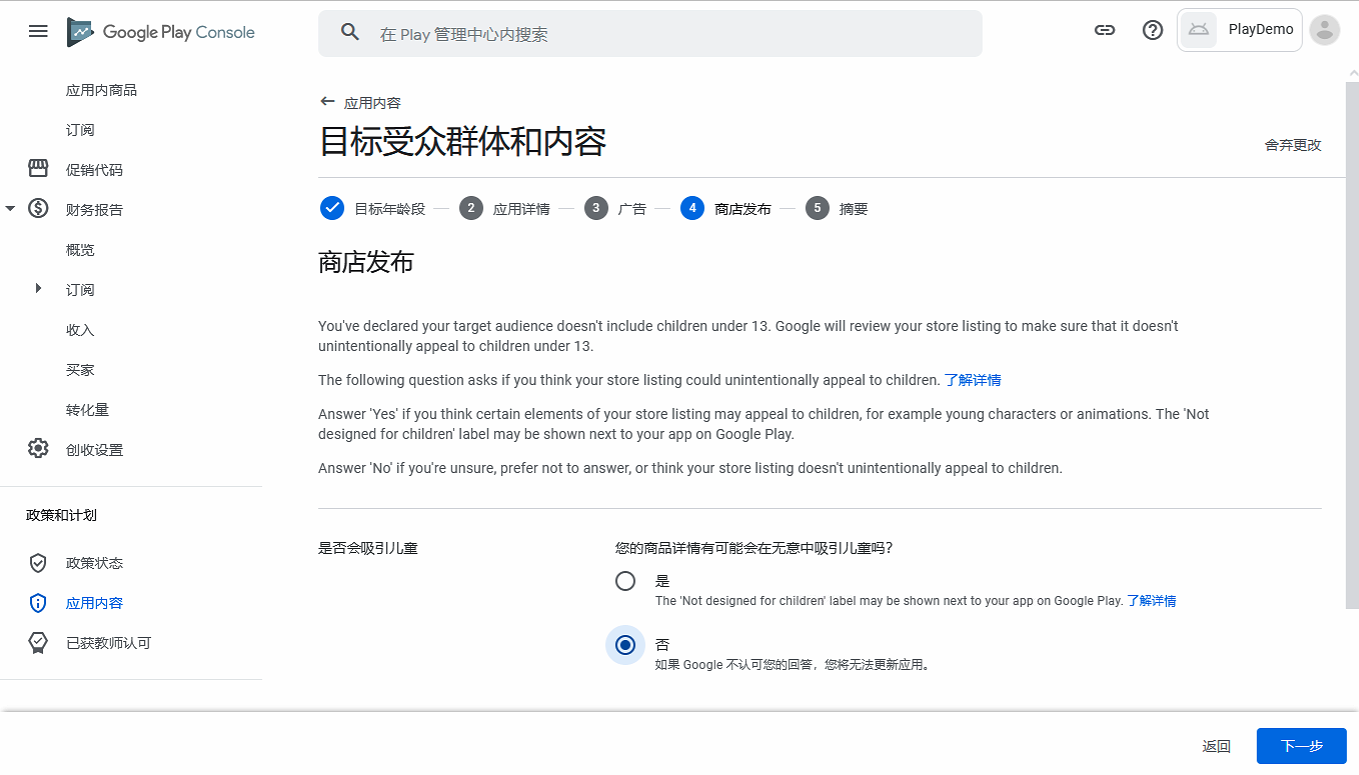
Confirm the summary, then click Save.
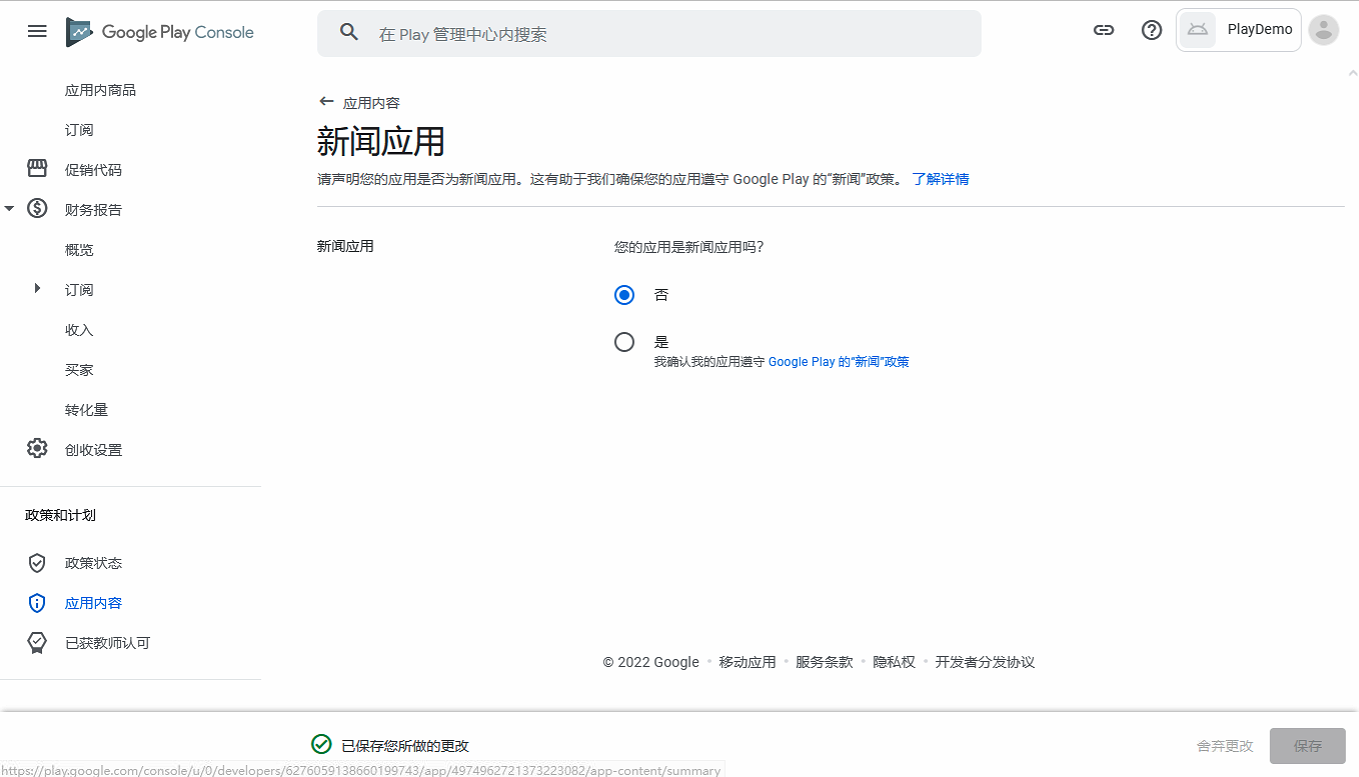
News Apps
Click Start, select No, then click Save.
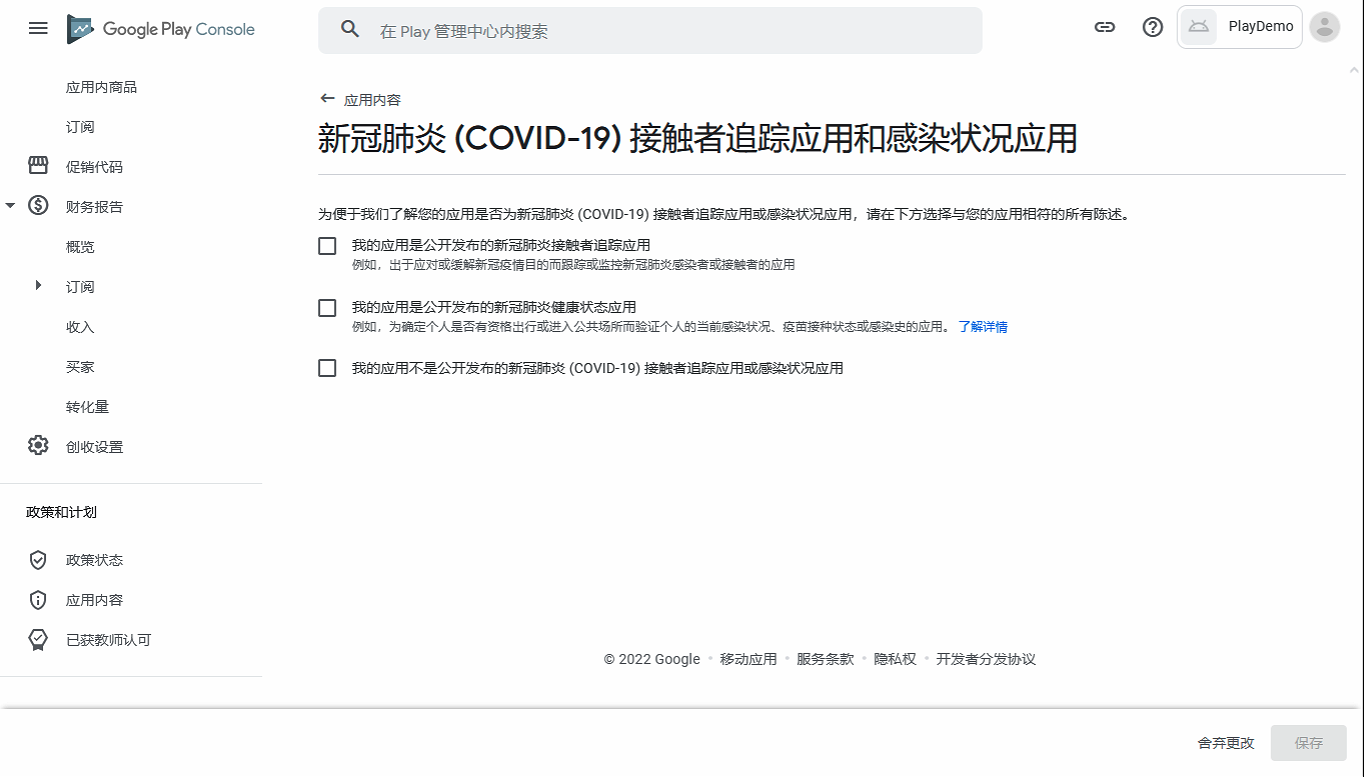
COVID-19 Contact Tracing and Status Apps
Click Start, select according to your device, then click Save.
Data Safety
Google Play requires all apps to complete the Data safety form. Otherwise, an app may be removed from Google Play. For detailed steps, see Google Data Safety.
Advertising ID
Click Start, select No, then click Save.
Government Apps
Click Start, select Yes or No as appropriate, then click Save.
Publish the App
When everything is complete, click Production on the left > Edit release > Review release > Submit for review or Start rollout to Production.
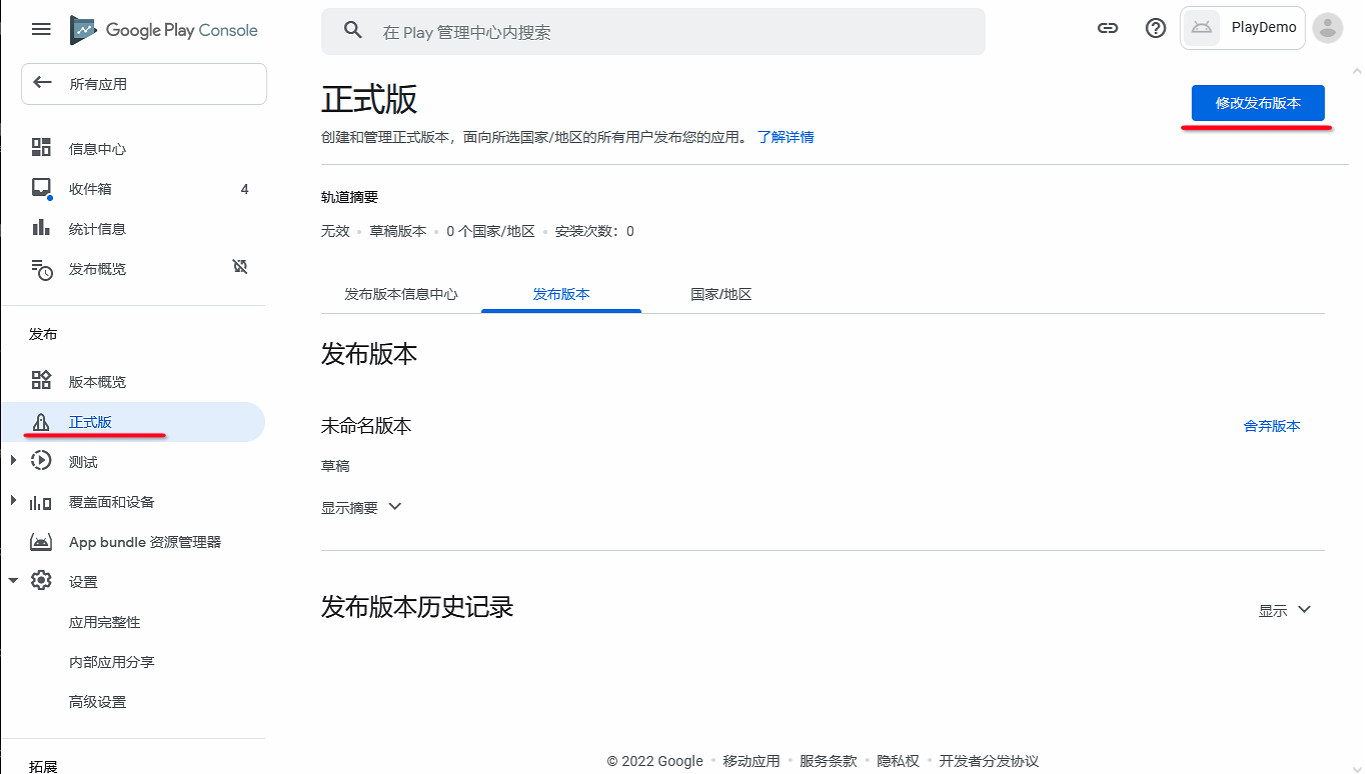
After you start the production rollout, Google Play automatically reviews the app, typically within about one day. After approval, the App is released on Google Play and users can find it in the store.