Alexa Speaker Configuration Guide
Prerequisites:
Amazon developer account: https://developer.amazon.com
AWS account: https://aws.amazon.com/
I. Configure the Skill
- Open the website
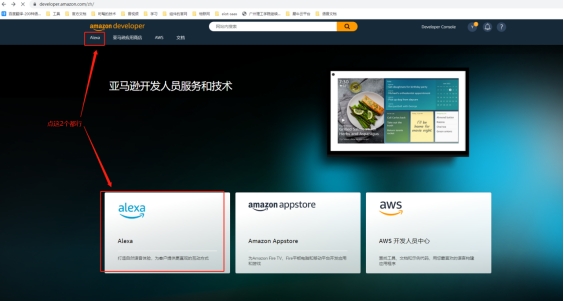
Go to the Amazon developer page https://developer.amazon.com/zh/ , then click the Alexa button to open the skill configuration page
- Open Alexa Skills
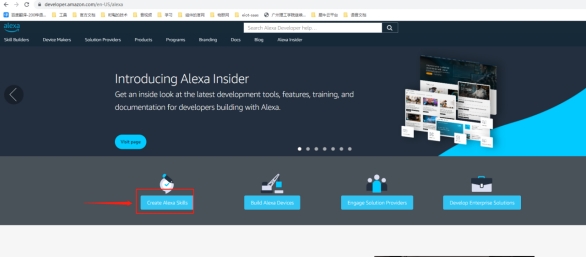
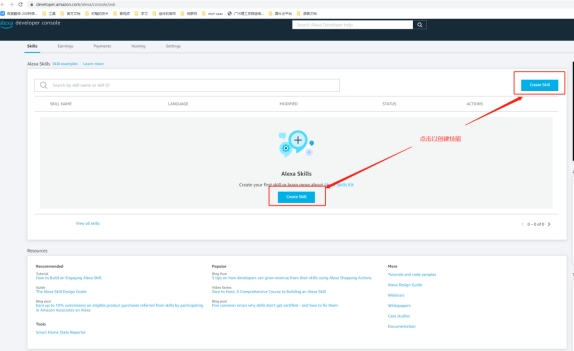
Click Create Alexa Skills
- Introduction page
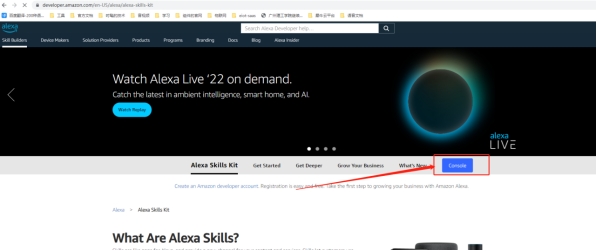
After clicking Create Alexa Skills, you enter an introduction page. You can read the introduction if needed, then click the Console button to enter the console
- Console
You can also enter the console via this link: https://developer.amazon.com/alexa/console/ask,
Because there is no skill yet, create one first by clicking the Create skill button
- Create a skill
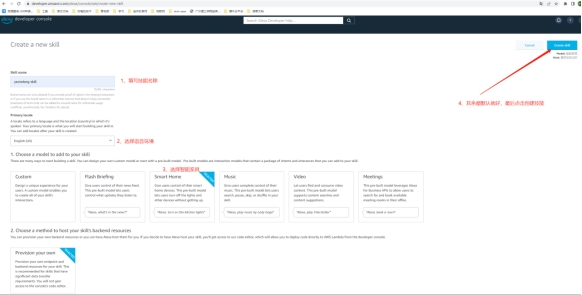
Enter the skill name and locale, then select the Smart Home model.
- Configure the skill
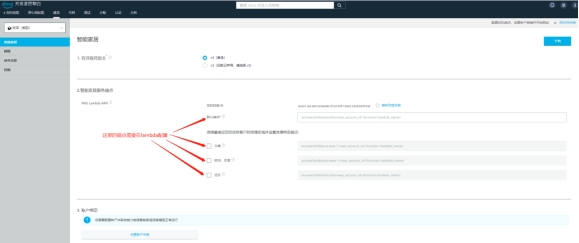
One important note: Amazon voice control requires Lambda. Each region uses a different endpoint. Lambda configuration is explained below.
II. Configure AWS Lambda
- Open the link
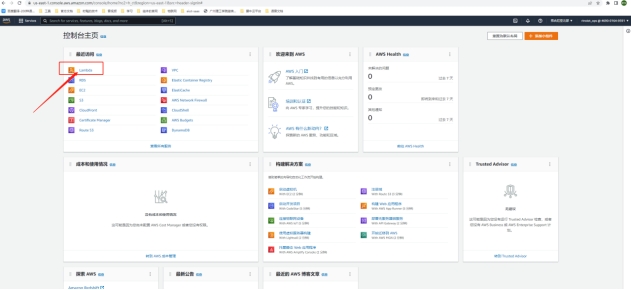
Open the AWS Management Console, confirm the required AWS region, and open Lambda.
- Create a Lambda function
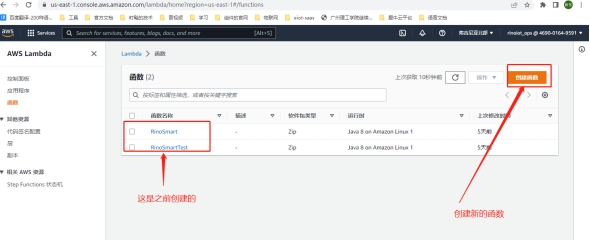
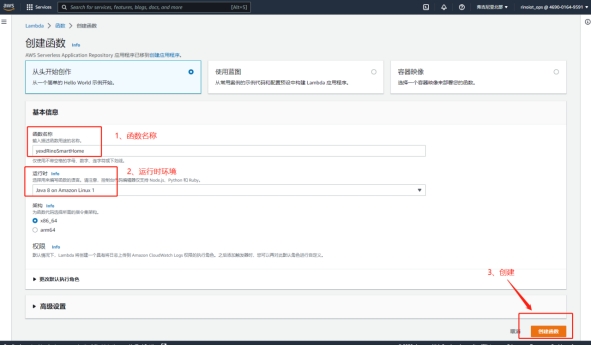
- Fill in creation details
Enter the function name and runtime in order, leave other options as default, then click Create function
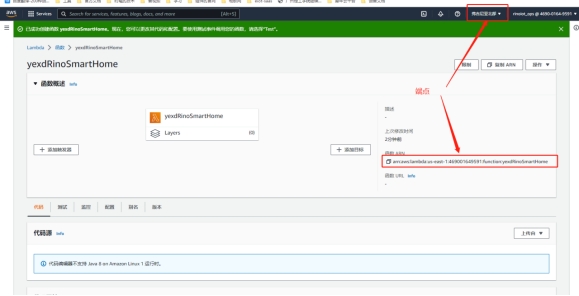
After creation, the page appears as shown below. Note the function ARN and the AWS region shown in the upper-right corner. Alexa endpoint requirements are region-specific, so deploy and configure the function in the region required for the target Alexa locale.
- Upload the Lambda function JAR package
Return to the previous page. Because Java is used here, select a JAR package;
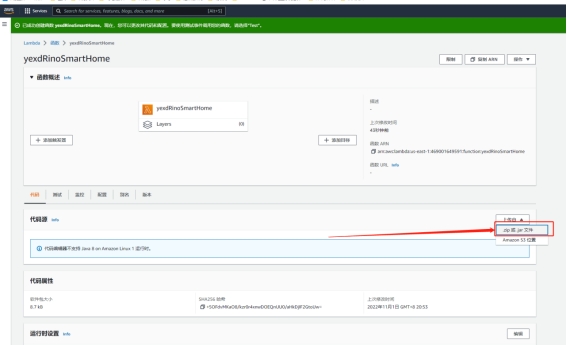
Upload the packaged JAR to Amazon. Because it is an overseas site, uploads may fail—retry a few times if needed;
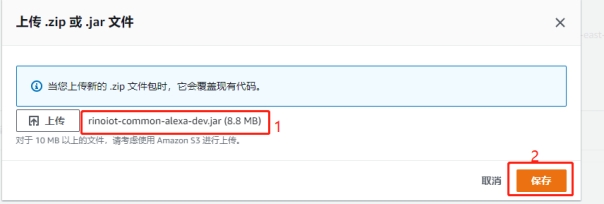
- Modify the handler method
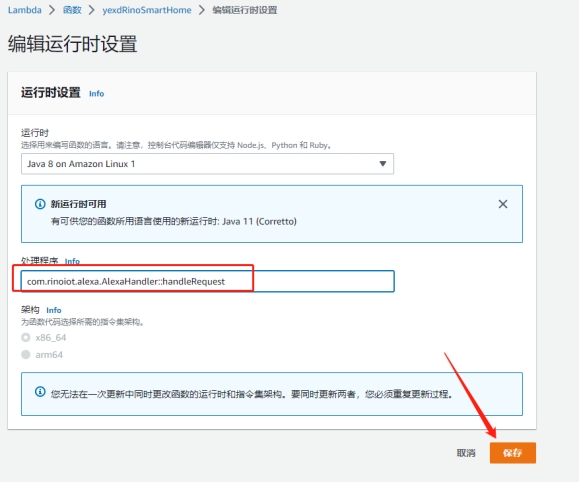
Click Edit under Runtime settings

Change the handler to your fully qualified class name + method name: com.xx.alexa.AlexaHandler::handleRequest, where:
com.xx.alexa.AlexaHandler is the fully qualified class name and handleRequest is the method name
Finally click Save
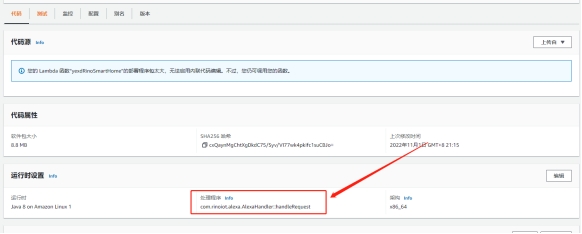
Modification complete
- Add a trigger
Click the Add trigger button
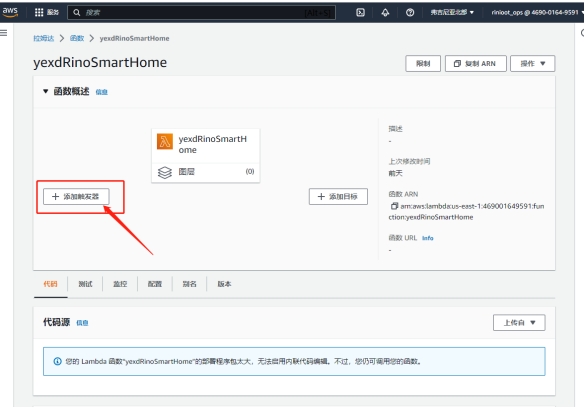
Then select a source
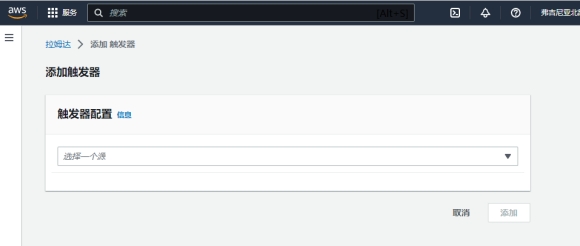
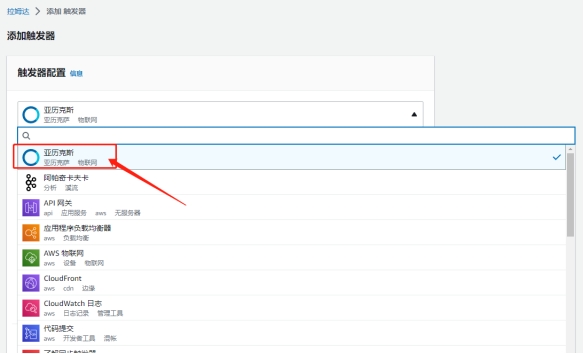
Because we use voice control, select Alexa
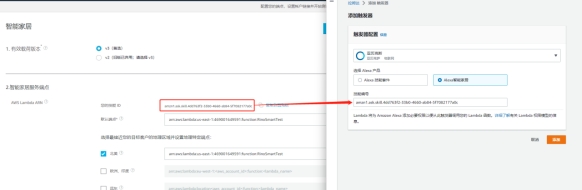
Copy the skill ID from the skill console, paste it here, then click Add
At this point, the trigger is created
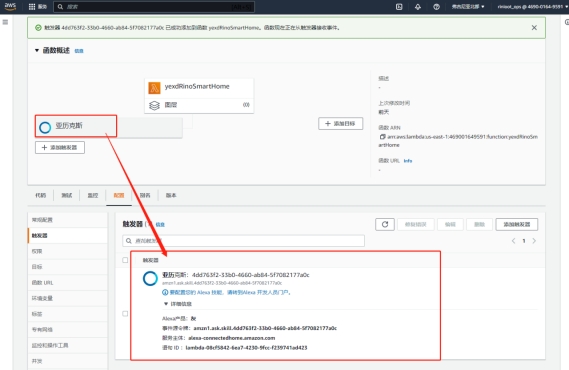
- Copy the endpoint
Copy the Lambda function ARN into the Alexa skill endpoint fields required for your target locale. In the example below, it is used for the default and North America endpoints.

- Configure account linking
Configure account linking with the OAuth 2.0 values generated by the Ubases IoT Open Platform. Ensure that the client ID, client secret, authorization URL, token URL, redirect URLs, and scopes match both platforms exactly.
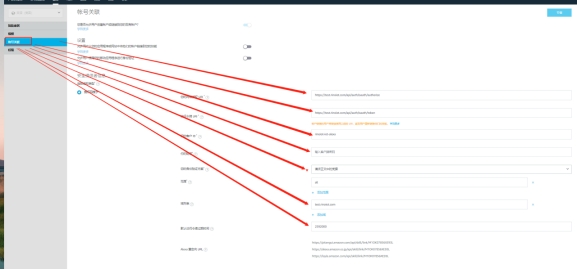
Open Platform Configuration
Product voice configuration entry
Voice control is configured per product. From product development, open the corresponding voice control page and select the Alexa configuration item.
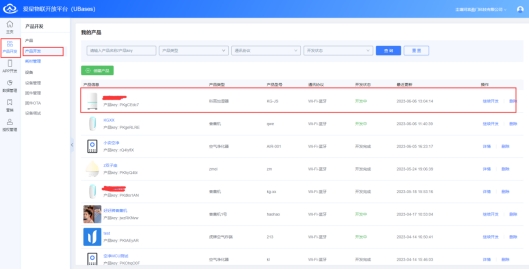
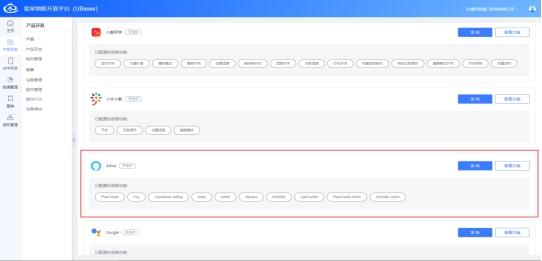
2. Fill In Voice Configuration Information
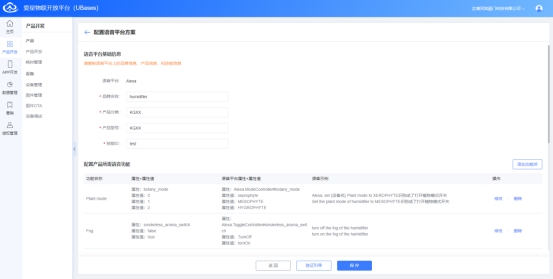
Currently four configuration types are supported:
Enum type:
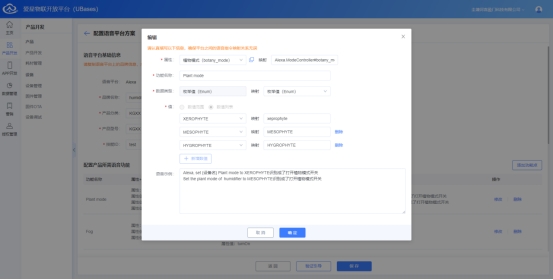
Mode-switching type:
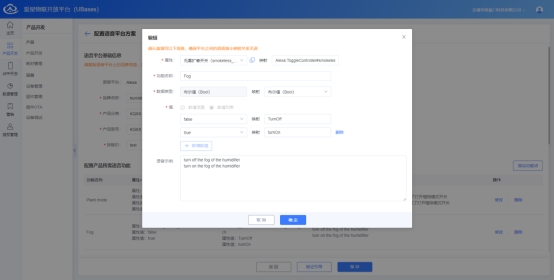
Switch type:
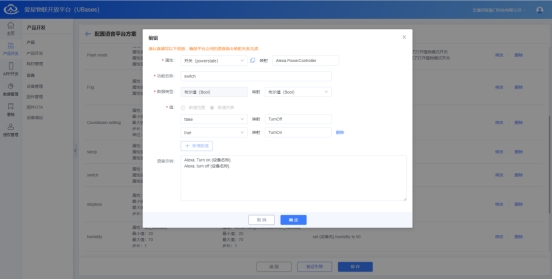
Range type:
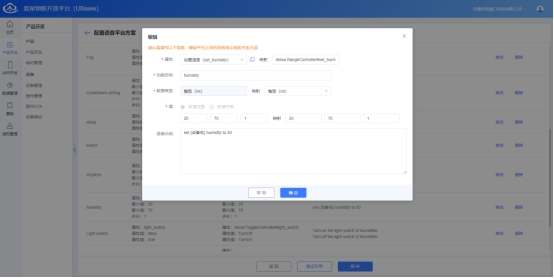
3. Obtain Developer Cloud OAuth Authorization Information
App Development → Optional Configuration → Voice Service, enable Alexa, then click Save and Publish.
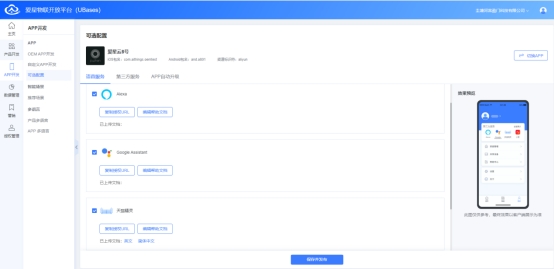
Click Copy Authorization URL to open the following page:
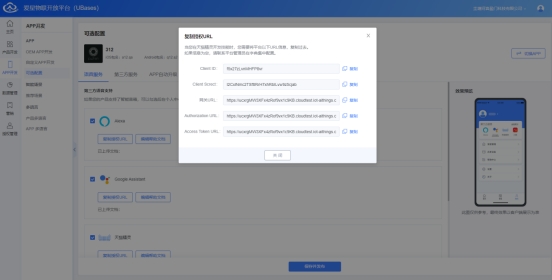
Copy the information in the red boxes in order, and fill them into the Alexa official Account linking page in step 8 of section II above.
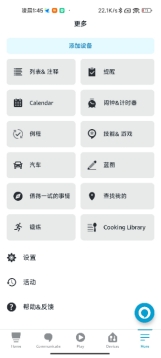
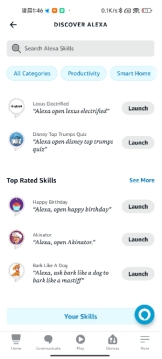
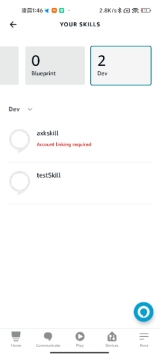
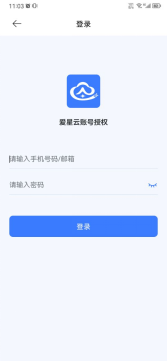
4. Alexa App Authorization Flow