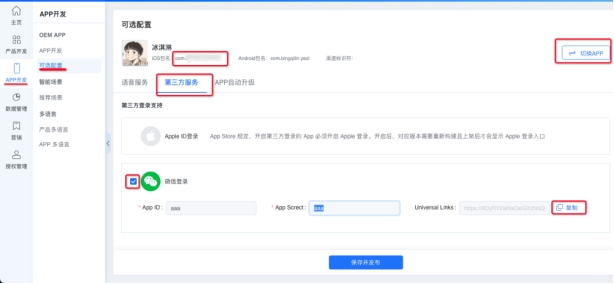
Third-Party Login Support
Google Sign-In
Prerequisites
You already have a Google account (https://console.cloud.google.com/).
Users in mainland China need a VPN to access the Google API Console.
Steps
Open and sign in to the Google API Console: (https://console.cloud.google.com/)
Click Menu > APIs & Services.
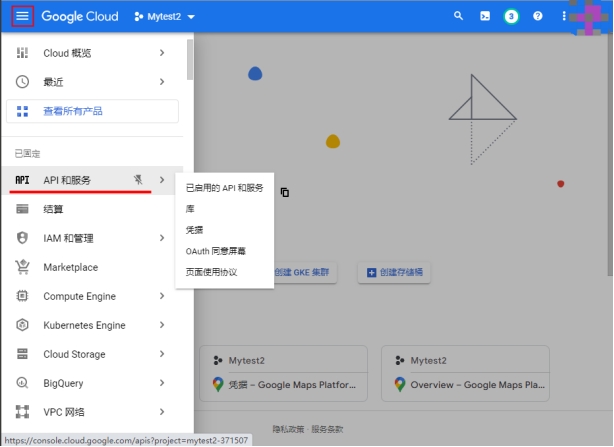
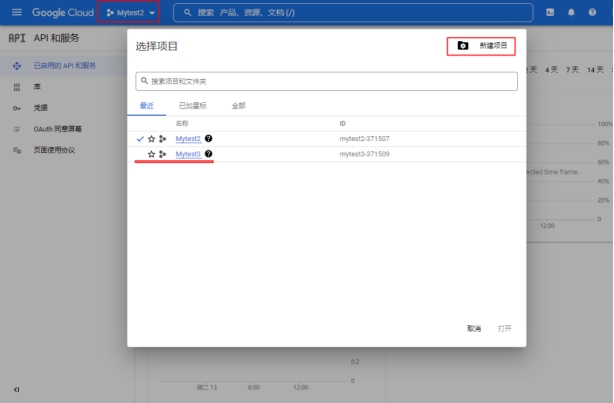
- Select an appropriate project or create a new one
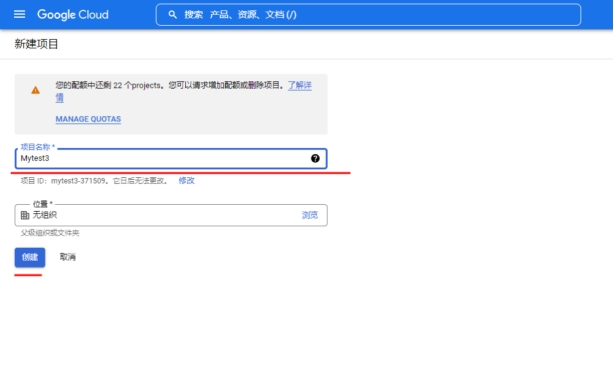
For a new project, you can use your App name as the project name, then click Create.
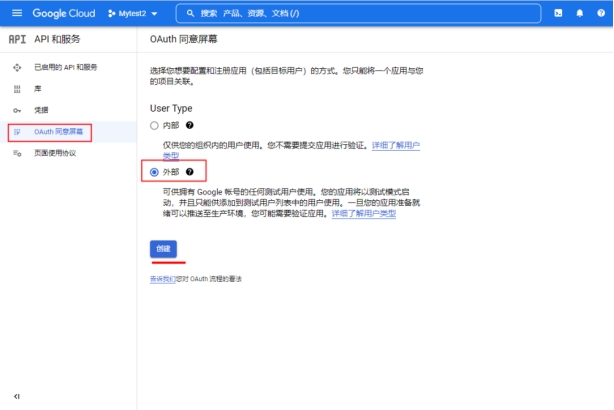
- Click OAuth consent screen, set User Type to External, then click Create.
Note:
If OAuth consent screen is already configured for this project, skip this step.
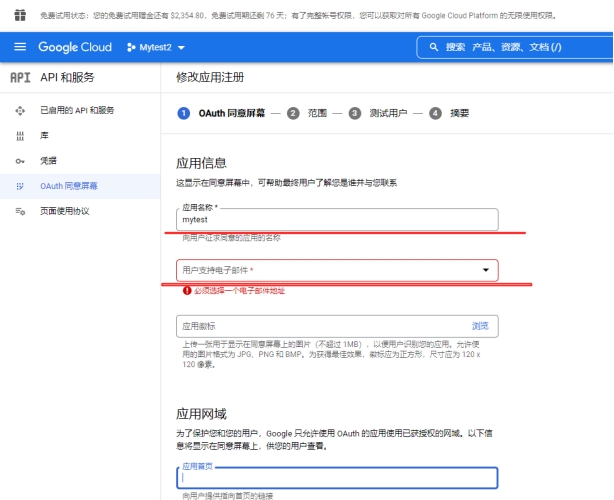
App name: your App name; User support email: select one from the dropdown; scroll to the bottom of the page.
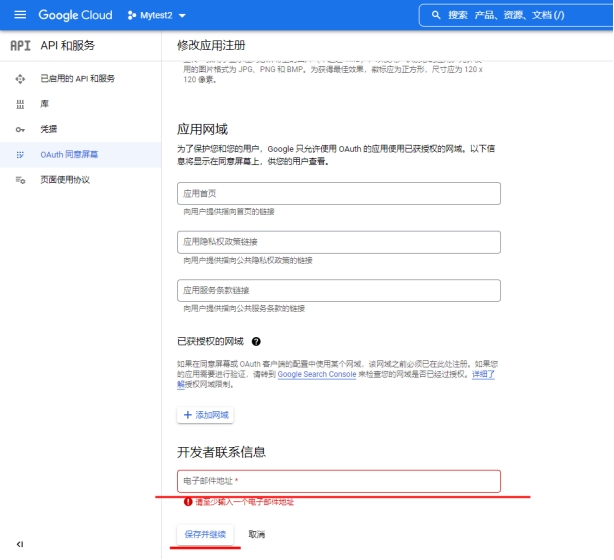
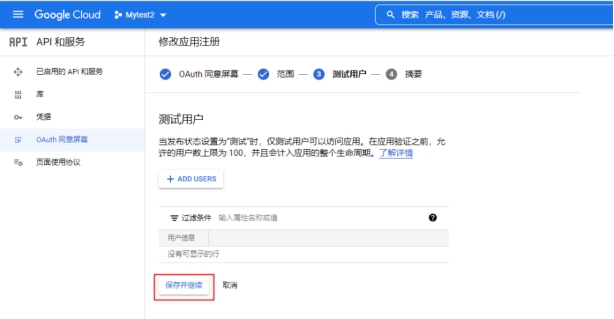
Developer contact information: enter your email address. Click Save and Continue.
Click Save and Continue.
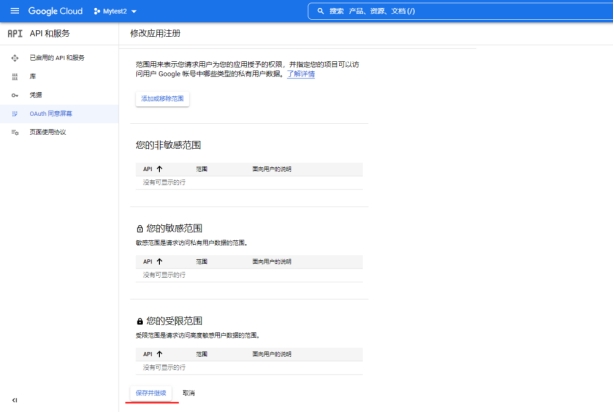
Click Save and Continue.
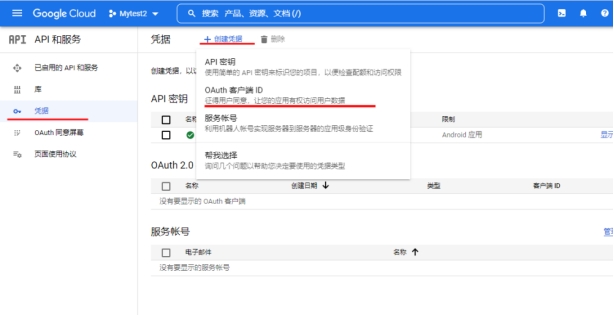
- Click Credentials > Create credentials > OAuth client ID.
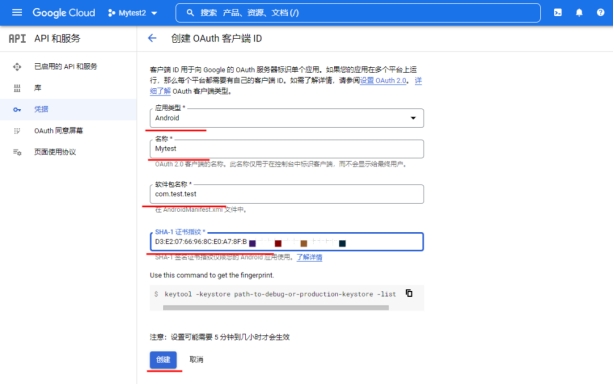
- Application type: Android; Name: App name; copy Package name and SHA-1 certificate fingerprint from the Ubases IoT development platform; click Create. When the dialog appears after creation, click OK.
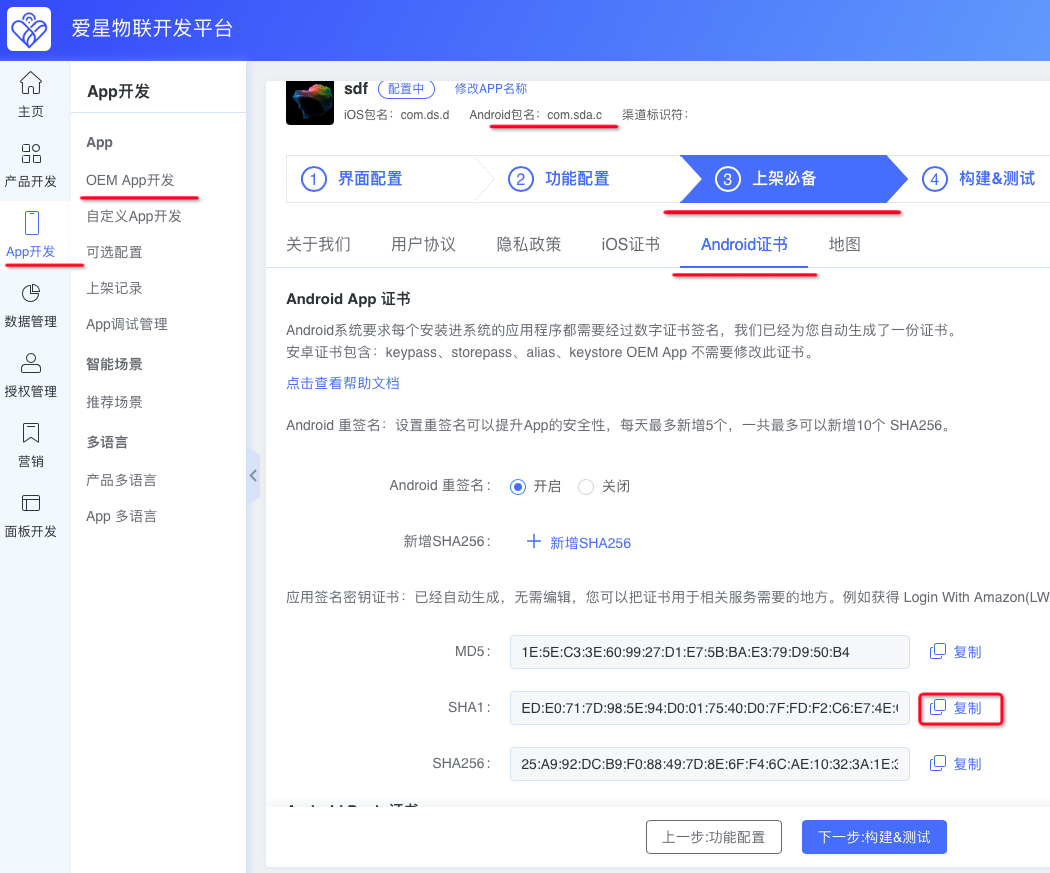
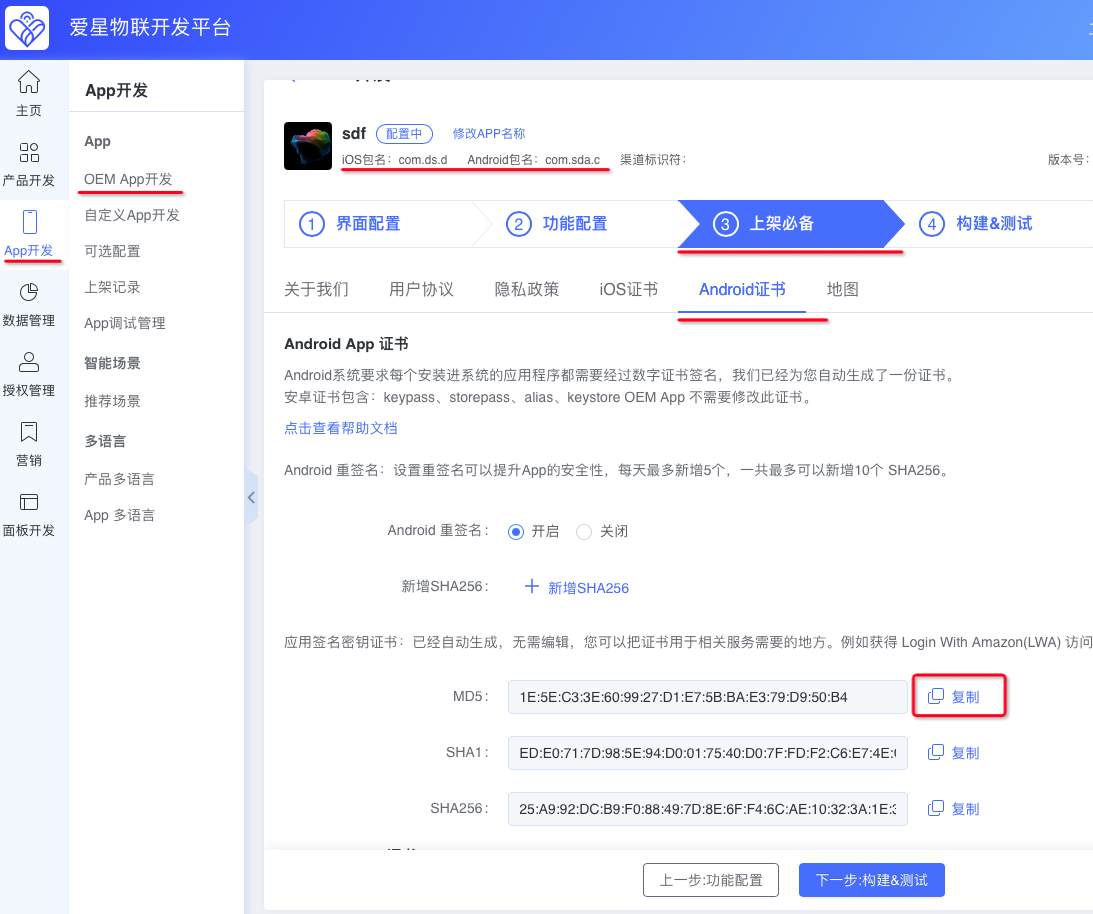
Where to find the package name and SHA-1 certificate fingerprint on the Ubases IoT development platform.
- Click Credentials > Create credentials > OAuth client ID, set application type to Web application, enter a name, then click Create.
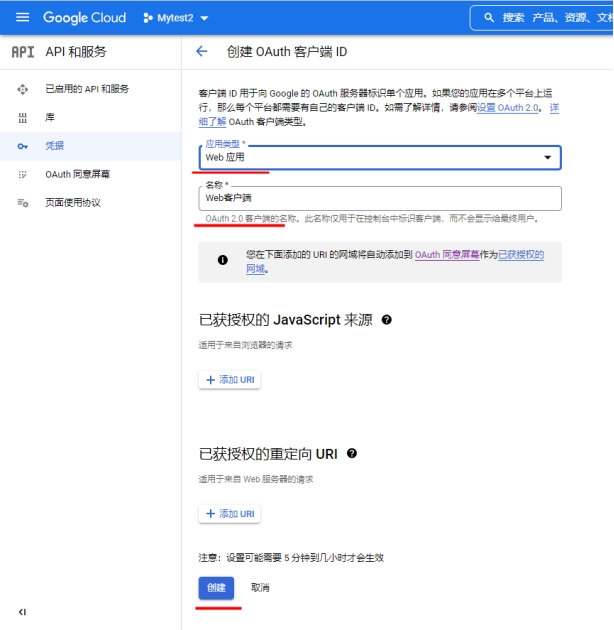
- Copy the client ID, then click OK.
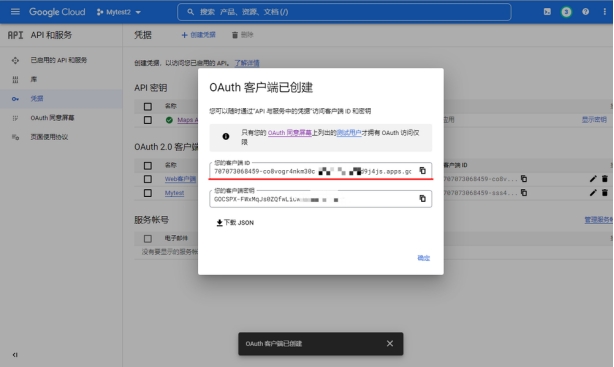
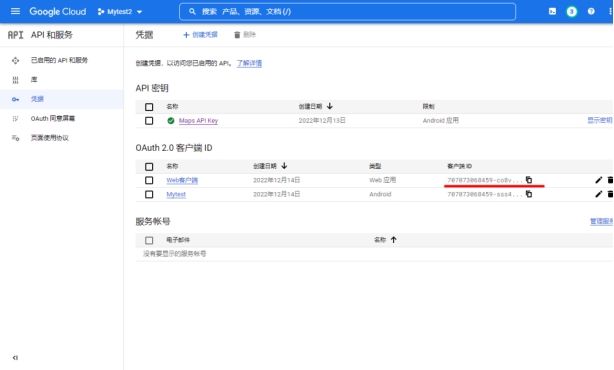
Or after clicking OK, copy the Client ID of the Web application from the list.
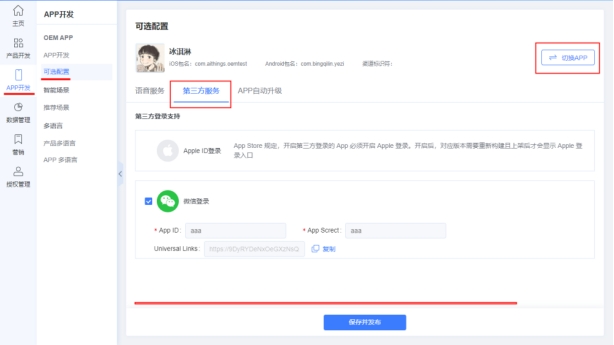
Paste the copied ID on the Ubases IoT development platform: App Development > Optional Configuration > Third-Party Services. Switch to the target App, enter the value under Google Client ID, then click Save and Publish.
WeChat Login
Prerequisites
You have registered a WeChat Open Platform developer account.
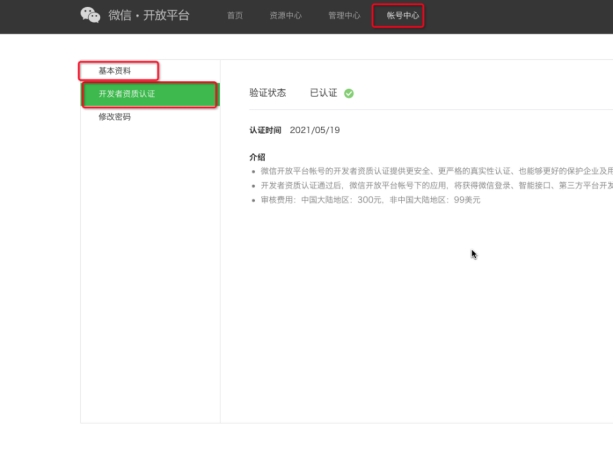
The WeChat developer account has completed developer qualification verification.
Steps
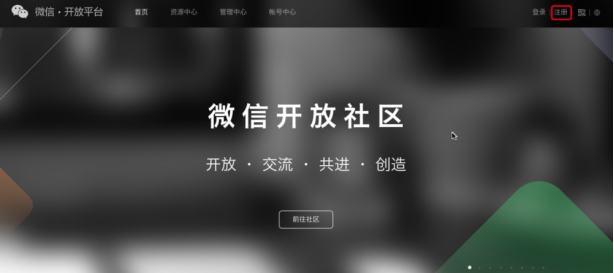
- Open and sign in to the WeChat Open Platform: https://open.weixin.qq.com
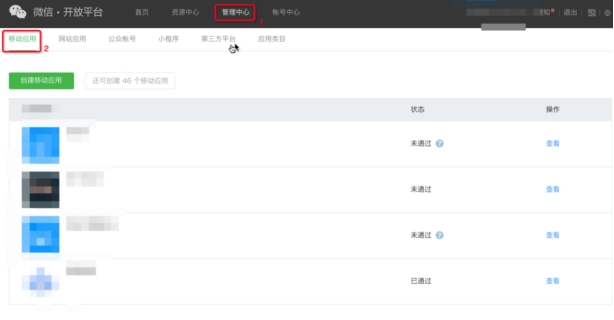
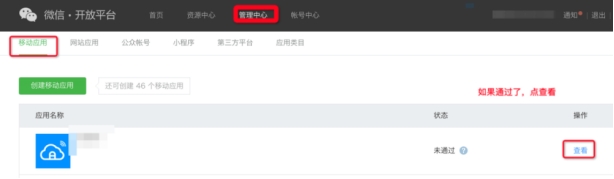
- Click Admin Center > Mobile Apps > Create Mobile App.
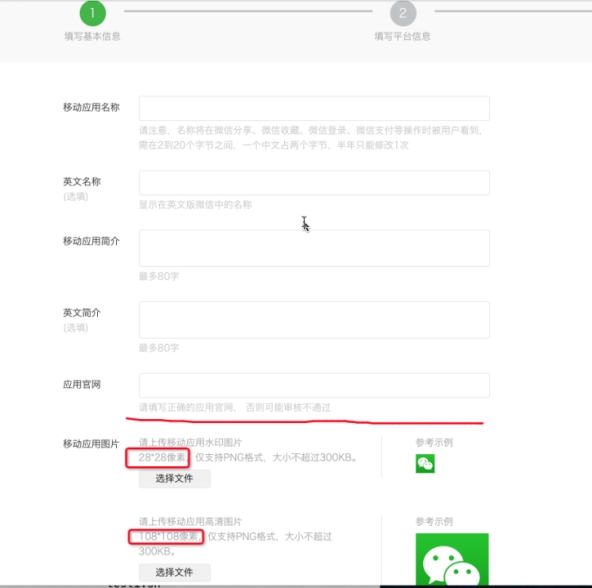
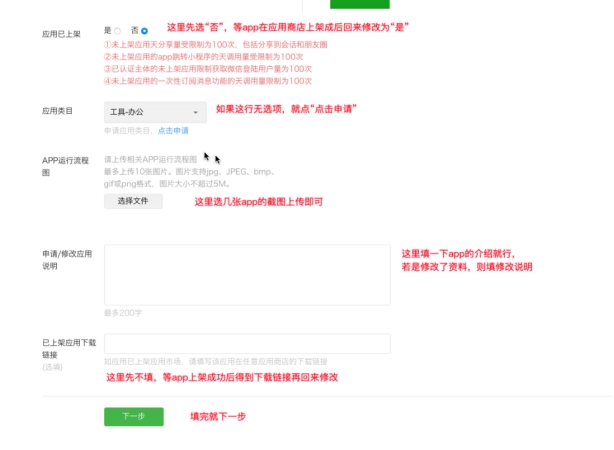
- Fill in the required information, upload images, then click Next.
For App already published, select No first. Change it to Yes after the app has been published to an app store.
Leave the published app download URL empty for now. Add it after the app has been published to an app store.
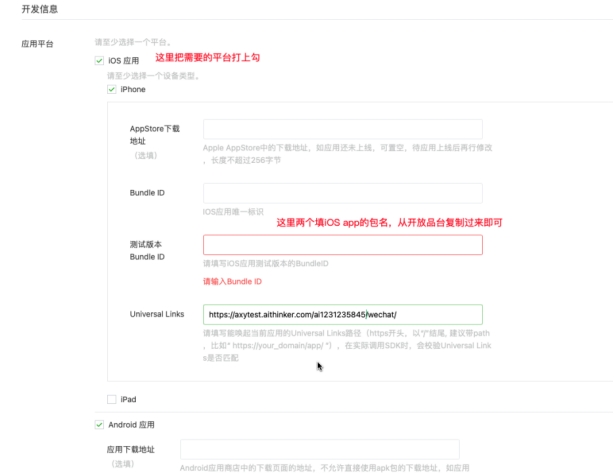
- Fill in development information. Check iOS app, iPhone, and Android app.
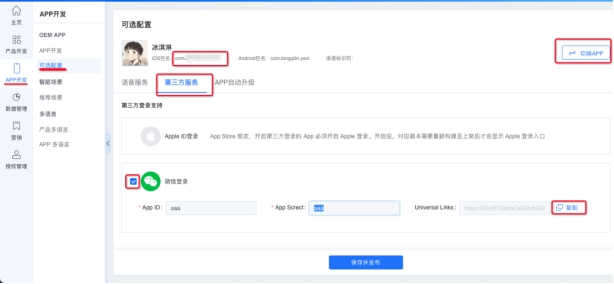
Copy the Bundle ID from the iOS package name on the Ubases IoT development platform. Use the same value for Test Bundle ID. Copy Universal Links from the Ubases IoT development platform. See below for where to copy.
Go to App Development > Optional Configuration > Third-Party Services, switch to the target App, and enable WeChat Login. Temporarily enter placeholder values for App ID and App Secret, then click Save and Publish. The Universal Link will appear; copy it to the corresponding field above. Also copy the package name from the location shown.
Copy the app signature and package name from the Ubases IoT development platform, then submit. See below for where to copy.
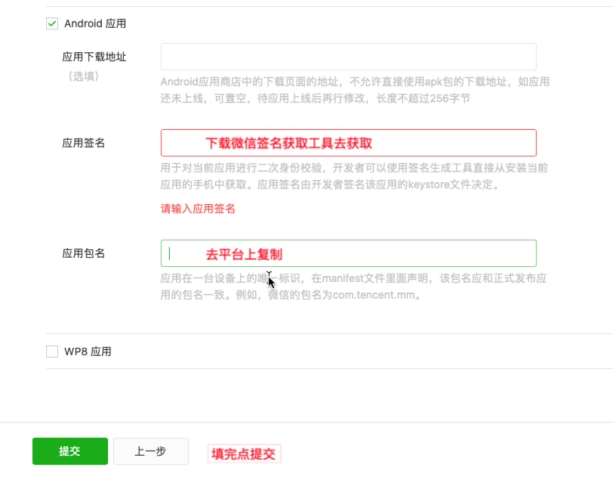
This page shows where to copy Android app package name and signature info on the Ubases IoT development platform. Copy the MD5 into the app signature field above, and remove “:” characters. For example: 92:EE:79:3C:50:A3:9C:7E:76:C4:D9:05:4E:DF:DA:C9 becomes 92EE793C50A39C7E76C4D9054EDFDAC9
- After submission, review takes 1–7 business days. Check the result after approval.
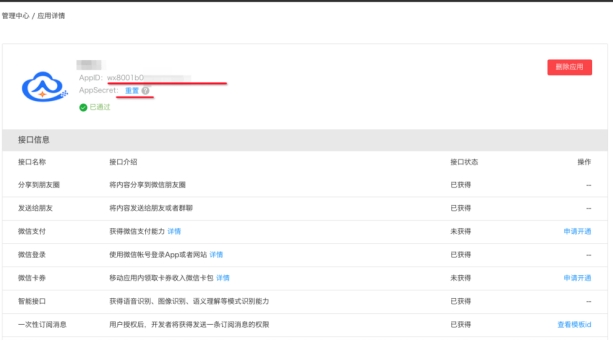
Copy AppID and AppSecret to the corresponding fields below. Click Reset to view AppSecret—do not reset repeatedly, as the value changes each time. Click Save and Publish.