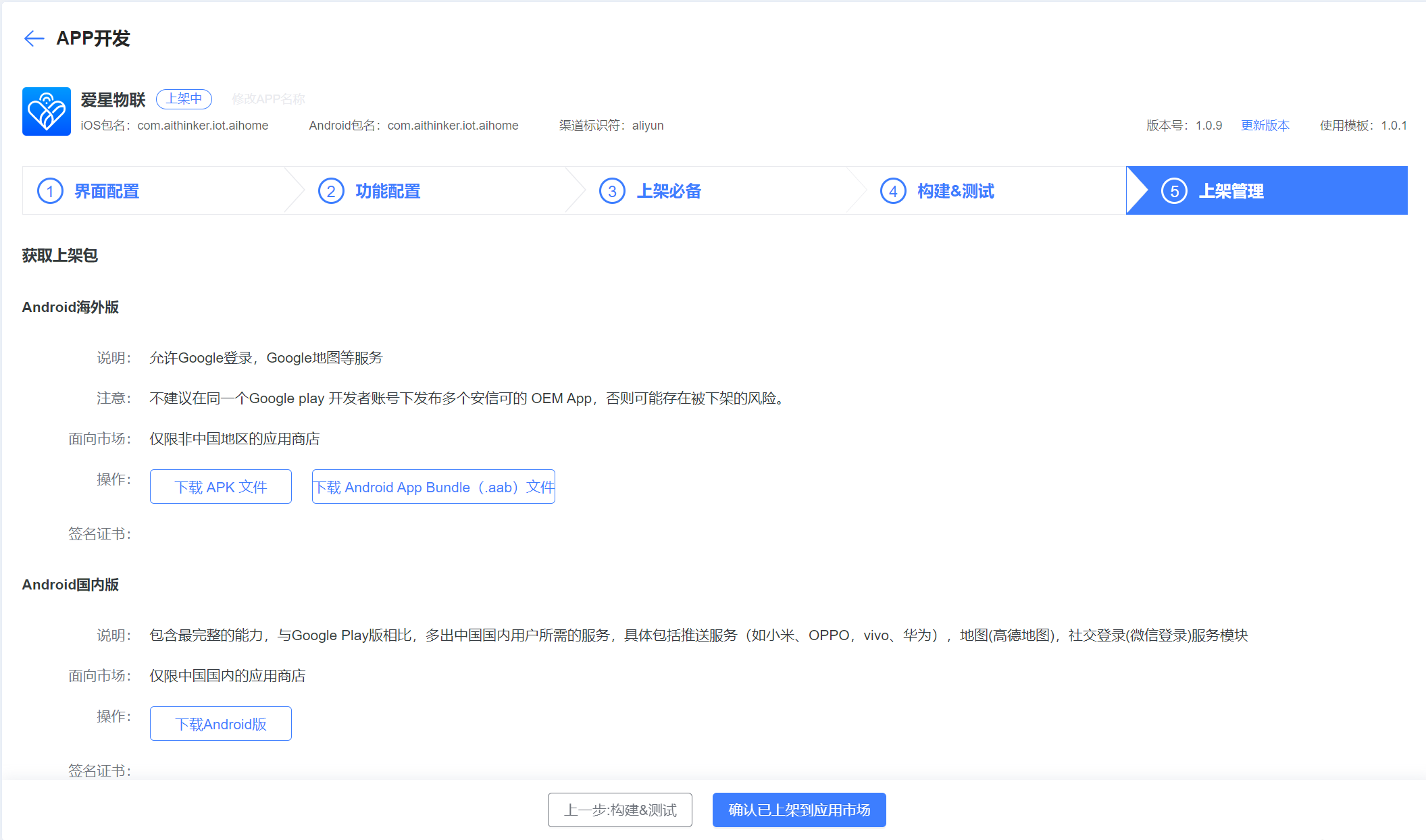
OEM App Version Update Process
After building and testing the App, create a new version if you need to make further adjustments.

Click Update Version, enter a version number higher than the current one, then click OK.
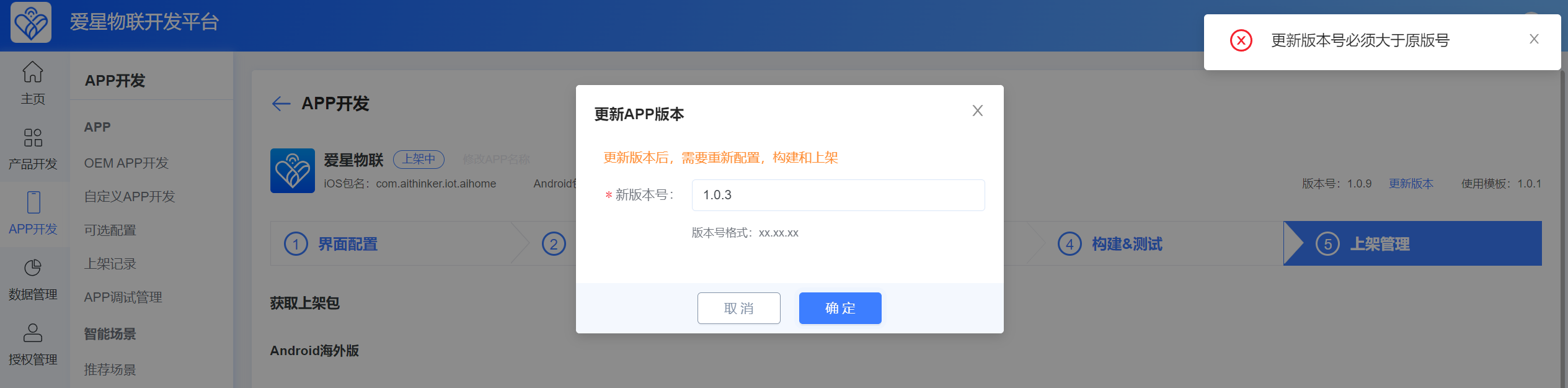
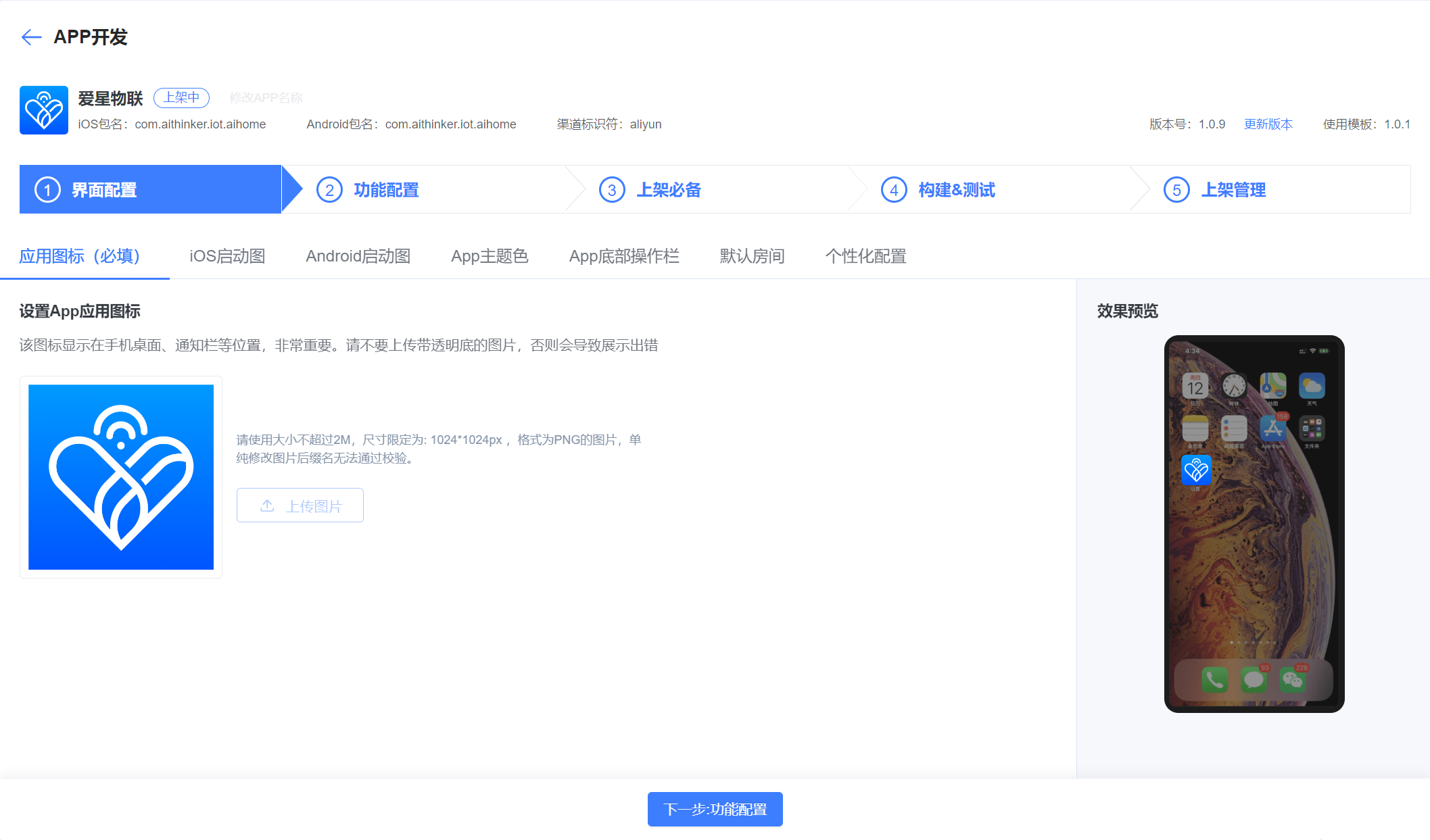
You then enter the App build workflow. Update the required items. Under UI Configuration, you can change the app icon, App theme colors, splash screens, default rooms, and other settings. Remember to click Save after making changes.
Use the same process to update Feature Configuration, Store Listing Essentials, and other sections.
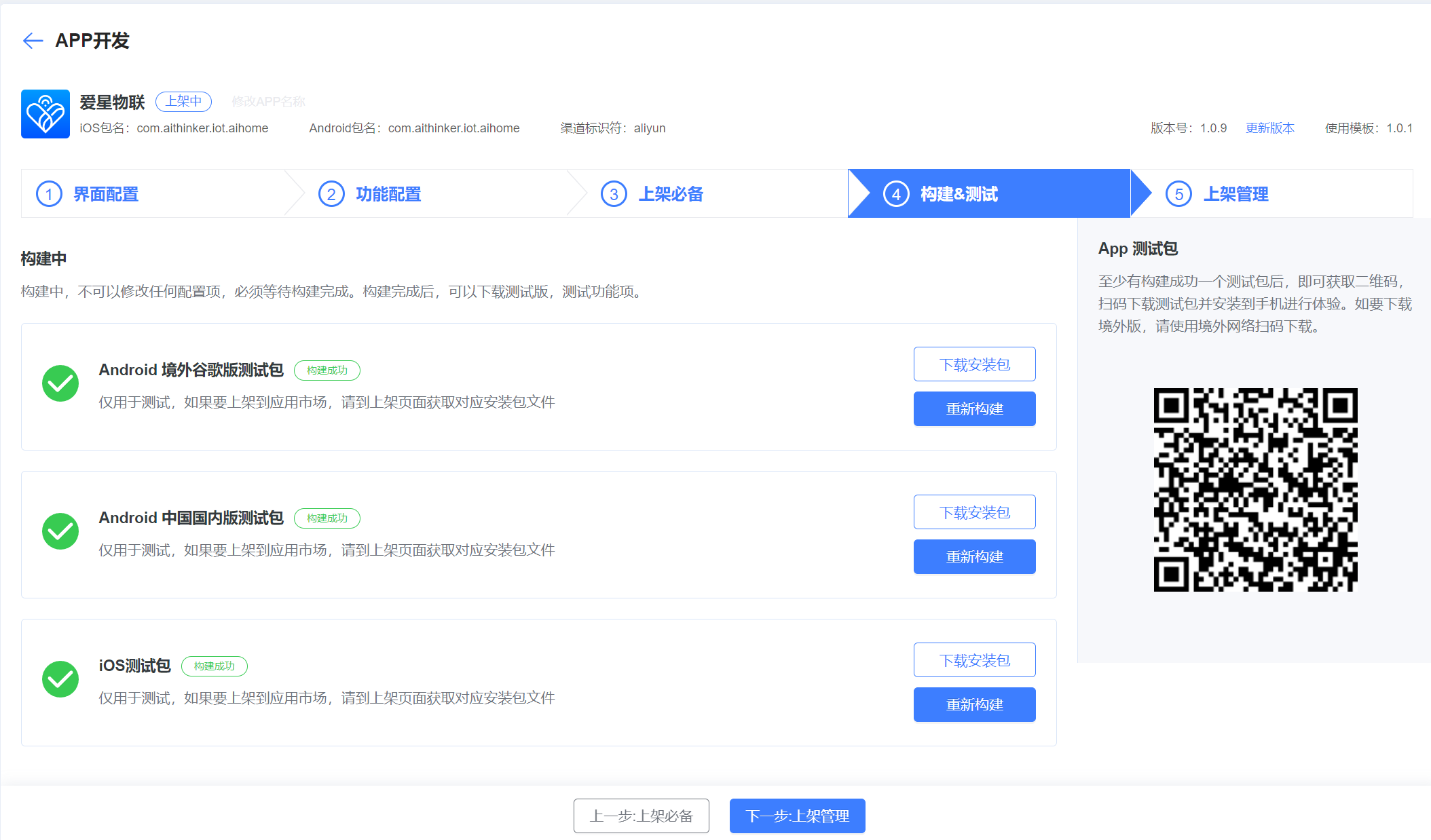
After all required changes are done, click Build Now to start building the new App version.
After the build succeeds, download and test the latest App version. This completes the OEM App version update process.
If this version will be published to an app store, go to Store Listing Management, download the release package, and submit it to the target app store.