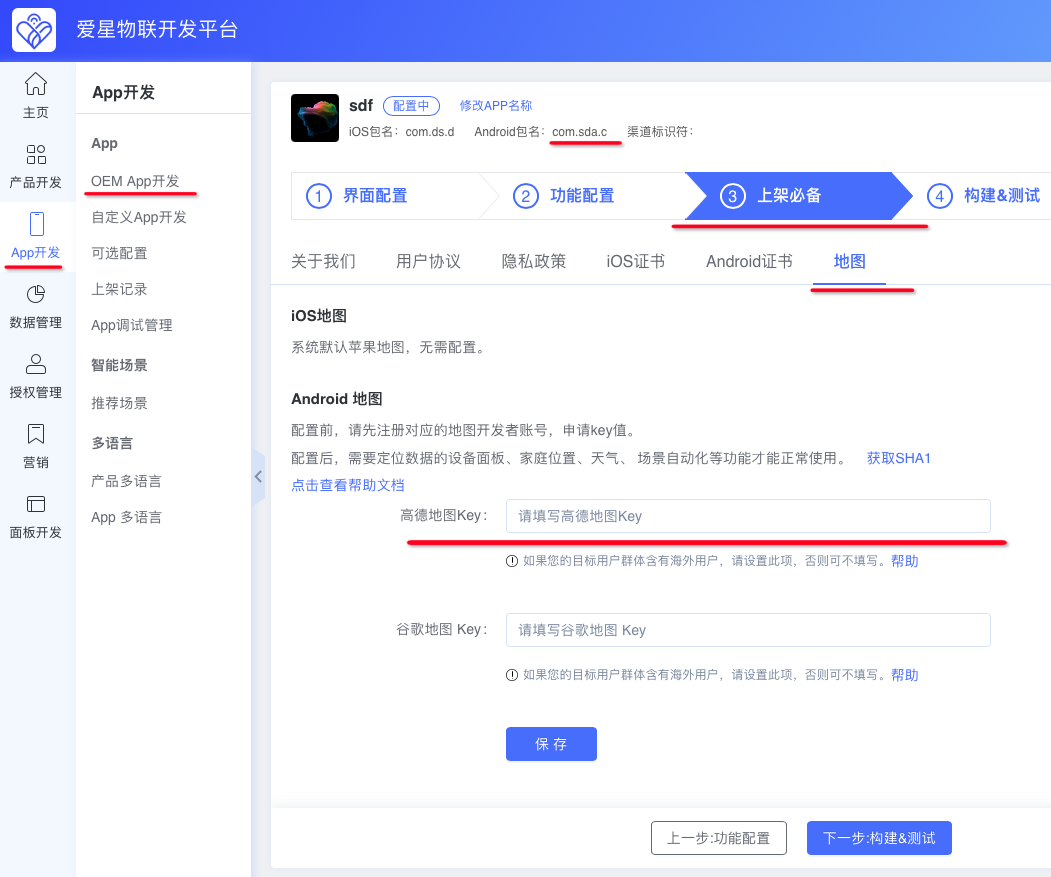
Map Configuration
1. Google Maps
Prerequisites
You have a Google account.
Users in mainland China need a VPN to access Google Maps Platform.
Steps
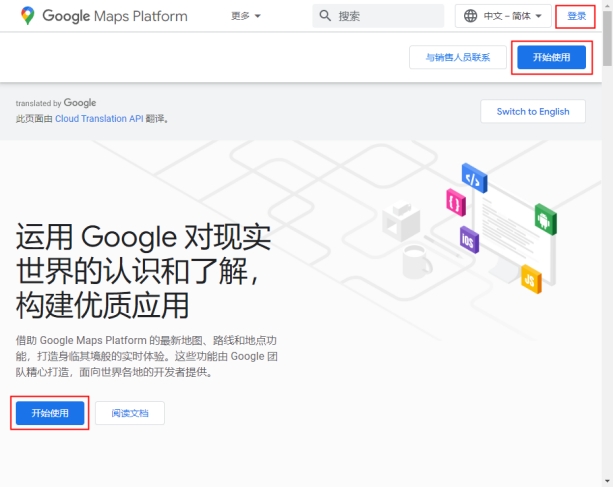
- Open Google Maps Platform, sign in, then click Get Started
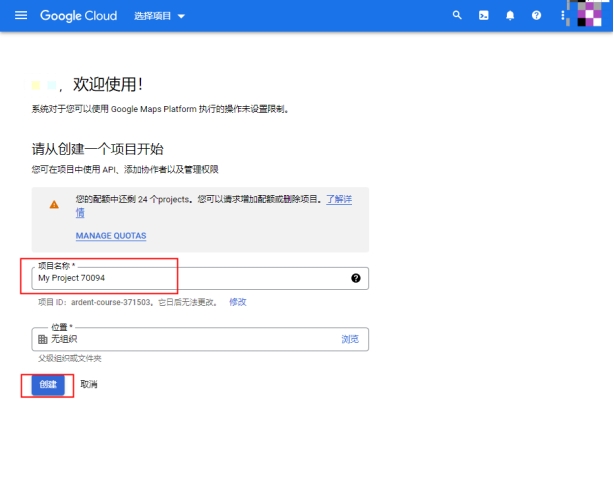
- If your account has never created a project, clicking Get Started opens this page. Change the default name in Project name to your App name, then click Create to create a new project.
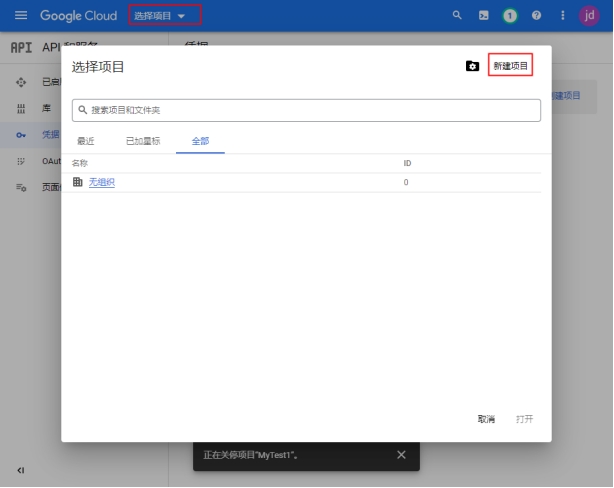
If you are not redirected to the page above, click Select a project, then New project
- If billing is not enabled for your project, you will be redirected to the billing setup page. Fill in the required information and link a credit card. If billing is already enabled or a card is linked, this step is skipped automatically.
Note:
During card linking, Google charges about USD 1 in local currency and then automatically refunds it. This is used for identity verification.
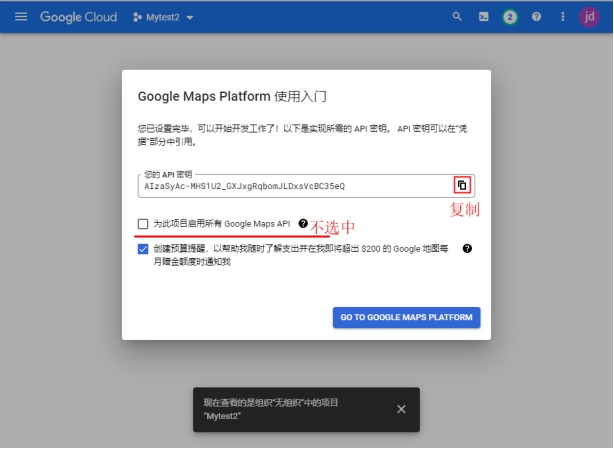
- After the project is created, the first API key is created automatically. Click Copy for the API key. Click "GO TO GOOGLE MAPS PLATFORM".
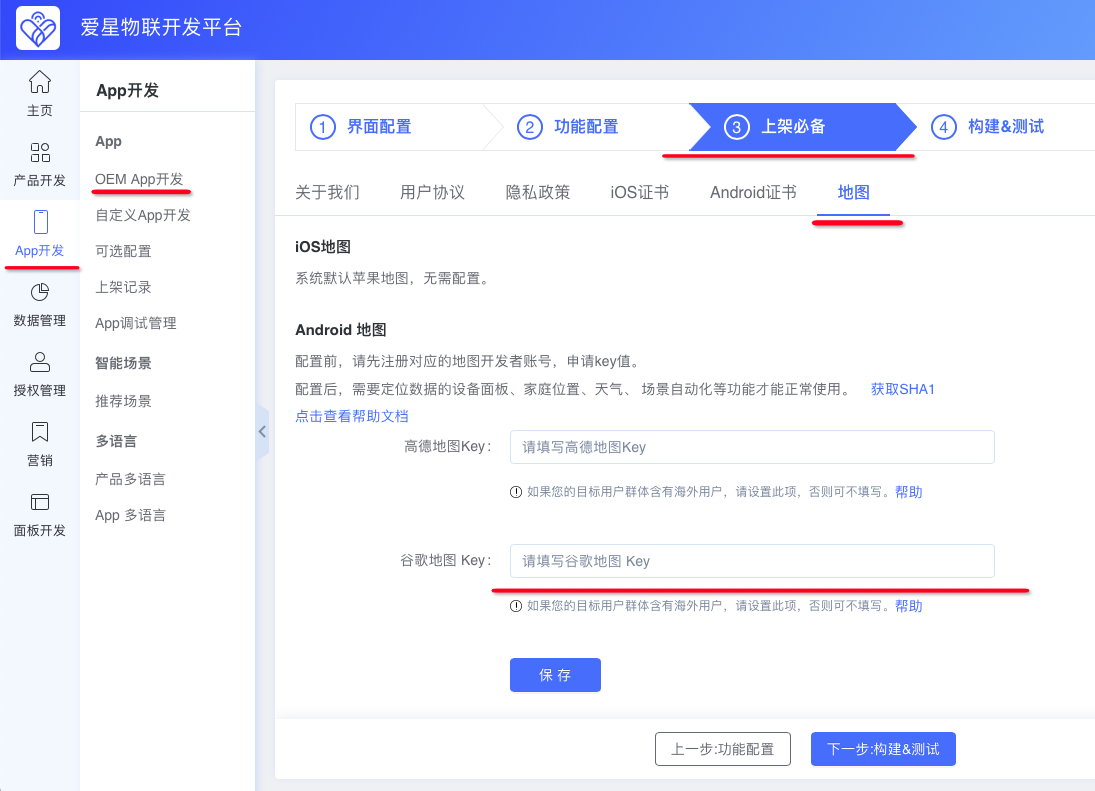
Paste the API key into the Google Maps Key field and click Save.
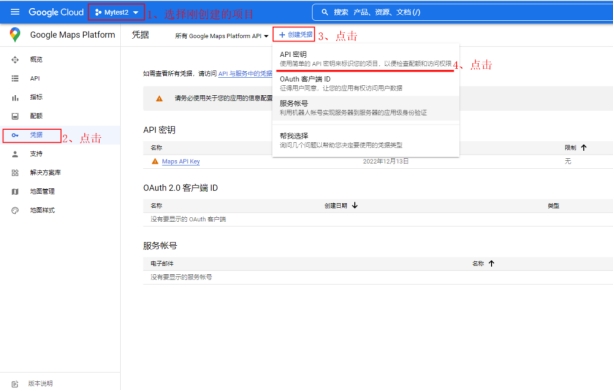
If no dialog appears, select the project you just created, click Credentials, click Create credentials, then API key
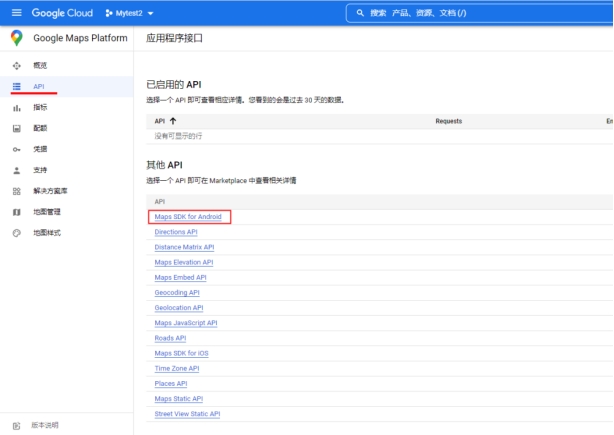
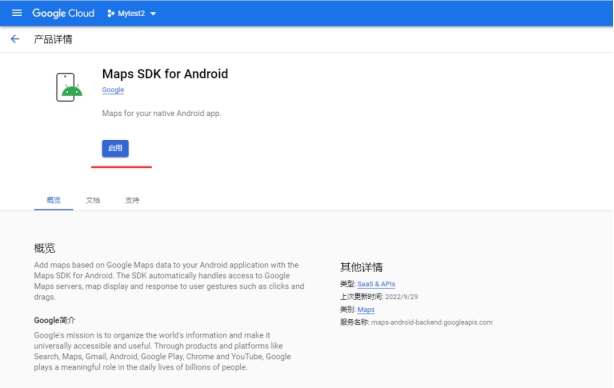
- Click APIs, then Maps SDK for Android
Click Enable
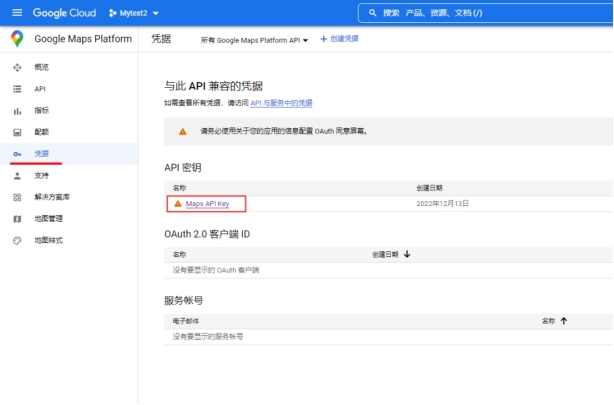
- Click Credentials, then click the API key you just created.
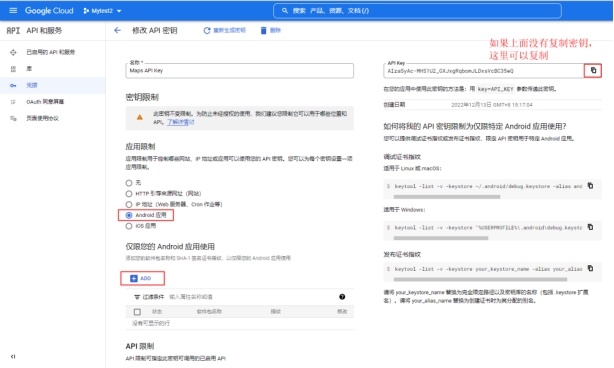
- For application restrictions, select Android apps, then click ADD.
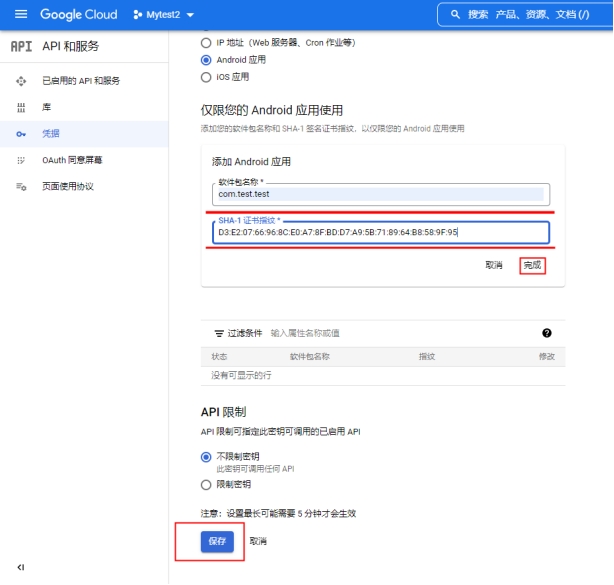
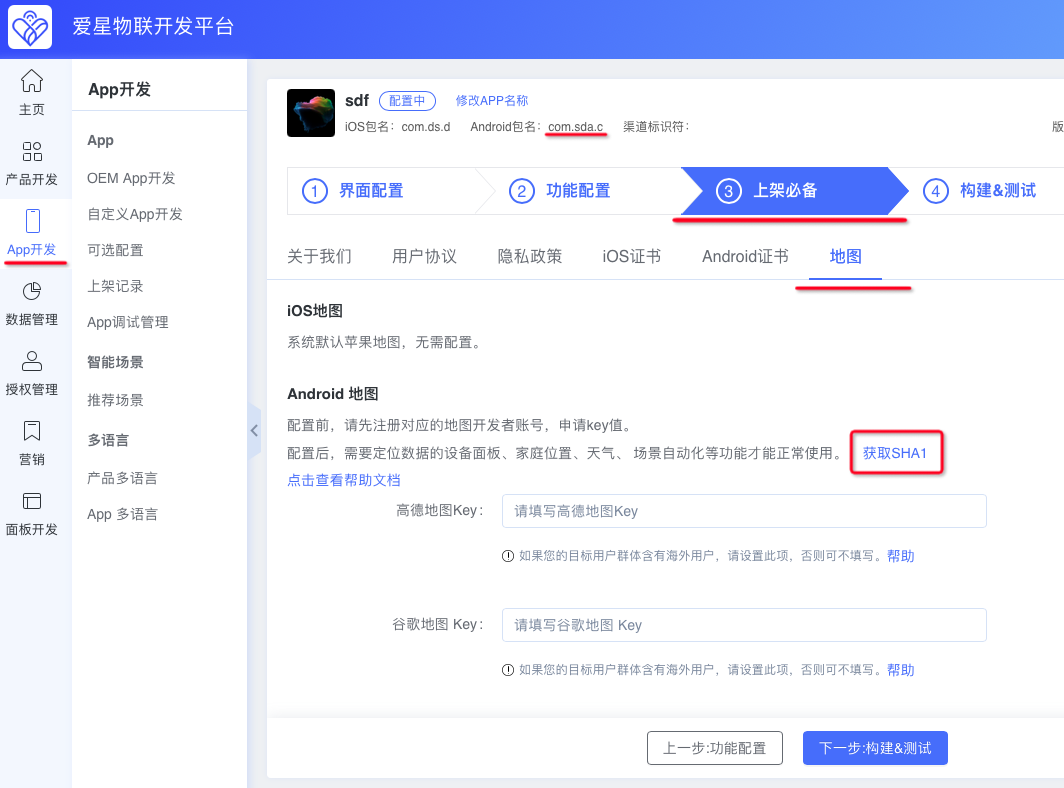
- Enter the Package name and SHA-1 certificate fingerprint, click Done, then Save.
The following figure shows where to copy the Package name and SHA-1 certificate fingerprint on the Ubases IoT development platform.
2. Amap (Gaode Maps)
Prerequisites
You have an Amap developer account. If not, register as an Individual Developer or Enterprise Developer, as appropriate.
Note:
If you need to use the service for commercial purposes (including but not limited to charging third parties or public users, bidding on third-party projects, backend management systems, and any other purpose that directly or indirectly generates revenue or benefit), you must obtain commercial authorization from Amap Open Platform in advance. For details, see Amap Open Platform Service Upgrade Plan.
Steps
- Sign in to the Amap Developer Platform, then click Console.

- Click App Management > My Apps > Create App
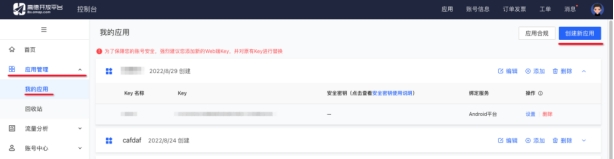
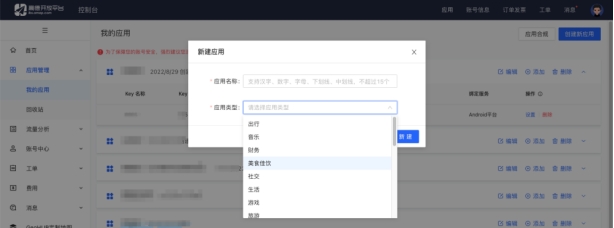
- Enter App Name and App Type, then click Create.
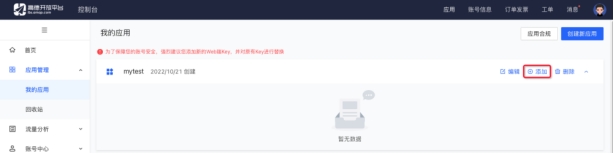
- The new app appears in the list. Click Add.
- Enter a Key Name and set Service Platform to Android Platform. Copy Release SHA1 and PackageName from the Ubases IoT development platform as described in the next step.
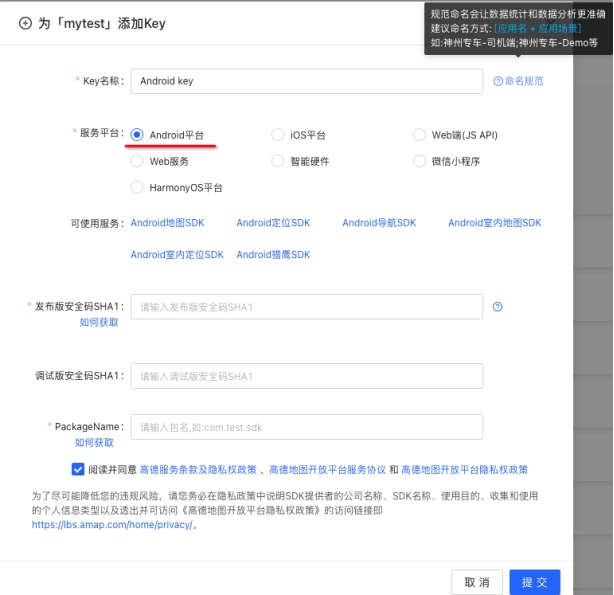
- Copy Release SHA1 and PackageName from the Ubases IoT development platform.
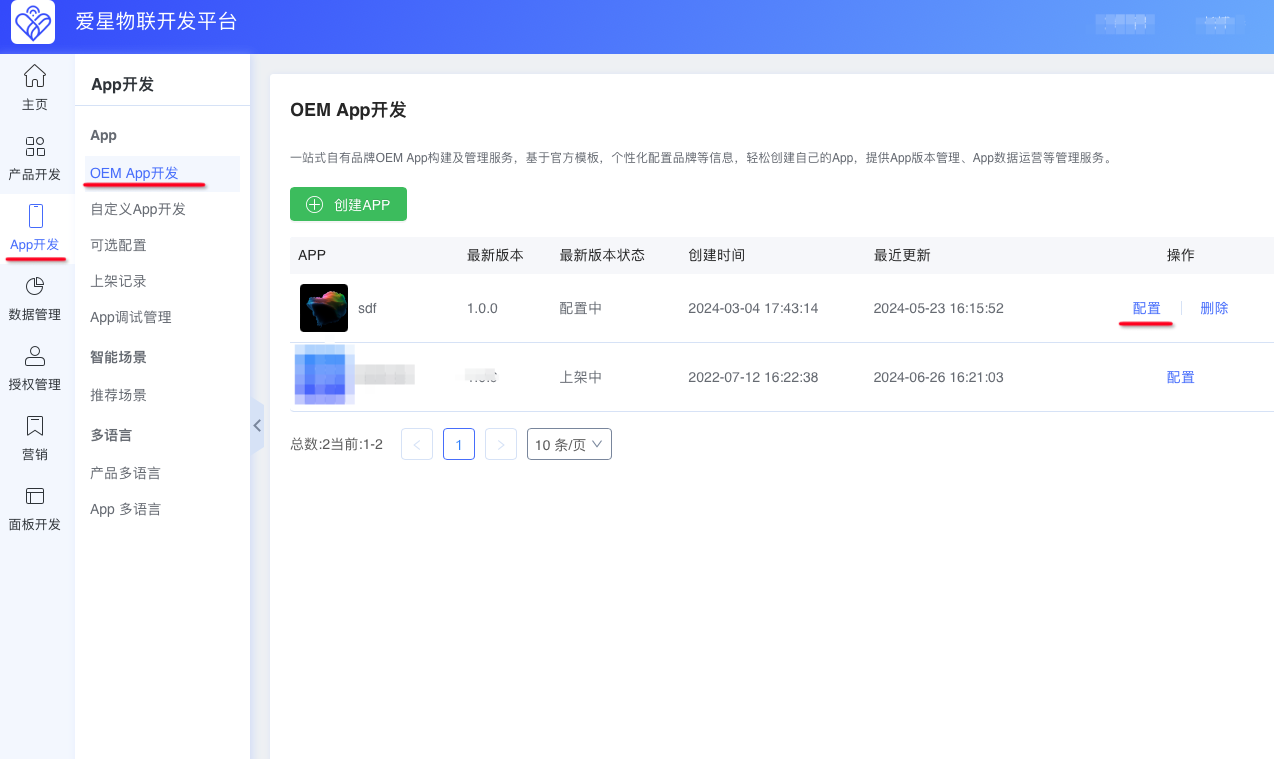
6.1. Go to Ubases IoT development platform > App Development > OEM App Development, select the app to configure, and click Configure.
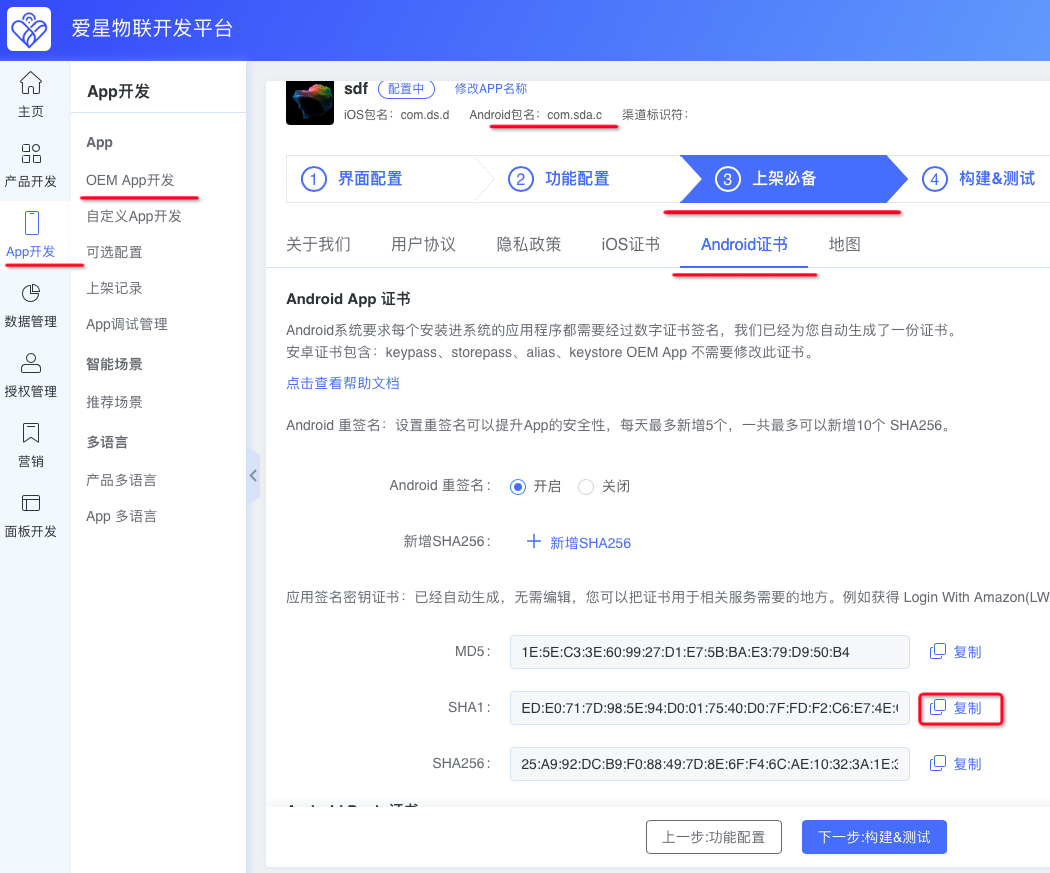
6.2. Click Store Listing Essentials > Android Certificate, copy Android Package Name to PackageName in step 5, and copy SHA1 to Release SHA1 in step 5.
Note:
You cannot open Store Listing Essentials until UI Configuration and Feature Configuration are completed.
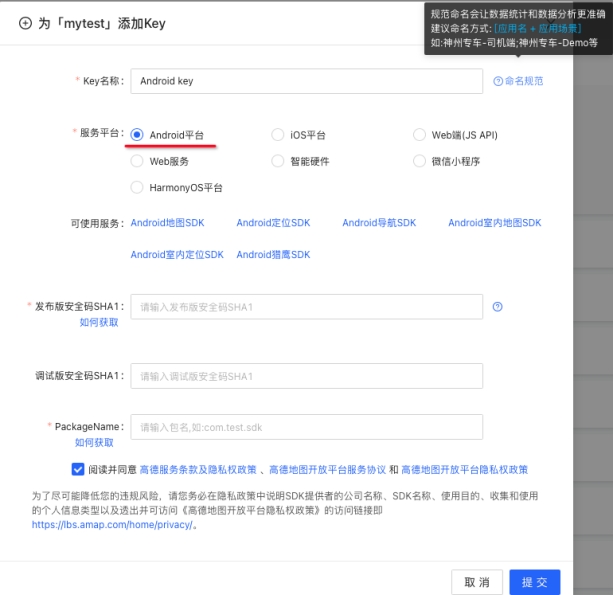
- Click Submit.
- The added Key appears in the list. Copy the Key.
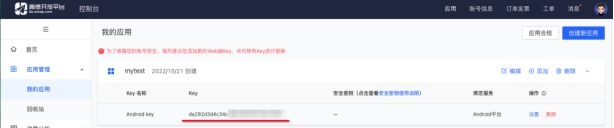
- On the Ubases IoT development platform, click Store Listing Essentials > Maps. Paste the Key from the previous step into Amap Key. Click Save to finish.