Third-Party Voice Support
If your product integrates with smart speakers, select the corresponding voice assistants and enter the skill name in the field on the right. After a service is enabled, its help entry appears in the App under Me > Voice and Other Third-Party Services. Apply for the third-party voice assistant skill before configuring this feature. If you need an agency service, contact your business representative.
Mainland China supports Tmall Genie and XiaoAI.
Overseas regions support Alexa and Google Assistant.
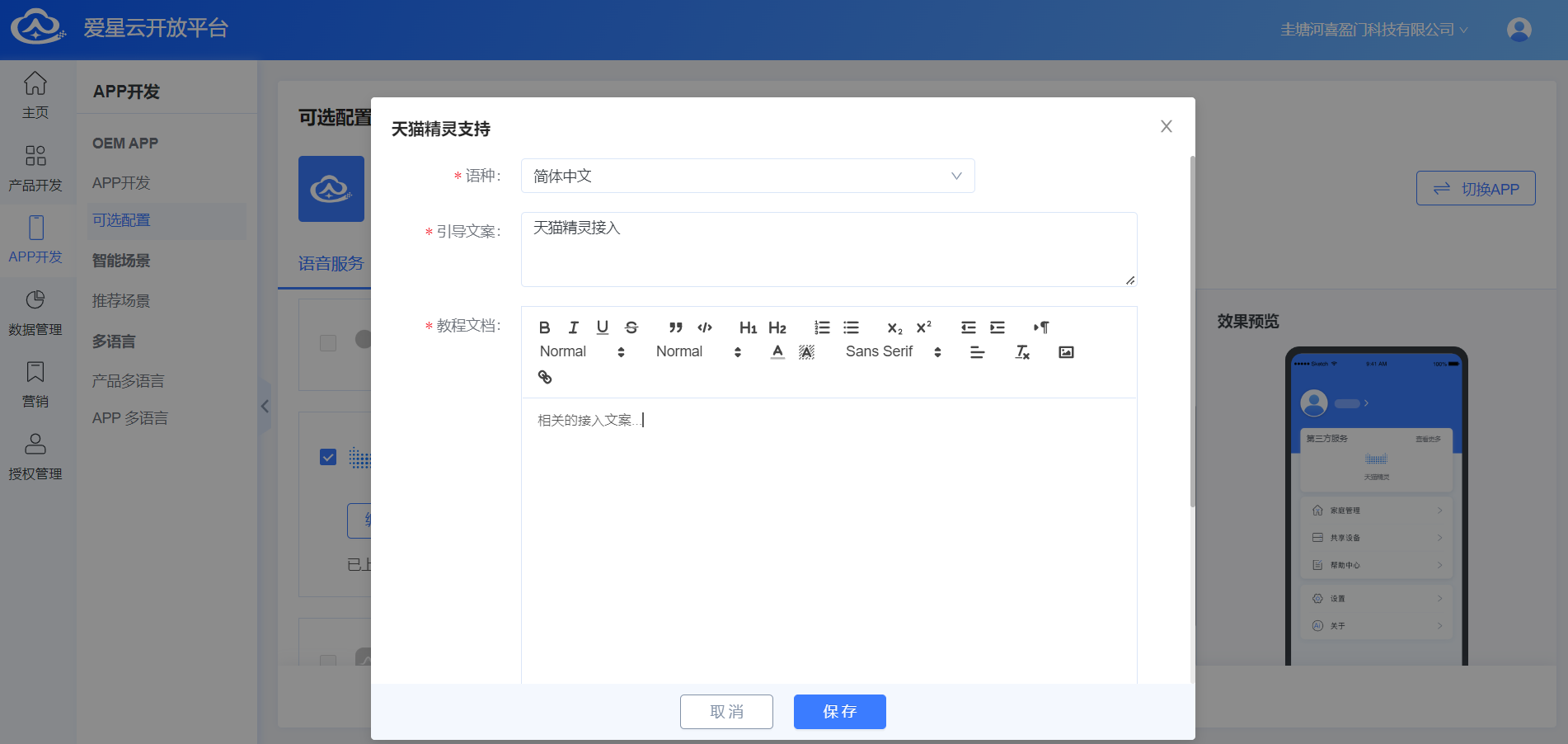
If you select Customize all help documentation content, an Edit Document button appears. Click it to maintain help copy for each language in the dialog.
The online editor shows preset copy. You can edit this template; after saving, App users see the latest version.
To set help content for other languages, first set and save the English content, then use the language dropdown to select another language and continue editing.
Alexa and Google Assistant require separate activation of the corresponding OEM skills. Voice control may not work until those skills are activated.
Alexa supports Alexa App-to-App account linking. Under Alexa Support, click the capability hyperlink Service Introduction for details, or click Activate Now to purchase the service.
Enabling/disabling a voice support service, or editing help copy for a voice service, does not require rebuilding the App.
Configure Voice Assistant Skills
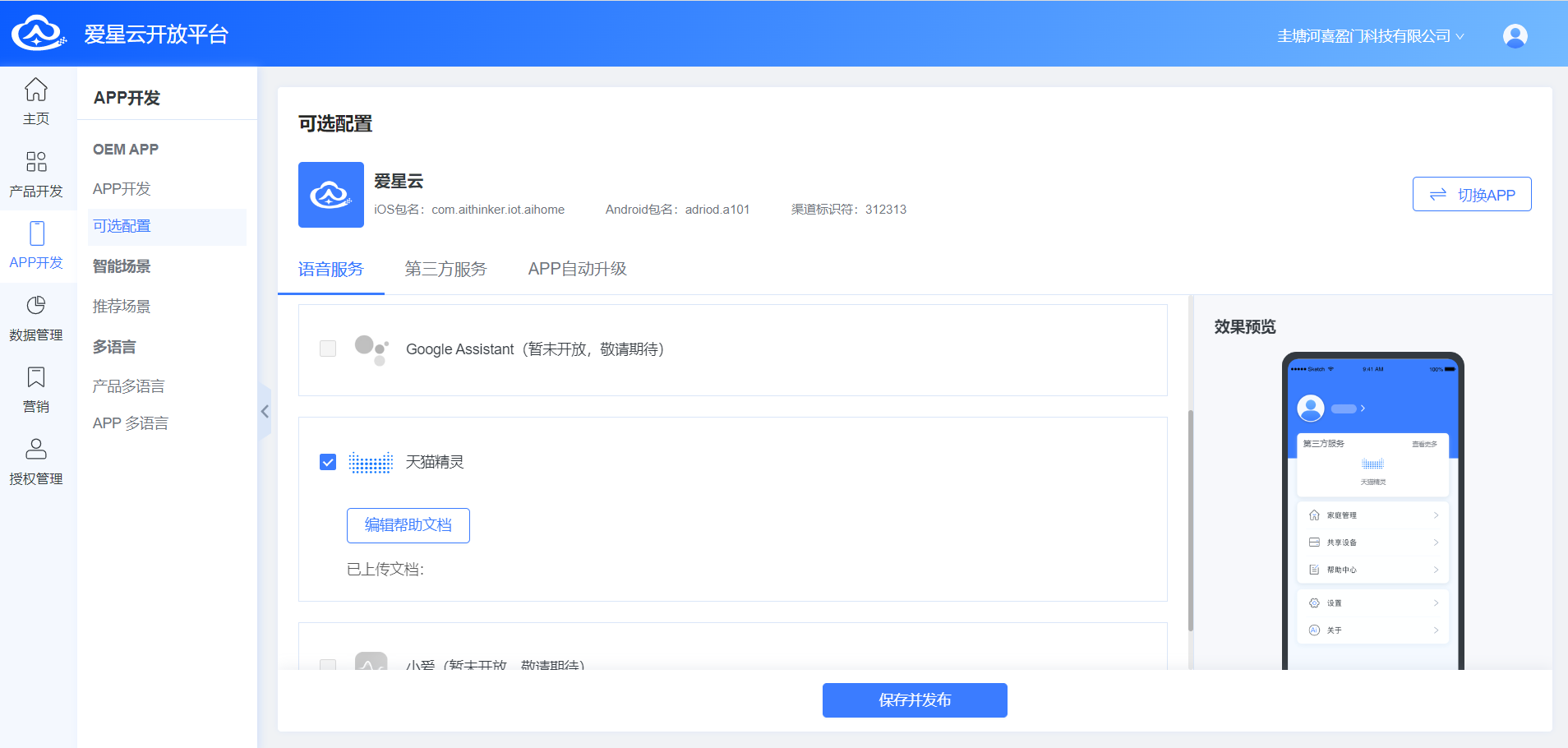
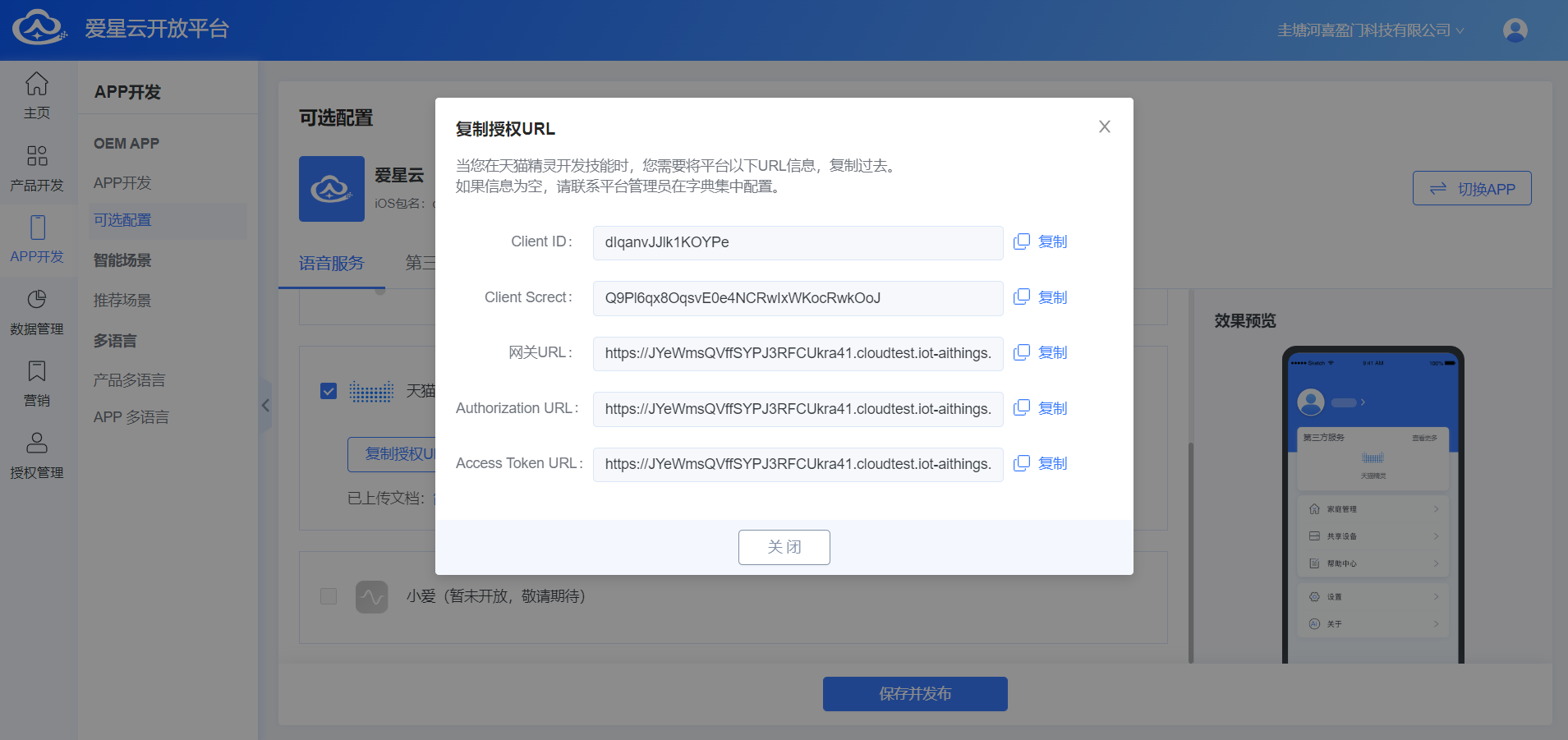
Go to App Development > OEM App > Optional Configuration and open the Voice Services tab. Using Tmall Genie as an example, select Tmall Genie. To configure the in-App Tmall Genie guide, click Edit Help Document, select a language, enter the guide text and tutorial content, and click Save. Return to the Voice Services tab and click Save and Publish to generate the voice assistant skill automatically. Click Copy Authorization URL to view the Client ID, Client Secret, Gateway URL, Authorization URL, and Access Token URL. Copy these values to the third-party voice platform to complete the skill configuration.
Note: Skill configuration for other voice platforms follows the same basic process.
Create Skills
Tmall Genie
For Tmall Genie voice integration, first create the corresponding skill on the Tmall Genie Open Platform. Refer to the Tmall Genie Open Platform Skill Publishing Process to complete Skill configuration.
XiaoAI
Not available yet. Stay tuned.
Alexa
For Alexa voice integration, create a skill and Lambda service on the Alexa platform. Refer to the Alexa Integration Process to complete Alexa skill and Lambda configuration.
Google Assistant
Not available yet. Stay tuned.
Create Products
Third-Party Voice Platforms
Tmall Genie
Sign in to the Tmall Genie Open Platform, create a product, associate it with the skill created above, and add product Thing Model definitions to complete product definition, human-machine interaction, device debugging, and software release. For details, see the Tmall Genie Open Platform Platform and Onboarding Process.
- Product definition: mainly add product-related Thing Model definitions
- Human-machine interaction: mainly used to generate voice corpora
- Device debugging: mainly account authorization and device debugging
- Software release: after the product is developed and tested, publish the product
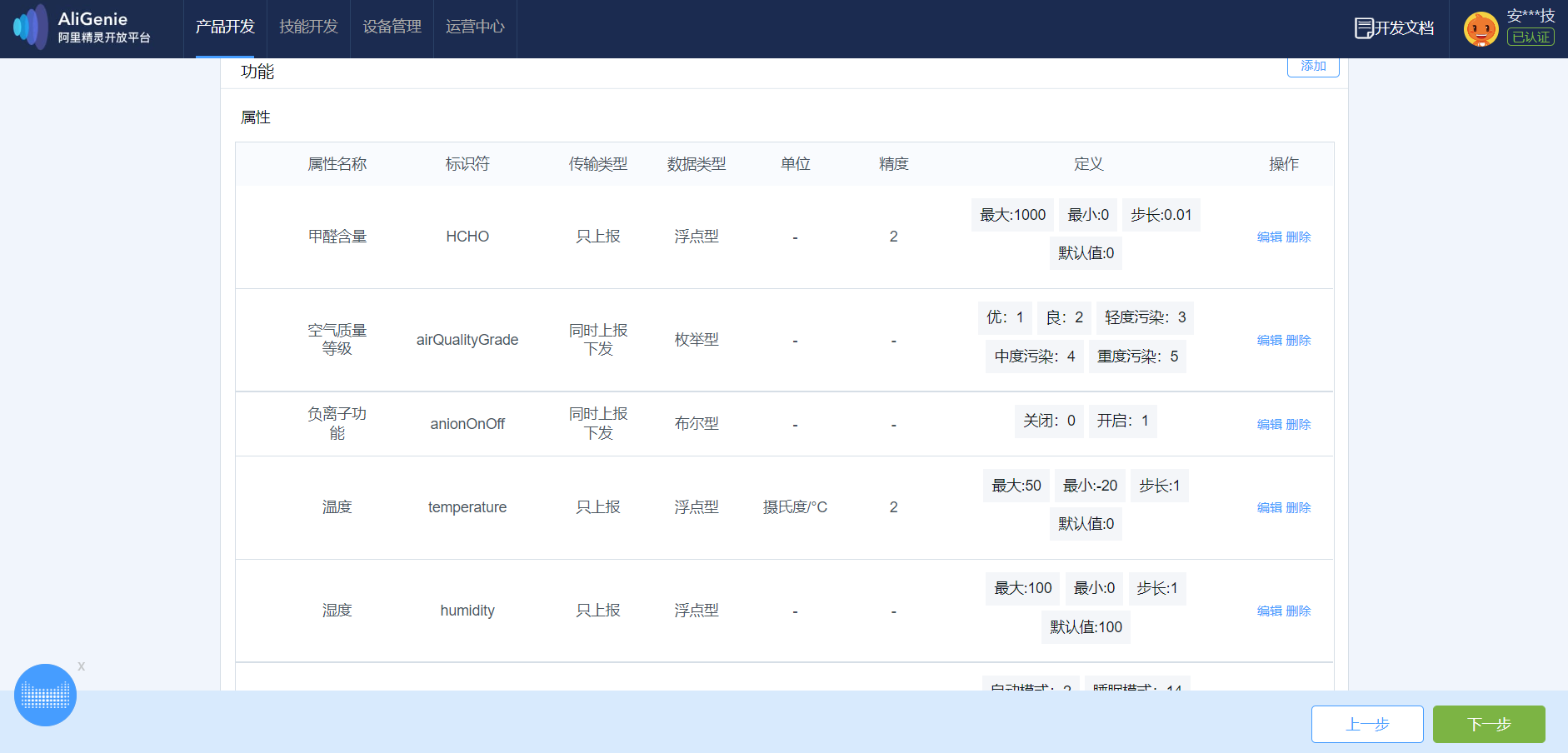
Below is a screenshot of the Tmall Genie Thing Model definition section:
Ubases IoT Open Platform
After creating the product on the third-party voice platform, create the corresponding product on the Ubases IoT Open Platform. Then add matching Thing Model definitions based on the third-party platform's product model. For instructions on creating products and defining Thing Model features, see the Product Management chapter. Related screenshots:
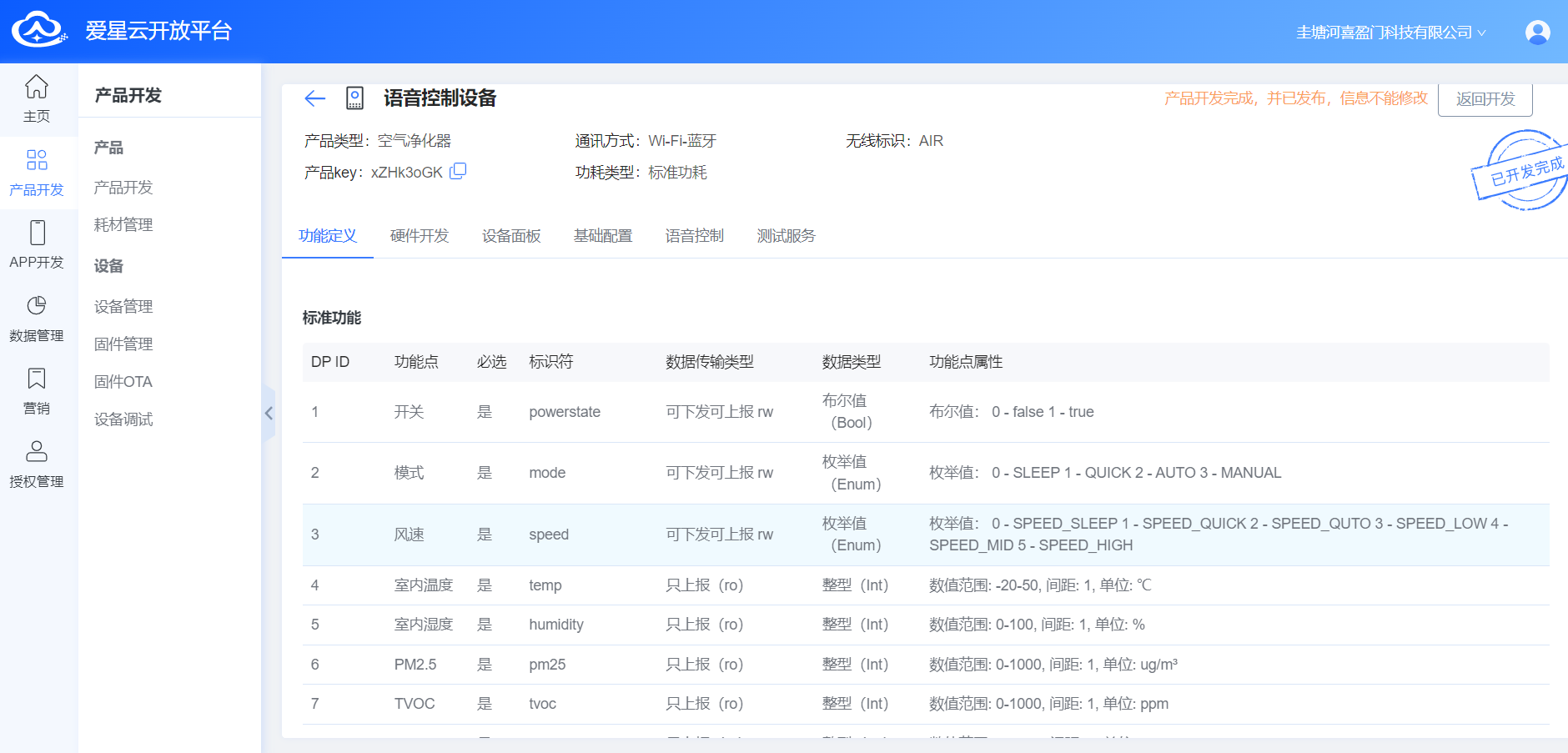
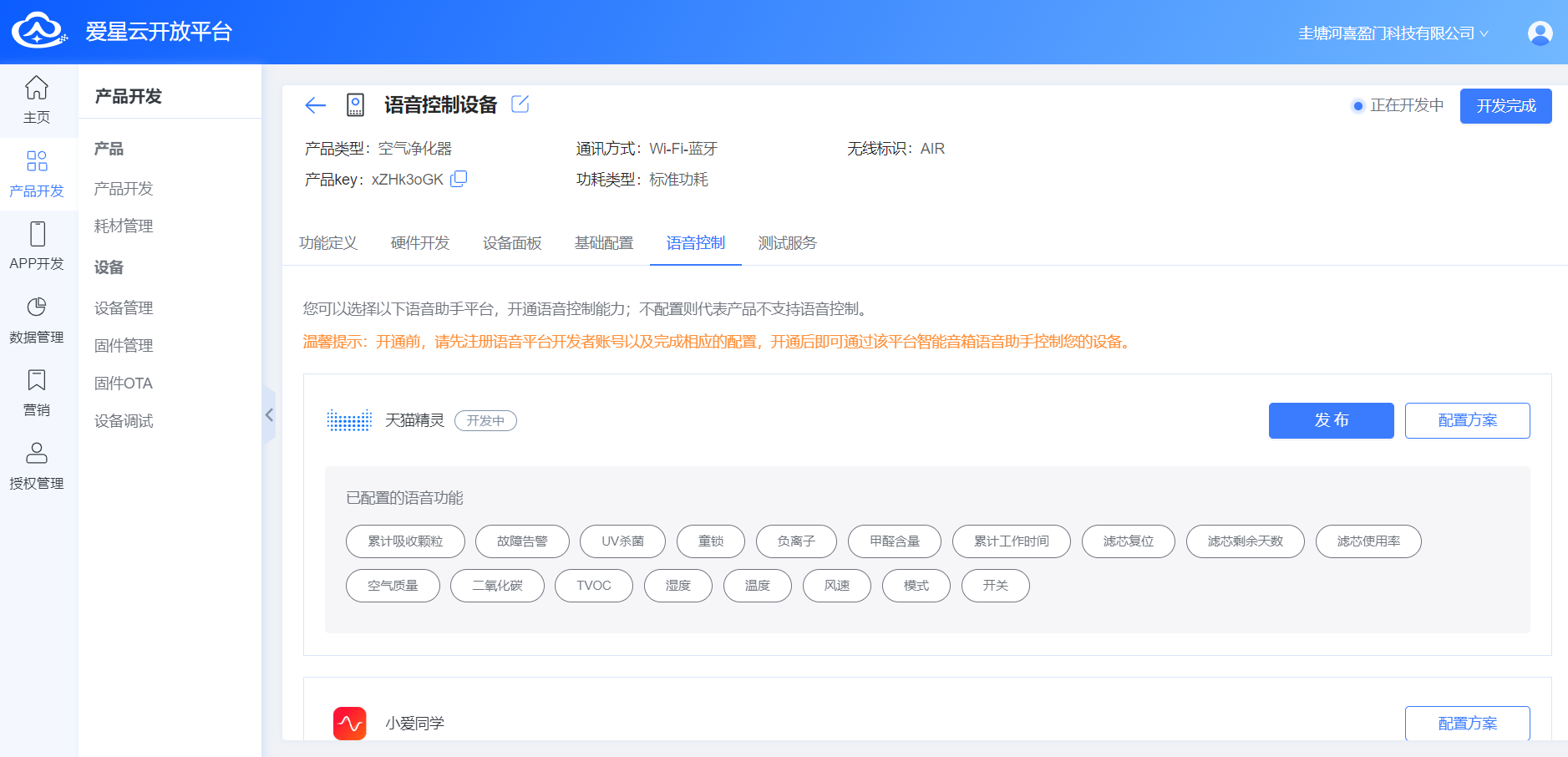
After adding the Ubases IoT product and related Thing Model feature definitions, open the Voice Control tab under the product to map Ubases IoT Open Platform product feature definitions to third-party voice platform product feature definitions.
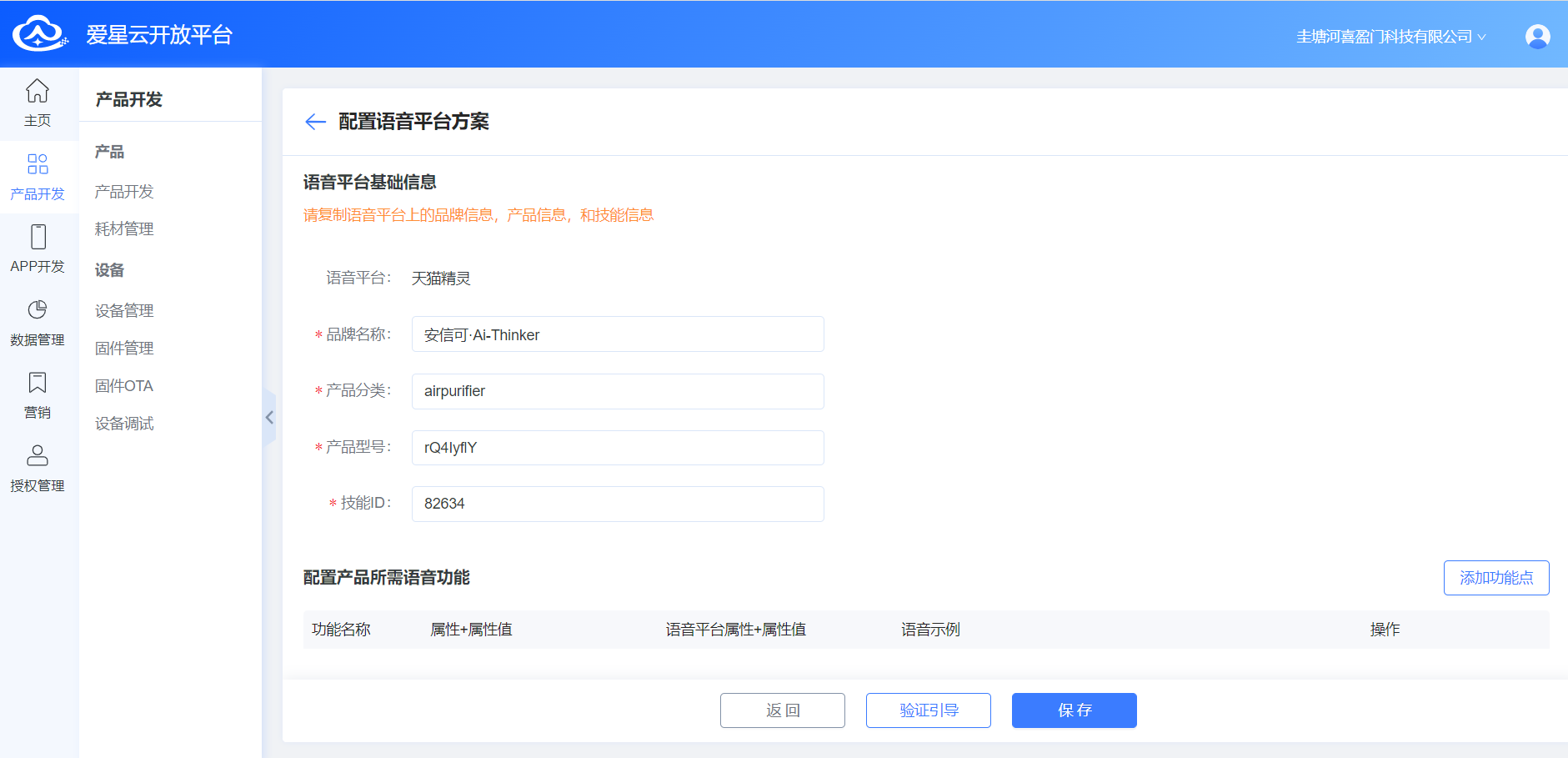
Click the configuration scheme for the corresponding voice platform to open the feature point mapping page. First enter third-party voice platform product and skill information, including product name, product category (English), product model, skill ID, and so on.
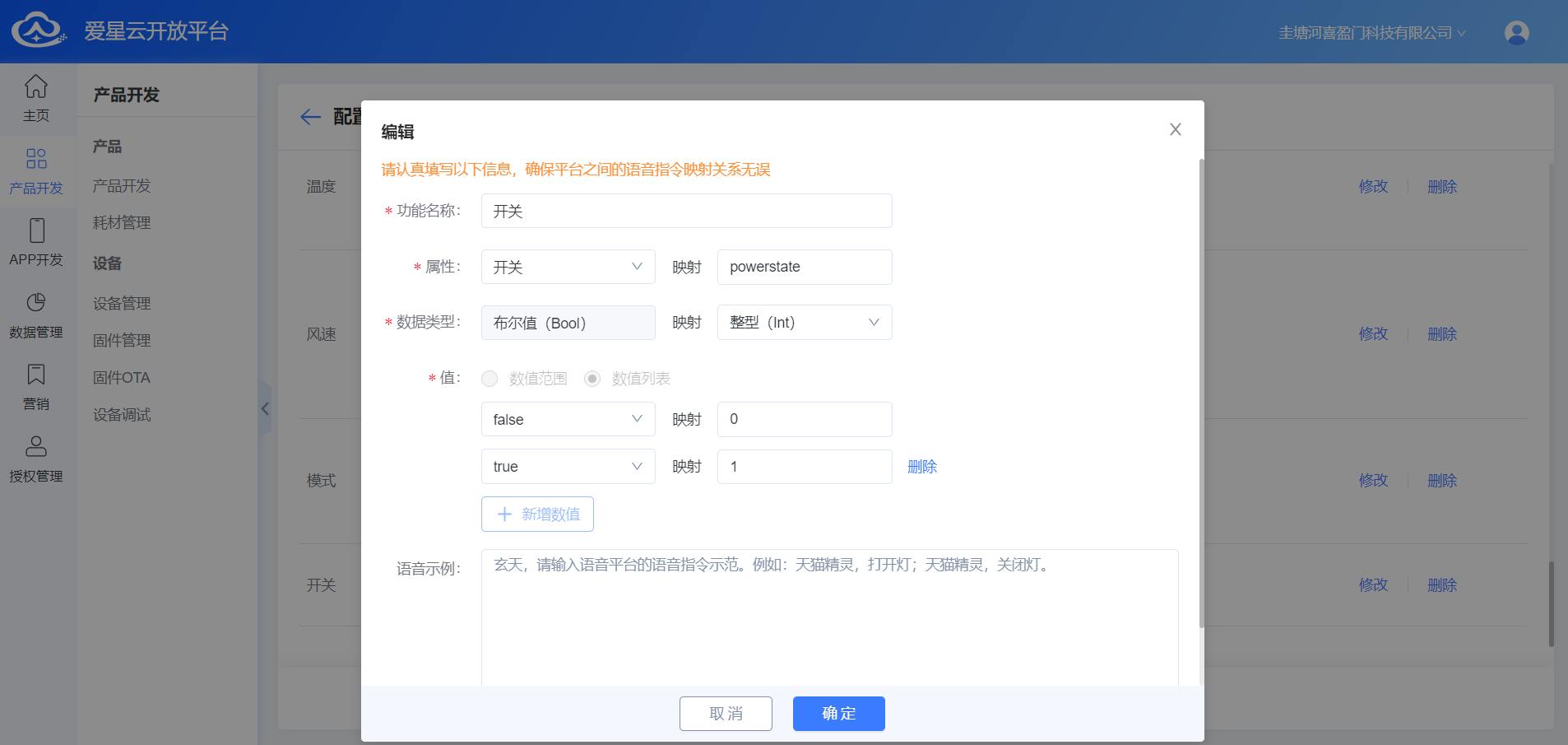
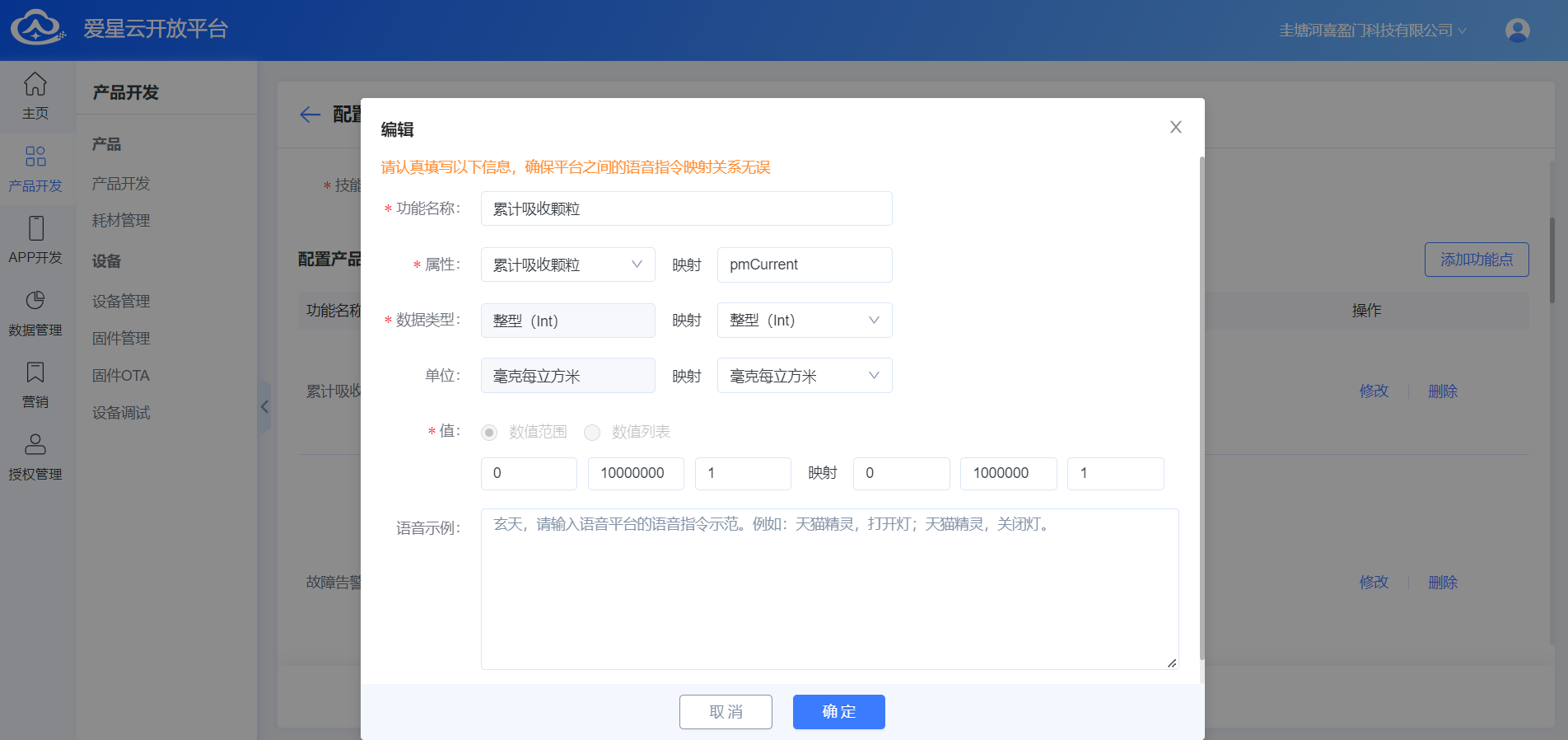
Click Add Feature Point to open the feature configuration dialog. Enter the feature name. On the left, configure properties, data types, and values for the Ubases IoT Open Platform; on the right, enter the third-party voice platform feature configuration. After selecting a Ubases IoT Open Platform property, the type is selected automatically—then fill in the third-party voice platform feature identifier and type accordingly. For example, a Ubases IoT Open Platform switch property may be Boolean, while Tmall Genie feature values are usually numeric. Always select the type that matches the third-party platform—for Tmall Genie switch values 0 and 1, choose enum or integer. Value type conversion between Ubases IoT and the third-party platform applies both when devices report voice attributes and when voice commands are sent. This is critical and may cause attribute reporting or voice control failures if mismatched.
Supported data types:
- Enum
- Double
- Bool
- Int
- String
The value field offers numeric range and value list options. For numeric ranges, also watch unit conversion. See the following two screenshots:
Voice Control Devices
After completing the configuration, generate device credentials for the relevant product on the Ubases IoT Open Platform, create the device, flash the MCU SDK firmware, bring the device online, and complete device provisioning in the Ubases IoT app. Then sign in to the Tmall Genie app, bind a Tmall Genie speaker, and authorize the Ubases IoT account. Once authorization succeeds, Tmall Genie retrieves the list of activated online devices, which users can then control by voice.