

XiaoAI Skill Configuration Guide
Related Portals
XiaoAI Open Platform: https://developers.xiaoai.mi.com/ (use the same account as the Xiaomi IoT platform) XiaoAI App: download from app stores XiaoAI integration help: https://developers.xiaoai.mi.com/documents/introduction
Integration Flow
- Create a skill on the XiaoAI Open Platform
- Configure XiaoAI voice settings on the private cloud platform
- Configure cloud-to-cloud services on the XiaoAI Open Platform
- Configure skill utterances on the XiaoAI Open Platform
- Test the skill in the XiaoAI Open Platform web console
- Test the skill with a XiaoAI speaker
- Publish and go live
Start Integration
Create a Skill on the XiaoAI Open Platform
Create a skill on the XiaoAI Open Platform and note the Skill ID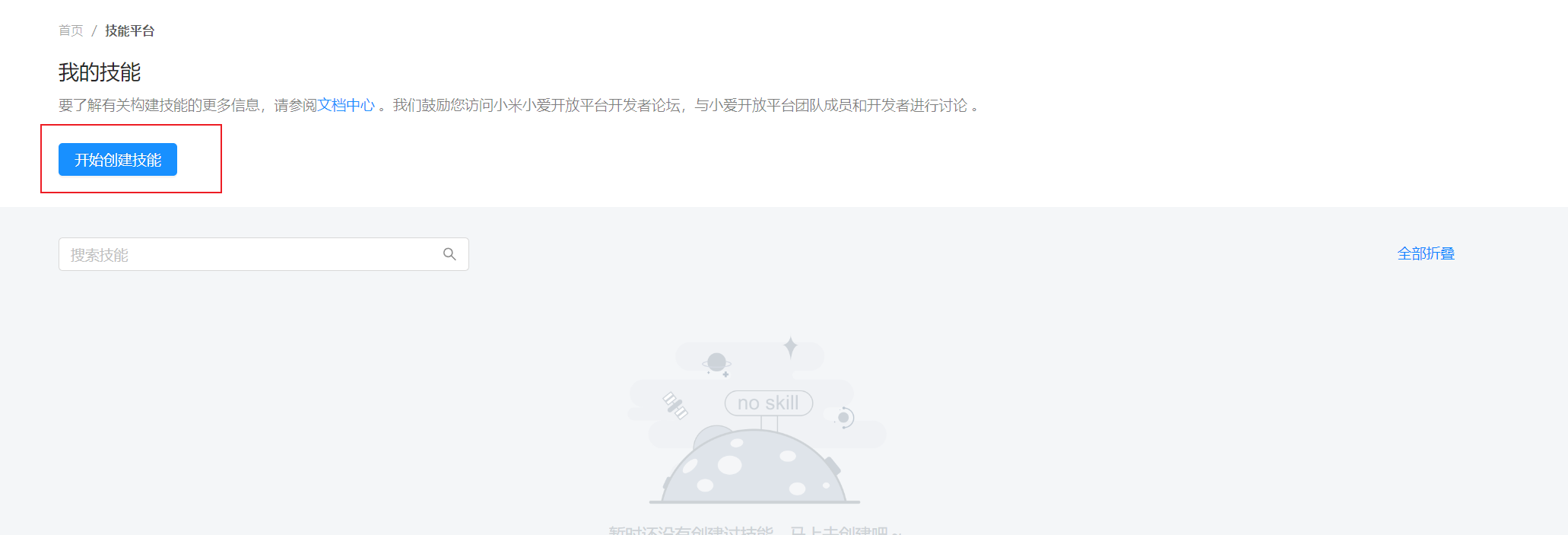
Select Custom Skill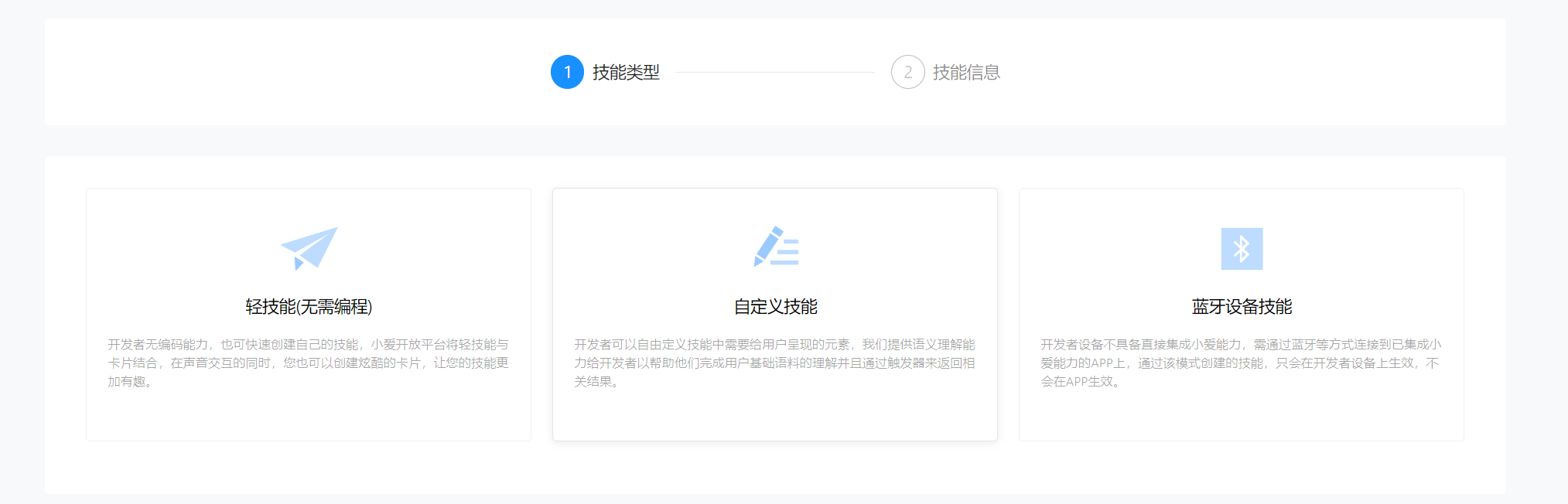
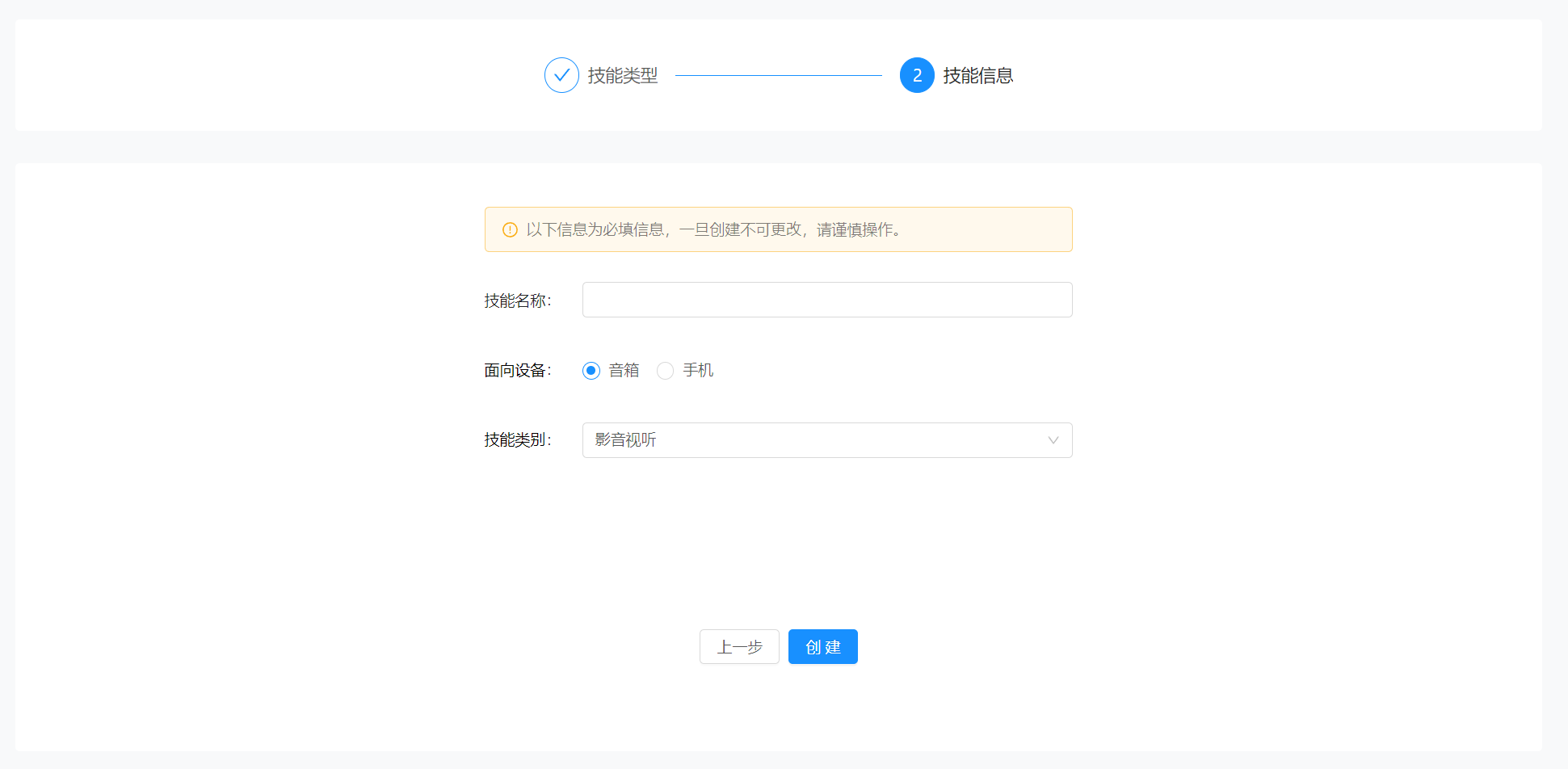

Return to the skill list and copy the Skill ID for the next step;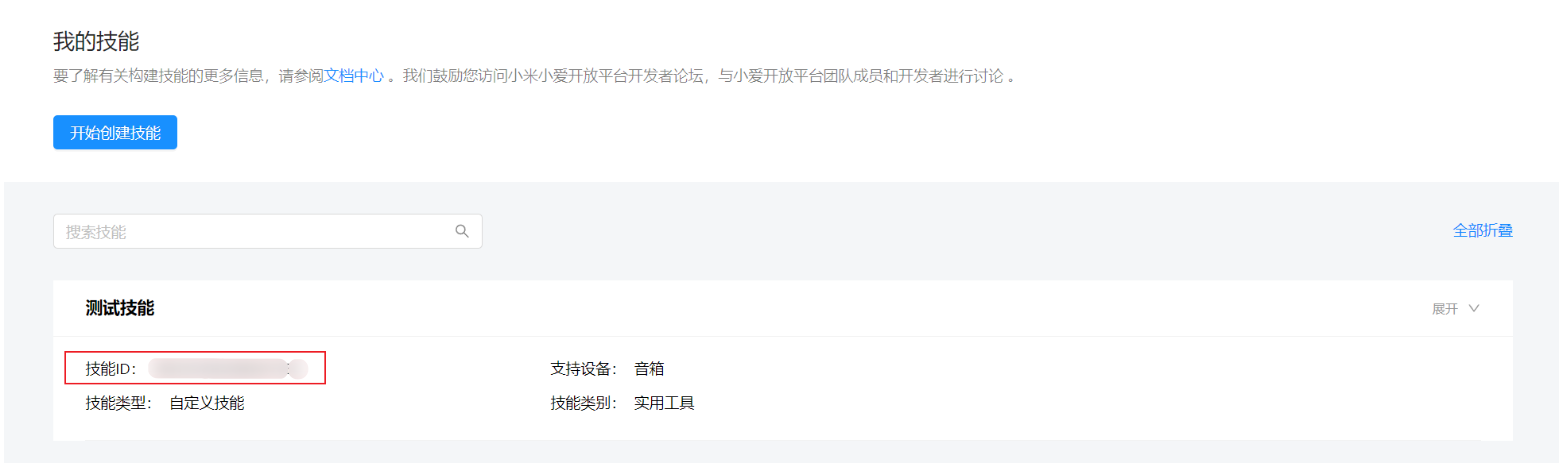
Configure XiaoAI Voice Control on the Private Cloud Platform
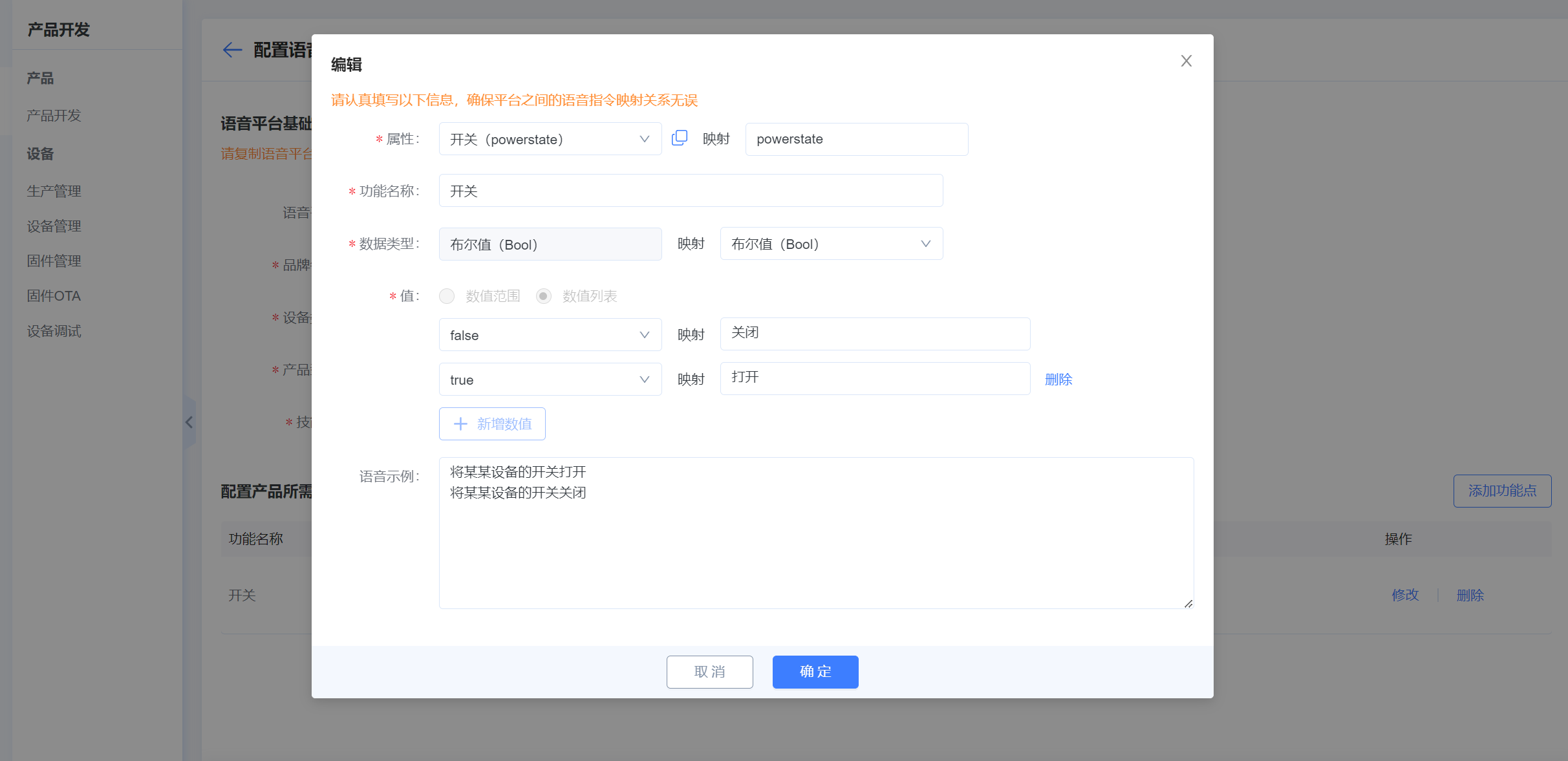
Open product details, switch to the Voice Control tab. You will see the speaker platforms supported by the platform. Today we integrate XiaoAI—scroll down to find the XiaoAI configuration; 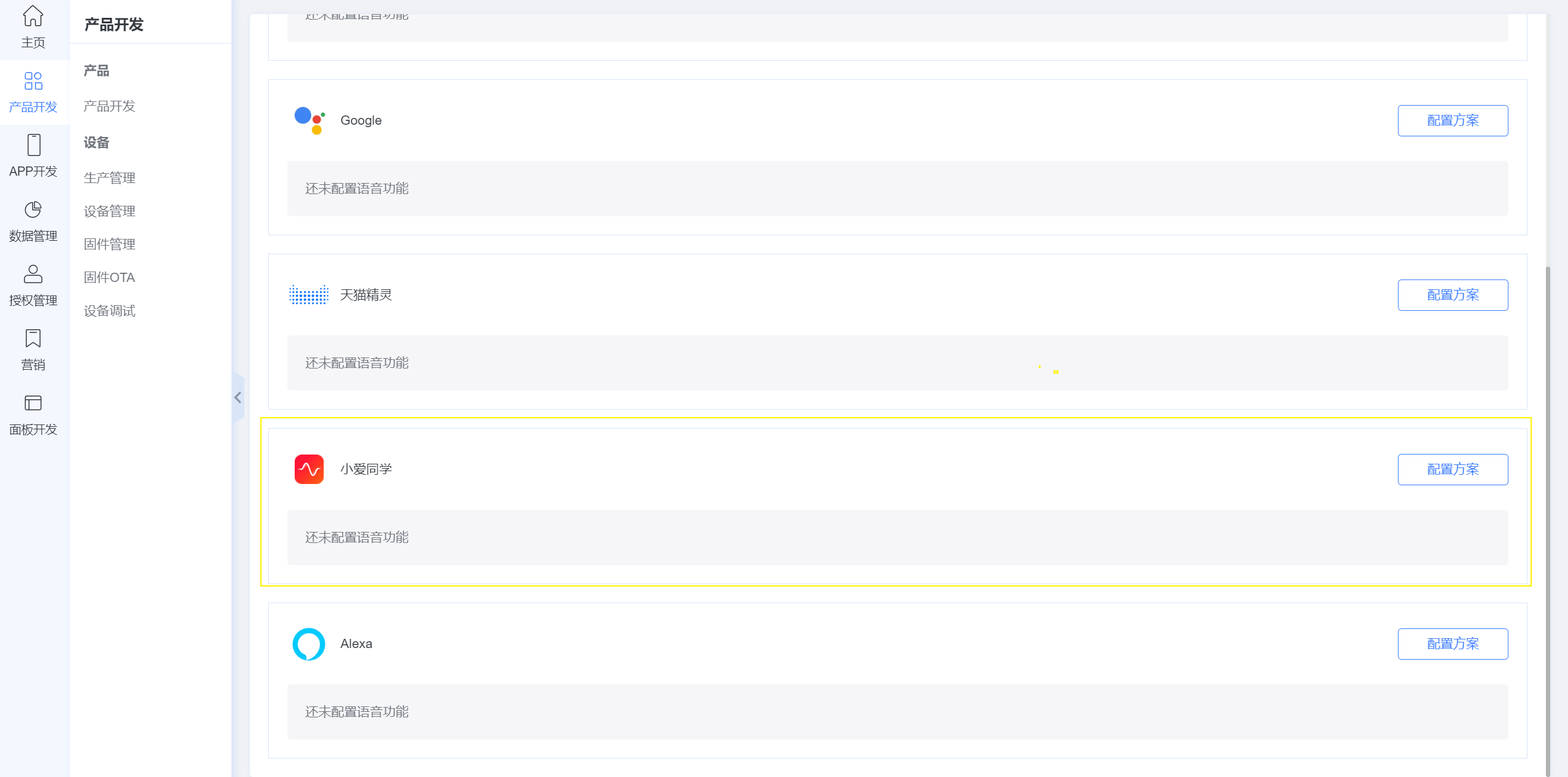 Brand name, device type, and product model can be filled as needed, but the Skill ID must be obtained from the skill information on the XiaoAI Open Platform;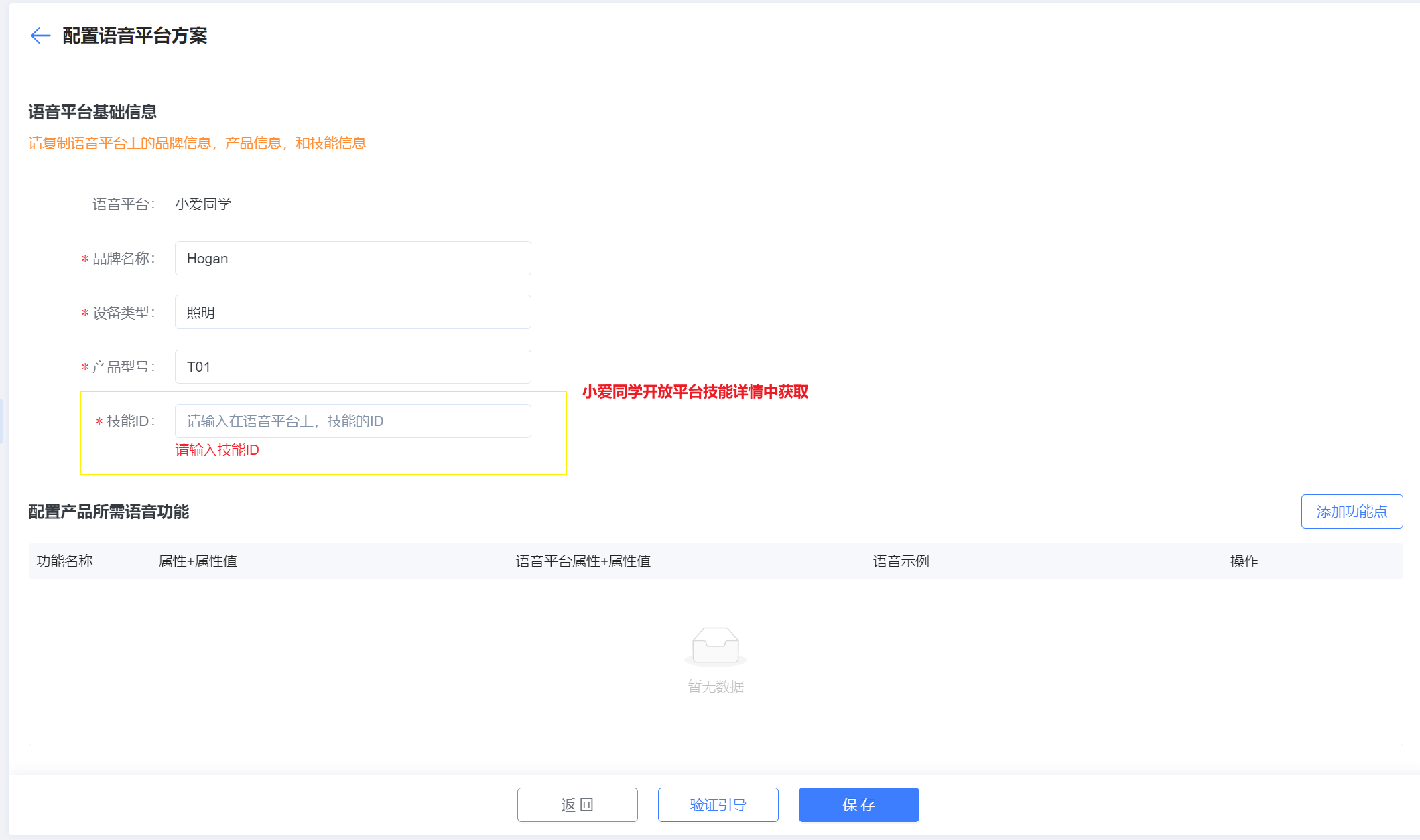
Configure Skill Utterances on the XiaoAI Open Platform
Go to My Skills, expand skill details, and click Edit for the corresponding version; 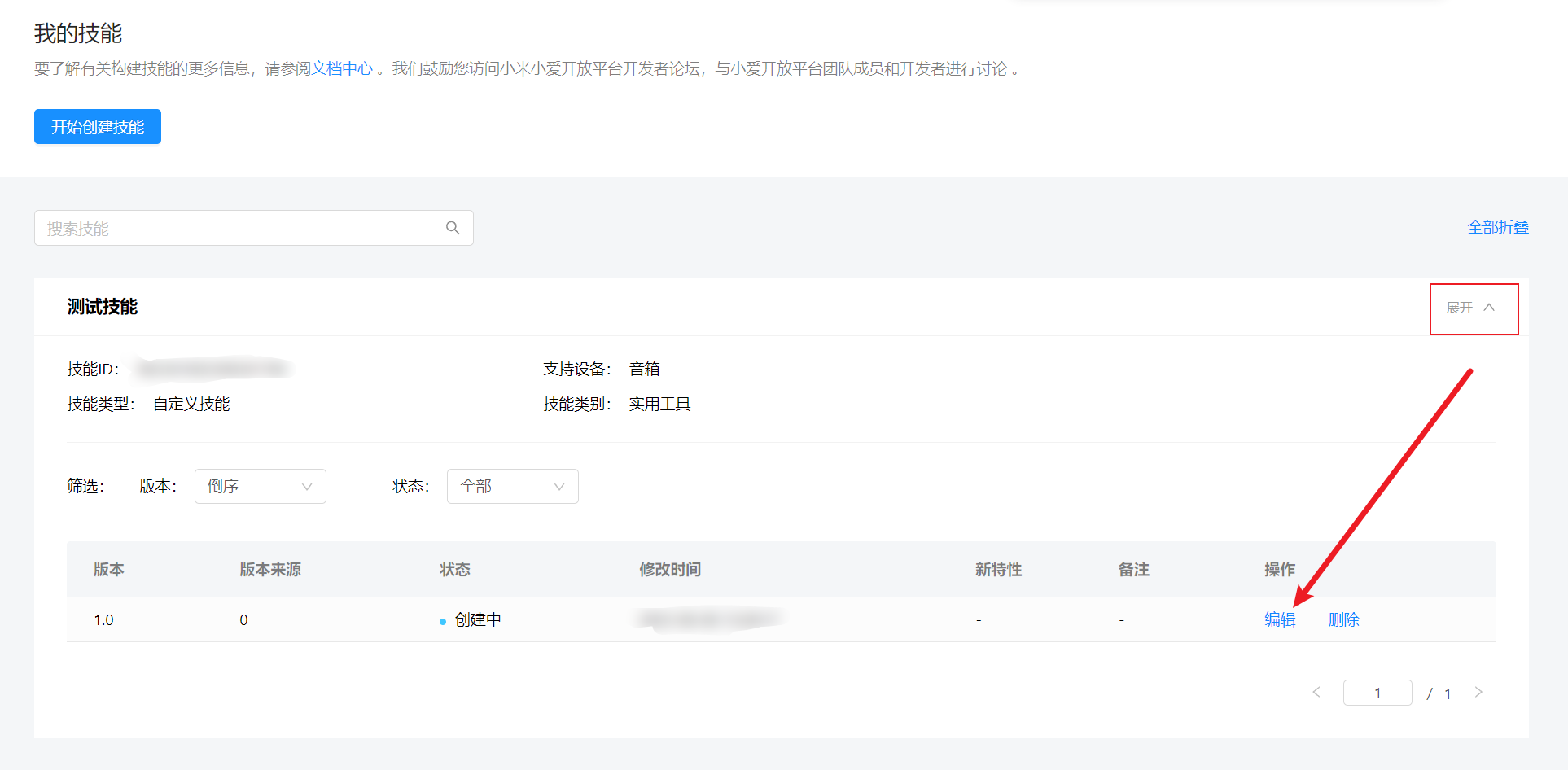
Configure intents 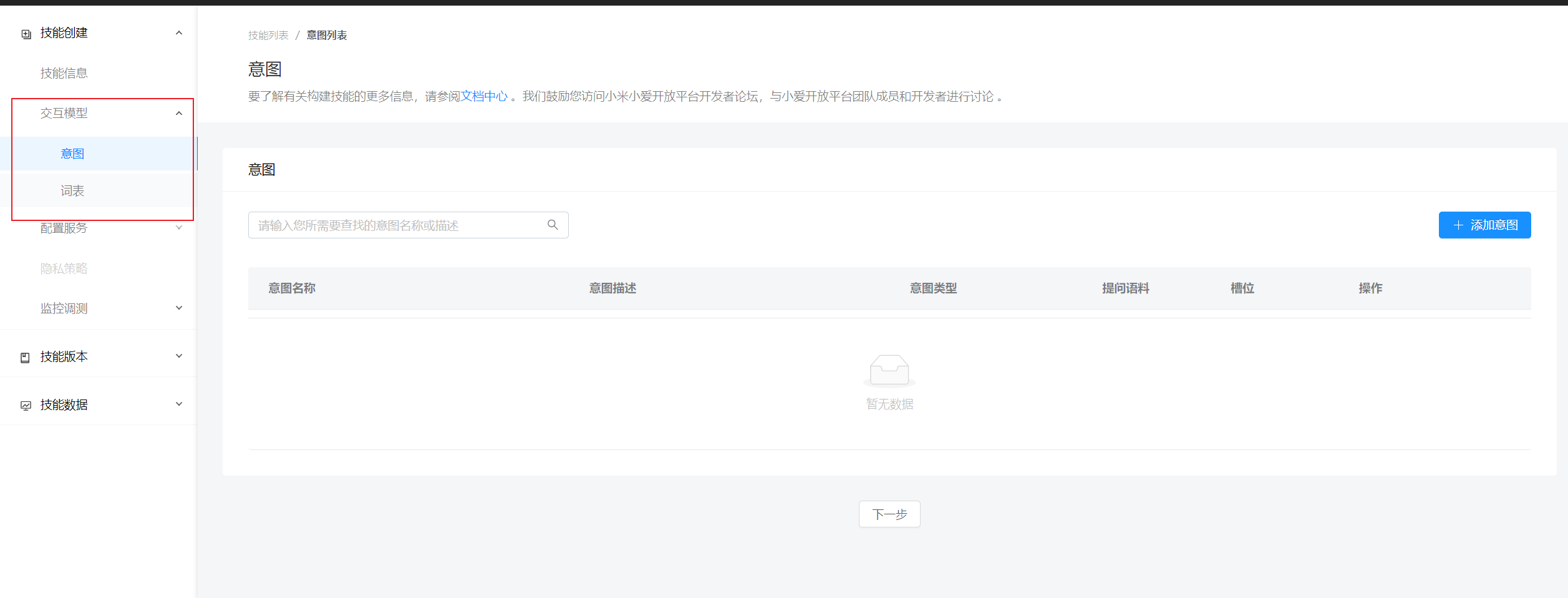
First add system intents Note: the welcome intent and the fallback (not understood) intent need to be configured with your custom intents; 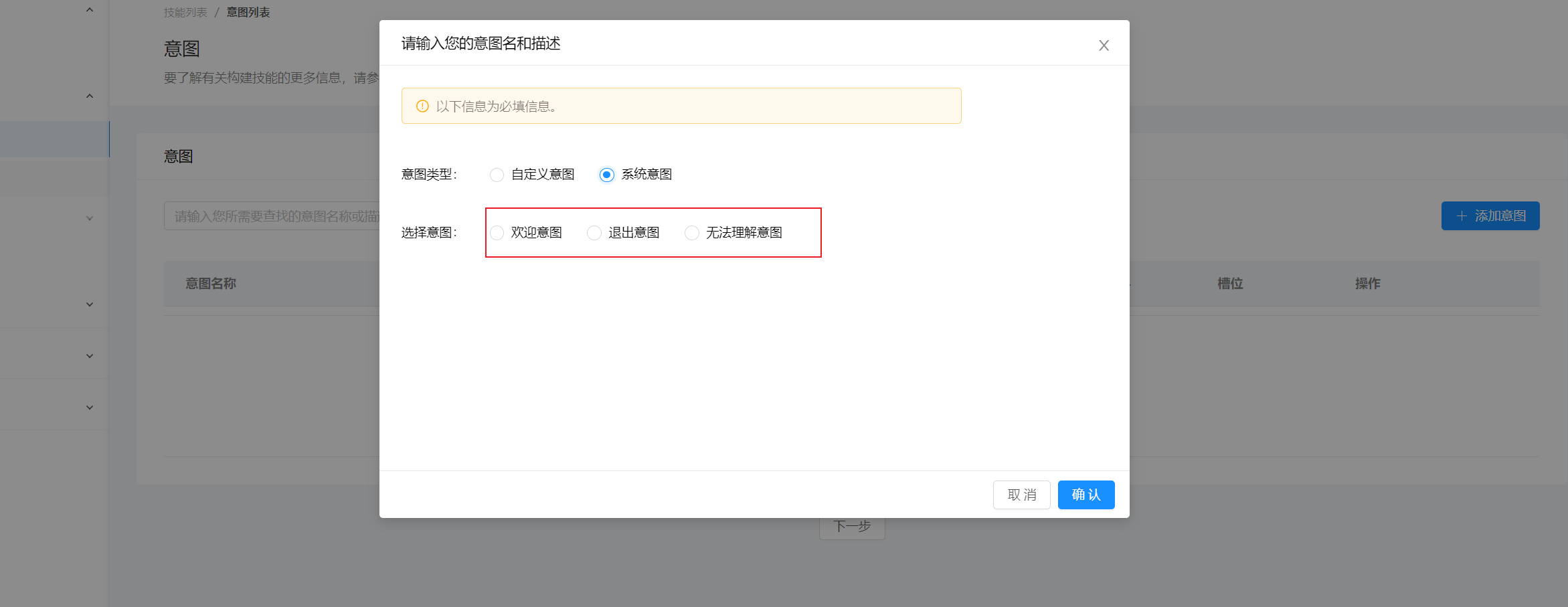
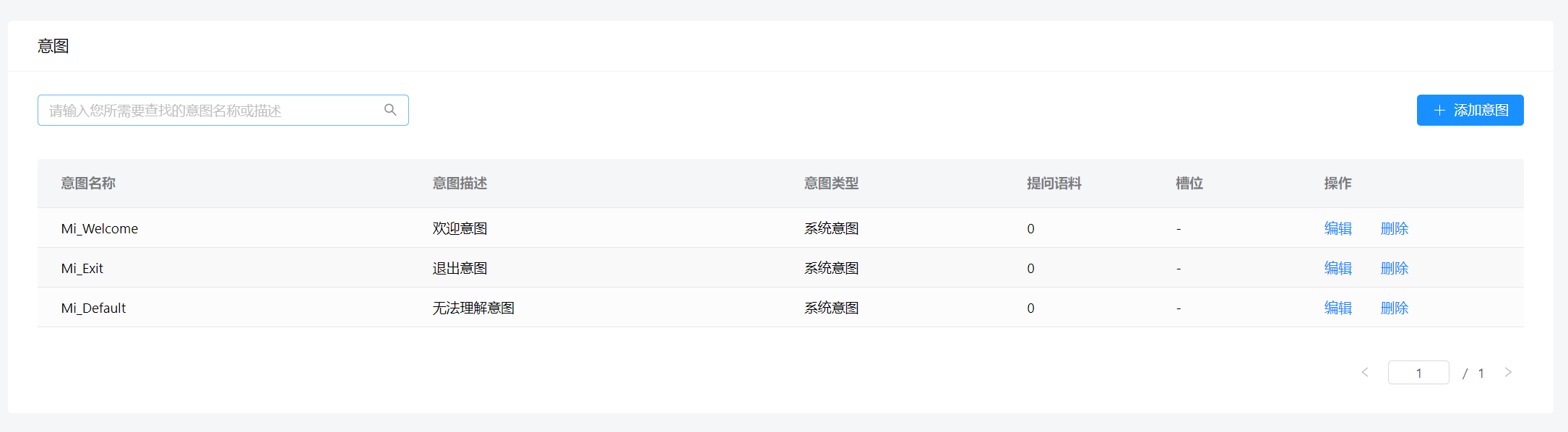
Configure custom intents 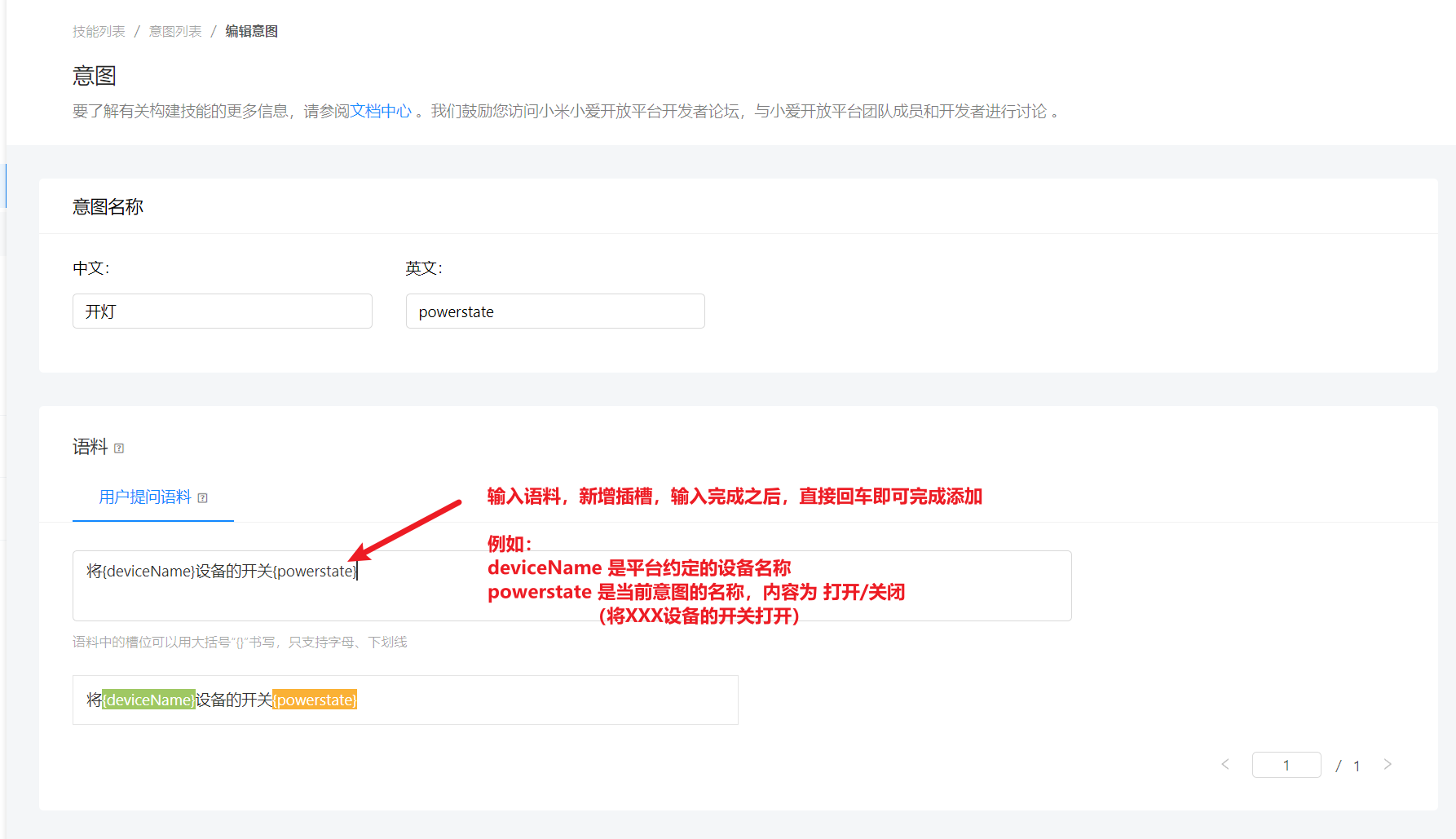
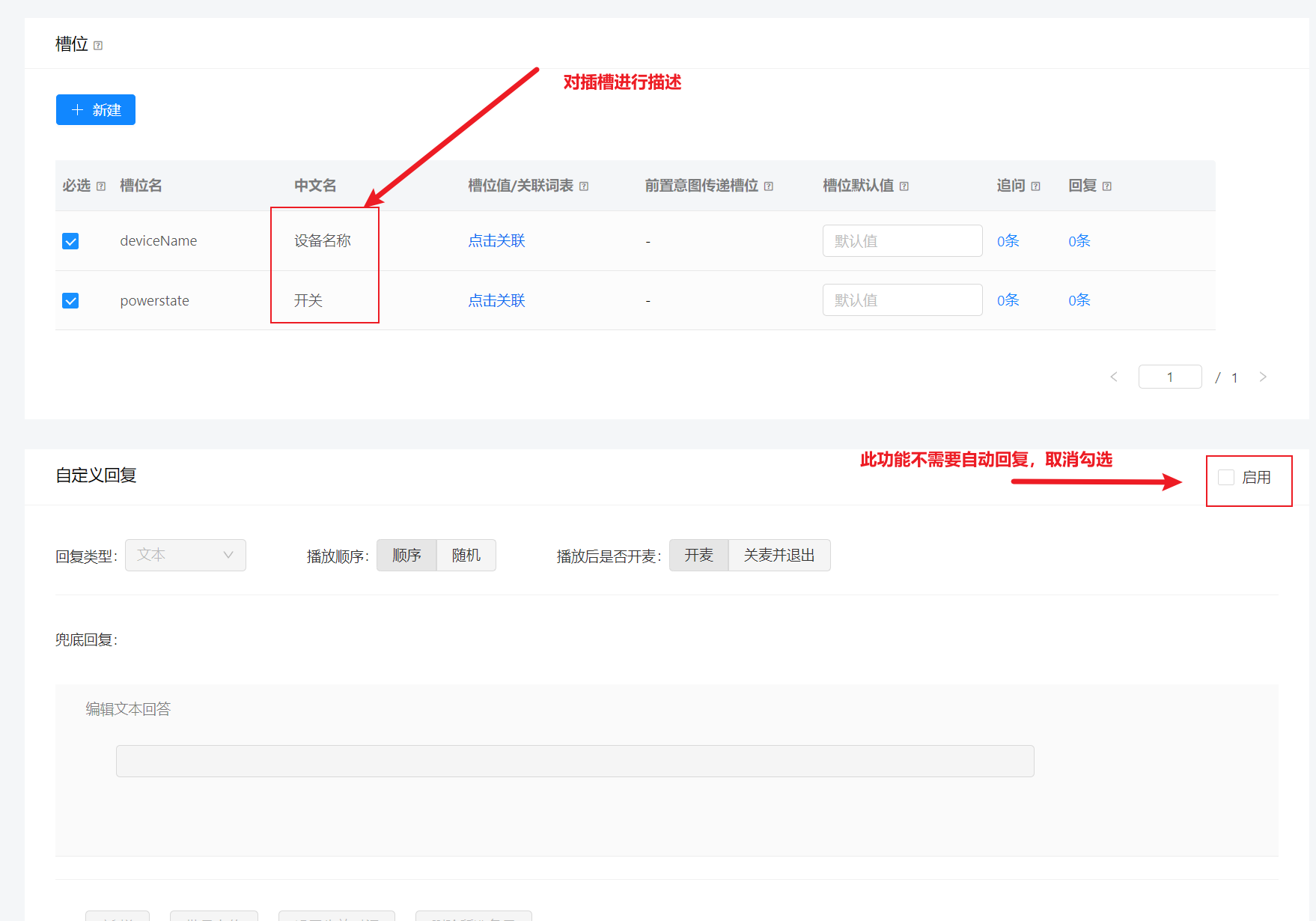
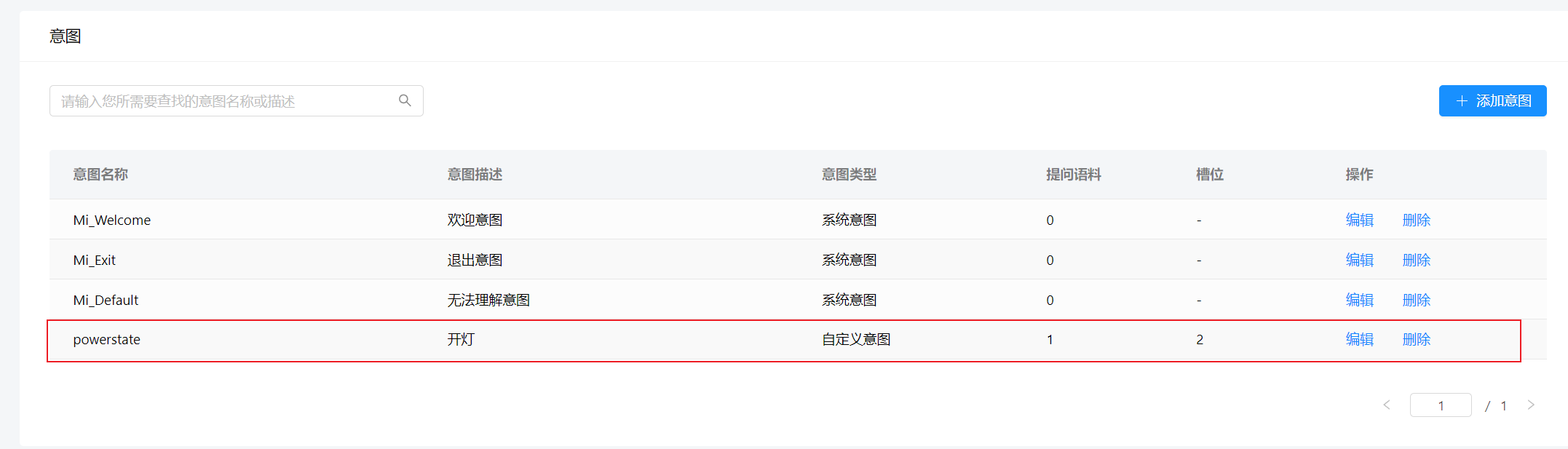
Configure XiaoAI Open Platform Services (Cloud-to-Cloud)
Obtain the server addresses from the Ubases IoT platform. For the command gateway, use the XiaoAI-specific endpoint whose path ends in xiaoaiIoTGateWay; do not reuse a Tmall Genie or other voice-platform gateway. 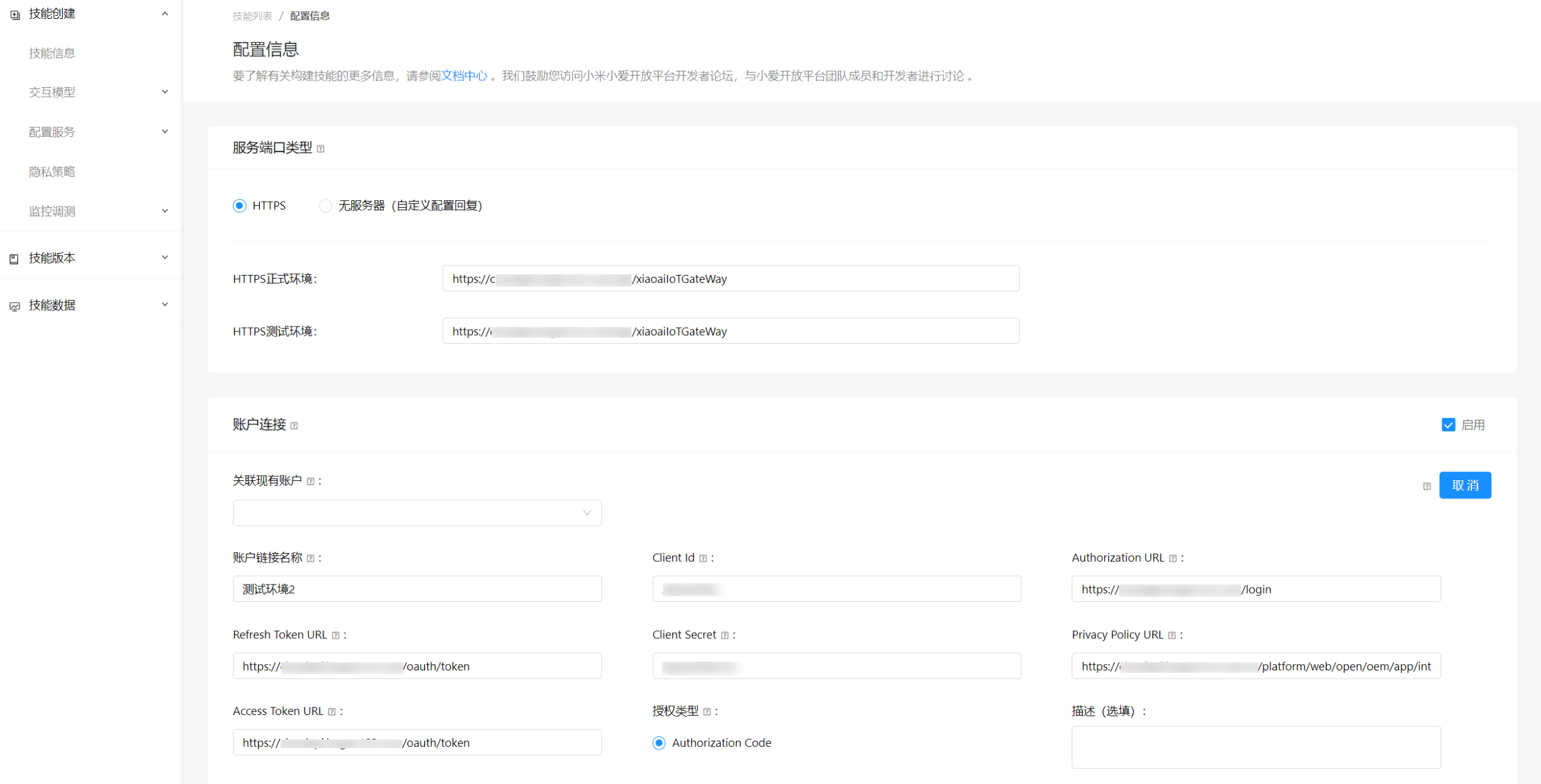
Test the Skill in the XiaoAI Open Platform Web Console
Go to device debugging. Xiaomi provides a web test tool. First enter your wake word. Finding an available skill wake word is difficult because it must be unique across the network, so you may not get the name you want; 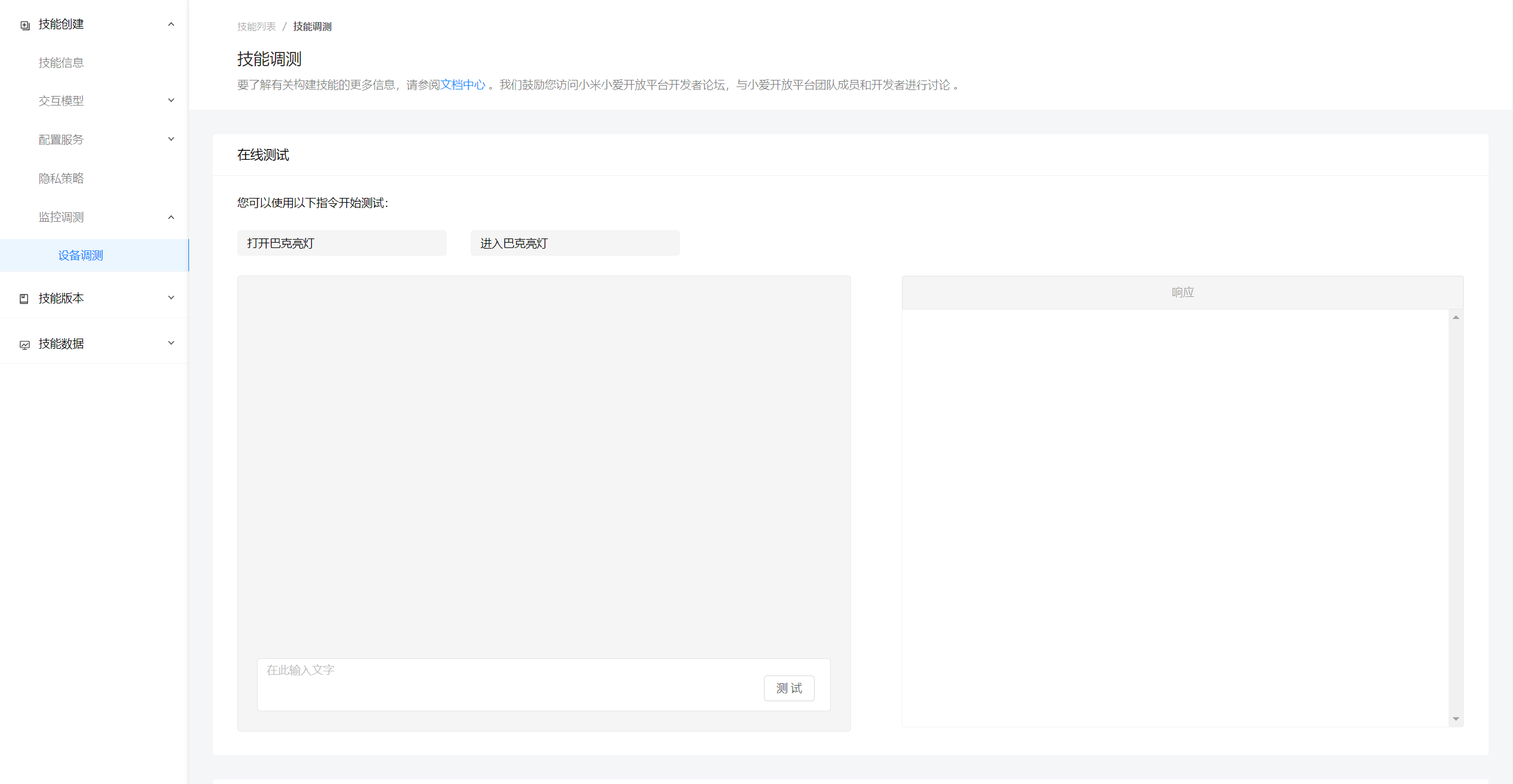
Enter the wake word; the speaker returns your configured welcome intent; 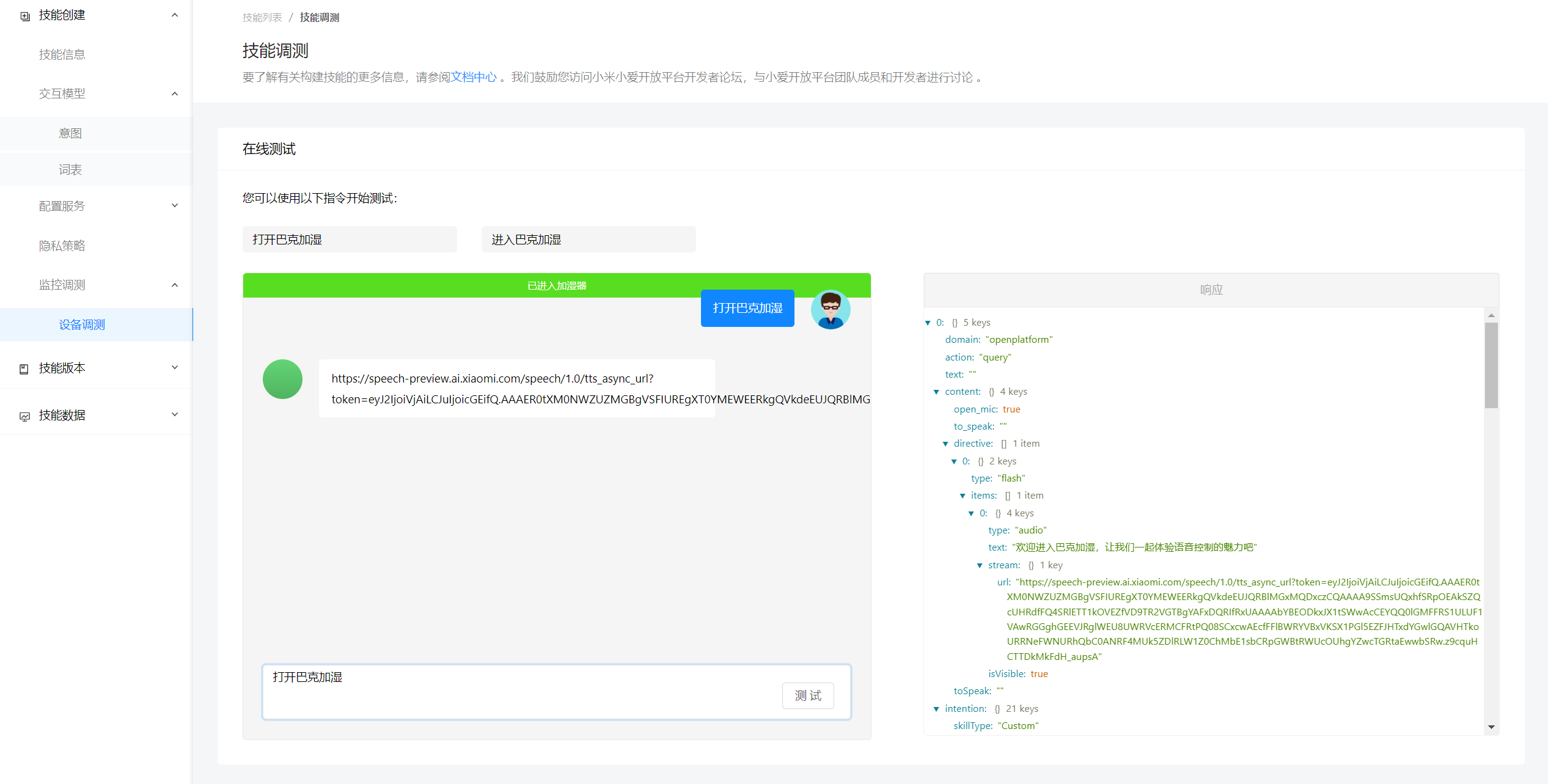
Next, say your configured on/off intent, for example “turn on the switch of device xxx” If everything goes well, you should see activity in the cloud logs, and successful testers will find their device has turned on;
Test the Skill with a XiaoAI Speaker
For real-device testing, see the following 
Say to XiaoAI:
- XiaoAI
- Enter developer mode
- Open Buck Humidifier (this example name was used because many preferred names were already taken)
- Turn on the switch of device xxxx;
Publish and Go Live
Process description: XiaoAI Open Platform (mi.com) Brief summary: Ensure your intent configuration is complete (welcome intent, fallback intent, exit intent, and custom intents), finish testing, and send the test report to the Xiaomi email address (xiaoai@xiaomi.com)