Virtual Device Debugging
When you do not yet have a development board or device, you can use virtual devices to verify that App features and commands behave correctly.
Add one or more virtual devices on the open platform, download the designated Ubases IoT App and register an account, bind that account on the platform, then sign in to the Ubases IoT App. You can view and operate the virtual device without a physical connection. You can also use platform MQTT commands to jointly verify App downlink and uplink data accuracy.
1) Select product
Open “Product Development / Device / Device Debugging” and switch to the product you want to debug.

2) Install the public App
Click “Add Virtual Device” and scan the QR code to download the public test App. After download, register an account if you do not already have one.

3) Add a virtual device
Enter the public App account in the “Specified App Account” field and confirm. You can then view the device ID and bound account in the virtual device list.
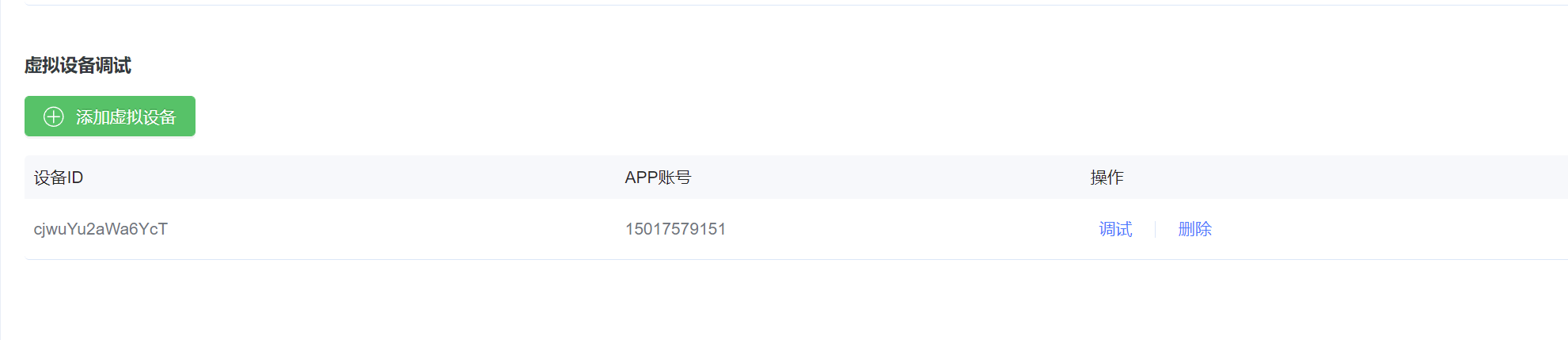
4) Command testing
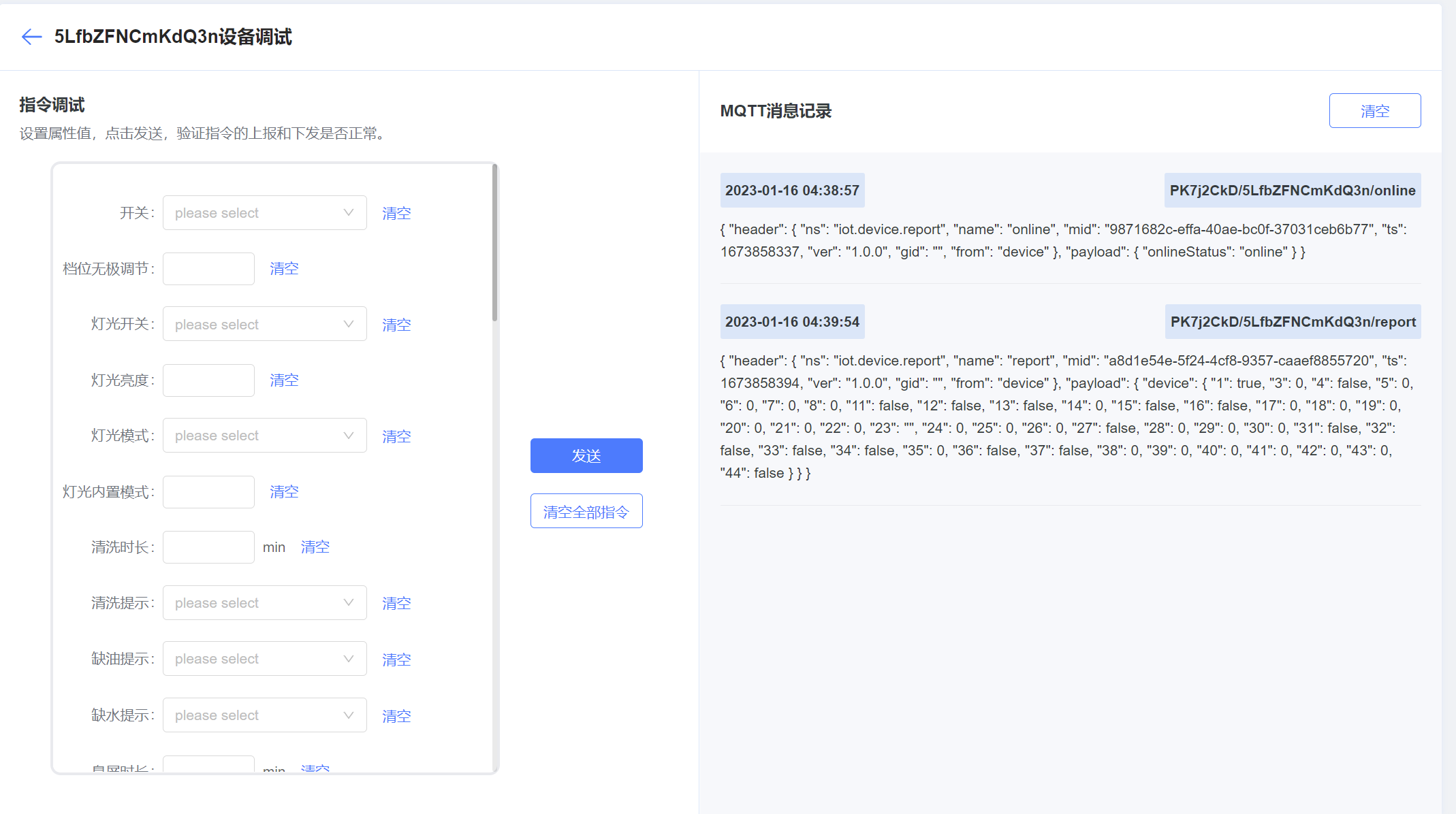
Click “Debug” to open the virtual device debugging page. The page renders the product Thing Model; developers can simulate the panel and send device control commands. Virtual device warm-up takes 1–2 minutes (no more than 5 minutes). After startup, the virtual device can receive and send device commands.
【Virtual device waiting to start】

【Virtual device started】