

Overview
Before using the Baidu RTC real-time audio and video service, you need to register a Baidu AI Cloud account and complete identity verification. This page walks you through the whole process, from registration to verification.
Official reference: Baidu AI Cloud Account Registration Guide
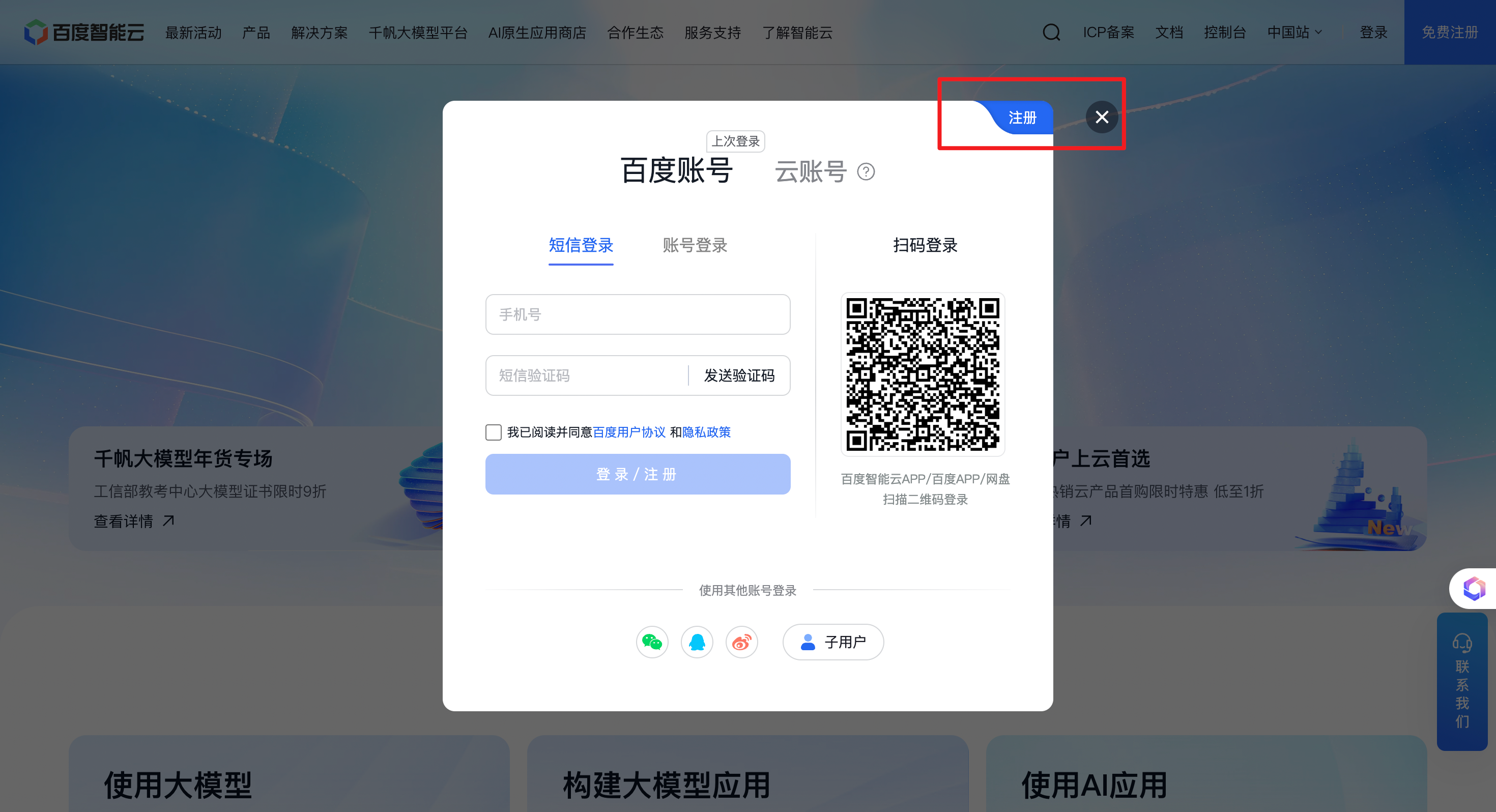
Go to the Baidu AI Cloud website https://cloud.baidu.com and click the Sign Up Free button in the top-right corner.
You can also open the registration page directly: https://login.bce.baidu.com/reg.html
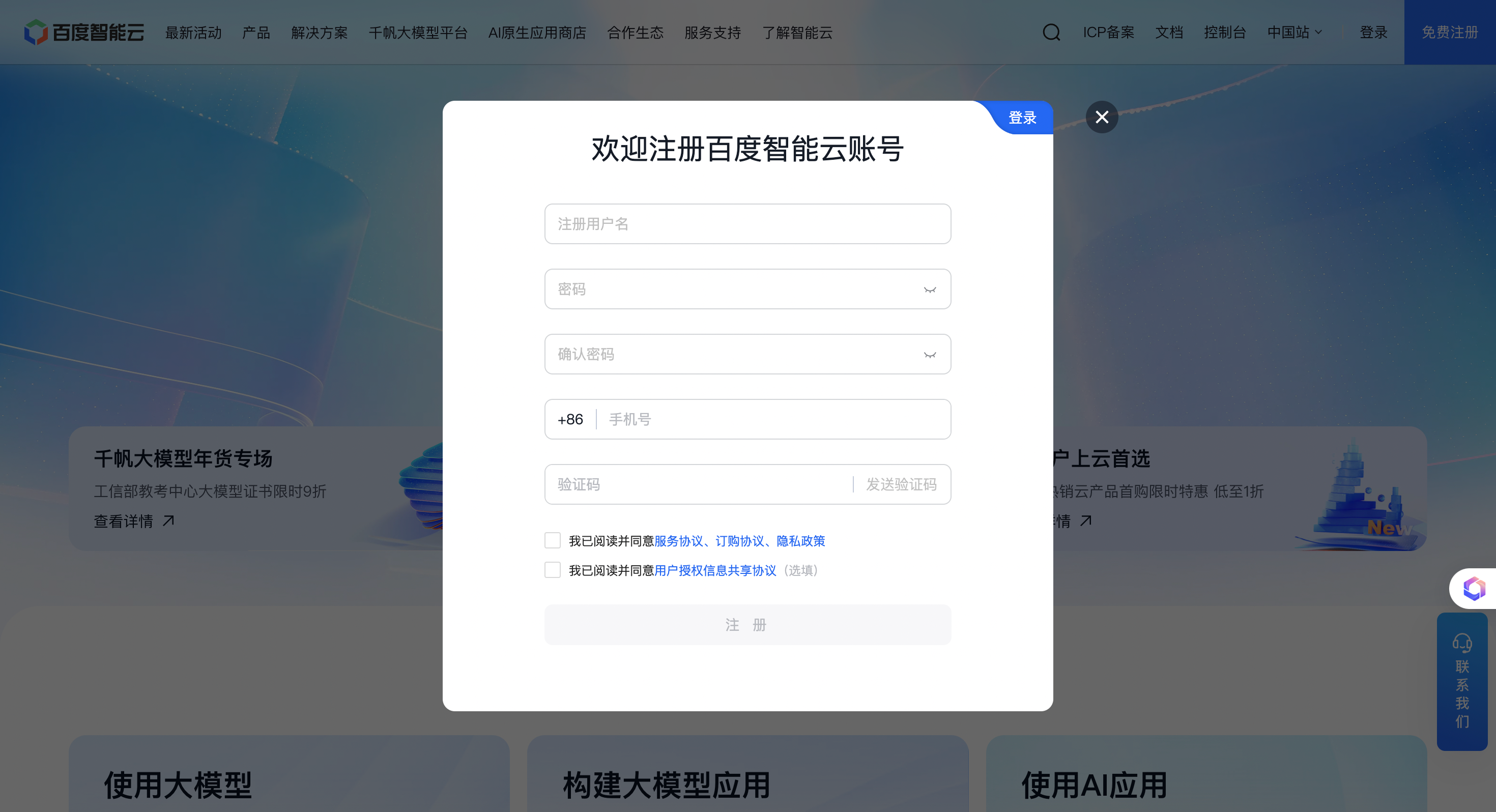
| Field | Description |
|---|---|
| Username | A custom account name that must be unique; letters, digits and underscores are supported |
| Mobile number / Email | A mainland China mobile number or an email address, used to receive the verification code |
| Password | Set your login password |
| Verification code | Enter the SMS or email verification code as prompted |
⚠️ Note: Once the username is registered successfully it cannot be changed, so please fill it in carefully.
✅ Registration complete: After a successful registration the system automatically generates a unique Baidu AI Cloud account (AccountID). No manual activation is required — you can log in directly.
Under the Cybersecurity Law of the People’s Republic of China, accounts that have not completed identity verification cannot use cloud services (including RTC real-time audio and video).
After logging in, click Verify Now in the top-right corner of the console, or go to the Account Management → Identity Verification page.
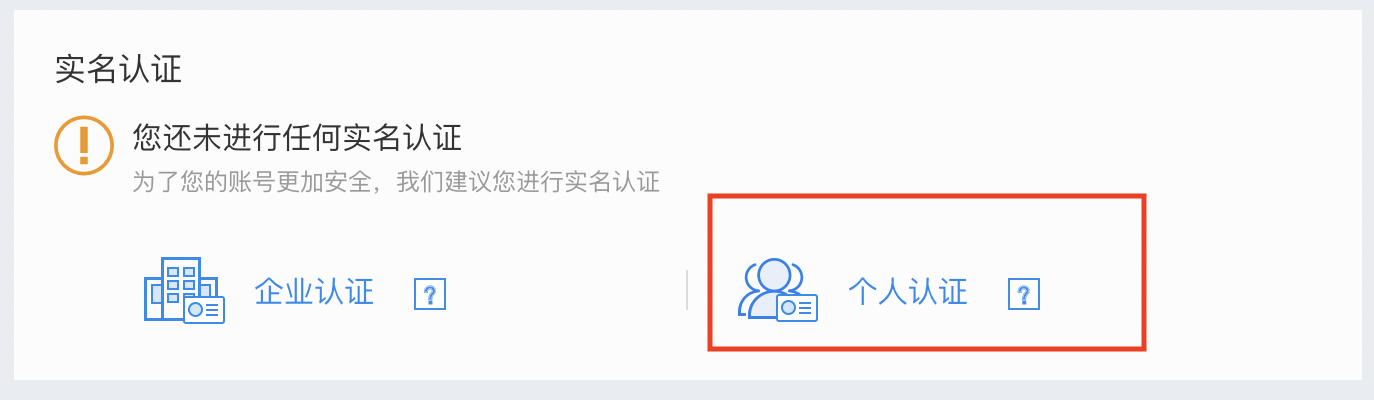
Baidu AI Cloud offers two types of identity verification:
| Verification type | Who it applies to | Method | Review time |
|---|---|---|---|
| Individual verification | Individual developers | Face scan / bank card verification | Instant |
| Enterprise verification | Enterprises, sole proprietors | Legal representative face scan / corporate transfer / top-up verification | 0–2 business days |
Individual verification: choose Individual verification, fill in your name and ID number, then scan the QR code with Baidu or WeChat on your phone to complete face recognition. The whole process takes about 3 minutes.
Enterprise verification: choose Enterprise verification. You will need to prepare a business licence, the ID document of the legal representative and other materials.
For AiPi-PalChatV1 development and testing, individual verification is sufficient.
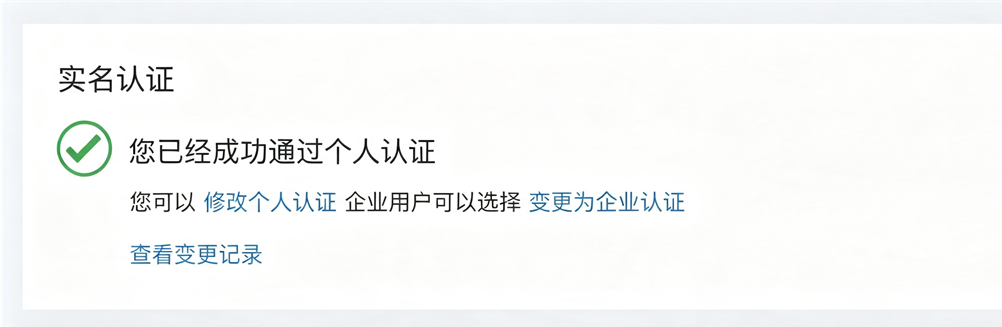
Once the verification is approved, open the Account Management → Identity Verification page. It will show a Verified status, which means the account now has full access to the services.
Finding your Account ID (AccountID)

The AccountID is required later when you create an RTC application:
- Log in to the Baidu AI Cloud console
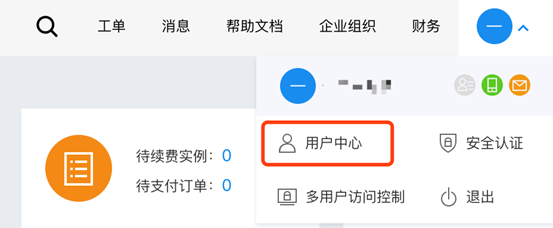
- Click the avatar in the top-right corner → User Center
- Account ID is your unique account identifier
FAQ
Q: I already have a Baidu account (e.g. for Baidu Netdisk). Do I need to register again?
A: Baidu AI Cloud and Baidu Netdisk share the same account system. If you already have a Baidu account, simply log in to Baidu AI Cloud with it — however, the first login requires an activation step (reading and accepting the agreement). Identity verification is still required afterwards.
Q: What is the difference between individual and enterprise verification?
A: Individual verification is completed instantly and is suitable for individual development and testing. Enterprise verification takes 0–2 days to review and gives you access to enterprise benefits such as VAT special invoices and higher quotas. For AiPi-PalChatV1 development and testing, individual verification is sufficient.
Q: I did not receive the verification code when registering. What should I do?
A: Check whether your phone is blocking SMS messages, confirm that the mobile number was entered correctly, or try registering with an email address instead.
Official documentation: https://cloud.baidu.com/doc/UserGuide/s/ejwvy3fo2