

Overview
Function Call is effectively a toolbox for the large model: it lets the AI not only "talk" but also "act". When the user gives an instruction during a conversation (such as "turn it up"), the large model invokes the corresponding Function Call and the device performs the actual action.
💡 Tip: Function Call configuration is optional. The device can still hold normal voice conversations without any Function Call configured.
Configuration path: Large model → Intent settings → Create Function Call template.
1. Open the intent settings
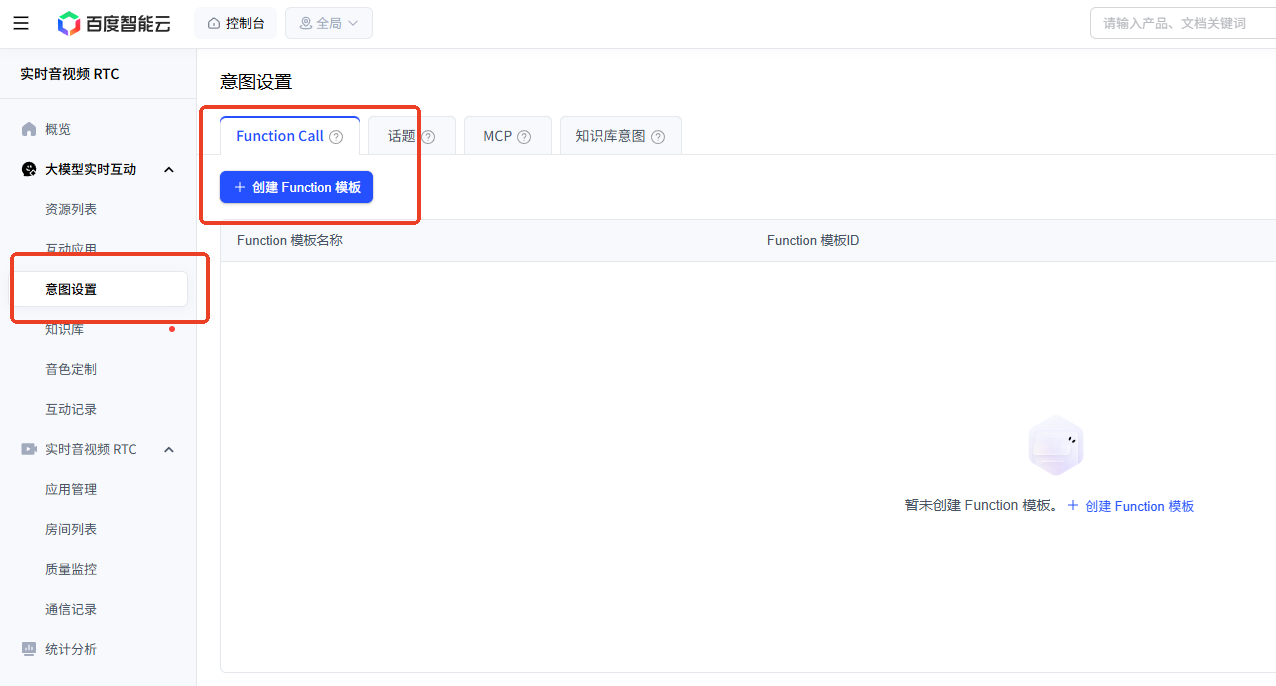
2. Create a Function Call template
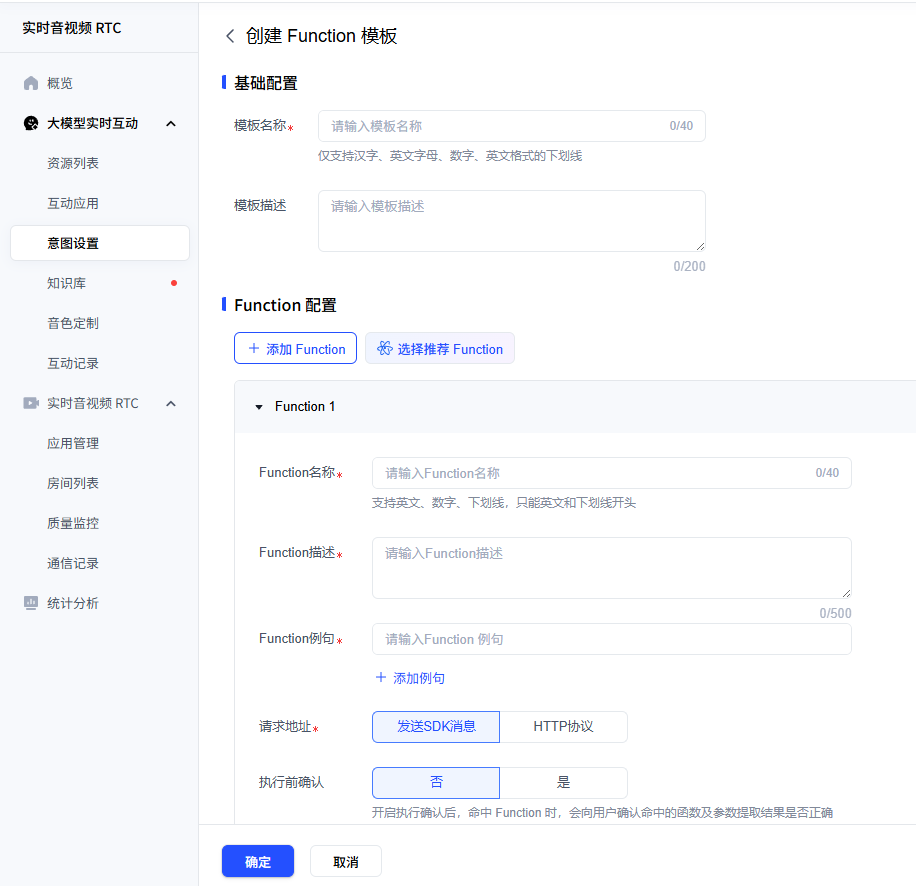
3. Fill in the Function Call definition
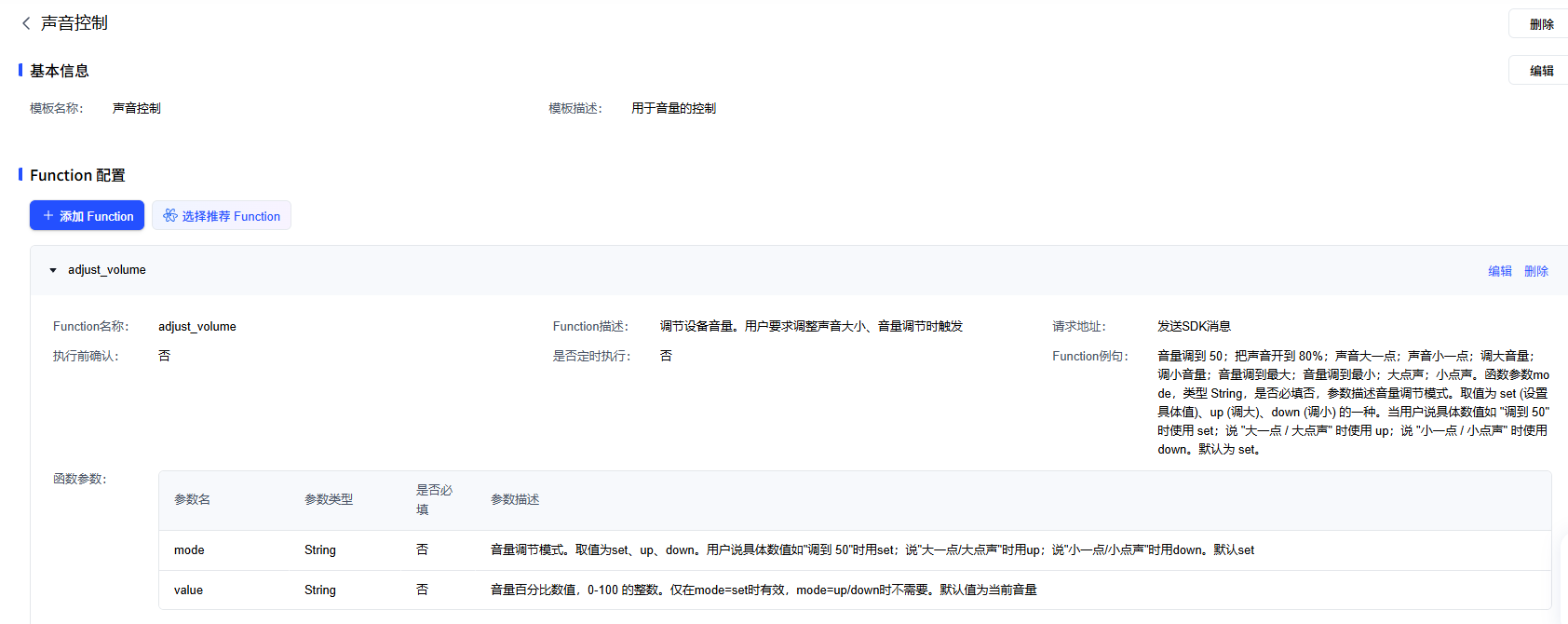
adjust_volume configuration details
| Item | Value |
|---|---|
| Template name | adjust_volume |
| Template description | Used for volume control |
| Function Call name | adjust_volume |
| Function Call description | Adjust the device volume. Triggered when the user asks to change the sound level or adjust the volume |
| Request URL | Send an SDK message |
| Confirm before execution | No |
| Run on a schedule | No |
| Function Call example phrases | Set the volume to 50; turn the sound up to 80%; a bit louder; a bit quieter; turn it up; turn it down; volume to maximum; volume to minimum; speak up; speak softer |
Function parameters
| Parameter | Type | Required | Description |
|---|---|---|---|
| mode | String | No | Volume adjustment mode. Values are set, up, down. Use set when the user gives a specific number such as “set it to 50”; use up for “a bit louder / speak up”; use down for “a bit quieter / speak softer”. Defaults to set |
| value | String | No | Volume percentage, an integer from 0 to 100. Only effective when mode=set; not needed when mode=up/down. Defaults to the current volume |
💡 More Function Calls can be added later as needed, such as light control or alarm settings.
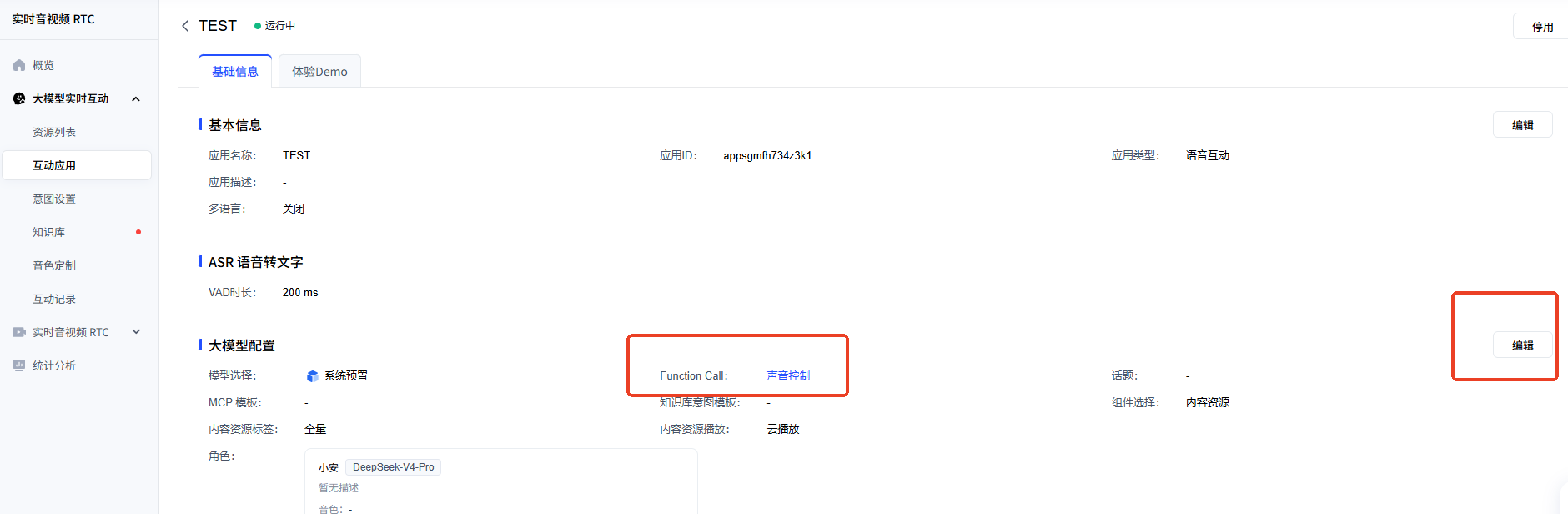
Once the Function Call template has been created, it must be bound to the application to take effect.
- Open Interactive Application and click your application name
- Open the Large model configuration tab
- Find Function Call template and click to select
- Tick Volume Control (
adjust_volume) and click OK
Once bound, the large model can invoke the volume adjustment feature.
Official documentation: https://cloud.baidu.com/doc/RTC/s/2mcu6ef3g