

Overview
Once the application has been created, you need to bind a resource (License) to it before the real-time audio and video service can be used normally. New users can claim 10 Licenses free of charge, valid for 3 months — no review required, effective within 10 minutes.
Official reference: Resource List
Open the Large Model Real-Time Interaction console and click Resource List in the left-hand navigation.
Direct link: https://console.bce.baidu.com/rtc/#/rtc/interaction/resource/list
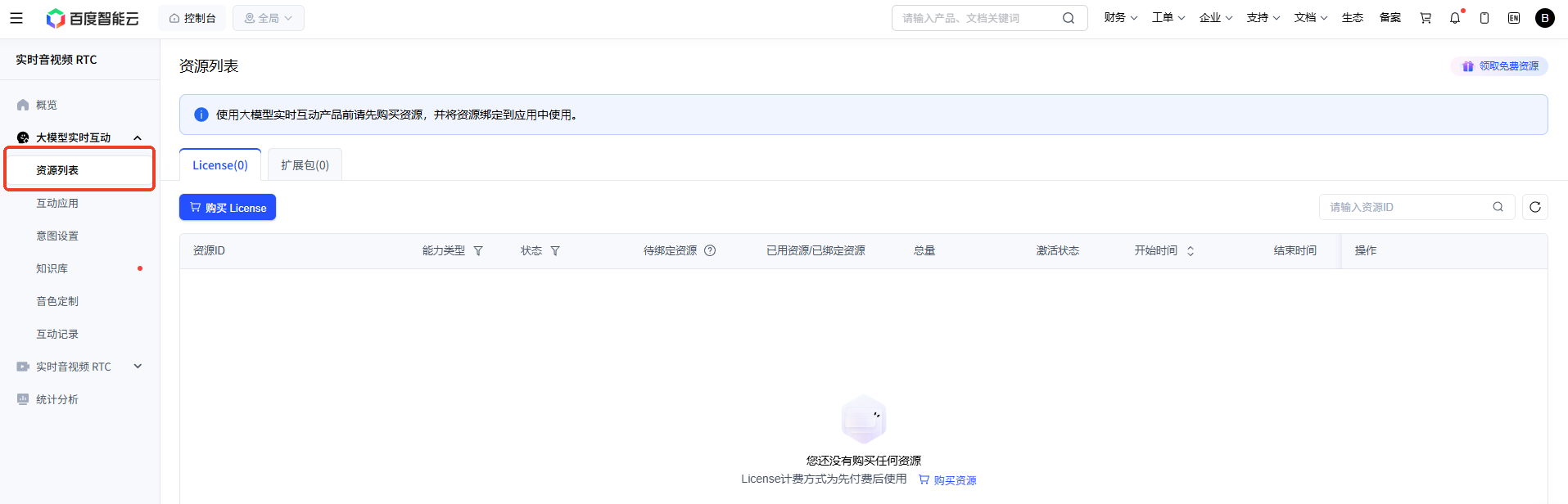
💡 New user benefit: Every Baidu AI Cloud account can claim 10 Licenses free of charge, valid for 3 months. No review is required and they take effect within 10 minutes. Each user can claim them once only.
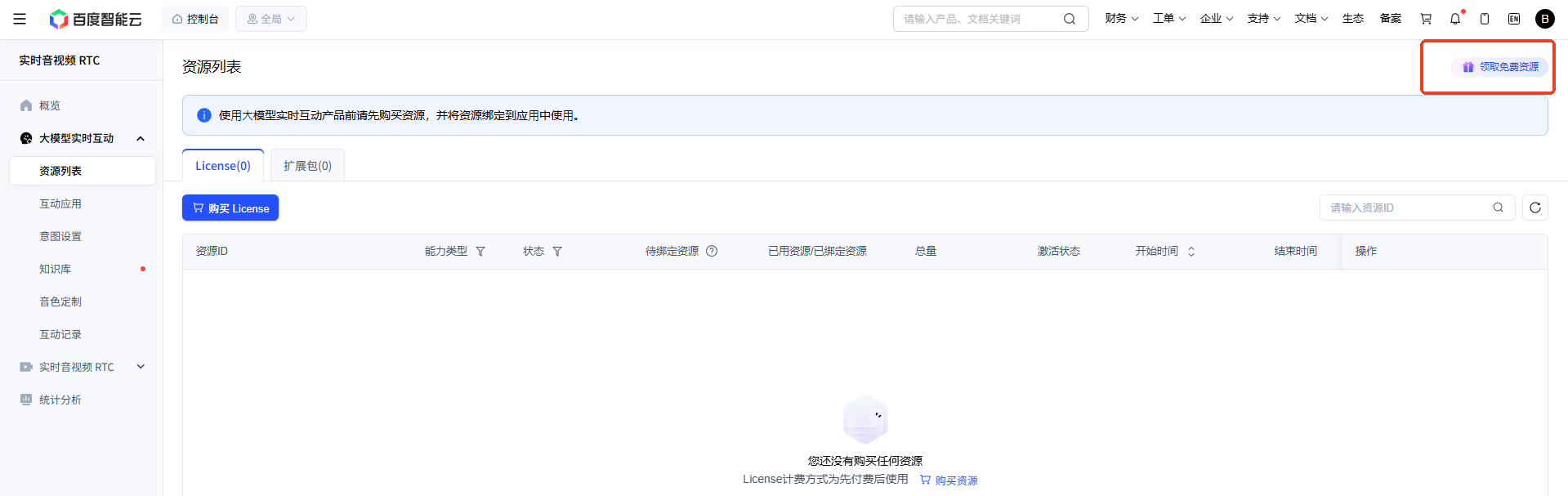
On the Resource List page, click Claim Free Test Resource and the system will issue 10 test Licenses automatically.
Once claimed, the resource appears in the resource list with the status Active.
💡 What is a License? How many should I bind? 1 License = 1 simultaneous device connection. The 10 free Licenses form a resource pool that you can allocate flexibly across applications or devices.
For debugging a single AiPi-PalChatV1, binding just 1 is recommended. Keep the remaining Licenses for additional devices or new applications later, so nothing goes to waste.
Using method 2 (from the Interactive Application side) as an example:
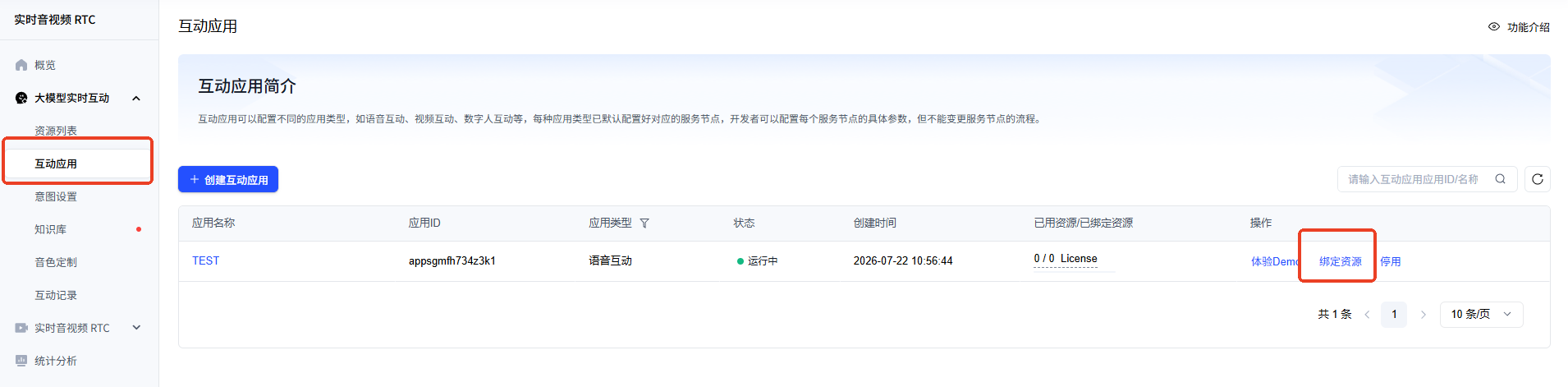
- Open the Interactive Application list and find the application you created earlier
- Click Bind Resource in the Actions column on the right
- In the resource list that pops up, select the free test resource you just claimed — binding 1 is enough
- Click OK to finish binding
📌 The relationship between resources and applications is many-to-many: one resource can be bound to multiple applications, and one application can be bound to multiple resources. However, an application can only bind resources of one billing type.
Using the RTC service later requires the AK/SK (Access Key / Secret Key) of your Baidu AI Cloud account.
- Log in to the Baidu AI Cloud console and click the avatar in the top-right corner → Security Credentials
- Open the Access Key management page. Using a sub-user is recommended (this avoids losing control of the account if the main account’s AK/SK leaks)
- Create a sub-user and generate an Access Key
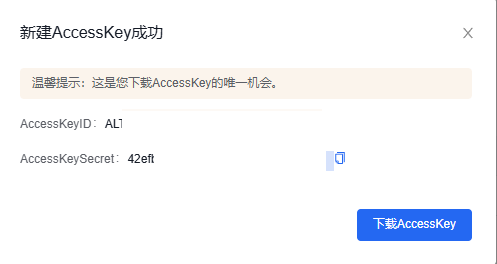
- After completing the security verification, copy or download and save the Access Key ID and Secret Key immediately
⚠️ Note:
- The Secret Key is shown only once, at creation time. Once the dialog is closed, the plaintext can no longer be viewed
- Keep it safe. Do not put it in public documents or commit it to a code repository
Official reference: How to obtain AKSK
Resource Status
| Status | Description |
|---|---|
| Active | The resource is available and can be bound to applications |
| Pending payment | Can be used only after the payment is completed |
| Exhausted | The resource has been used up |
| Expired | The resource is past its validity period |
Official documentation: https://cloud.baidu.com/doc/RTC/s/Bmf3sldm9