

Overview
After registering a Baidu AI Cloud account and completing identity verification, you need to create an interactive application in the RTC console to obtain the AppID and AppKey. These two parameters are the key credentials that AiPi-PalChatV1 uses to connect to the Baidu RTC service.
Official reference: Activating the Service | Interactive Application
Open the Real-Time Communication (RTC) console and click Use Now to activate the service.
Direct link: https://console.bce.baidu.com/rtc/#/rtc/interaction/activation
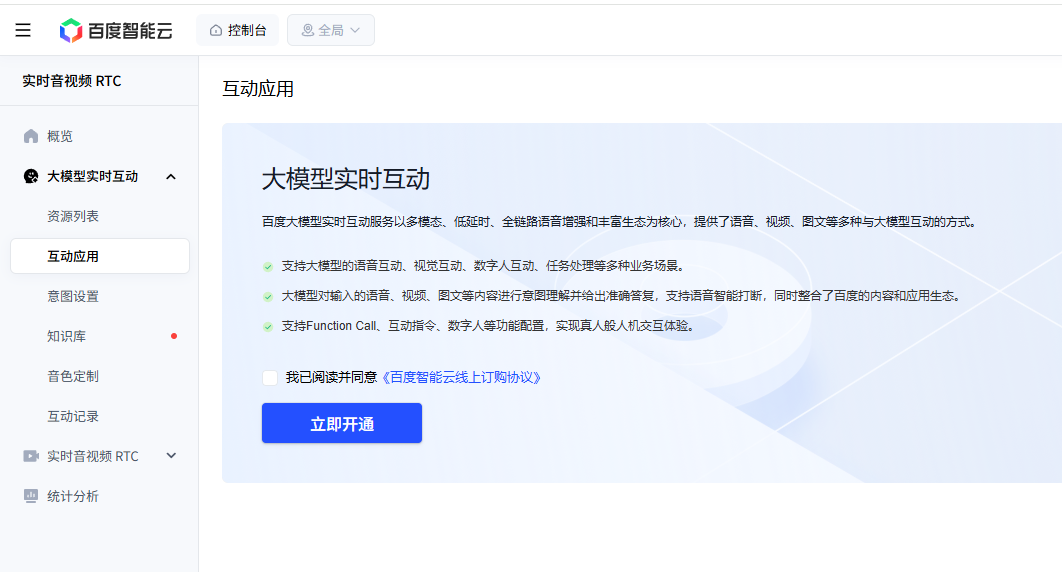
AiPi-PalChatV1 uses the interactive application type (which integrates large-model AI capabilities).
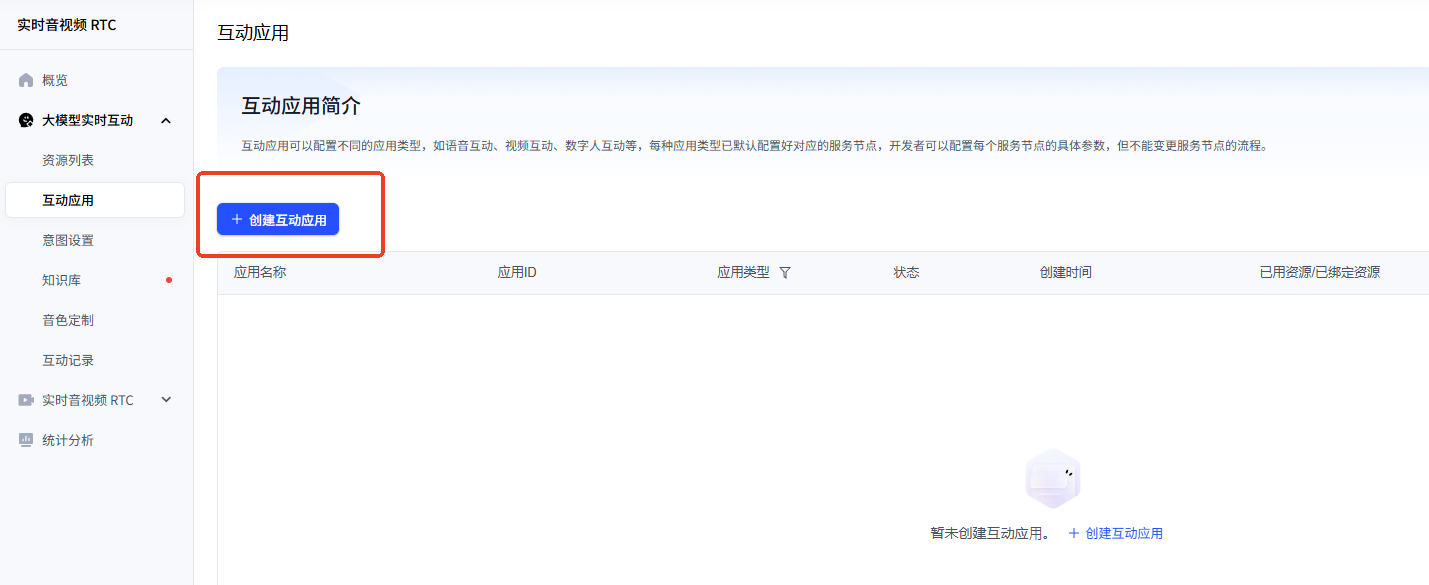
In the left-hand navigation of the RTC console, click Interactive Application → Create Interactive Application.
Direct link: https://console.bce.baidu.com/rtc/#/rtc/app/list
| Item | Description |
|---|---|
| Application name | Required, 1–40 characters. Supports Chinese/English letters, digits and underscores; must start with a Chinese or English letter; must be unique |
| Application description | Optional, up to 200 characters; used to note the purpose of the application |
| Application type | Select Multimodal Real-Time Interaction |
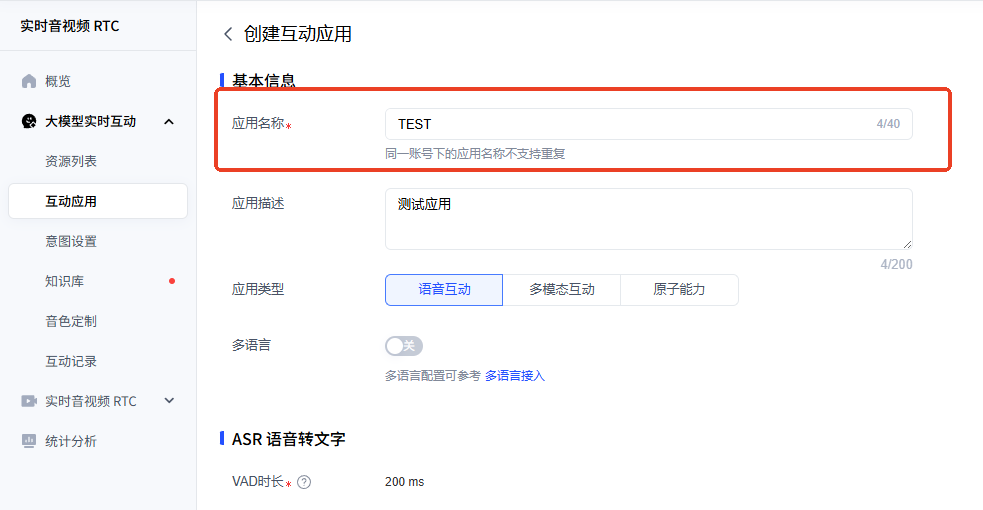
An interactive application needs ASR (speech recognition), a large model and TTS (speech synthesis) configured — these are the core of AiPi-PalChatV1’s intelligent conversation.
| Item | Description | Value |
|---|---|---|
| VAD duration | Voice segmentation sensitivity in milliseconds; the smaller the value, the more sensitive the segmentation | 200ms |

| Item | Description |
|---|---|
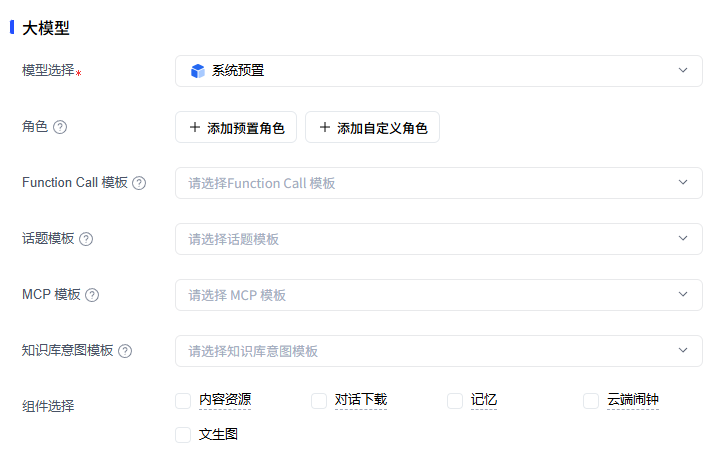
| Model source | Choose a preset system model or a third-party model |
Supported third-party models:
| Platform | Description |
|---|---|
| Baidu Qianfan | Baidu ERNIE large models |
| Alibaba Bailian | Alibaba Qwen large models |
| Tencent Cloud | Hunyuan large models |
| Volcano Ark | ByteDance Doubao large models |
| OpenAI | Models compatible with the OpenAI LLM protocol |
You can customise the role settings, Function Call and components.
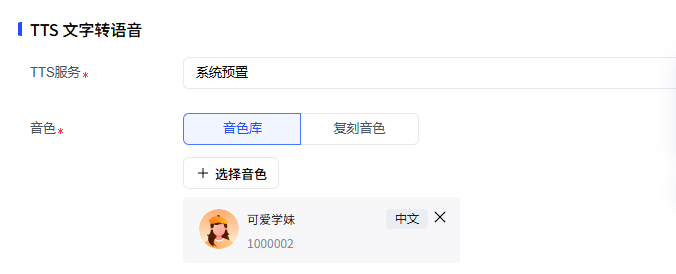
| Item | Description |
|---|---|
| TTS source | Preset system voices / Baidu Cloud TTS / iFlytek TTS / Volcano Cloud TTS |
Simply pick a voice that suits you.
Once the application has been created, you can try it out online directly in the console:
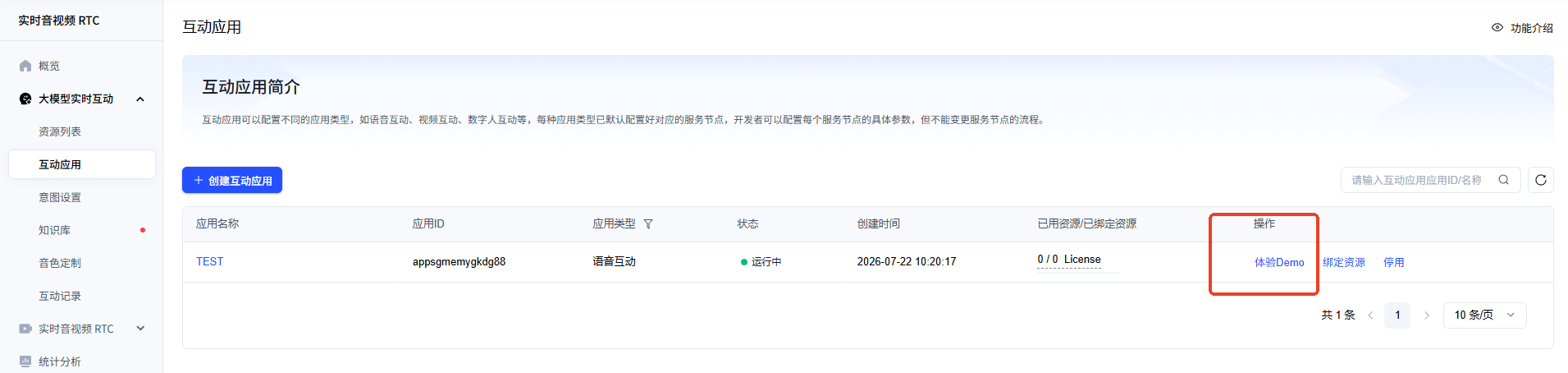
In the Interactive Application list, find the application you want to try and click Try Demo in the Actions column to start an online test.
Common Operations
| Operation | How to do it |
|---|---|
| Edit an application | Click the application name in the list to open its edit page |
| Disable an application | Click Disable in the Actions column on the right of the list |
| Search for an application | Use the search box in the top-right corner to find it by name |
| Try the Demo | Click Try Demo in the Actions column to test it online |
Official documentation: https://cloud.baidu.com/doc/RTC/s/2mcu6ef3g